
You know that feeling, right?
A visitor emails you: “Hey, I can’t find your pricing guide on your website.”
You pause. Because you know it’s there. You uploaded it yourself three weeks ago. It’s a beautiful 12-page PDF sitting right in your Media Library.
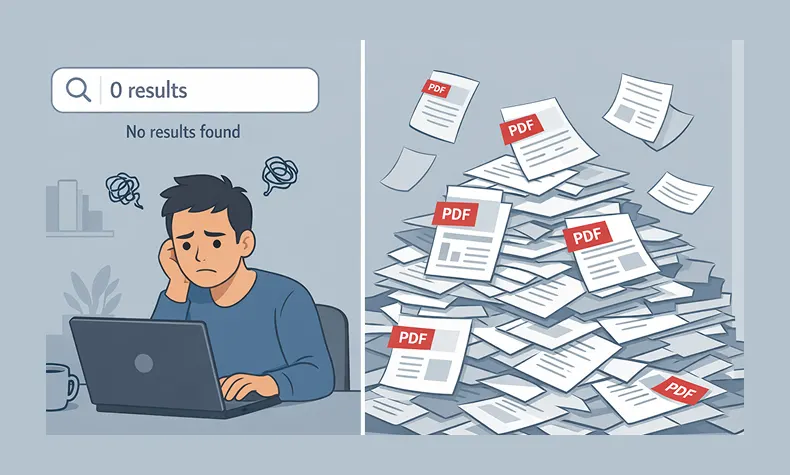
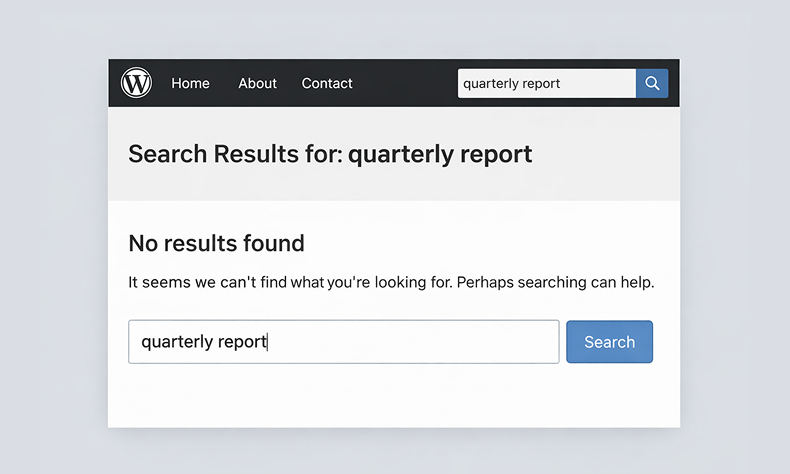
So you go to your own site and search for it.
Nothing.
You try different keywords. Still nothing. You end up manually digging through your Media Library, finding the file, and sending them the direct link.
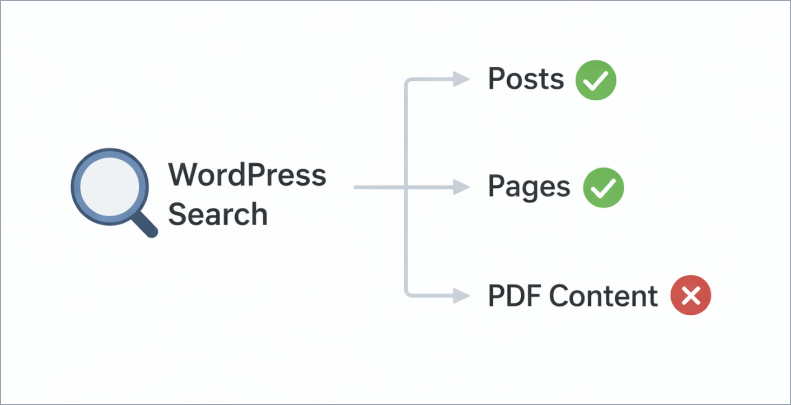
Here’s the thing that’ll really annoy you: WordPress search completely ignores what’s inside your PDF files.
The Problem Nobody Talks About
WordPress has fantastic search functionality. It can find a single word buried in a blog post from 2019. It’ll surface that random product description you wrote at 2am. It’s actually pretty impressive.
But PDFs? Nope. WordPress looks at the filename and stops there.
So if you named your file something like final – version – 2 – UPDATED. pdf (we’ve all done it), good luck having anyone find it through search.
Think about what this actually means for your site:
If you run a documentation site, your users are searching for answers that are literally on your website—they just can’t find them.
If you’re a school or university, students are looking for syllabi, assignment guides, or course materials that exist but are invisible to search.
If you manage an internal knowledge base, your team is wasting time asking questions that have already been answered in those HR handbooks, policy documents, or training guides you uploaded.
The content is there. The answers exist. But it’s like having a library where none of the books are in the catalog.
Why This Happens (The Boring Technical Bit)
Here’s what’s going on under the hood:
WordPress search works by indexing text content from your posts, pages, and custom post types. When you hit that search button, it’s looking through a database of actual words.
PDFs are files. Binary data. WordPress sees them the same way it sees image files—as attachments with metadata (filename, upload date, etc.) but not as searchable content.
To actually search inside a PDF, something needs to:
- Extract the text from the PDF file
- Store that text somewhere searchable
- Include it in search results
- Show relevant excerpts so people know what they’re clicking on
WordPress doesn’t do this out of the box. And honestly, why would it? Not everyone uploads PDFs. It’s not a universal need.
But if you do upload PDFs—especially lots of them—this is a massive blind spot.
What People Usually Try (And Why It Doesn’t Really Work)
When you first discover this problem, the solutions seem obvious:
“I’ll just rename my files with better keywords!”
Okay, but that only helps if someone searches for those exact words in the filename. And you can’t fit much information into a filename before it gets ridiculous: employee-handbook-2024-vacation-policy-sick-leave-benefits-insurance-401k.pdf
“I’ll add descriptions in the Media Library!”
Some themes and plugins let you add descriptions to media files. Great! Except… most WordPress search implementations don’t actually search media descriptions. You’re basically adding metadata that nothing reads.
“I’ll just create posts and link to the PDFs!”
This works! But now you’re maintaining duplicate content. Every time you update a PDF, you need to remember to update the corresponding post. Plus, you’re adding extra clicks—people have to find the post, then click through to the PDF.
None of these are actual solutions. They’re workarounds.
What Actually Works: Making PDFs Searchable
The real solution is extracting the text content from your PDFs and making it searchable, just like your blog posts.
Here’s what that looks like in practice:
When someone uploads a PDF, the system automatically:
- Opens the PDF and extracts all the readable text
- Stores that text in your database
- Indexes it for search (just like post content)
- Links it back to the original PDF file
Then when someone searches your site:
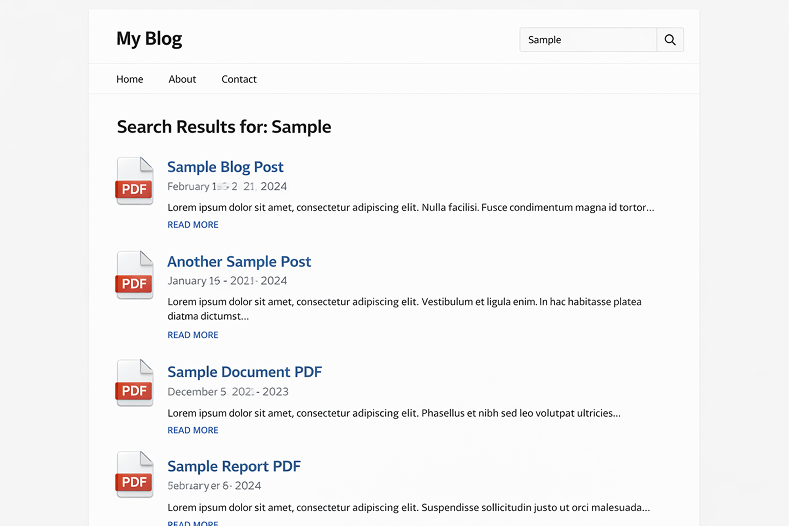
- They get results from posts, pages, and PDFs
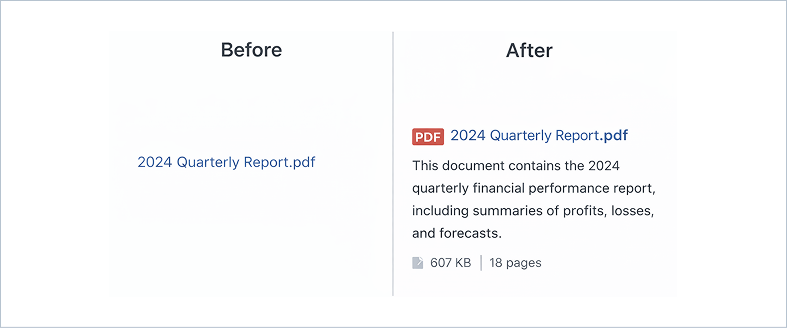
- Search results show actual excerpts from inside the PDF
- They can see if it’s relevant before downloading
- Everything works through your normal WordPress search
No manual work. No duplicate content. No remembering to update things.
The Privacy Question Nobody Asks (But Should)
Here’s something most people don’t think about until it’s too late:
What about PDFs you don’t want people to find through search?
Maybe you have:
- Internal financial documents that are uploaded but should stay private
- Draft versions of public documents
- Sensitive HR files
- Client work that’s not meant to be discoverable
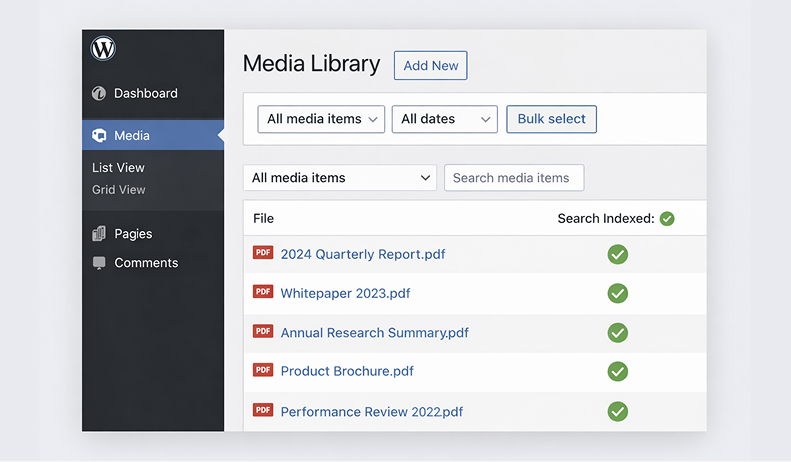
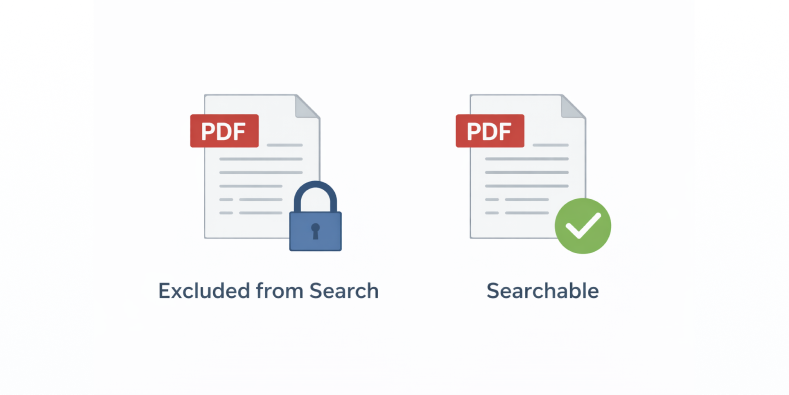
If you’re indexing everything, you need a way to exclude specific files.
This is where most “solutions” fall short. They’re all-or-nothing. Either everything’s searchable or nothing is.
What you actually need is control: “Index this, but not that. And if I re-index everything later, still skip the ones I marked as private.”
What This Looks Like for Real Sites
Let me give you a real scenario:
A university department has 200+ PDFs on their site:
- Course syllabi
- Assignment guidelines
- Reading lists
- Research papers
- Administrative forms
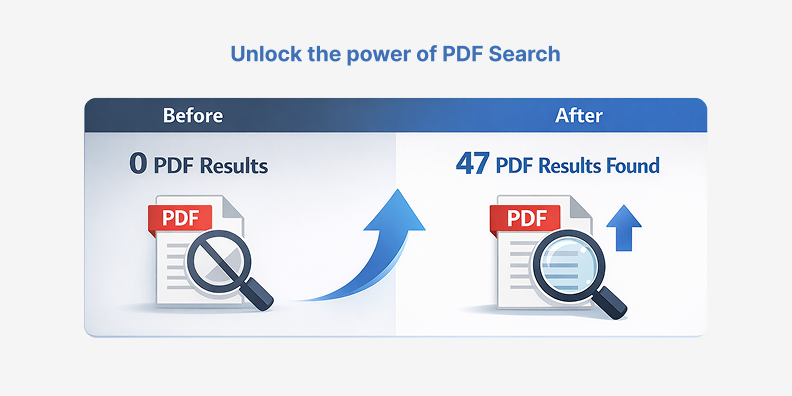
Before making PDFs searchable: Students email the department assistant 15-20 times per week asking where to find documents. The assistant spends hours responding with direct links.
After making PDFs searchable: Students find what they need through site search. Email requests drop to 2-3 per week (and those are usually for things that genuinely don’t exist on the site yet).
The content didn’t change. The documents were always there. The only difference is that now they’re findable.

The Setup (Easier Than You Think)
Here’s what you’d need to do to make this work:
- Install a PDF search solution – Something that handles the text extraction and indexing automatically
- Run initial indexing – Process your existing PDFs (one-time thing)
- Set exclusions – Mark any private PDFs that shouldn’t be searchable
- Done – New PDFs get indexed automatically on upload
That’s it. No ongoing maintenance. No manual updates.
The whole setup takes maybe 5 minutes. The initial indexing depends on how many PDFs you have, but it runs in the background—you can just let it do its thing.
Things to Look For in a Solution
If you’re evaluating options, here’s what matters:
Automatic indexing – You don’t want to manually trigger indexing every time you upload a file. It should just happen.
Exclusion controls – You need to be able to mark specific PDFs as “don’t index this” and have that setting stick even during bulk re-indexing.
Search integration – PDF results should appear in your normal WordPress search, not in some separate search interface.
Background processing – Large PDFs (50MB+) should be processed in the background so they don’t slow down your site or timeout.
File size support – Some solutions cap out at 10-20MB. If you have larger technical documents or image-heavy PDFs, you need something that handles bigger files.
Actual content extraction – This should go without saying, but the solution needs to extract the actual text, not just index metadata. Some plugins claim to make PDFs “searchable” but really just make the filenames searchable.
The Bottom Line
If you have PDFs on your WordPress site, they should be searchable. Period.
It’s not a nice-to-have feature. It’s basic functionality. Your visitors expect it. Your content deserves to be found.
The good news? This isn’t a hard problem to solve anymore. You don’t need to hire a developer or mess with complicated code.
You just need the right tool for the job.
Make Your PDFs Searchable Today
WebEquipe PDF Search is a free WordPress plugin that automatically indexes your PDF content and integrates it with your site’s search. Install it, click one button to index your existing PDFs, and you’re done. Your visitors will finally be able to find the documents they’re looking for.