
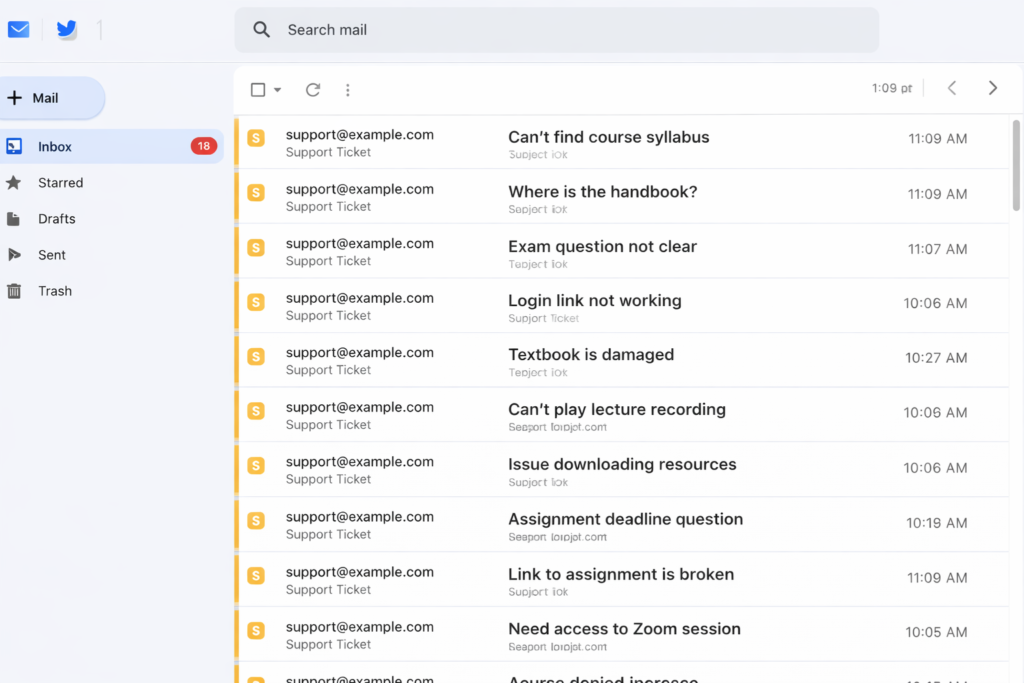
It started with an email from a student at 11:47 PM on a Tuesday.
“Hi, I can’t find the Week 3 reading assignment anywhere on the site. Can you send me the link? My paper is due tomorrow.”
Sarah, our department coordinator, forwarded it to me with a note: “This is the 4th one today.”
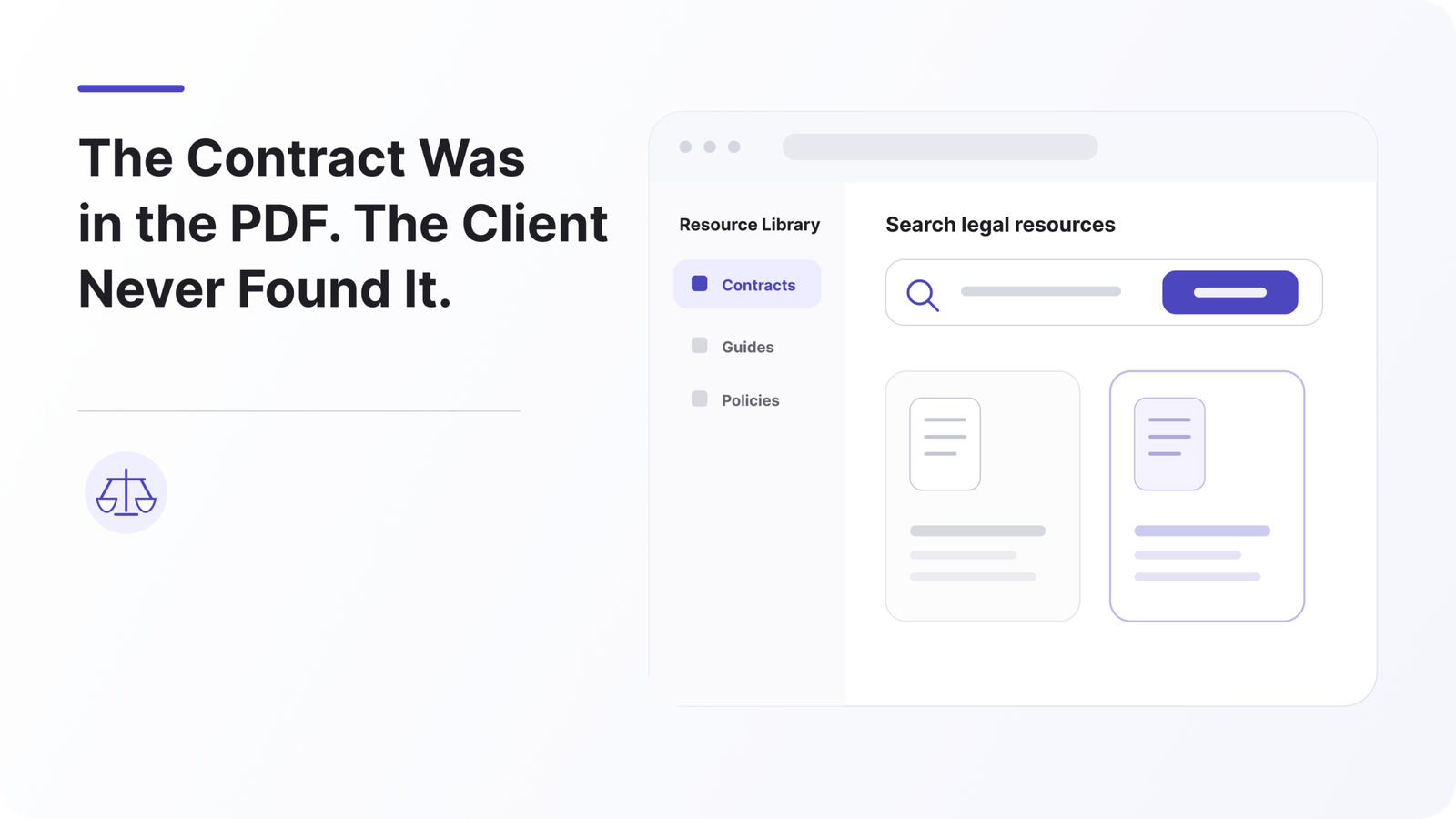
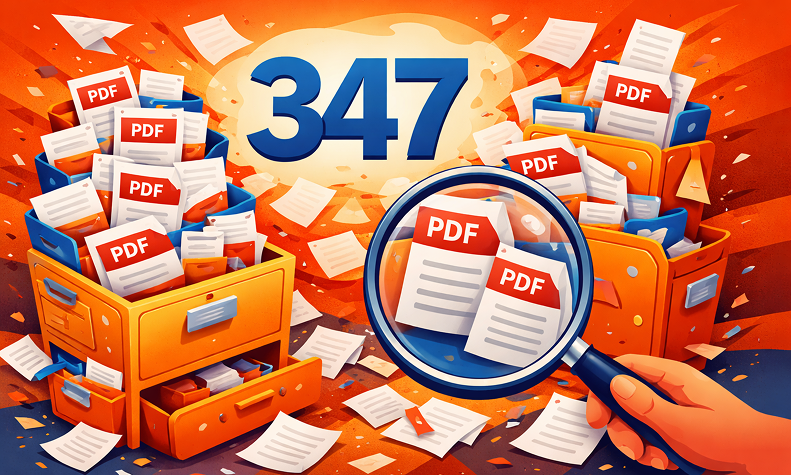
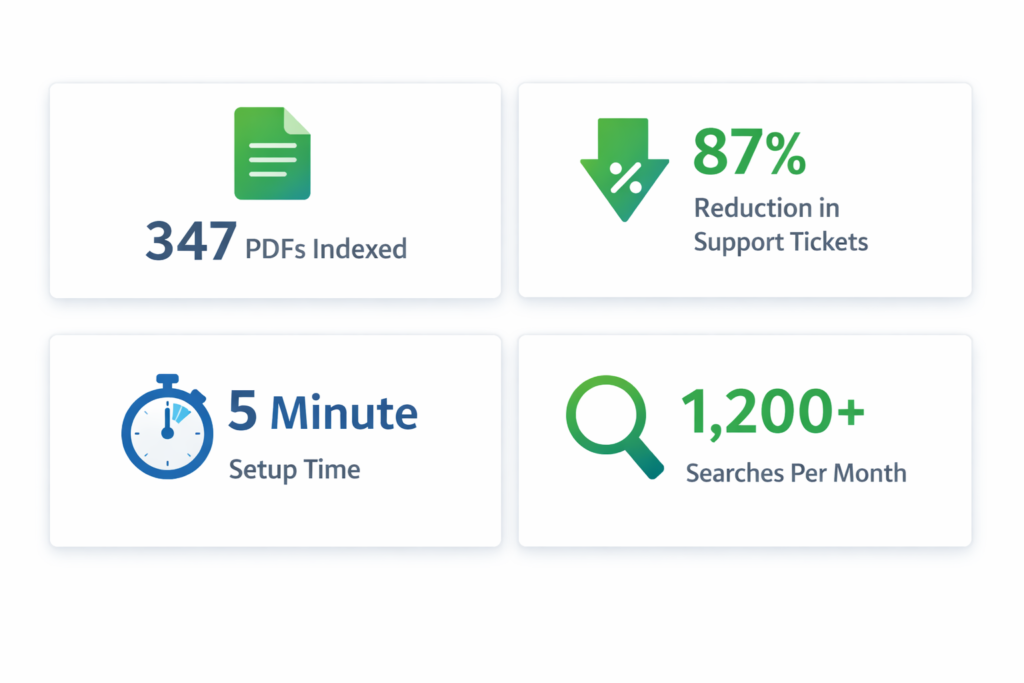
I logged into our WordPress site’s Media Library and did a quick count. We had 347 PDF files. Course syllabi, reading lists, assignment guidelines, research papers, administrative forms—years of accumulated documents.
All of them were uploaded. All of them were on the site. And apparently, none of them were findable.
The Moment We Realized We Had a Problem
Here’s the thing: we thought our site was working fine.
Students could find blog posts about upcoming events. They could search for faculty bios. The main navigation worked perfectly.
But the actual academic content—the stuff students needed to do their coursework—was invisible.
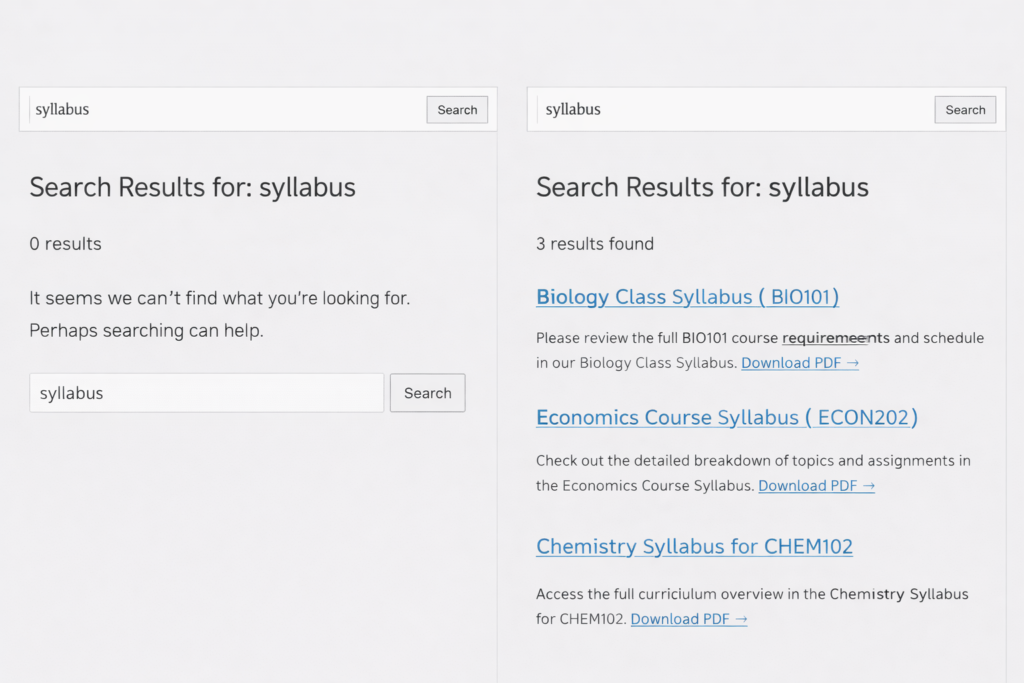
I did a test. I went to our site’s search bar and typed “research methodology syllabus.” I knew we had that document because I’d uploaded it myself last semester.
Zero results.
I tried just “methodology.” Nothing.
I tried the professor’s name. Still nothing.
The only way to find it was to manually browse through the Media Library, which students didn’t have access to anyway.
The Real Cost of Invisible PDFs
Once we started paying attention, the problem was everywhere.
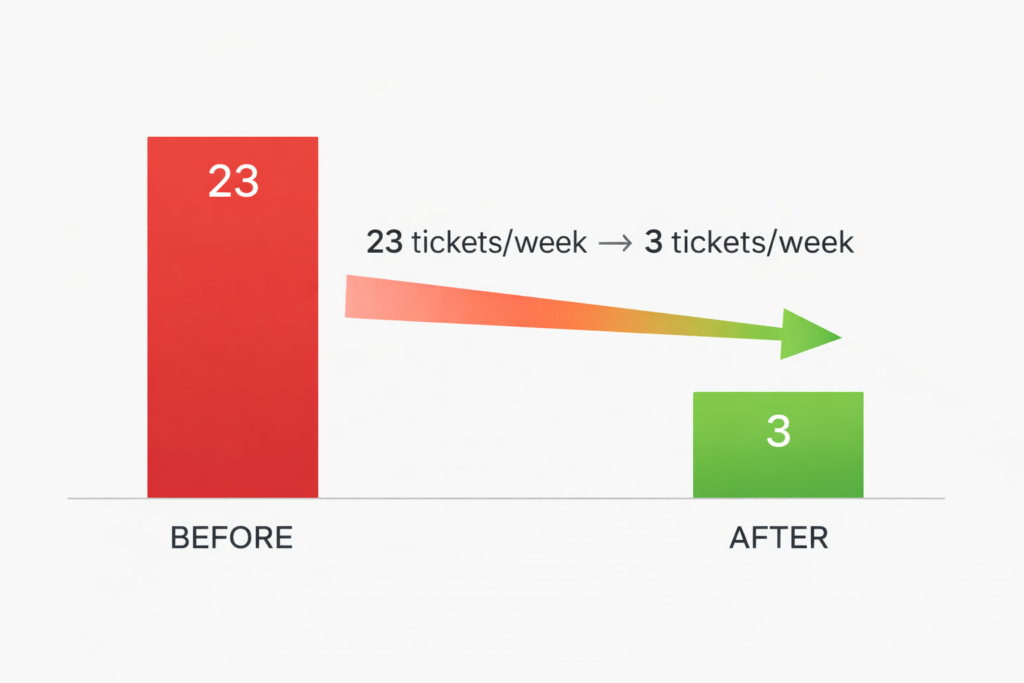
Sarah pulled up her support email folder. In the past month, she’d received 23 emails per week asking where to find documents. That’s not counting the ones that went directly to professors or TAs.
We did some quick math:
- 23 emails per week × 5 minutes per response = 115 minutes per week
- That’s nearly 2 hours every week just sending people direct links to documents
- Over a semester (16 weeks), that’s 30+ hours of administrative time
And that was just the measurable cost. We had no idea how many students:
- Gave up searching and never asked
- Submitted incomplete assignments because they couldn’t find requirements
- Got frustrated and blamed the department for being disorganized
One student told us later: “I honestly thought you guys just didn’t post the materials. I didn’t realize they were there and I just couldn’t find them.”
That stung.
What We Tried First (Spoiler: It Didn’t Work)
Attempt #1: Better File Names
We spent an afternoon renaming PDFs with detailed, keyword-rich names:
- syllabus.pdf → research-methodology-fall-2024-syllabus-prof-johnson.pdf
- reading.pdf → week-3-reading-assignment-social-theory.pdf
It helped a tiny bit. But only if students searched for the exact keywords we’d chosen. And we still couldn’t fit enough context into a filename to make documents truly discoverable.
Plus, we had 347 files. Renaming all of them would take days.
Attempt #2: Create Posts for Everything
Someone suggested creating a blog post for each PDF with a description and download link.
We tried it for one week’s worth of assignments. It was tedious. And then when a professor updated a reading list, we had to remember to update both the PDF and the post.
After two weeks, we had duplicate content that was already getting out of sync. This wasn’t sustainable.
Attempt #3: Better Site Organization
We created a dedicated “Resources” page with categories and links to major documents.
This helped for the main syllabi and handbooks. But we had hundreds of weekly readings, assignment sheets, and supplementary materials. They couldn’t all go on one page—it would be overwhelming.
Plus, students still had to know to go to that page instead of using search.
The Solution We Should Have Found First
Two months into this mess, I was complaining to a colleague at another university.
“How do you handle PDFs on your WordPress site?” I asked.
“What do you mean? We just upload them. Students search for them like anything else.”
I blinked. “Your WordPress search finds content inside PDFs?”
“Yeah, doesn’t yours?”
No. No, it did not.
She explained that they used a plugin that automatically extracts text from PDFs and makes it searchable. When students search the site, they get results from posts, pages, and PDF documents.
“It took like five minutes to set up,” she said. “We haven’t thought about it since.”
I felt like I’d been doing things the hard way for no reason.
Here’s What We Actually Did
I’m going to walk through our exact process because I wish someone had done this for me:
Step 1: Found the Right Tool (15 minutes)
We needed something that:
- Extracted text from PDFs automatically
- Integrated with WordPress’s existing search
- Could handle our 347 existing files
- Didn’t require us to manually trigger indexing for new uploads
We found a free plugin that did all of this. No premium upsell, no complicated setup.
Step 2: Installation (2 minutes)
- Literally: Plugins → Add New → Install → Activate.
- The kind of setup where you wonder if you missed a step because it was too easy.
Step 3: Initial Indexing (5 minutes of work, 2 hours of waiting)
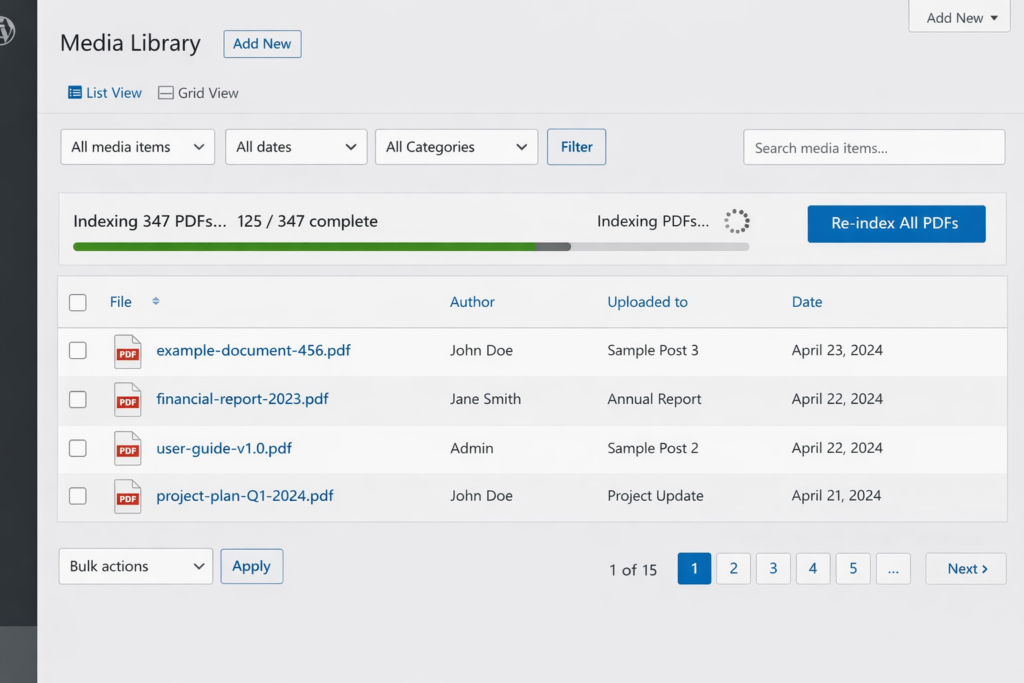
- The plugin had a “Re-index All PDFs” button.
- I clicked it. A progress bar appeared: “Indexing 347 PDFs…”
- The system processed them in batches in the background. I went to lunch. When I came back, it was done.
Step 4: Privacy Check (10 minutes)
We had about 20 PDFs that were administrative documents—internal meeting notes, budget drafts, things students shouldn’t see.
The plugin had an “Exclude” feature. I marked those 20 files as excluded, and they were removed from the search index.
Even better: the exclusion was permanent. When we ran “Re-index All PDFs” again later, those 20 files stayed excluded. No need to remember to skip them manually.
Step 5: Testing (5 minutes)
I went to the site’s search bar and typed “research methodology.”
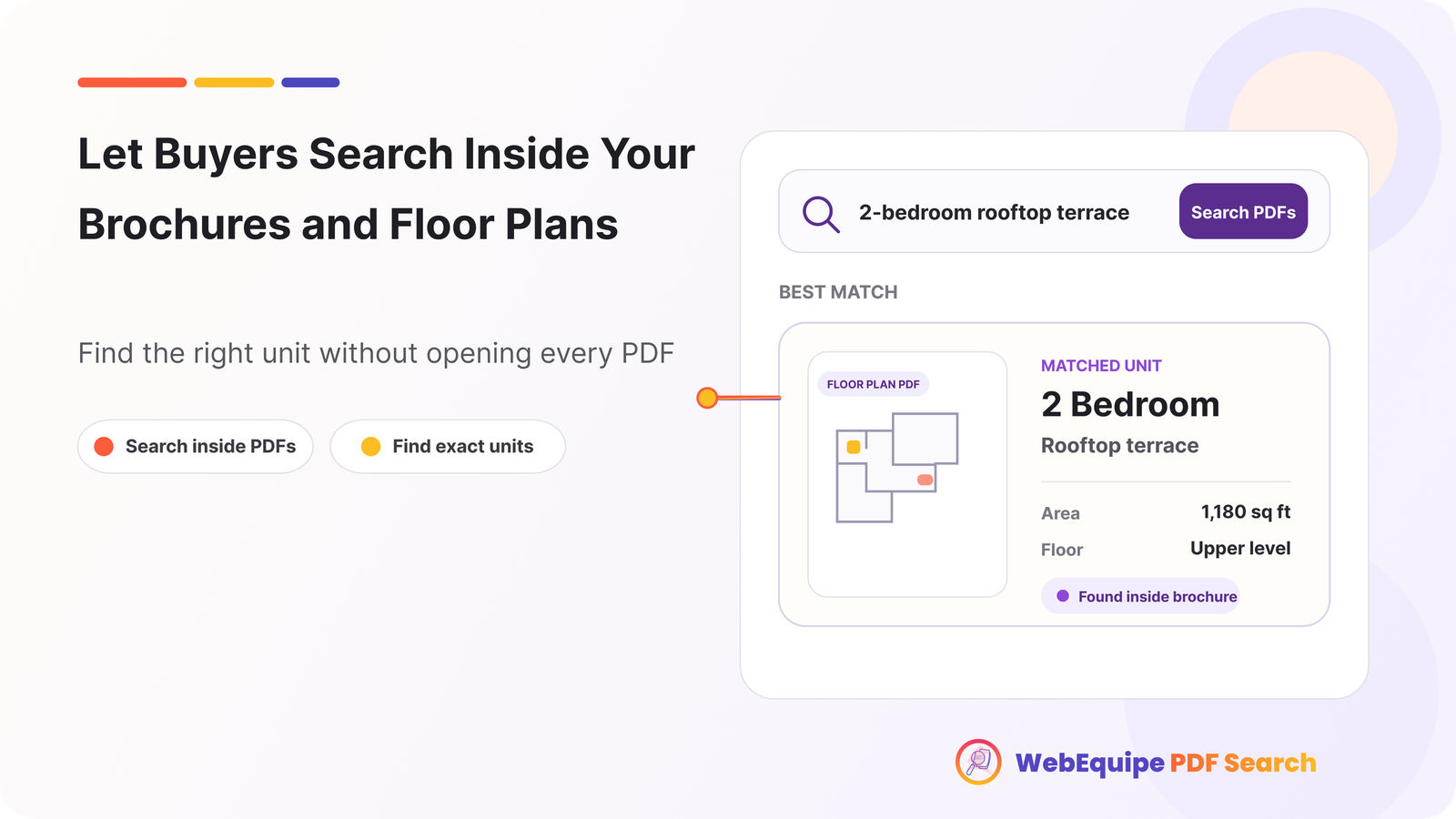
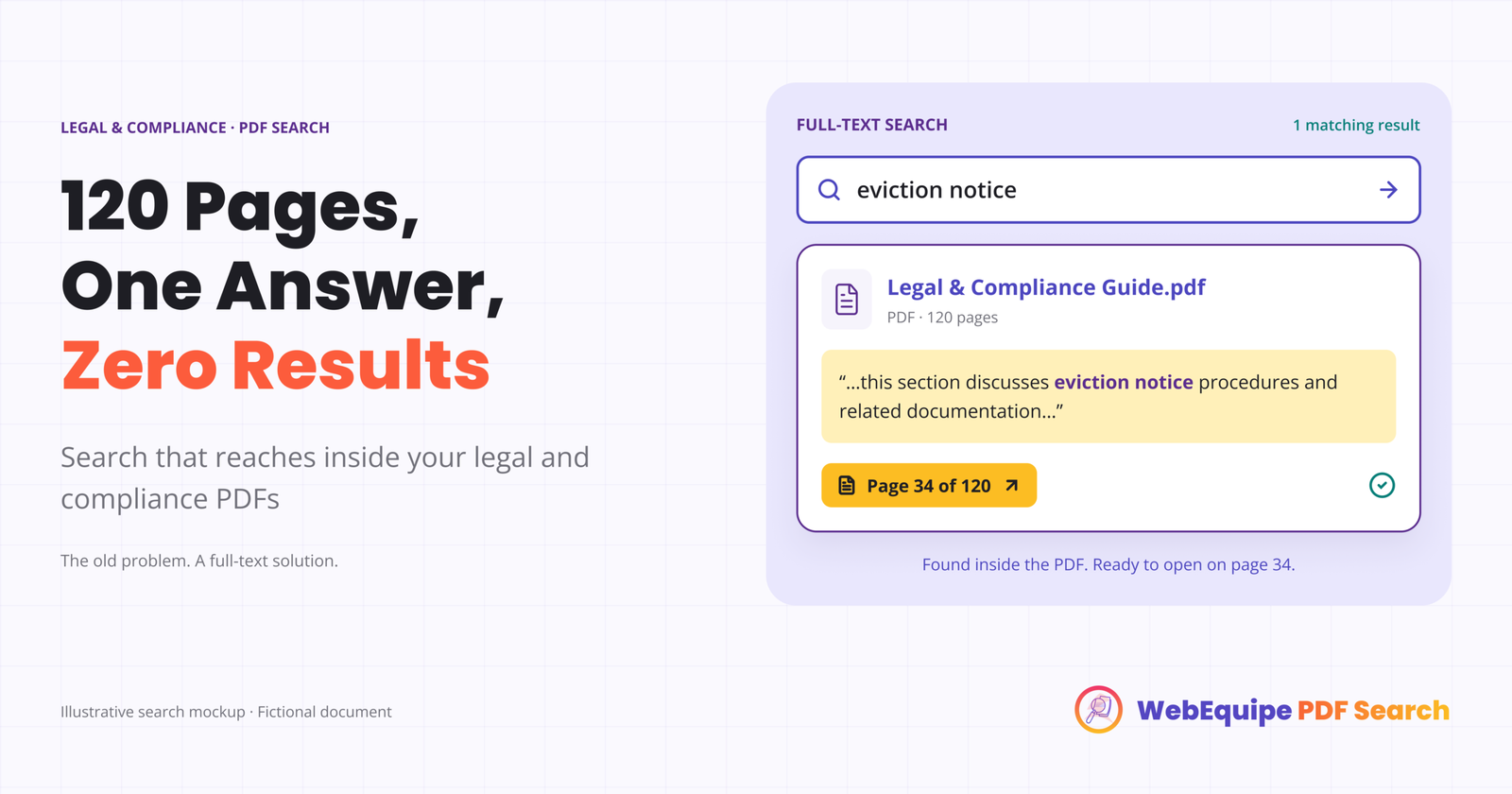
Boom. Four PDFs appeared in the results, including the syllabus I’d been looking for originally. Each result showed:
- PDF icon (so you knew it was a document)
- Title
- Excerpt from inside the PDF with the search term highlighted
- File size and page count
I tried a few more searches. Every single one returned relevant PDFs that had been invisible before.
Total setup time: Less than 30 minutes of actual work.
What Happened Over the Next 30 Days
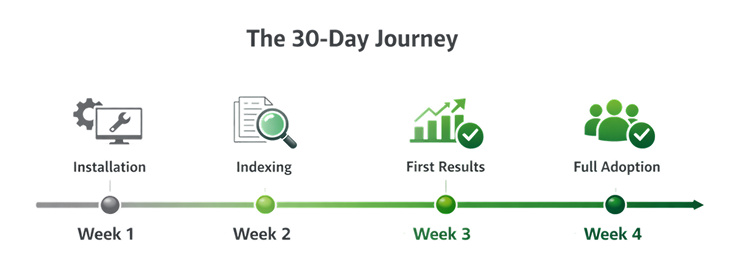
We didn’t announce the change. We just let it work.
Week 1:
Support emails dropped from 23 to 14. Still high, but noticeably better.
Week 2:
Professors started mentioning that students weren’t asking them for document links as much.
One professor emailed: “Did something change with the website? Students seem to be finding things on their own now.”
Week 3:
Support emails down to 6 per week. Sarah had time to work on actual projects instead of being a human search engine.
Week 4:
We were getting 2-3 document requests per week. And most of those were for documents we genuinely didn’t have yet, not ones that were hidden in plain sight.
We checked our analytics. Students were running 1,200+ searches per month on the site. A third of those searches were now returning PDF results.
What We Learned
Looking back, here’s what I wish we’d known from the start:
1.The Problem Was Invisible Until We Measured It
We had no idea how much time we were wasting on findability issues until we started counting support tickets.
If your team is constantly fielding “where is this document?” questions, that’s not normal. That’s a broken search problem.
2.Workarounds Are More Work Than Solutions
We spent weeks trying to rename files, create duplicate posts, and reorganize pages.
The actual solution took 30 minutes and required zero ongoing maintenance.
Stop working around the problem. Fix the problem.
3.Students Won’t Tell You Your Search Is Broken
They’ll just assume you didn’t post the materials, or they’ll give up and ask via email, or they’ll struggle silently.
Your search doesn’t have to be bad for students to stop using it. It just has to be unreliable once.
4.”It’s Free” Doesn’t Mean “It’s Complete”
WordPress is amazing. But it’s a content management system, not a document management system.
If you’re using it to host lots of PDFs, you need to add the missing piece: making those PDFs actually searchable
The Numbers That Matter
After three months of having searchable PDFs:
- 87% reduction in document-finding support tickets (23/week → 3/week)
- 30+ hours saved per semester in administrative time
- 1,200+ searches per month now returning PDF results
- Zero ongoing maintenance—new PDFs get indexed automatically
Would We Do Anything Differently?
Yes. We’d do it sooner.
Those two months we spent trying workarounds? Complete waste of time. If I could go back, I’d skip straight to the real solution.
Also, we’d measure the problem earlier. Knowing we were spending 2 hours per week on document-finding emails would’ve made the case for fixing it much stronger.
If You Have PDFs on WordPress, Do This
I’m going to be direct: if you have more than 10 PDFs on your WordPress site, you probably have this same problem.
You might not notice it because:
- People email you for links instead of complaining about search
- Users find PDFs through Google instead of your site search
- You’re used to manually sending document links
But the problem is there.
The good news? It’s incredibly easy to fix.
Make your PDFs searchable. It takes less time than reading this blog post did.
Your users will find what they need. Your support team will thank you. And you’ll wonder why you didn’t do it sooner.
Make Your PDFs Searchable in Minutes
WebEquipe PDF Search is the free plugin we use to make our 347 PDFs searchable. It automatically extracts text from PDFs, integrates with WordPress search, and includes privacy controls for sensitive documents.
Setup takes less than 5 minutes. Your PDFs will finally be findable.
Download free from WordPress.org →