
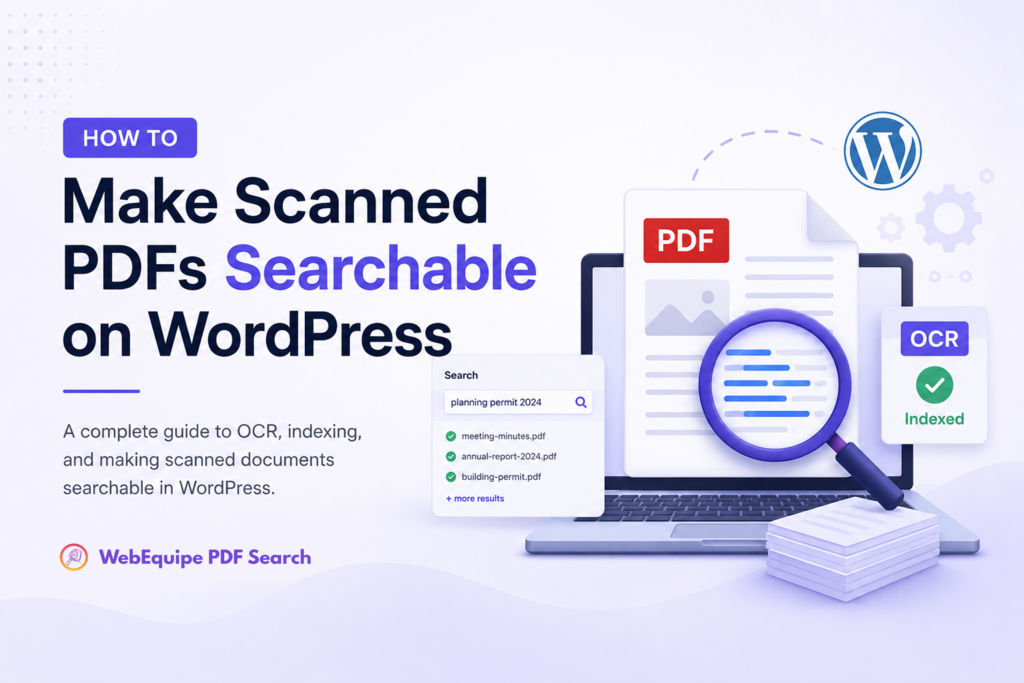
Two types of PDFs exist on most WordPress sites — only one is searchable by default. Most site owners don’t know which of their PDFs are scanned. This guide explains the difference, how to check, and how to make scanned documents searchable.
The Difference Between Text PDFs and Scanned PDFs
- Text-based PDF: created digitally in Word, Google Docs etc. Contains actual text layer. Any search plugin can read it.
- Scanned PDF: a photograph of a physical page. No text layer. Just pixels.
- How to tell: open PDF in browser, try to select text. If you can highlight words → text-based. If selection draws a rectangle → scanned.
Why Scanned PDFs Are Invisible to WordPress Search
- WordPress search queries post_content field
- PDF plugins extract text from PDFs and store it
- Extraction works by reading the text layer
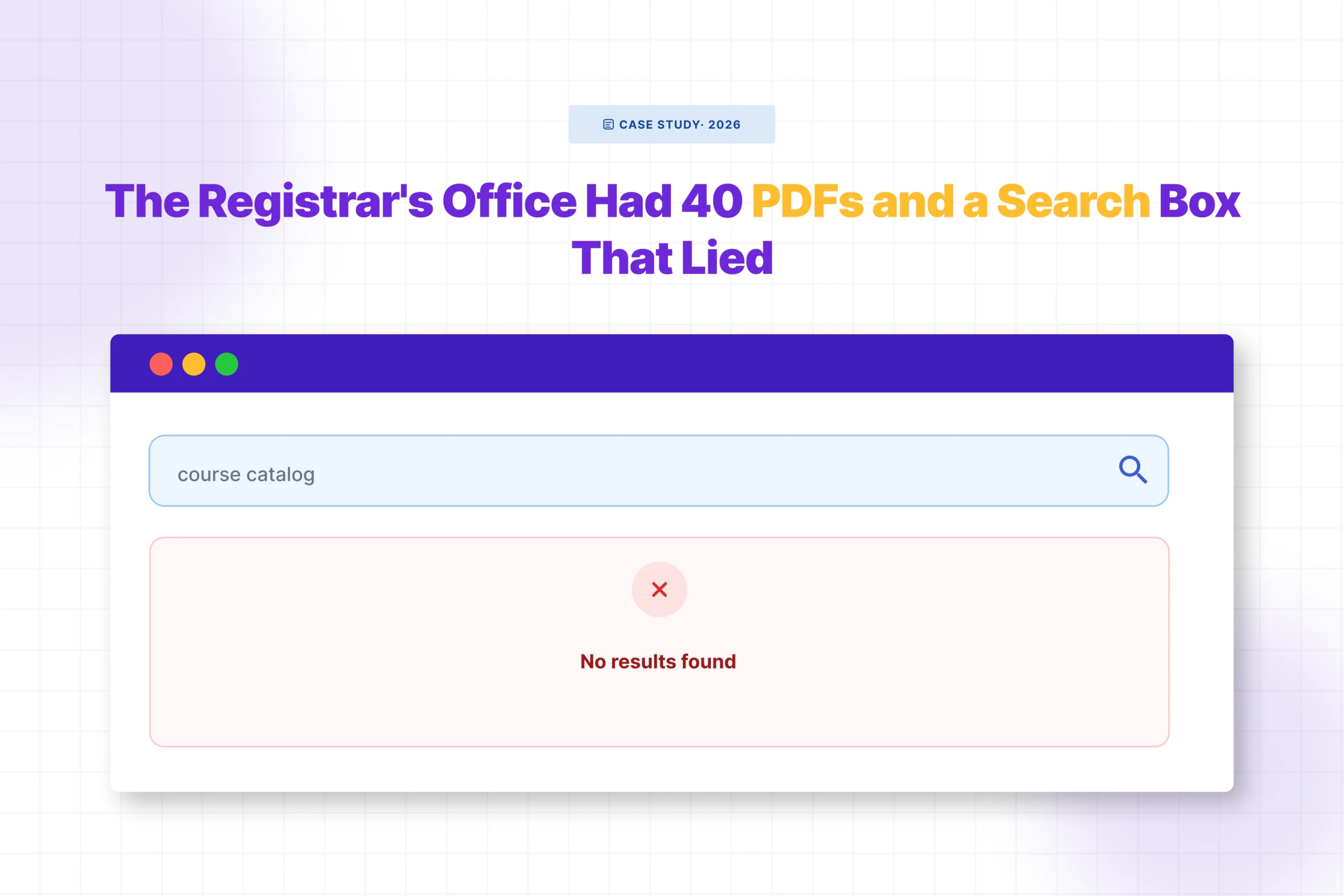
- Scanned PDFs have no text layer — extraction returns empty
- No error shown — just silently returns nothing
Step 1 — Set Up the Free Plugin (Text PDFs)
- Install WebEquipe PDF Search from WordPress.org
- Activate, go to Settings → PDF Search → Re-index All PDFs
- Test: search a term inside a text-based PDF
- Stop here if this covers your needs
Step 2 — Enable OCR for Scanned PDFs (Pro)
- Upgrade to Starter or higher
- Settings → PDF Search → OCR → enable
- Enter Google Vision API key
- Click Bulk OCR Scan
- Test: search a term from a scanned document
What to Expect After OCR
- Previously invisible scanned PDFs appear in search
- Text excerpts show matched content
- New scanned PDFs OCR’d automatically on upload
Common Questions
- Does OCR work on password-protected PDFs? Yes on paid plans
- What languages? Google Vision supports 50+ automatically
- What happens when OCR limit hit? Queue until next cycle
Conclusion
If you have scanned documents on your site, the free plugin won’t index them. OCR is the only way — PDF Search Pro has it built in.