
A PDF nobody can find might as well not exist. A WordPress PDF library plugin fixes that by putting your documents on one searchable front-end page. Visitors can browse, filter, preview and download files without digging through menus or the Media Library.
The plugin works by importing, organizing and indexing your PDFs, then showing them through a shortcode or block. You’ll find 6 main types, from document libraries to AI search tools. The key features include full-text search, OCR for scanned PDFs, access control and download tracking.
AI is changing the category too, from WordPress core’s AI Client to semantic search and AI agents. Below, you’ll see the 8 best WordPress PDF library plugins for 2027 and what each one costs. You’ll also learn the benefits, how to create a PDF library in WordPress and how to maintain it.
What Is a WordPress PDF Library Plugin?
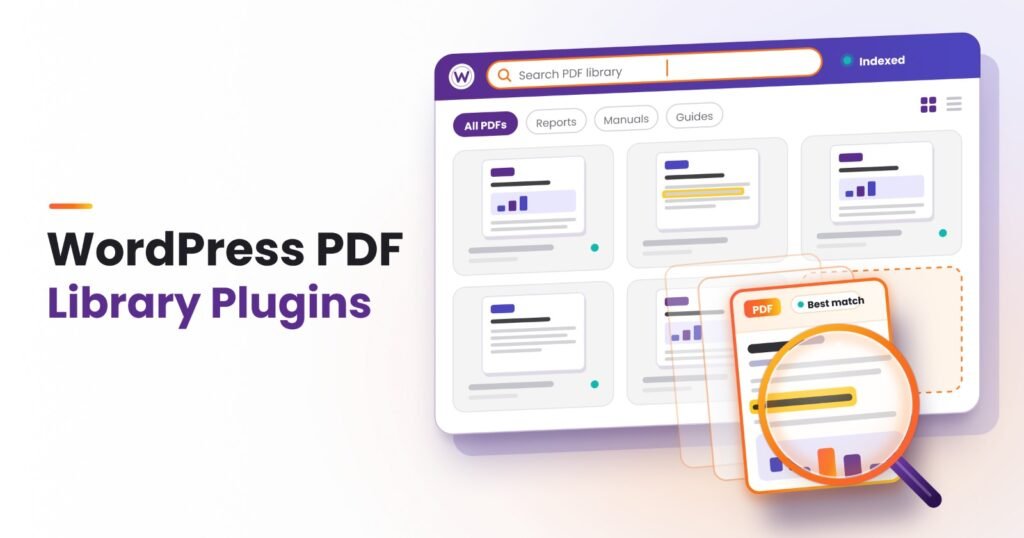
A WordPress PDF library plugin is a tool that displays many PDFs on one front-end page. Visitors can search, filter, preview and download documents from that single page. Your Media Library files become a public document repository.
A PDF library differs from a PDF embedder, though. An embedder shows a single document inside a post, while a library organizes dozens or even thousands.
How Does a WordPress PDF Library Plugin Work?
A WordPress PDF library plugin works by importing, indexing and displaying your PDFs on one page. Core WordPress search only reads a file’s title and description. So the plugin builds its own index to search inside PDF files.
6 steps of how a WordPress PDF library plugin works are given below.
- Upload or bulk import PDFs. Add files singly or import hundreds with drag-and-drop or CSV.
- Organize PDFs with categories, tags or folders. Custom taxonomies group files by topic, year or department.
- Extract and index the text. The plugin reads each text layer, and OCR handles scanned pages.
- Display the library with a shortcode or block. Drop it into any page or post.
- Let visitors search, filter and preview. AJAX search shows matches instantly while filters narrow the results.
- Control access and track downloads. Role-based access hides private files, and logs show what people open.
What Are the Types of WordPress PDF Library Plugins?
WordPress PDF library plugins come in 6 main types, from full document libraries to PDF search tools. Each type solves a different job for your files.
The 6 types of WordPress PDF library plugins are given below.
- Document library plugins. List files in searchable tables or folders, like Document Library Pro.
- File and download manager plugins. Handle gated downloads, versions and stats, like WordPress Download Manager.
- Media folder plugins with document galleries. Turn Media Library folders into front-end galleries, like FileBird Document Library.
- PDF viewer and embedder plugins. Show one PDF in a page with zoom and navigation, like PDF Embedder.
- PDF flipbook plugins. Turn a PDF into a 3D flipbook, like EmbedPress.
- PDF search and AI search plugins. Index the text inside PDFs for site search, like WebEquipe PDF Search.
What to Look for in a WordPress PDF Library Plugin?
A WordPress PDF library plugin for 2027 should offer full-text search, OCR, access control and usage data. Layouts and cloud sync matter as your library grows.
8 features to look for in a WordPress PDF library plugin are outlined below.
- Full-text search inside PDFs. Visitors should find a phrase on page 40, not just a file name.
- OCR for scanned PDFs. Scanned files have no text layer, so OCR is the only way to make scanned PDFs searchable.
- Filters, sorting and shareable filtered URLs. Multi-select filters narrow results fast, and shareable URLs send a pre-filtered view.
- Table, grid and folder layouts. Tables suit long lists, grids suit visual covers, and folder trees suit nested departments.
- Access by role, user, password or membership. Private files should stay hidden from logged-out visitors.
- Preview and page-number linking. Results that link to the exact PDF page save readers a long scroll.
- Download tracking and search analytics. Download stats and zero-result searches show what visitors want and what’s missing.
- Cloud sync and version control. Two-way cloud sync keeps files current, and version control stops old copies from lingering.
Document Library Pro 4.0, released August 13, 2026, searches inside files on its Advanced plan. Scanned PDFs still need OCR.
How Is AI Changing WordPress PDF Library Plugins?
AI is changing WordPress PDF library plugins by moving search from exact keywords to meaning, answers and automation. Core WordPress now ships the building blocks, and plugins add the rest.
6 AI changes that shape WordPress PDF library plugins for 2027 are given below.
- AI in WordPress core. WordPress 7.0 “Armstrong” arrived on May 20, 2026. The release added an AI Client, the Abilities API and a Connectors screen for API keys.
- Semantic search with embeddings. Embeddings match searches by meaning, not exact words. Support missed WordPress 7.1 and moved to the 7.2 milestone. Vector search remains an AI plugin experiment.
- AI OCR for scanned PDFs. WebEquipe PDF Search Pro uses Google Vision OCR to read scanned and image-based PDFs on upload. Recognition works in more than 50 languages.
- Answers and chat from PDF content. AI chat tools answer visitor questions from text PDFs, with source links. AskMyPages is an early example, but it skips scanned PDFs.
- AI agents through the MCP Adapter. The MCP Adapter, with 50,000+ active installs, lets AI agents use site functions through the Abilities API. You decide which abilities agents can reach.
- AI accessibility tagging for PDFs. Adobe’s PDF Accessibility Auto-Tag API tags headings, lists and tables for screen readers. Its report still flags content that needs a human check.
AI needs a connected provider, so protect private PDFs before you turn it on.
What Are the Best WordPress PDF Library Plugins for 2027?
The best WordPress PDF library plugins for 2027 are WebEquipe PDF Search Pro and Document Library Pro. WP File Download, FileBird, WordPress Download Manager, Download Monitor, PDF Embedder and EmbedPress complete the top 8. Each one fits a different job.
The 8 best WordPress PDF library plugins for 2027 are reviewed below. Prices were checked in October 2026.
1. WebEquipe PDF Search Pro: Best for Full-Text and Scanned PDF Search
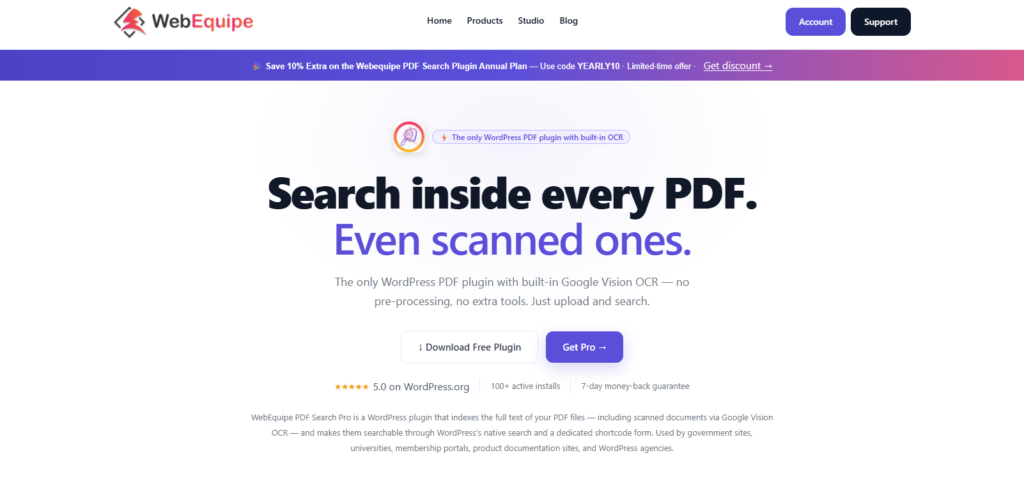
WebEquipe PDF Search Pro is the strongest pick for searching the words inside every PDF. It adds a full-text index to your site search, so visitors find PDFs by what they say.
The free version indexes text-based PDFs as soon as you upload them. Paid plans add Google Vision OCR for scanned files in 50+ languages. Results also link to the exact PDF page and can open in a DearFlip viewer.
Pro and Agency add private PDF search and an analytics dashboard with zero-result searches. It’s a search layer rather than a library layout. So pair it with any library plugin on this list.
Best for: Sites with large or scanned PDF archives that visitors need to search.
Starting price: Starter costs $89 a year for 1 site and 1,000 OCR pages a month. Pro costs $169 for 5 sites, and Agency costs $529 for unlimited sites.
2. Document Library Pro: Best All-Round Front-End Library
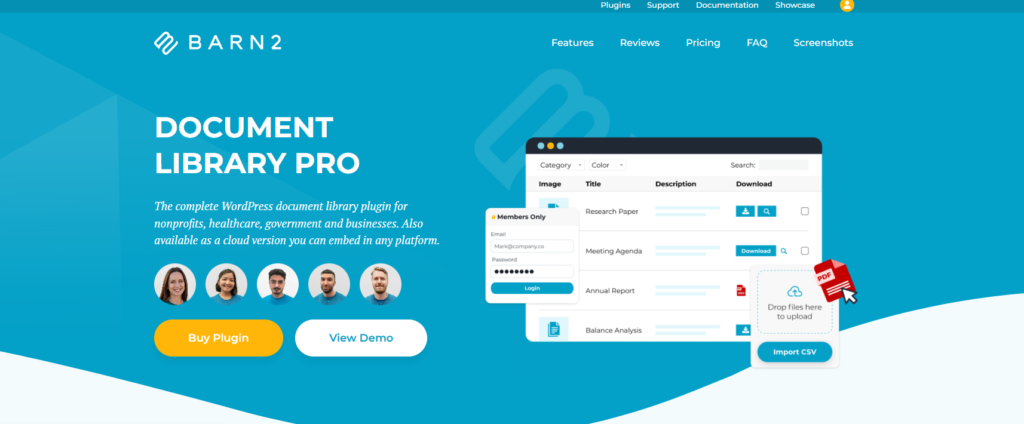
Document Library Pro is the most complete front-end library plugin for most sites. Over 14,000 websites use it, and it averages 4.99 out of 5 across 89 reviews.
You can show documents in table, grid or folder layouts. Access rules work by user role, individual user or password. Bulk import and version control keep large libraries tidy.
Version 4.0 also added multi-select filters, filter counts, shareable URLs and infinite scroll. Those upgrades make big libraries much easier to browse.
Best for: Businesses, schools and membership sites that want a browsable document library.
Starting price: Essentials costs $149 a year for 1 site. Advanced costs $199 and adds search inside file contents. A free Lite version is available.
3. WP File Download: Best for Cloud-Synced Libraries
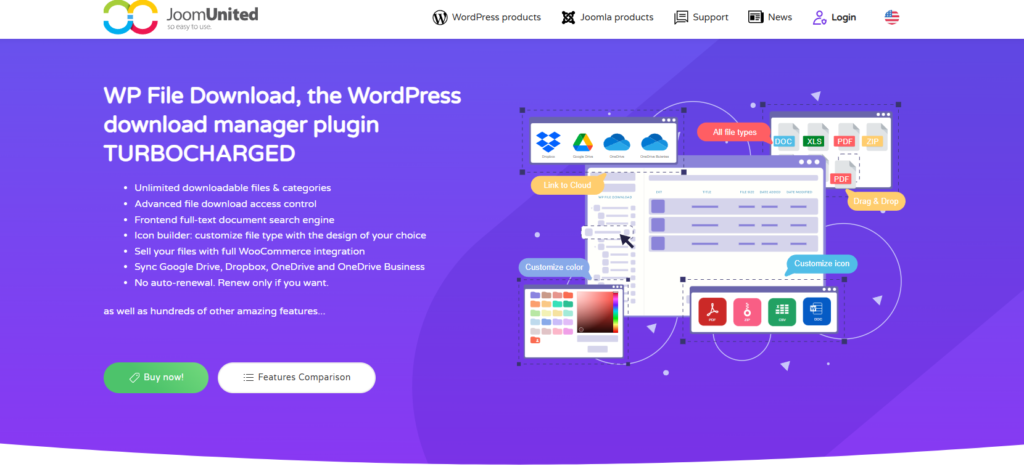
WP File Download is the best pick when your PDFs already live in cloud storage. JoomUnited’s plugin keeps a WordPress library in two-way sync with your cloud folders.
It connects to Google Drive, Dropbox, OneDrive, Amazon S3 and Nextcloud. Full-text document search indexes files in the background. Versioning and category, tag and date filters come built in.
WP File Download has no free WordPress.org version, so you can’t test it for free. OCR for scanned PDFs isn’t listed either.
Best for: Teams that already manage documents in Google Drive, Dropbox or OneDrive.
Starting price: $49 a year covers unlimited sites. The $69 bundle adds the cloud add-on, and licenses don’t auto-renew.
4. FileBird Document Library: Best Budget Folder-Based Library
FileBird Document Library is a low-cost way to turn Media Library folders into a front-end library. It builds on the FileBird folder plugin, version 5.0 or higher.
The free version, with 5,000+ active installs, offers grid and list layouts and a download button. Visitors can sort files by name, date or size.
Pro adds folder tree navigation, bulk download and custom metadata fields. Encrypted download URLs and link expiration protect private files. Search inside PDF text isn’t listed as a feature.
Best for: Small sites on a tight budget that already organize files in folders.
Starting price: Pro costs $39 a year for 1 site, and lifetime plans start at $59.
5. WordPress Download Manager: Best for Gated Downloads
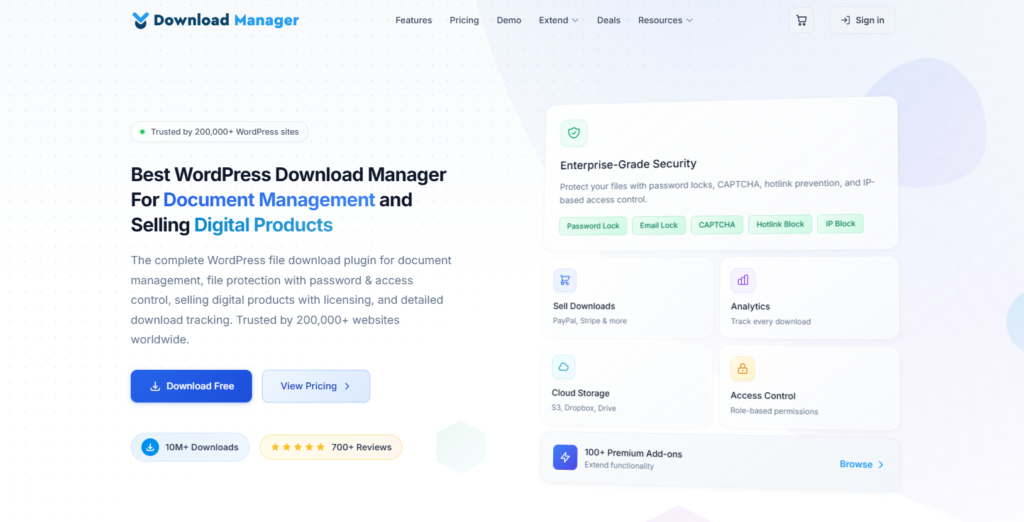
WordPress Download Manager is the best choice when you need to control who downloads each file. It turns PDFs into managed downloads rather than a browsing library.
You can lock files behind a password, user role, email address or social share. Email locks double as a lead magnet. Multi-file packages bundle related PDFs into one download.
Download statistics show which files people grab most. Search inside PDF content isn’t listed on its feature page.
Best for: Lead magnets, members-only resources and other gated documents.
Starting price: A free version is available. Pro costs $99 a year for 1 site.
6. Download Monitor: Best for Download Tracking

Download Monitor is the best pick for tracking every PDF download. It has 80,000+ active installs on WordPress.org.
Download reports show trends for each file over time. You can store several file versions under one download. A Download Button block places links in any post.
Developers get a REST API, and Multisite networks can set uploads folders per site. Like most download managers, it doesn’t list search inside PDF text.
Best for: Sites that need clear download reports more than a browsing layout.
Starting price: A free version is available. Basic costs $69 for the first year, then renews at $138.
7. PDF Embedder: Best Single-PDF Viewer
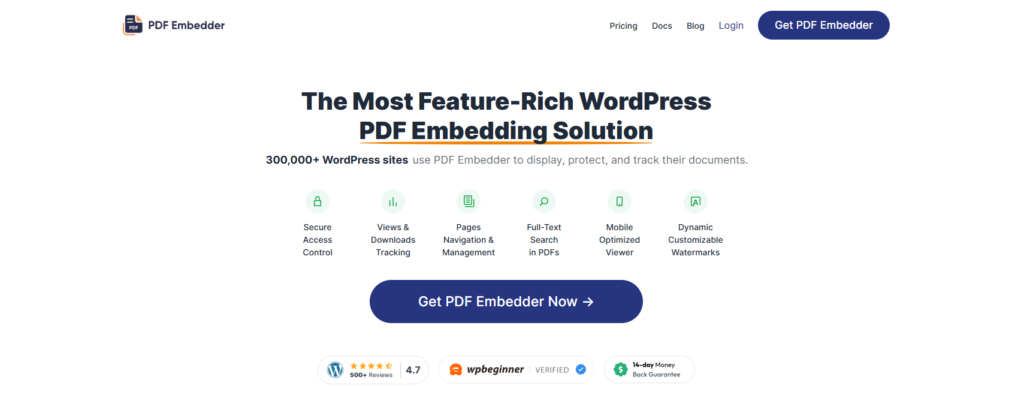
PDF Embedder is the best plugin for showing one PDF inside a page. With 300,000+ active installs and a 4.7 out of 5 rating, it’s the most popular pick here.
The free version embeds a PDF straight into a post or page. Premium adds jump to page, full-text search within a PDF, continuous scroll and view tracking. The Pro plan adds secure viewing and watermarks.
It isn’t a library, though. Pair it with a library plugin when you need many documents on one page.
Best for: Reports, menus or guides that readers should view without downloading.
Starting price: Basic covers 1 site for $29.50 in year one, then renews at $59.
8. EmbedPress: Best for PDF Flipbooks and Galleries
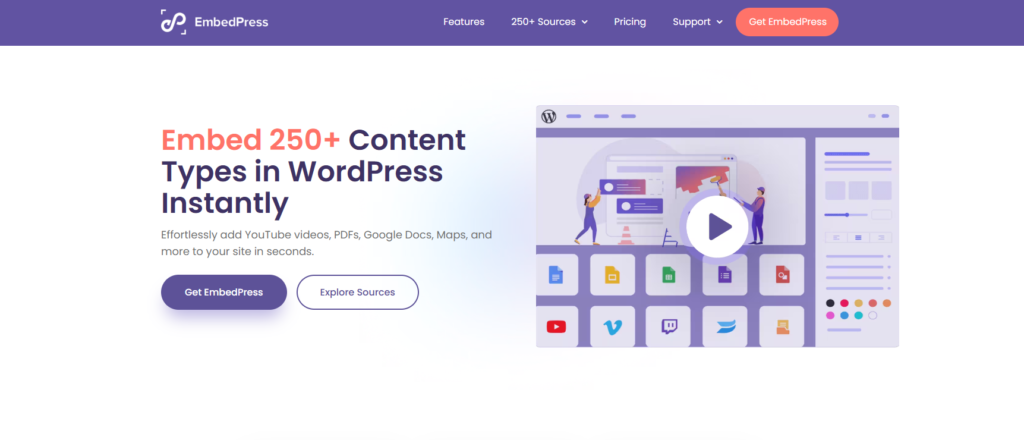
EmbedPress is the best pick for turning PDFs into flipbooks and visual galleries. It has 100,000+ active installs and embeds content from many other sources too.
One click turns any embedded PDF into a 3D flipbook with a toolbar and sound effects. The PDF Gallery shows many files in grid, masonry or carousel layouts. Each file opens in a popup viewer.
It doesn’t list search inside PDF text, so it suits showcases more than archives.
Best for: Catalogs, magazines, brochures and portfolios that should look polished.
Starting price: A free version is available. Pro lists at $69 a year for 1 site but often runs discounted.
Which WordPress PDF Library Plugin Searches Inside PDF Files?
WebEquipe PDF Search, Document Library Pro and WP File Download all search inside PDF files. WebEquipe’s free version indexes text-based PDFs, and Google Vision OCR reads scanned PDFs from the Starter plan.
Document Library Pro only searches inside files on its Advanced plan. WP File Download includes full-text search by default.
Folder tools like FileBird Document Library and Filr don’t list search inside PDF text. Also, neither WebEquipe PDF Search nor SearchWP can index password-protected PDFs.
What Is the Best Free WordPress PDF Library Plugin?
Document Library Lite is the best free WordPress PDF library plugin. With 4,000+ active installs, it shows documents in searchable, sortable tables through one shortcode.
FileBird Document Library is free too, but it needs FileBird 5.0 or higher. Add the free WebEquipe PDF Search plugin to search text inside PDFs.
Lite can’t search file contents, since that needs Document Library Pro’s Advanced plan. Free plans also skip OCR.
How Much Do WordPress PDF Library Plugins Cost?
Most top picks have a free version, and one-site paid plans run $29.50 to $149 a year. Several first-year prices are discounts, so check renewal rates.
Five factors move the price: number of sites, search inside files, OCR volume, cloud add-ons and license type. OCR is priced by scanned pages per month. WebEquipe’s paid plans include 1,000, 3,000 or 10,000 pages.
The starting prices of the top WordPress PDF library plugins are shown in the table below. Prices were checked in October 2026.
| Plugin | Free version | Starting paid price | Sites on starting plan | Search inside PDFs | OCR for scanned PDFs |
| WebEquipe PDF Search Pro | Yes, text PDFs | $89/yr Starter | 1 | Yes, free | Starter and up |
| Document Library Pro | Lite version | $149/yr Essentials | 1 | Advanced, $199/yr | No |
| WP File Download | No | $49/yr | Unlimited | Yes | Unlisted |
| FileBird Document Library | Yes, FileBird 5.0+ | $39/yr Pro | 1 | Unlisted | No |
| WordPress Download Manager | Yes | $99/yr Pro | 1 | Unlisted | Unlisted |
| Download Monitor | Yes | $69 first year, $138 renewal | 1 | Unlisted | Unlisted |
| PDF Embedder | Yes | $29.50 first year, $59 renewal | 1 | In-viewer, Premium | Unlisted |
| EmbedPress | Yes | $69/yr Individual | 1 | Unlisted | Unlisted |
What Are the Benefits of a WordPress PDF Library Plugin?
The benefits of a WordPress PDF library plugin are faster discovery, fewer support emails and safer access. You also gain usage data and wider reach in Google.
6 benefits of a WordPress PDF library plugin are given below.
- Faster document discovery. Visitors type a phrase and land on the right file in seconds, not minutes.
- Fewer repeat support requests. Fewer “where’s the PDF?” emails arrive when customers can search product manuals themselves.
- Secure members-only access. Role and password rules keep private files away from logged-out visitors.
- Download and search insights. Reports reveal your most popular files and the topics people can’t find.
- Mobile-friendly browsing. Responsive tables and grids work comfortably on any phone.
- Wider search visibility. Google lists PDF as an indexable file type, so public library files can rank in search.
How to Create a PDF Library in WordPress?
To create a PDF library in WordPress, install a library plugin, then upload, index and publish your PDFs. A quick checklist to make PDFs searchable in WordPress saves hours of fixes later.
7 steps to create a PDF library in WordPress are given below.
- Prepare your PDFs. Confirm each file has a text layer, a clear name, a sensible size and tags.
- Choose and install a PDF library plugin. Match it to your main job, then run its setup wizard.
- Upload or bulk import the PDFs. Use drag-and-drop, the Media Library or a CSV import for big batches.
- Organize them with categories, tags or folders. A clear folder hierarchy makes filters useful from day one.
- Turn on full-text indexing and OCR. Check the index status so every file becomes searchable.
- Add the library to a page. Place a shortcode, or insert a block in the block editor.
- Set access rules and test search. Lock private files, then test real searches on desktop and mobile.
How to Maintain a WordPress PDF Library?
To maintain a WordPress PDF library, re-index changed files, review search data and retire outdated documents. A short monthly check keeps results accurate.
6 ways to maintain a WordPress PDF library are outlined below.
- Re-index PDFs after you replace or update them. Old indexes return stale text and wrong page numbers.
- Review zero-result searches. Failed searches point straight at content gaps your library should fill next.
- Retire or expire outdated documents. Set expiry dates so old price lists and forms don’t confuse readers.
- Fix PDFs that fail to index. Scanned, locked and corrupted files are the usual PDFs WordPress can’t index.
- Update plugins and confirm WordPress support. Confirm each update supports the latest WordPress release.
- Check new PDFs for accessibility tags. Tagged PDFs work with screen readers, so check tags before each upload.
Are Premium WordPress PDF Library Plugins Worth It?
Yes, premium WordPress PDF library plugins are worth it because they search inside files and scanned PDFs. A free plugin is enough for a small library of text-based PDFs.
Premium pays off once you need OCR, members-only access or an analytics dashboard. Priority support helps too when a file refuses to index.
How Many OCR Credits Does a PDF Library Need?
A PDF library needs one OCR credit for every scanned page, and selectable-text PDFs use none. Start by counting your one-time backlog of scanned pages. Old scanned reports often run 10 to 50 pages, while forms run 1 to 3.
Then estimate how many scanned pages you add each month. Unused credits reset each billing cycle. Scans over the limit are queued, not lost.
A detailed breakdown shows how many OCR credits common libraries use.
How Many PDFs Can a WordPress PDF Library Hold?
A WordPress PDF library can hold hundreds or thousands of PDFs. The real limits come from hosting storage, upload size and indexing limits, not the plugin itself.
WebEquipe PDF Search indexes files up to 50MB by default, and you can raise that to 500MB. Files over 10MB process in the background. Document Library Pro 4.0 uses lazy loading and pre-computed indexes to keep large libraries quick.
Do PDF Library Plugins Slow Down WordPress?
No, PDF library plugins do not slow down WordPress because heavy indexing work runs in the background. Indexing can raise resource use slightly while files process. Most of that work happens away from your visitors.
On the front end, lazy loading and infinite scroll keep long lists light. Searches read a pre-computed index, so visitors never wait for PDF parsing.
What Are the Pros and Cons of WordPress PDF Library Plugins?
A searchable library is the big pro, and paid file search is the big con. The pros and cons of WordPress PDF library plugins are given in the table below.
| Pros | Cons |
| Search and download from one page | File search needs higher plans |
| Text inside PDFs becomes findable | Scanned PDFs need paid OCR |
| Role and password access | Annual license renewals |
| Download stats show demand | Password-protected PDFs won’t index |
| Easy shortcode or block placement | Indexing adds slight server load |
So you trade a yearly fee for documents people can actually find.
Is It Safe to Use AI Search on Private PDFs?
Yes, it is safe to use AI search on private PDFs because you choose what the AI sees. AI search and chat tools send content to an outside AI provider. AskMyPages, for example, uses OpenAI.
WordPress 7.0 manages those provider connections on its Connectors screen. So keep private PDFs behind logged-in roles, and exclude sensitive files from AI indexing. Then read the provider’s data policy.
Which WordPress PDF Library Plugin Should You Choose?
Choose a WordPress PDF library plugin by the main job your library must do, not by feature count.
The best plugins for 6 common use cases are shown below.
- Browsable front-end library: Document Library Pro, with table, grid and folder views.
- Cloud-synced files: WP File Download, which syncs with five cloud services.
- Small budget with folders: FileBird Document Library, built on your existing FileBird folders.
- Gated or tracked downloads: WordPress Download Manager or Download Monitor.
- One PDF on a page: PDF Embedder, or EmbedPress for flipbooks.
- Search inside PDFs and scanned files: WebEquipe PDF Search with OCR.
Pairing a library plugin with a search plugin covers browsing and full-text search. Compare more options in our roundup of the best PDF search plugins.
What Is the Difference Between a PDF Library Plugin and a PDF Viewer Plugin?
A PDF library plugin lists many PDFs, while a viewer plugin displays one PDF inside a page. Visitors use a library to search, filter and download documents. A viewer focuses on reading, with page navigation, zoom controls or a flipbook.
What Is the Difference Between a PDF Library Plugin and a PDF Search Plugin?
A PDF library plugin organizes documents, while a search plugin indexes the words inside them. Those words show up in site search, and OCR covers scanned files.
A library shows the shelf. A search plugin reads the books. Both can run on one site, as the Document Library Pro comparison shows.
What Is the Difference Between a PDF Library Plugin and the WordPress Media Library?
The Media Library stores files in the admin, while a library plugin shows them to visitors. And WordPress search can’t see the text inside those files, a common cause of search not finding PDFs. A library plugin adds a front-end page, filters, access rules and full-text search.
Frequently Asked Questions
Quick answers to common questions about plugin basics, embeds, member access, download tracking and accessible PDFs follow below.
What Does a WordPress PDF Library Plugin Do?
A WordPress PDF library plugin turns your PDFs into a searchable, filterable page of downloads. It organizes files by category and shows quick previews. Most plugins can also restrict access and track downloads, so you see which files matter.
Can WordPress Create a PDF Library Without a Plugin?
No, WordPress cannot create a PDF library without a plugin because core has no file search or filters. You can only upload PDFs and link them from a page or a File block. The WordPress PDF search guide covers what you miss, from file search to access control.
Can You Embed a PDF in WordPress Without a Plugin?
Yes, you can embed a PDF in WordPress without a plugin by using the core File block. Upload the PDF, then switch on the inline embed option in the block settings. You won’t get page search, view tracking or flipbook views, though.
How Do You Restrict a WordPress PDF Library to Members?
Restrict a WordPress PDF library to members through your plugin’s access rules, such as user roles or passwords. WebEquipe PDF Search Pro adds member-only PDF search that hides marked PDFs from logged-out visitors. Also protect direct file links with encrypted, expiring URLs, as FileBird Document Library Pro does.
How Do You Track PDF Downloads in WordPress?
Track PDF downloads in WordPress with a download manager plugin, such as Download Monitor. It logs each download and shows reports for every file. Add search analytics too, so you see which PDFs people look for but can’t find.
Do PDFs in a WordPress Library Need to Be Accessible?
Yes, PDFs in a WordPress library need to be accessible because accessibility laws now cover downloadable files. US public entities must meet ADA Title II rules by April 26, 2027 or 2028, based on size. The European Accessibility Act has covered downloadable PDFs in services since June 28, 2025. General information only, not legal advice.
Final Thoughts
The right WordPress PDF library plugin depends on the job your documents need to do. Pick Document Library Pro for browsing, WP File Download for cloud files and Download Monitor for tracking. WebEquipe PDF Search handles search inside every PDF, scanned files included.
Your PDFs already hold the answers. Try WebEquipe PDF Search free, or move up to PDF Search Pro when scanned files need OCR.