
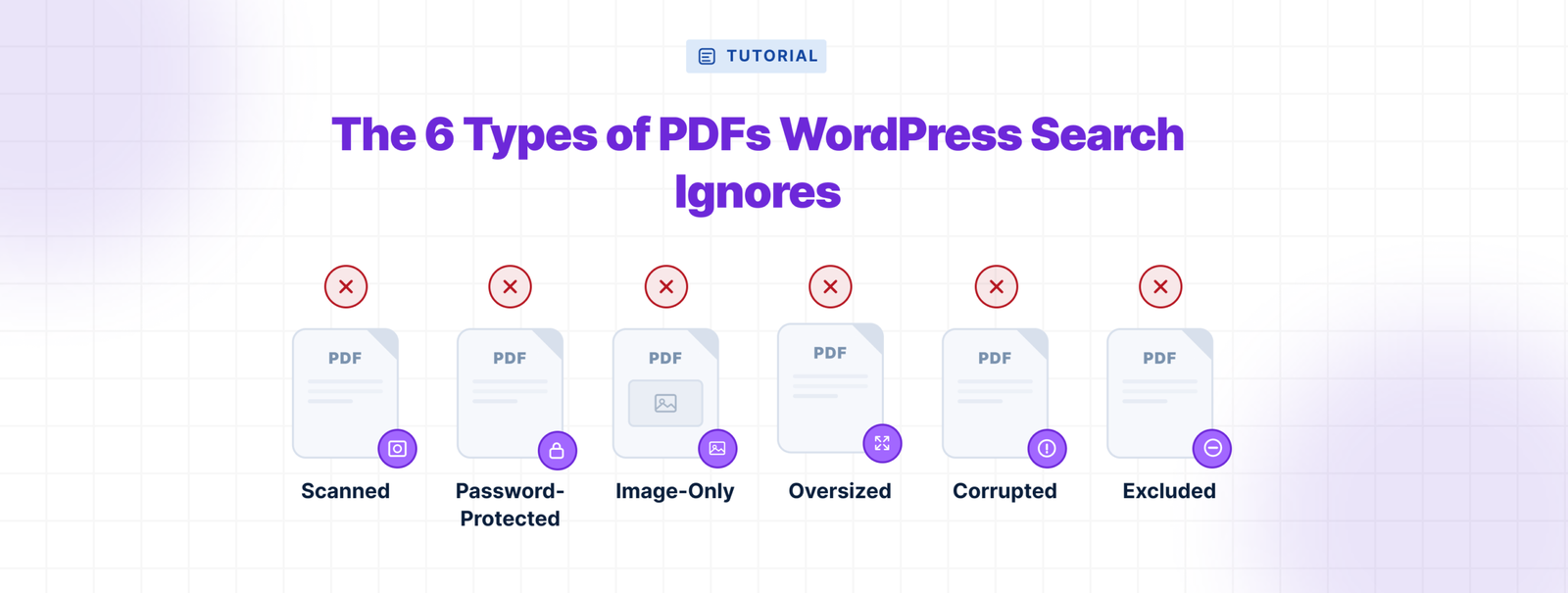
A PDF can be uploaded, publicly linked, and downloaded hundreds of times while remaining completely invisible to your site’s search box.
That is what makes this problem difficult to notice. WordPress does not display an error when someone searches for a phrase inside a PDF. It simply returns no result. To the visitor, the document may as well not exist.
A PDF indexing plugin can solve that problem for normal text-based files. But certain documents can still remain unsearchable. Here are the six types most likely to be missed—and how to identify each one.
1. Scanned PDFs That Are Really Images
A scanned PDF looks like a document, but technically it may be nothing more than a collection of photographs.
If someone places a printed handbook on a scanner and saves the result as a PDF, you can open, zoom, print, and read every page. But the words are pixels. There is no underlying text for WordPress—or a standard PDF parser—to extract.
This is common with historical records, signed forms, older policy manuals, photocopied handbooks, and paper archives.
The fastest test is to open the PDF and try to select one sentence. If you can only drag a box over the page instead of highlighting individual words, it is probably image-based. You can also copy a paragraph into a plain-text editor. If nothing useful appears, the file has no usable text layer.
These PDFs require optical character recognition, or OCR. Without it, the file may be perfectly readable to a person and completely unreadable to search.
2. Password-Protected PDFs
A password-protected PDF has text inside it, but an indexing system may not be allowed to read it.
The clearest example is a document that asks for a password before opening. A visitor who knows the password can enter it in a PDF viewer. An automated indexing process does not have that password, so it cannot unlock the document and extract the content.
Some PDFs also restrict copying or text extraction. The exact behavior depends on how the file was secured, but the result can be the same: the document opens for a human while the indexer receives no usable content.
This often happens with paid reports, financial statements, employee documents, and licensed publications.
Before removing protection, decide whether the document should be searchable. Indexed content may appear in excerpts and results. If the file is intended to be public, create a separate unprotected web version. If it is private, it should not be in public search.
3. Digital PDFs With Only Images, Charts, or Outlined Text
Not every image-based PDF came from a scanner.
A document can be created entirely on a computer and still contain almost no searchable text. Product catalogues, architecture portfolios, menus, brochures, and presentation decks are often exported as flattened pages. Text may be converted into vector outlines or embedded inside full-page artwork.
These files look sharp and digital, which is why they are easy to misdiagnose. A catalogue page may visibly show a model number, dimensions, and price. If the page was exported as one image, a search for that model number returns nothing.
Try selecting and copying words from several parts of the document. Some PDFs contain searchable headings but flatten the important specifications, captions, labels, or chart text. That makes the file only partially searchable.
4. PDFs That Exceed an Indexing Limit
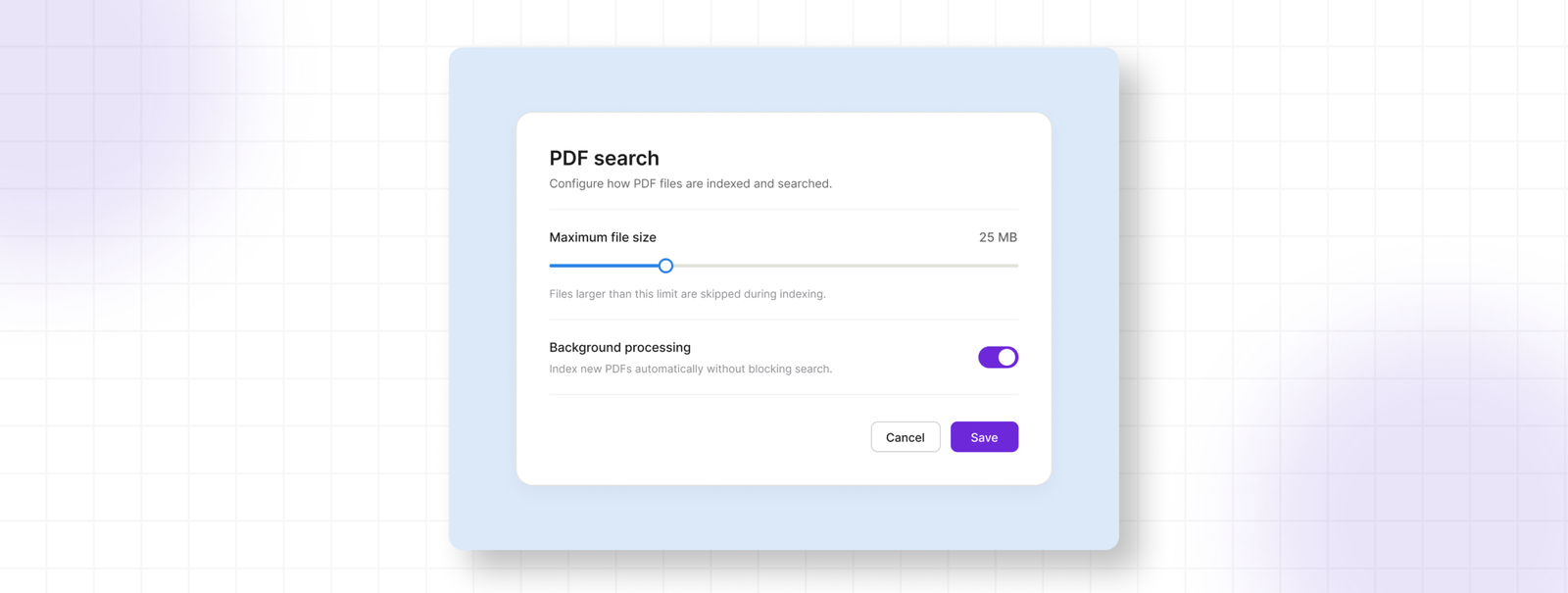
Large PDFs create a different problem: the text may be valid, but processing the file can require more memory and time than the site allows.
There are usually two limits. The first is the server’s WordPress/PHP upload limit. A file larger than that may never reach the Media Library.
The second is the PDF search plugin’s indexing limit. With WebEquipe PDF Search, the default maximum is 50MB per PDF and can be increased up to 500MB. Files over 10MB are processed in the background so the admin page does not have to remain open.
That means “large” does not automatically mean “failed.” A 20MB report may simply be scheduled. But a file larger than the configured maximum can remain unindexed until the limit is raised or the PDF is reduced.
Annual reports, technical manuals, and image-heavy catalogues are common offenders. Before increasing the limit, consider compressing images or splitting a very large archive into useful sections. That can improve indexing and downloads at the same time.
5. Corrupted or Malformed PDFs
A PDF does not have to be completely broken to cause an indexing failure.
Browsers and desktop readers can sometimes repair small structural problems while opening a file, so it appears normal to the person checking it. A server-side parser may be less forgiving.
An incomplete upload, faulty export, broken internal references, invalid embedded objects, or a non-PDF file using the .pdf extension can all cause extraction to fail.
From the front end, the problem still looks silent: a visitor searches for text and gets nothing. In the WordPress admin area, the file should appear with an error rather than being treated as successfully indexed.
The simplest repair is usually to export a fresh PDF from the source document. If the source is unavailable, opening the file in a reliable editor and using Save As or Print to PDF may rebuild it. Replace the file, re-index it, and test a distinctive phrase from inside the document.
6. PDFs That Were Intentionally Excluded
The final type is not a technical failure.
WebEquipe PDF Search allows administrators to mark a PDF as Excluded. This is useful for drafts, outdated files, test documents, internal resources, and anything that should remain in the Media Library without appearing in search.
Exclusion is persistent. An excluded PDF is skipped during normal indexing, bulk indexing, and Re-index All PDFs. Otherwise, one bulk action could accidentally make private or unfinished files searchable again.
This creates an easy point of confusion. An administrator may re-index everything and assume every file was included. The excluded documents were not missed; they were deliberately skipped.
To make one searchable again, first change it from Excluded to Included, then index it. Inclusion makes the file eligible for indexing; it does not necessarily index the content in the same step.

How to See Which PDFs Are Actually Indexed
Do not diagnose PDF search by guessing from the front end. Check the index directly.
Open Media → Library in WordPress and switch to list view. WebEquipe PDF Search adds a Search Indexed column showing each PDF’s state:
Indexed means text was extracted and the PDF is available to search.
Not Indexed means the file is in the Media Library but has not been added to the search index.
Excluded means it has been intentionally blocked. Re-index All PDFs will skip it.
Error means indexing was attempted but failed. The error details can help identify an unreadable, protected, damaged, or unsupported file.
Scheduled can appear when a large PDF has been queued for background processing. It is not necessarily a failure; WordPress cron still needs to run the job.

Then test the result by searching for a distinctive phrase that appears only inside the PDF. A filename or title is not a reliable test because WordPress may know that metadata without knowing anything about the pages inside the file.
The Search Box Is the Last Place You Notice the Problem
When WordPress PDF search is not working, the cause is not always the search form. The document may have no text layer, may be protected, may exceed a processing limit, may be malformed, or may have been intentionally excluded.
The common thread is that visitors receive no explanation. They search, see no result, and assume the information is not on the site.
Check the Search Indexed column in your own Media Library. It will tell you more than the search box ever will.
WebEquipe PDF Search can index standard text-based PDFs for free. Scanned and image-only documents need OCR, which is the PDF Search Pro capability designed for files ordinary text extraction cannot read.