
Before I call a PDF section done on any WordPress site, I do not only check if the files are uploaded.
I check if people can actually find them.
A PDF section may look fine from the outside. But behind the scenes, some files may not be searchable. Scanned PDFs may not work. Private files may show in public search. Large PDFs may fail before they finish processing.
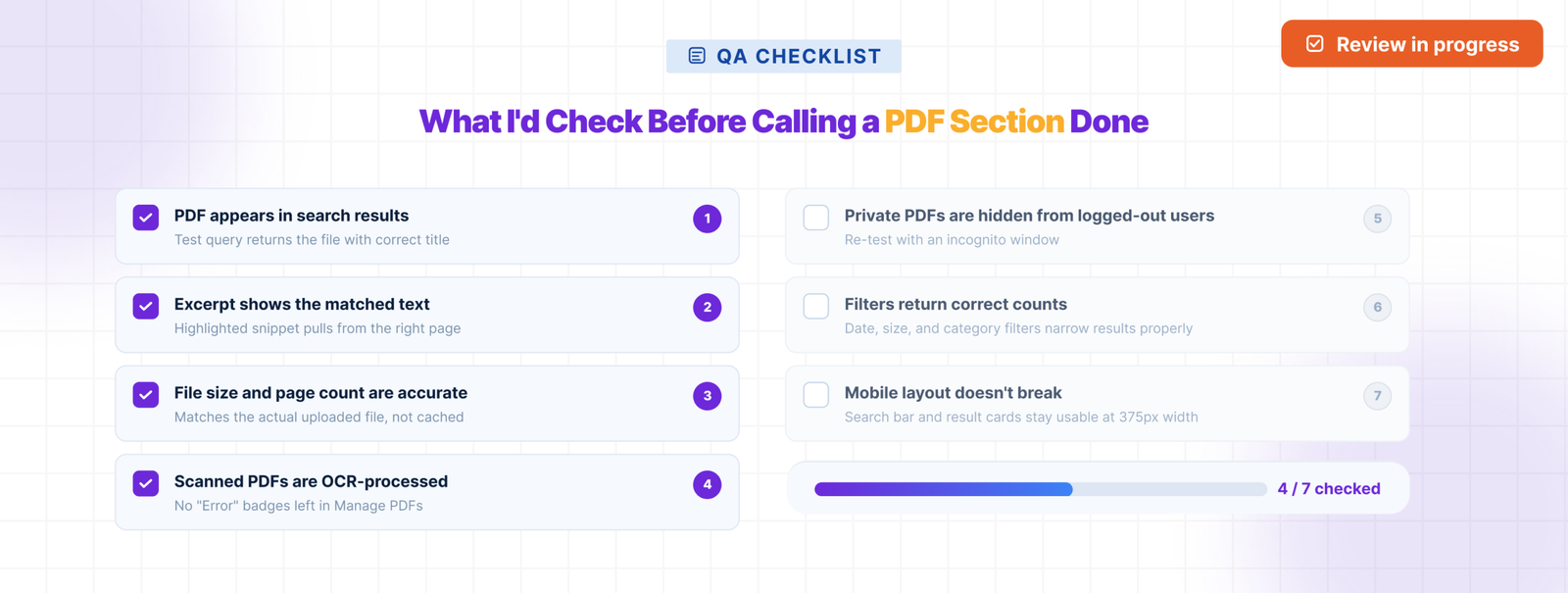
Here are the 7 checks I would run before saying a WordPress PDF section is ready.
Check 1 — Is every PDF actually indexed?
The first thing I check is whether each PDF is indexed.
When you upload a PDF to WordPress, WordPress stores the file. But it does not read the text inside the PDF by default. So a visitor may search for a word that exists inside the PDF and still get no result.
In WebEquipe PDF Search, I would go to the Media Library and check the PDF status column. This shows which files are indexed and which files still need work.
After installing the plugin, I would run Re-index All PDFs. This helps the plugin check the PDFs that were already uploaded before the plugin was installed.
If a file still shows Not Indexed after that, I would not ignore it. It may be too large. It may be scanned. It may have failed while processing. Or it may simply need to be indexed again.
For a small site, I would check every PDF. For a large site, I would filter by status and start with the problem files.
Check 2 — Are there scanned PDFs in the library?
This is a common reason PDF search does not work.
Some PDFs are text-based. These are usually made from Word, Google Docs, or another document tool. You can open the PDF, select a word, copy text, and search inside it.
Scanned PDFs are different. They are images of pages. Someone scanned a paper document and saved it as a PDF. It looks like a normal PDF, but there is no real text inside for the plugin to read.
The quick test is simple. Open the PDF in a browser and try to highlight a word.
If you can select the word, it is text-based. If your mouse only draws a box over the page, it is probably scanned.
Normal PDF indexing cannot read scanned text. The plugin tries to extract text, but there is nothing to extract. That is why scanned PDFs may show an error or stay missing from search.
If scanned PDFs need to be searchable, they need OCR. OCR reads the image and turns the words into searchable text.
Check 3 — Are private documents showing up in public search?
The next thing I check is visibility.
A lot of teams assume that if a PDF is not linked clearly, it is private. That is not true. If a PDF is uploaded to WordPress and indexed, it may appear in search results unless visibility is controlled properly.
There are two different needs here.
If a PDF should not appear in search at all, use Exclude. This removes the file from search indexing. The PDF stays in the Media Library, but it does not show in search results.
If a PDF should be searchable only for logged-in users, use Private PDF Search. This is useful for member handbooks, staff documents, or client resources.
I always test this from both sides. First, I search while logged in. Then I open a private/incognito window and search again as a logged-out visitor. If a restricted document appears publicly, the PDF section is not ready.
PDF search is not only about helping users find documents. It is also about making sure the wrong users cannot find the wrong documents.
Check 4 — Does the search form work standalone?
I also test the PDF search form separately from the main website search.
For many websites, this matters a lot. A resource center, document portal, help section, or membership area may need its own PDF-only search form. Visitors in that section usually do not want blog posts, pages, or products mixed into the results. They only want documents.
With WebEquipe PDF Search, the shortcode form can be added to a page using:
[ webequipe_pdf_search_form]
I would place this on a test page and search for a few known PDF terms. I check whether the right results appear, whether the title makes sense, whether the excerpt is useful, and whether the file link opens correctly.
This is also helpful when the main WordPress search is controlled by another plugin or theme. A standalone form keeps PDF search easier to test and manage.
Check 5 — What do zero-result searches look like?
A search system should also be tested when it fails.
I always try a few searches that should return no results. Visitors may use the wrong word, a short term, a spelling mistake, or a phrase that is not inside any PDF.
If the page only says “No results found” with no next step, users may think the site is broken. They may not know whether the document is missing, not indexed, private, or named differently.
A better zero-result message should help them continue. It can suggest trying another keyword, checking spelling, browsing the document category, or contacting the site owner.
This is a small detail, but it matters in real use. A good empty result page can stop visitors from giving up too quickly.
Check 6 — Is the excerpt length right?
PDF search results need context.
If the result only shows the file name, users may not know whether that PDF is useful. A good excerpt shows the matching text and helps the visitor decide whether to open the file.
The default excerpt length is around 200 characters. That may be fine for short documents, but technical PDFs, manuals, reports, and policies often need more context.
I would search for a term inside a PDF and check the front-end result. Does the excerpt show enough surrounding text? Does it explain why the PDF matched? Or is it too short to be helpful?
If needed, I would adjust the excerpt length from the PDF search display/settings area. This is not only a design decision. It affects whether users trust the result.
Check 7 — Are large PDFs processing correctly?
Large PDFs need extra attention.
A small PDF may index quickly. A large PDF with many pages can take longer. If the server has a low timeout limit, indexing may stop before it finishes.
That is why I check whether Background Processing is enabled for large libraries or large files.
Background Processing lets the plugin handle indexing in a queue instead of trying to complete everything in one browser request. This is safer for websites with many PDFs or heavy documents.
If it is turned off, large PDFs may stay stuck in Processing, fail during indexing, or never become searchable. The admin may think everything is done, but some important files are still missing.
I would also check the index activity or processing log. If I see repeated failures, timeout errors, or files stuck for too long, I would fix that before approval.
Conclusion
Before calling a WordPress PDF section done, I would check more than the upload page.
I would confirm that PDFs are indexed, scanned files are handled, private files are protected, the standalone search form works, zero-result searches are helpful, excerpts give enough context, and large PDFs process correctly.
For text-based PDFs, the free WebEquipe PDF Search plugin is enough to get started. If the site has scanned documents or member-only PDFs, those need extra handling. But the first step is always the same: check the library properly before calling the work complete.