
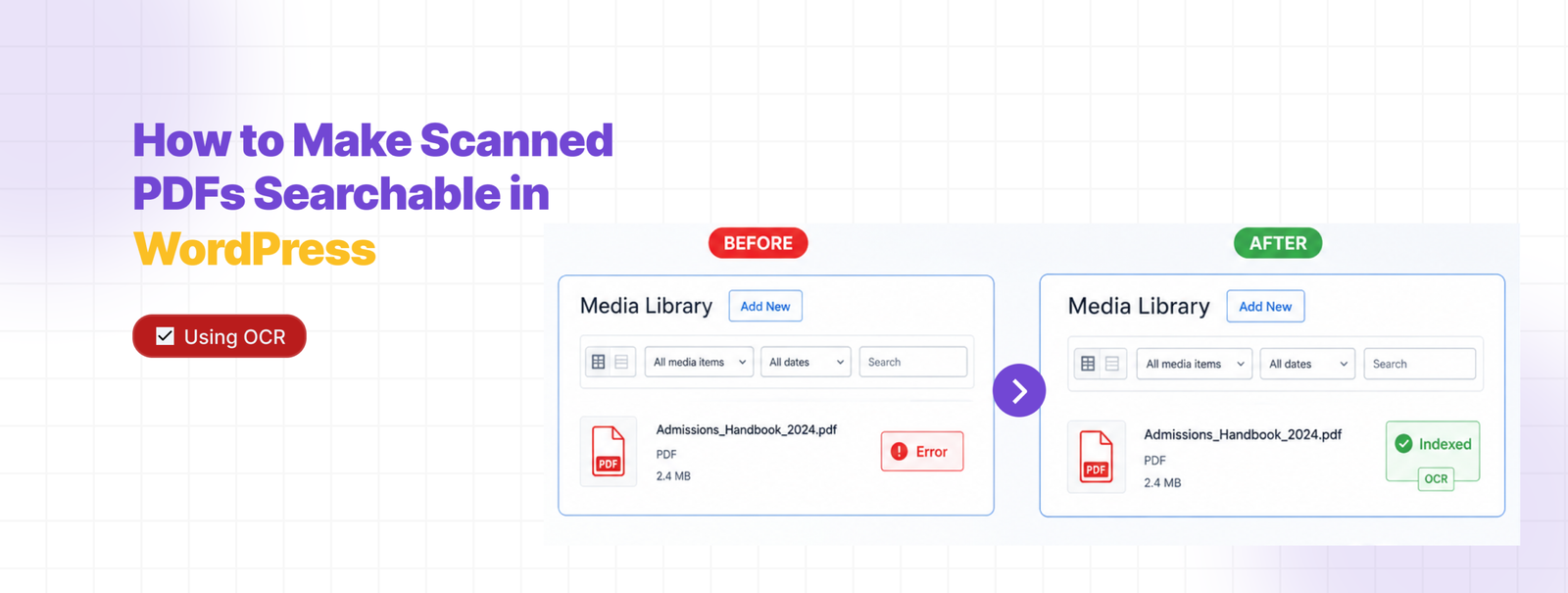
Your PDF search plugin is throwing Error on certain files because it’s trying to read a photo, not text. Scanned PDFs don’t have a text layer — they’re images of pages. There’s nothing to extract.
OCR fixes that. Here’s how to set it up.
Why Scanned PDFs Fail
When you export a PDF from Word or Google Docs, the text is stored inside the file as real characters. A search plugin opens it, reads the content, indexes it.
A scanned PDF is different. Someone put a physical page on a scanner and saved the result. What’s inside is a image of text, not text itself. Your plugin has nothing to work with, so it errors out.
You can confirm this in seconds — open the PDF in your browser and try to highlight some words. If you can select text, it’s text-based. If your cursor just draws a rectangle over the page, it’s scanned.
Setting Up OCR in WebEquipe PDF Search Pro
OCR is available on Starter, Pro, and Agency plans via Google Vision. Once your licence is active, here’s how to configure it.
Go to PDF Search → Settings. Under Indexing Method, set it to Native + OCR Fallback.
This is the right choice for most sites. The plugin tries standard text extraction first — faster, uses no OCR credits. If a PDF has no extractable text, it automatically sends it to Google Vision. Text-based PDFs get processed locally. Scanned ones get OCR without you having to decide per file.
If your library is almost entirely scanned documents, use OCR Only instead.
Fixing the PDFs Already in Your Library
Changing the indexing method doesn’t reprocess files that are already marked as Error. You need to trigger that manually.
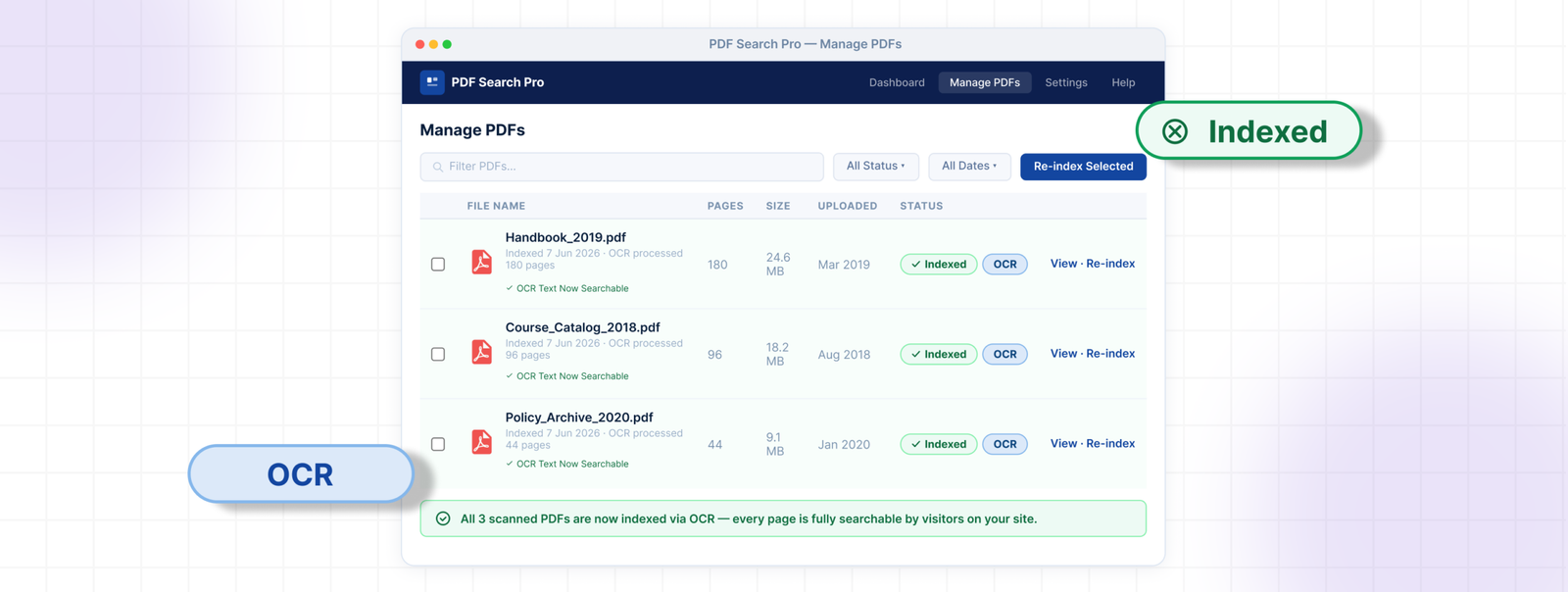
Go to PDF Search → Manage PDFs and filter by Error status.
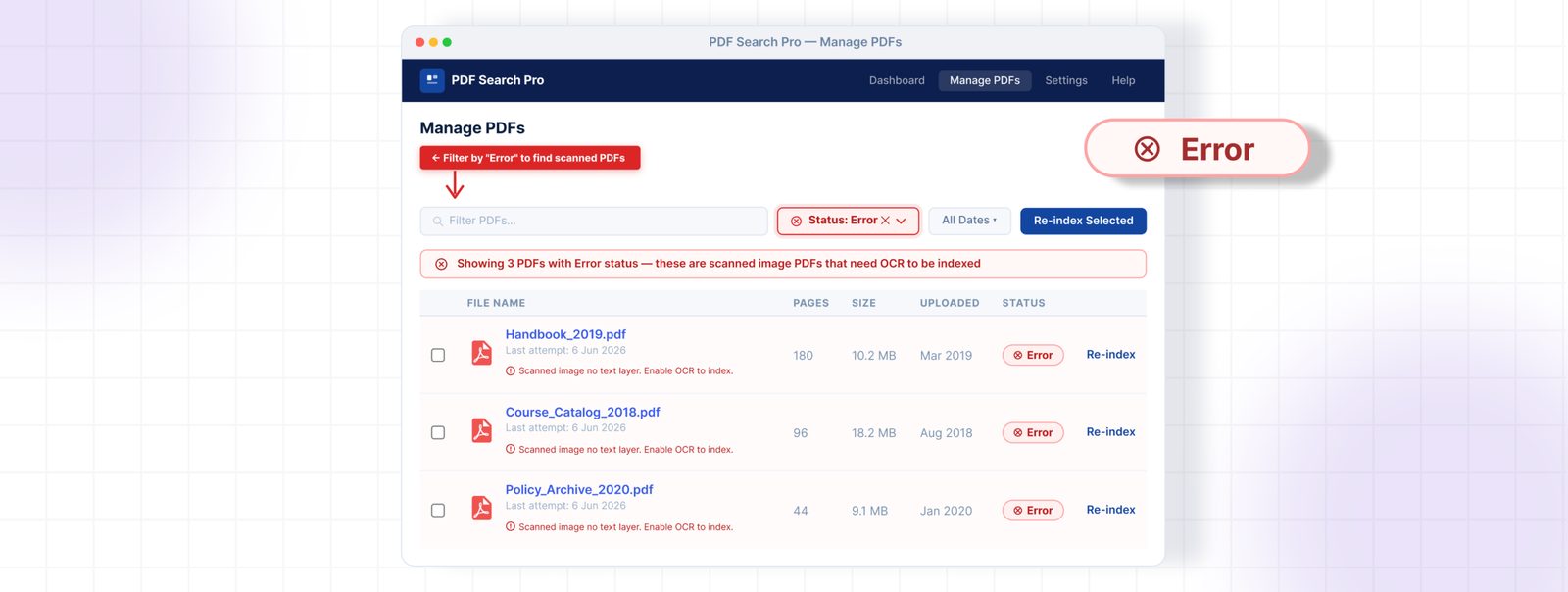
Select all of them and run the bulk action Index OCR. The plugin sends those files to Google Vision for processing. Depending on volume and file size this may take a few minutes — you can check progress in PDF Search → Index Activity.
Once done, those PDFs will show as Indexed with an OCR label. Search for a phrase from one of those documents to confirm it’s working.
A Few Things Worth Knowing
🟥 OCR uses credits. Each plan has a monthly page allowance — Starter gets 1,000 pages, Pro gets 3,000, Agency gets 10,000. Each scanned page uses one credit. Current usage is visible in PDF Search → Dashboard.
🟥 New uploads are handled automatically. Once OCR is enabled, any scanned PDF you upload going forward gets processed without extra steps. The plugin detects that standard extraction returned nothing and routes it to OCR.
🟥 Mixed PDFs index with a warning. If a PDF has some text pages and some scanned pages, the text pages index normally and the scanned ones get flagged. You’ll see a partial index warning in the status column.
🟥 Password-protected PDFs still can’t be indexed. OCR doesn’t help with locked files — the content isn’t accessible regardless of processing method.
Frequently Asked Questions
How do I know which PDFs are scanned?
Filter by Error in PDF Search → Manage PDFs after running a standard re-index. Any file that failed extraction is almost certainly scanned. You can also open individual files in your browser and try to select text.
How do I know which PDFs are scanned?
Filter by Error in PDF Search → Manage PDFs after running a standard re-index. Any file that failed extraction is almost certainly scanned. You can also open individual files in your browser and try to select text.
Will OCR work on handwritten documents?
Google Vision handles printed text reliably. Handwriting accuracy varies depending on legibility — worth testing on a sample before processing a large batch.
What happens when I hit my monthly OCR limit?
New scanned PDFs queue but don’t process until credits reset at the start of the next billing cycle. Existing indexed content stays searchable. You can upgrade your plan if you consistently need more capacity.
Can I use OCR on some PDFs and standard extraction on others?
Native + OCR Fallback handles this automatically. You don’t need to decide per file.
That’s the Fix
Filter your Error PDFs, bulk run Index OCR, and they’ll be searchable the same way any other document on your site is. For anything new coming in, Native + OCR Fallback takes care of it automatically from that point on.
Filter your Error PDFs, bulk run Index OCR, and they’ll be searchable the same way any other document on your site is. For anything new coming in, Native + OCR Fallback takes care of it automatically from that point on.
View PDF Search Pro plans →