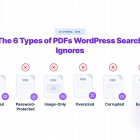

Getting PDF search working on WordPress isn’t complicated — but it’s easy to miss a step and end up with half your library invisible to search, a handful of Error files nobody’s looked at, or private documents showing up where they shouldn’t.
This checklist covers the full process from start to finish. Use it when setting up PDF search for the first time, after a major plugin update, or as a periodic audit on a large document library.
Table of Contents
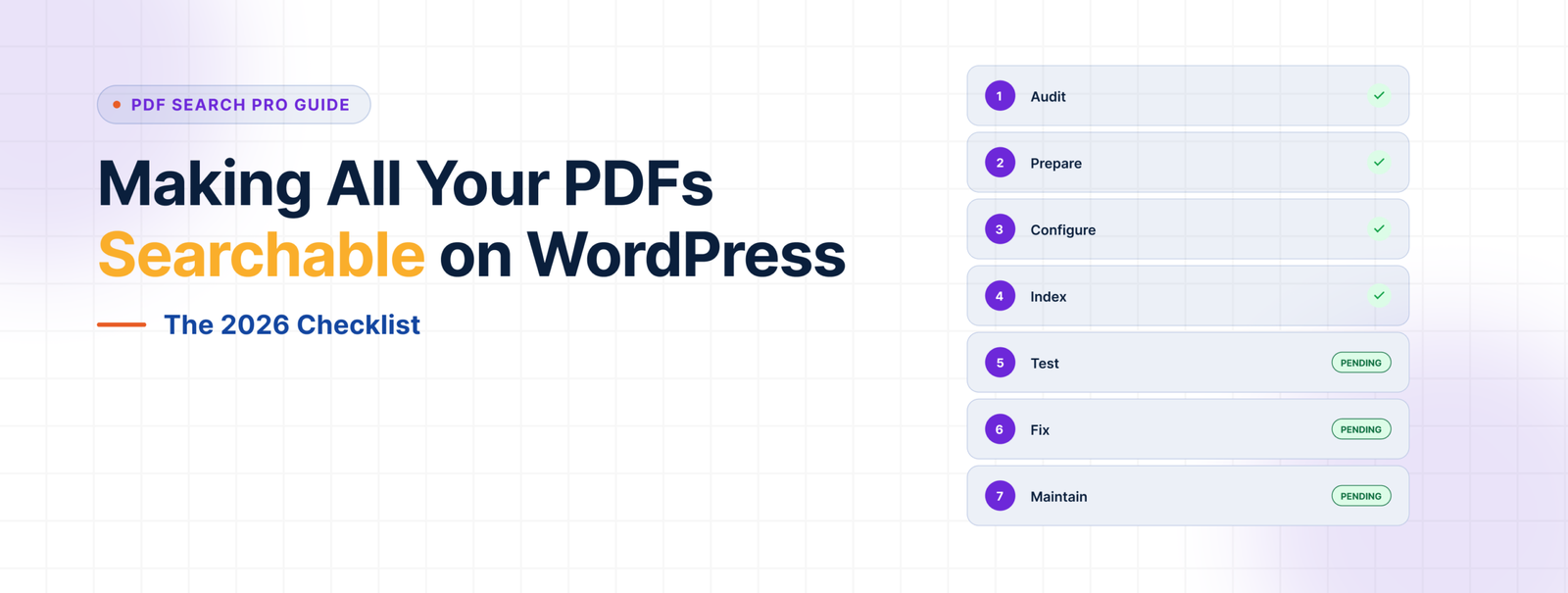
- Audit Your PDF Library
- Prepare Your PDFs
- Install and Configure the Plugin
- Index Your Library
- Test Search
- Handle Problem Files
- Ongoing Maintenance
Step 1 — Audit Your PDF Library
Before touching any plugin settings, know what you’re working with.
🟥 Identify how many PDFs you have.
Go to Media → Library, filter by PDF file type, and get a rough count. Large libraries — hundreds of files — will take longer to index and may need Background Processing enabled from the start.
🟥 Separate text-based PDFs from scanned ones.
Open a sample of your PDFs in a browser and try to highlight text. If you can select words, it’s text-based. If you can’t, it’s scanned. Scanned PDFs need OCR — a paid feature — so knowing how many you have tells you whether you need a Pro plan from day one or whether the free plugin covers your whole library.
🟥 Flag PDFs that shouldn’t be searchable.
Drafts, outdated versions, internal working documents, anything that shouldn’t appear in public search results — note these now. You’ll exclude them during setup.
🟥 Flag PDFs that should be restricted to logged-in users.
Member handbooks, staff policies, client resources — anything that should be searchable but only by people who are signed in. These get set to Private. Also a paid feature.
Step 2 — Prepare Your PDFs
A few things to sort out before indexing saves problems later.
🟥 Clean up filenames.
The filename becomes the title in search results. 2025-annual-report.pdf is useful. doc-FINAL-v3-revised.pdf is not. Rename files with messy names before indexing — renaming after means re-indexing.
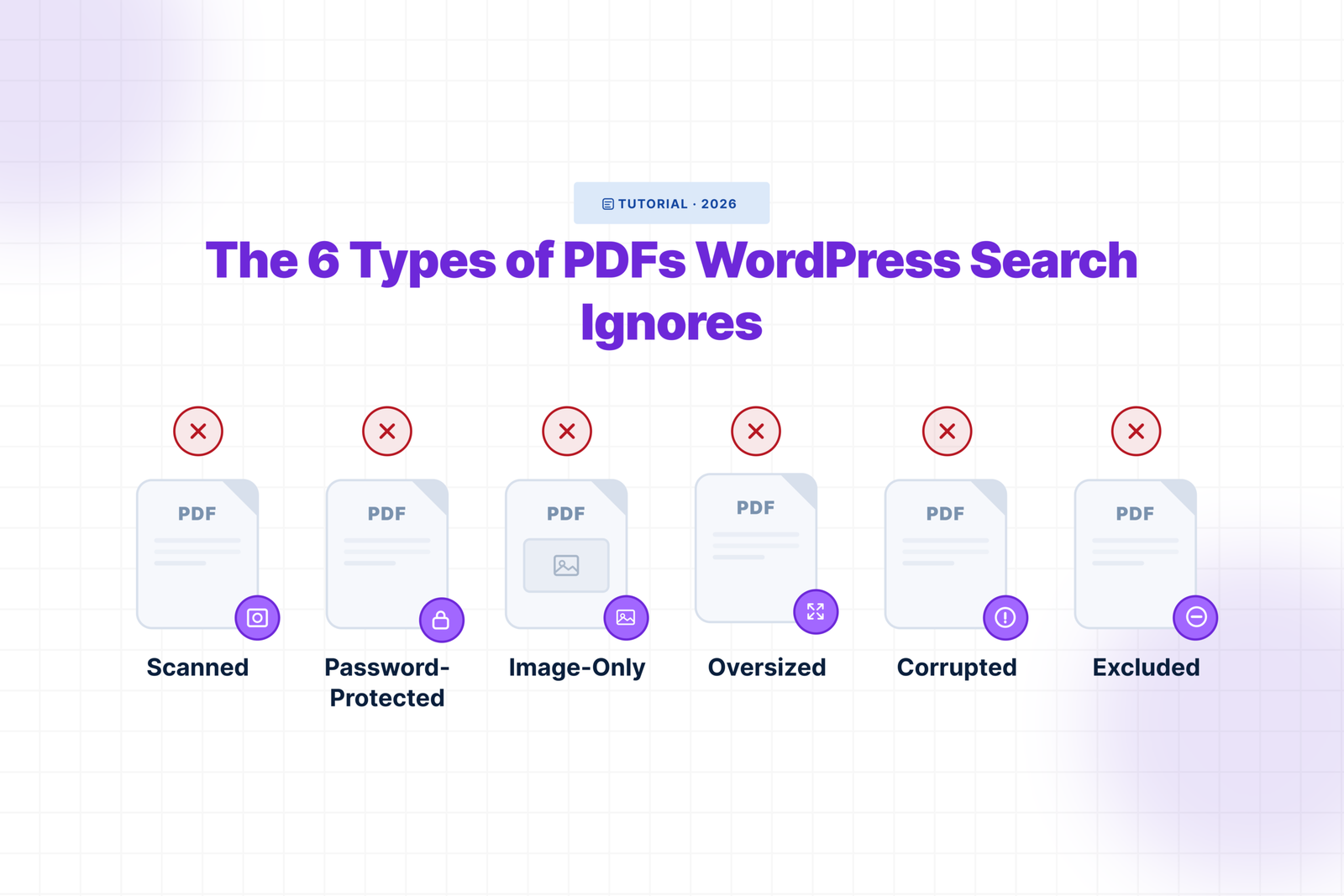
🟥 Remove password protection from files that need to be searchable.
Password-protected PDFs can’t be indexed by any method. If a file needs to be searchable, the password needs to come off first.
🟥 Check file sizes.
The default maximum indexable file size is 50MB. Files above that won’t be processed unless you raise the limit in settings. Check if any of your PDFs exceed this and decide whether to raise the limit or split those files.
🟥 Make sure PDFs are in your WordPress Media Library.
The plugin indexes PDFs attached to WordPress. Files hosted externally or embedded via iframe won’t be picked up.
Step 3 — Install and Configure the Plugin
🟥 Install WebEquipe PDF Search.
Go to Plugins → Add New, search for WebEquipe PDF Search, install and activate. For scanned PDFs or private search, activate your Pro or Agency licence in PDF Search → Settings.
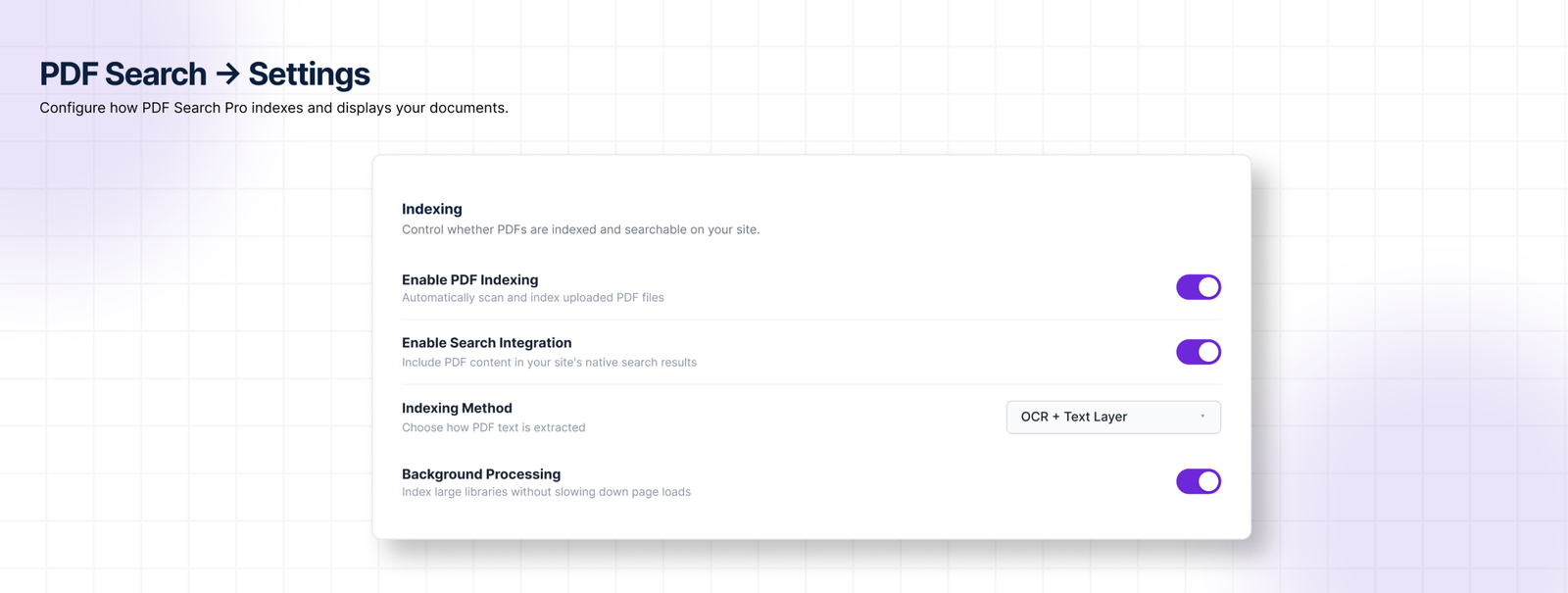
🟥 Turn on Enable PDF Indexing.
In PDF Search → Settings — this ensures new uploads get indexed automatically going forward.
🟥 Turn on Enable Search Integration.
Also in PDF Search → Settings — this makes PDF results appear in your site’s standard WordPress search. Leave it off if you only want PDFs in a dedicated shortcode form.
🟥 Set your Indexing Method.
- Text-based PDFs only → Native
- Scanned PDFs only → OCR Only
- Mix of both → Native + OCR Fallback (recommended for most sites)
🟥 Enable Background Processing for large libraries.
In PDF Search → Settings → Advanced. Essential for sites with large PDFs or many files — moves indexing into a background queue so it doesn’t hit PHP execution limits.
🟥 Set Default Search Visibility if needed.
If most new uploads should be Private by default, set this in PDF Search → Settings. Individual files can still be switched to Public as needed.
🟥 Set your file size limit.
If you have PDFs over 50MB that need indexing, raise the Maximum File Size in PDF Search → Settings.
Step 4 — Index Your Library
🟥 Run Re-index All PDFs.
Go to PDF Search → Dashboard and click Re-index All PDFs. This processes every non-excluded PDF in your library. For large libraries this runs in batches — leave it running and check back.
🟥 Exclude PDFs that shouldn’t be searchable.
While indexing is running or after it completes, go through PDF Search → Manage PDFs and Exclude any files you flagged in Step 1. Excluded files get skipped in all future re-index runs.
🟥 Set Private PDFs.
For files that should be searchable only by logged-in users, open each one in Media → Library, set Search Visibility to Private, and save. Or use the bulk action Make Private in Manage PDFs for multiple files at once.
🟥 Check index coverage.
Once Re-index All PDFs completes, go to PDF Search → Dashboard and check the coverage percentage. If it’s significantly below 100%, there are PDFs that need attention.
Step 5 — Test Search
🟥 Test standard search.
Search for a specific phrase you know appears inside one of your PDFs. It should appear in results with a title, excerpt from the matching page, and file details.
🟥 Test a PDF-only shortcode form if you’re using one.
Add [ webequipe_pdf_search_form ] to a test page and search for the same phrase. Confirm results appear correctly.
🟥 Test private PDF visibility.
Open a private browsing window and search for a PDF you’ve set to Private. It should not appear. Log in and search again — it should show up.
🟥 Test an excluded PDF.
Search for content from a PDF you’ve excluded. It should not appear in any results.
Step 6 — Handle Problem Files
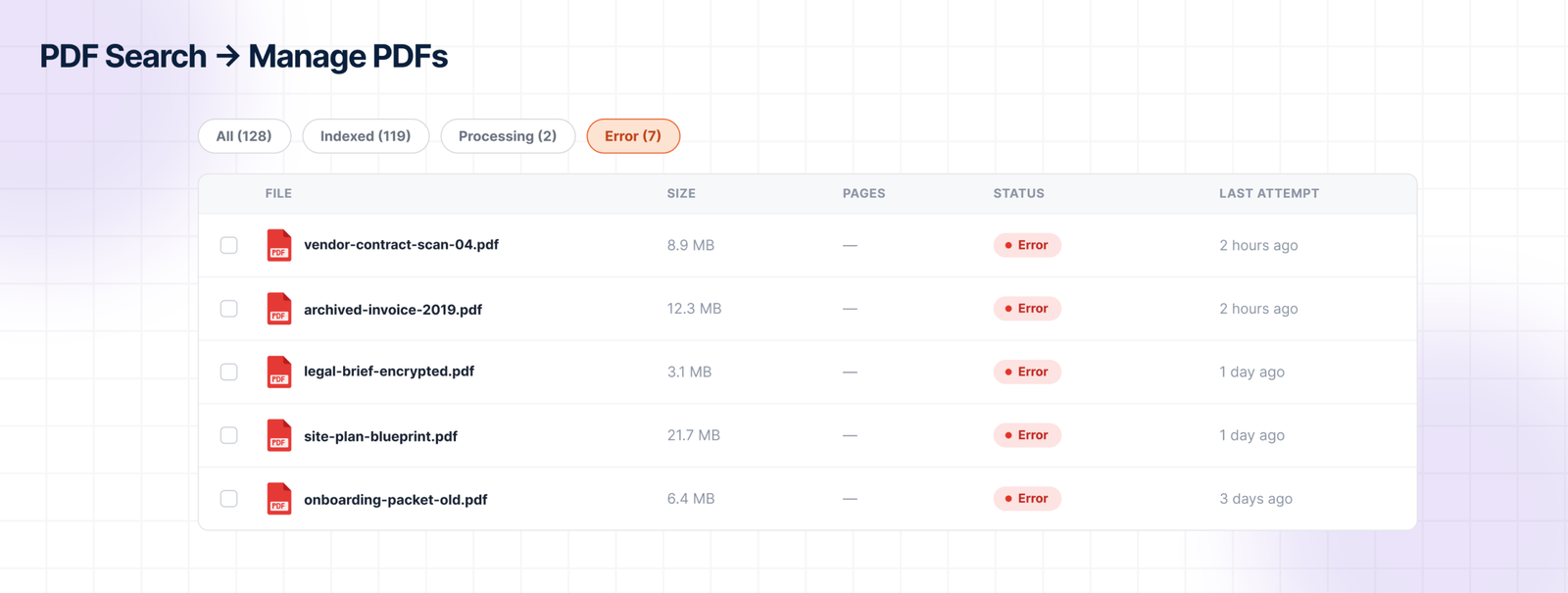
🟥 Check for Error status PDFs.
Go to PDF Search → Manage PDFs and filter by Error. These are files that failed indexing.
- If they’re scanned → run bulk action Index OCR (requires paid plan)
- If they’re password-protected → remove the password, then re-index
- If they’re corrupted → replace the file, then re-index
🟥 Check for PDFs stuck in Processing.
If any files have been in Processing status for an unusually long time, check the cron status indicator on the Dashboard. A broken cron is the most common cause of stalled indexing jobs.
🟥 Review the Index Activity log.
Go to PDF Search → Index Activity and scan for Failed runs. Click the detail icon on any failed entry to see exactly what went wrong. This is the fastest way to diagnose stubborn files.
Step 7 — Ongoing Maintenance
PDF search isn’t set and forget. A few habits keep it running cleanly.
🟥 Re-index after replacing a PDF.
If you swap out a file for a newer version, the index doesn’t update automatically. Go to that PDF in your Media Library and click Re-index.
🟥 Check index coverage periodically.
New PDFs uploaded without indexing enabled, files that failed silently, PDFs that got excluded by mistake — these all show up as gaps in coverage. A monthly check of the Dashboard coverage metric catches them early.
🟥 Monitor OCR credit usage.
If you’re on a paid plan using OCR, keep an eye on your monthly page allowance in PDF Search → Dashboard. Running out mid-month means new scanned uploads queue but don’t process until credits reset.
🟥 Export Index Activity logs for large libraries.
For sites managing hundreds of PDFs, exporting the Index Activity CSV periodically gives you a record of what was indexed, when, and by which method. Useful for audits and for diagnosing patterns in failures.
🟥 Test search after WordPress or plugin updates.
Major WordPress updates and plugin updates can occasionally affect how search results are rendered. A quick search test after any significant update confirms everything is still working.
Quick Reference — Status Badges in Manage PDFs
| Status | What it means | Action |
|---|---|---|
| Indexed | In search, working correctly | None needed |
| Not Indexed | In library, not yet processed | Click Index |
| Processing | Currently being indexed | Wait |
| Scheduled | Queued for background processing | Wait |
| Error | Indexing failed | Check error detail, re-index or use OCR |
| Excluded | Removed from search deliberately | Click Include to restore |
Frequently Asked Questions
How long does Re-index All PDFs take?
Depends on library size and file sizes. A library of 50 standard PDFs typically completes in a few minutes. Several hundred PDFs, or files with many pages, can take longer — especially if Background Processing is handling them in batches. Check progress in PDF Search → Index Activity.
Do I need to re-index every time I upload a new PDF?
No. With Enable PDF Indexing turned on, new uploads are indexed automatically. You only need to run Re-index All PDFs manually for files that were uploaded before the plugin was installed, or to reprocess files after changing the indexing method.
What’s the difference between Exclude and Delete?
Exclude only affects search indexing — the file stays in your Media Library and is still accessible via its direct URL. Delete removes the file entirely from WordPress. Use Exclude for files you want to keep but not make searchable.
Can I index PDFs that are stored outside WordPress?
No. The plugin indexes PDFs in your WordPress Media Library. Files hosted on external servers, embedded via iframe, or linked from third-party storage aren’t picked up.
What happens to my index if I deactivate the plugin?
The index tables stay in your database — nothing is deleted on deactivation. If you want a full clean removal, enable Delete Data on Uninstall in PDF Search → Settings → Advanced before uninstalling.
Done
If you’ve worked through every step above, your PDF library is fully indexed, problem files are diagnosed, restricted documents are properly controlled, and you have a maintenance routine in place.
How to Make WordPress Search Inside PDF Files →