
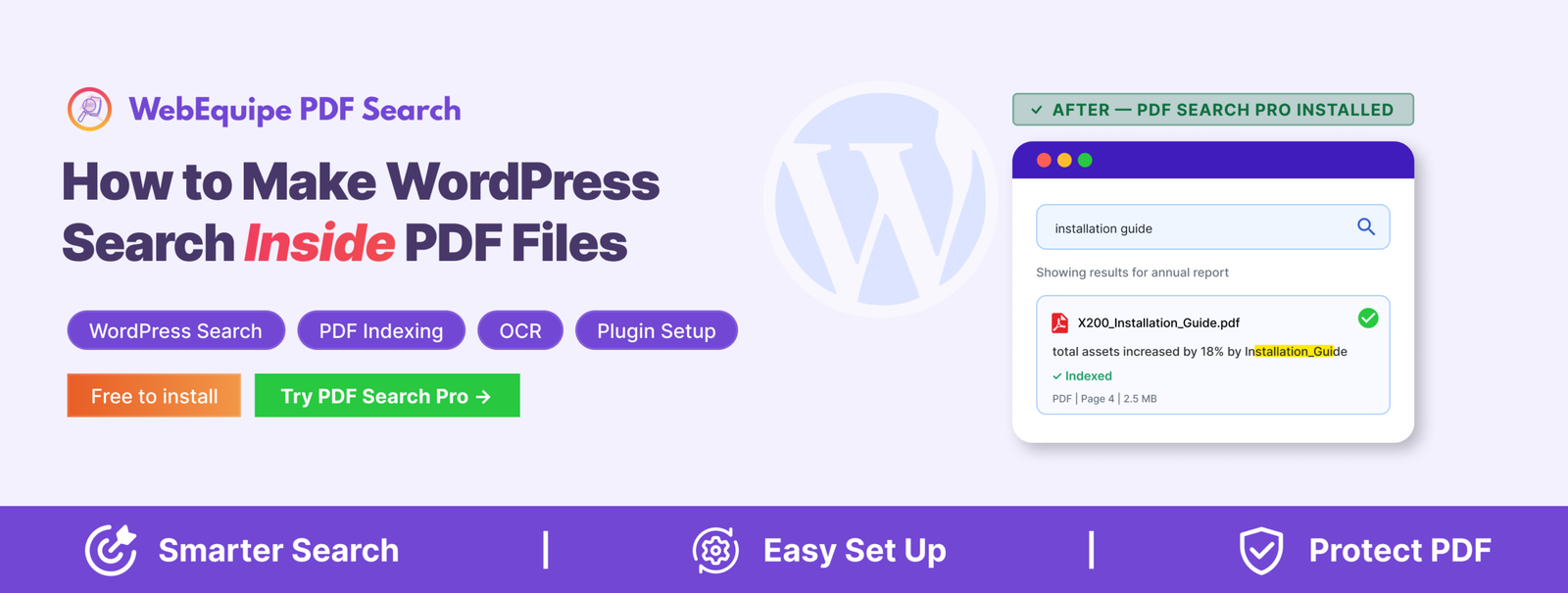
You upload a PDF to WordPress. A visitor comes to your site, searches for something they know is in that document — and gets nothing back.
No results. The file is sitting right there in your Media Library. The answer they need is on page three. WordPress just has no idea it exists.
We hear this constantly from site owners. People who’ve done everything right — uploaded their documents, organised their library, built a decent site — and still can’t figure out why search ignores their PDFs entirely.
The reason is straightforward once you know it. And so is the fix. Here’s both.
Why WordPress Search Ignores PDF Content
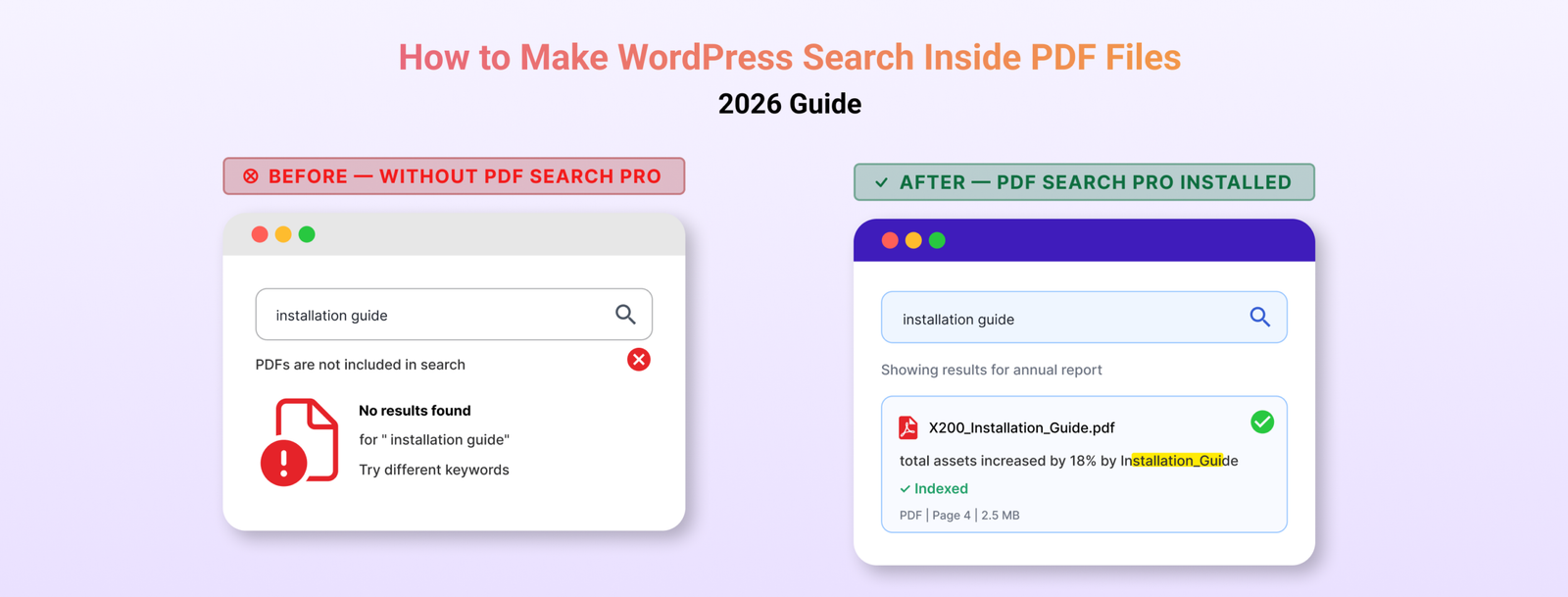
WordPress search works by looking at your posts and pages — the content you type directly into the editor. When you upload a PDF, WordPress stores the filename, a URL, and some basic file details. That’s all.
It never opens the file. It never reads what’s inside.
So when someone searches your site for “refund policy” or “installation guide” or “chapter three” — and those words only exist inside a PDF — WordPress comes back empty-handed. Not because the content isn’t there, but because it was never told to look inside PDF files.
This isn’t a bug. It’s just a gap that WordPress was never designed to fill.
What You Actually Need
To make WordPress search inside PDF files, you need a plugin that does two things.
First, it needs to extract the text from your PDFs. This means actually opening each file and reading the words inside — something WordPress doesn’t do on its own.
Second, it needs to store that text in a searchable index so that when someone types a query, it can match against that content.
A PDF search plugin fills that gap. There are a few options out there, but the simplest purpose-built one for WordPress is WebEquipe PDF Search. The free version handles standard PDFs and gets them into WordPress search in a few minutes. The Pro version adds OCR for scanned documents and private search for member-only content — more on those at the end.
Before You Start — Check Your PDFs
Not all PDFs are the same, and this matters before you install anything.
Text-based PDFs are documents created digitally — exported from Word, Google Docs, InDesign, or any document editor. These contain an actual text layer. A PDF search plugin can read them without any issues.
Scanned PDFs are photos of physical pages. Someone put a piece of paper on a scanner and saved the image as a PDF. There’s no text layer — just pixels. A standard PDF search plugin can’t read these.
How to tell the difference: open the PDF in your browser and try to highlight some text. If you can click and drag to select words, it’s text-based. If clicking just draws a box with nothing selected, it’s scanned.
The free plugin handles text-based PDFs well. If you have scanned documents, you’ll need OCR — covered at the end.
How to Make WordPress Search Inside PDF Files
Step 1 — Install WebEquipe PDF Search
Go to Plugins → Add New in your WordPress dashboard. Search for WebEquipe PDF Search. Install it and activate it.
Once it’s active, you’ll see a PDF Search item in your WordPress admin sidebar.
Step 2 — Check Your Settings
Head to PDF Search → Settings. You don’t need to change much here, but confirm two things:
- Enable PDF Indexing is turned on — this makes sure new PDFs you upload get indexed automatically going forward.
- Enable Search Integration is turned on — this is what makes PDFs show up alongside posts and pages in your site’s normal search results.
If you’d rather keep PDF results separate from your posts and pages, you can leave Search Integration off and use the shortcode instead (Step 5).
Step 3 — Index Your Existing PDFs
The plugin won’t automatically pick up PDFs you’ve already uploaded. You need to run indexing once for your existing library.
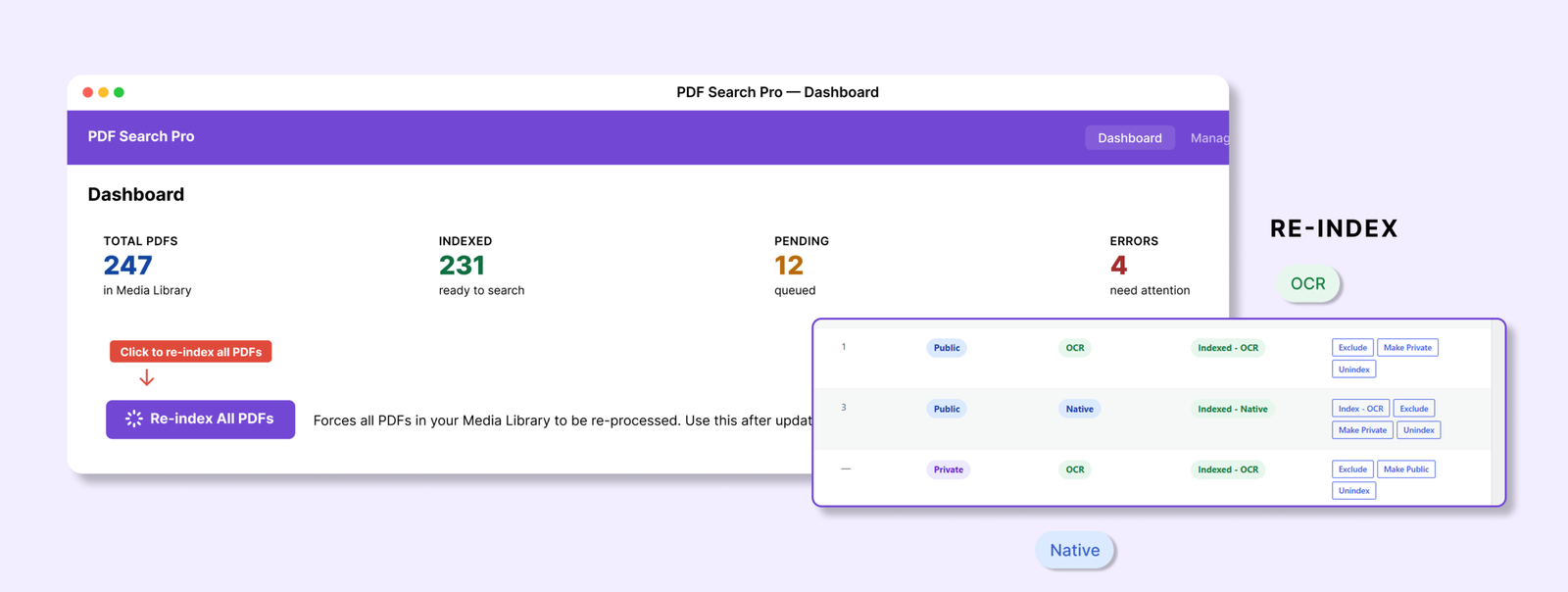
Go to PDF Search → Dashboard and click Re-index All PDFs.
The plugin will work through every PDF in your Media Library and extract the text. For a large library this runs in batches in the background — you can leave it and come back. Check the progress in PDF Search → Index Activity.
Step 4 — Test It
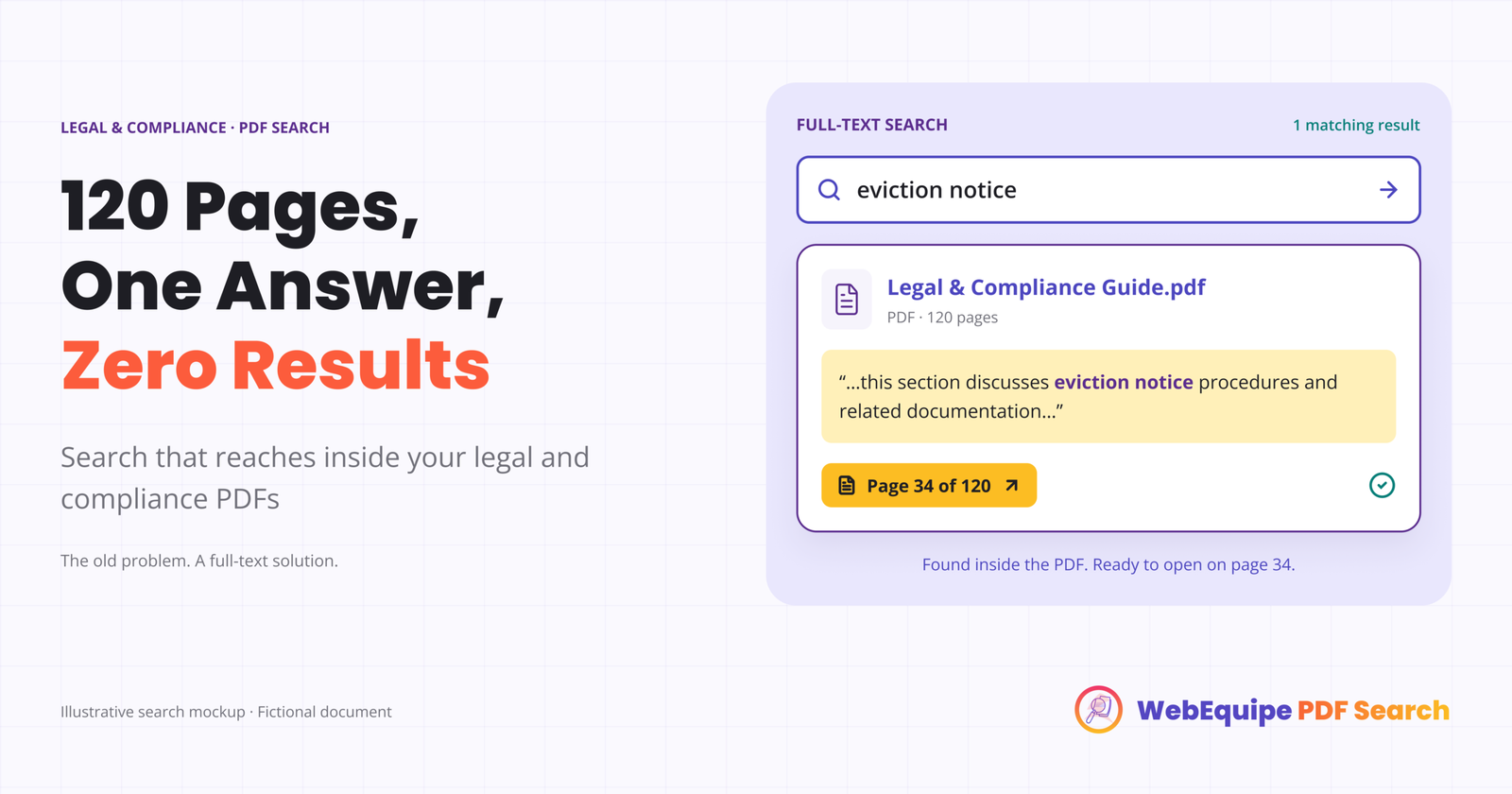
Once indexing is done, search for a word or phrase you know appears inside one of your PDFs.
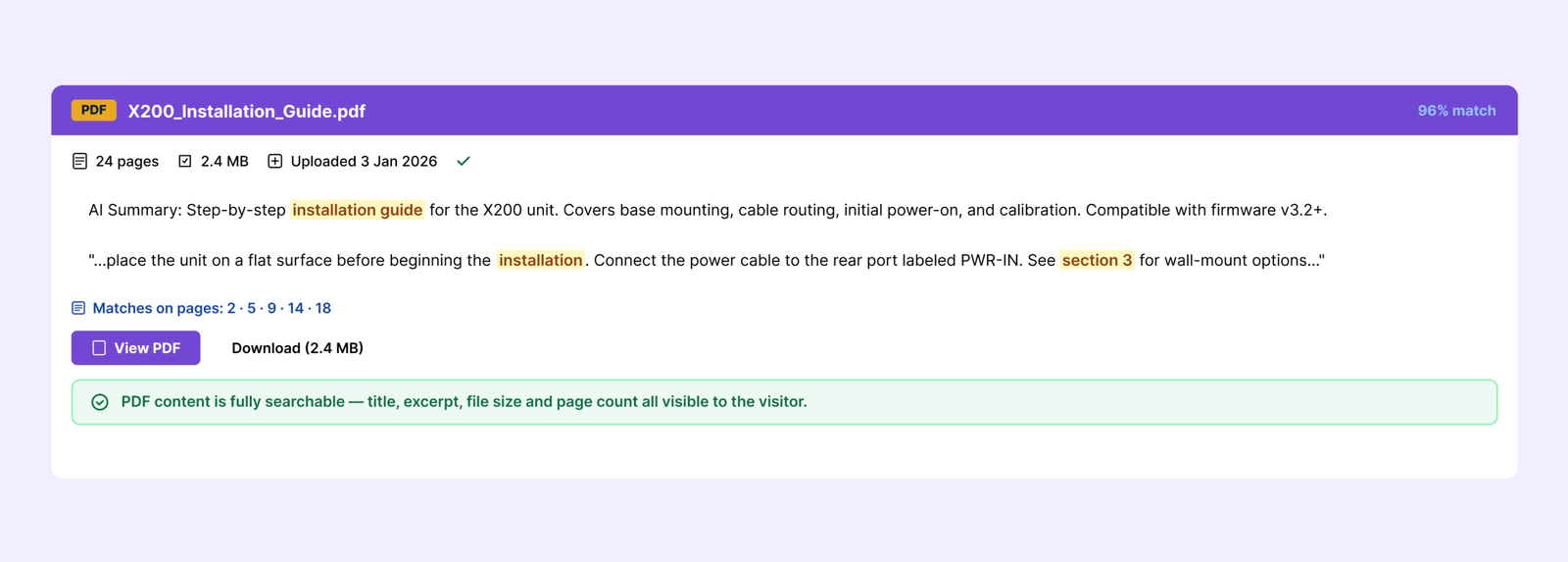
It should now appear in results — with the PDF title, a short excerpt from the matching page, and basic file details like size and page count.
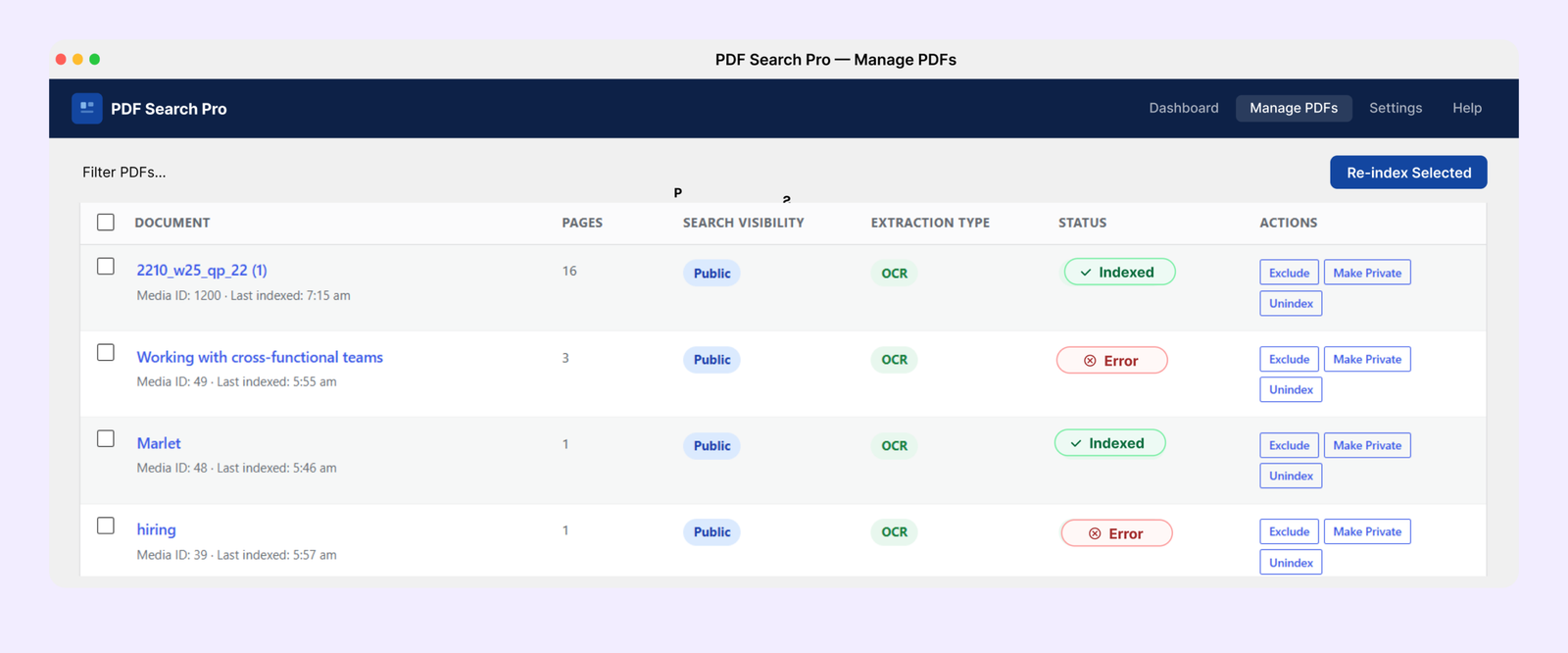
If a PDF isn’t showing up, go to PDF Search → Manage PDFs and check its status. Anything showing as Error or Not Indexed needs attention — the status badge tells you exactly why.
Step 5 — Add a PDF-Only Search Form (Optional)
If you want a dedicated search box that only searches your PDFs — useful for help centres, resource libraries, or document portals — add this shortcode to any page:
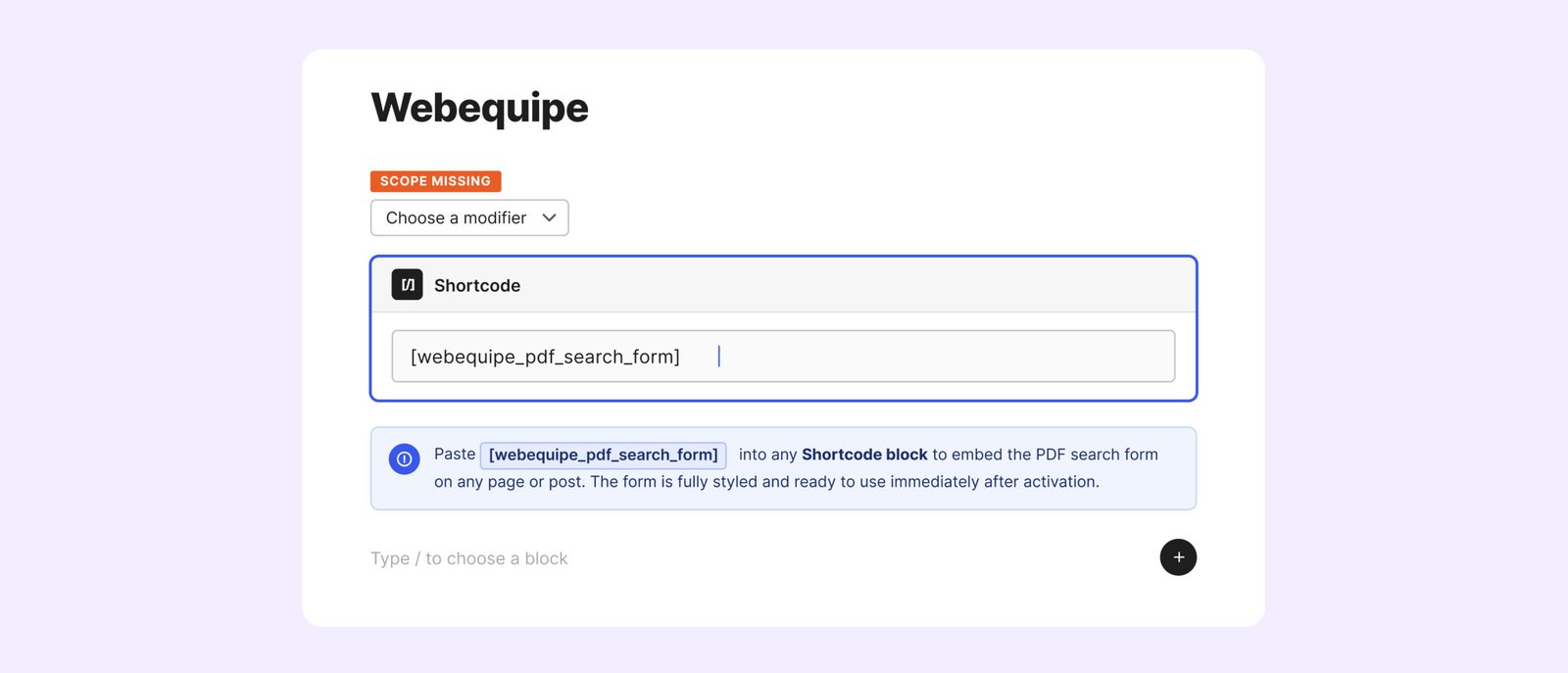
Visitors get a search box that only looks at your PDFs — nothing else on the site, just the documents.
Best Practices
Filenames become titles. In search results, the PDF’s filename is what gets displayed as the title. annual-report-2025.pdf is a lot more useful than doc-final-v2-FINAL.pdf. It’s worth cleaning up filenames before you index.
The index doesn’t update automatically when you replace a file. If you swap out a PDF for a newer version, you need to manually re-index that file. Go to it in your Media Library and click Re-index.
Use Exclude for PDFs that shouldn’t be searchable. Draft documents, internal files, outdated versions — use the Exclude option on these. The file stays in your Media Library, it just won’t be indexed or show up in any search results.
Large files take longer. The default size limit is 50MB. You can raise this in settings up to 500MB. Very large PDFs are processed in background batches automatically so they don’t time out.
Common Problems and How to Fix Them
PDFs still aren’t showing up after indexing
Check that Enable Search Integration is on in PDF Search → Settings. Also confirm the specific PDF isn’t set to Excluded.
Indexing keeps stopping or timing out
Go to PDF Search → Settings → Advanced and turn on Background Processing. This moves indexing out of the browser and into a background queue so it doesn’t need to finish in a single page load.
Some PDFs index fine but others show Error
This almost always means those PDFs are scanned — image-only files with no text layer. The free plugin can’t read them. You’ll need OCR for those.
PDFs show in results but with no excerpt
Usually means the text extraction returned very little content. Try opening the PDF and selecting some text. If you can’t highlight anything, it’s likely a scanned file.
When the Free Plugin Isn’t Enough
The free plugin handles text-based PDFs well. But two situations need the Pro version.
You have scanned PDFs
Archived reports, meeting minutes, old handbooks, government forms — these are all image-only files. The free plugin marks them as Error because there’s no text to extract.
WebEquipe PDF Search Pro includes OCR powered by Google Vision. Turn it on and scanned PDFs get processed automatically when you upload them — the text gets pulled from the images and indexed the same way a normal PDF would be. Nothing extra to set up on your end.
How to Make Scanned PDFs Searchable on WordPress →
You need some PDFs visible only to logged-in users
The free plugin’s Exclude feature removes a PDF from search entirely. But sometimes you want a document findable — just not by everyone. Member handbooks, staff policies, client resources.
Private PDF Search (available on Pro and Agency plans) lets you mark individual PDFs as Private. They stay indexed but disappear from results for anyone who isn’t logged in. Logged-in users find them normally.
Frequently Asked Questions
Does WordPress search inside PDFs by default?
No — and this surprises a lot of people. WordPress only searches content you’ve typed directly into posts and pages. PDF files are stored as attachments. WordPress knows the filename exists but has never looked inside it. That’s what the plugin fixes.
Will this slow down my site?
Not in any noticeable way. Indexing happens in the background, either when a PDF is uploaded or when you manually kick it off. When someone searches, the query runs against the stored index — not the original files. Your visitors won’t feel a thing.
What about PDFs I’ve already uploaded?
Those won’t be picked up automatically. You run Re-index All PDFs once from the Dashboard after installing the plugin and it processes everything in your library. New uploads after that are handled automatically.
Can it handle password-protected PDFs?
No. If a PDF is locked, the plugin can’t get to the text inside it. Those files need to be unlocked before they can be indexed.
How many PDFs can it handle?
No hard limit. We’ve seen it work fine on sites with several hundred PDFs. Large libraries just run in batches so nothing times out.
Does it work with my theme?
Yes. It plugs into WordPress’s native search, so any theme using standard WordPress search will show PDF results. The shortcode form works independently of your theme entirely.
Getting Your PDFs Into Search
If your site has text-based PDFs, you’re ten minutes away from having them fully searchable. Install the free plugin, run Re-index All PDFs once, and your documents will start showing up in results straight away.
If you’re dealing with scanned files or need to keep certain documents restricted to logged-in users, that’s exactly what PDF Search Pro is built for.
View WebEquipe PDF Search plans →If you found this helpful, these guides cover the next steps most people ask about:
How to Make Scanned PDFs Searchable on WordPress →