
Not every PDF on your site should be searchable by everyone. Internal documents, draft files, member-only resources, staff handbooks — these need to stay out of public search results.
There are two ways to handle this in WebEquipe PDF Search, and they solve different problems. Using the wrong one causes its own issues, so it’s worth knowing the difference before you start.
Exclude vs Private — What’s the Difference
Exclude removes a PDF from search entirely. Nobody finds it — logged in or not. The file stays in your Media Library, but it’s never indexed and never appears in any search result. Even if you run Re-index All PDFs, excluded files get skipped.
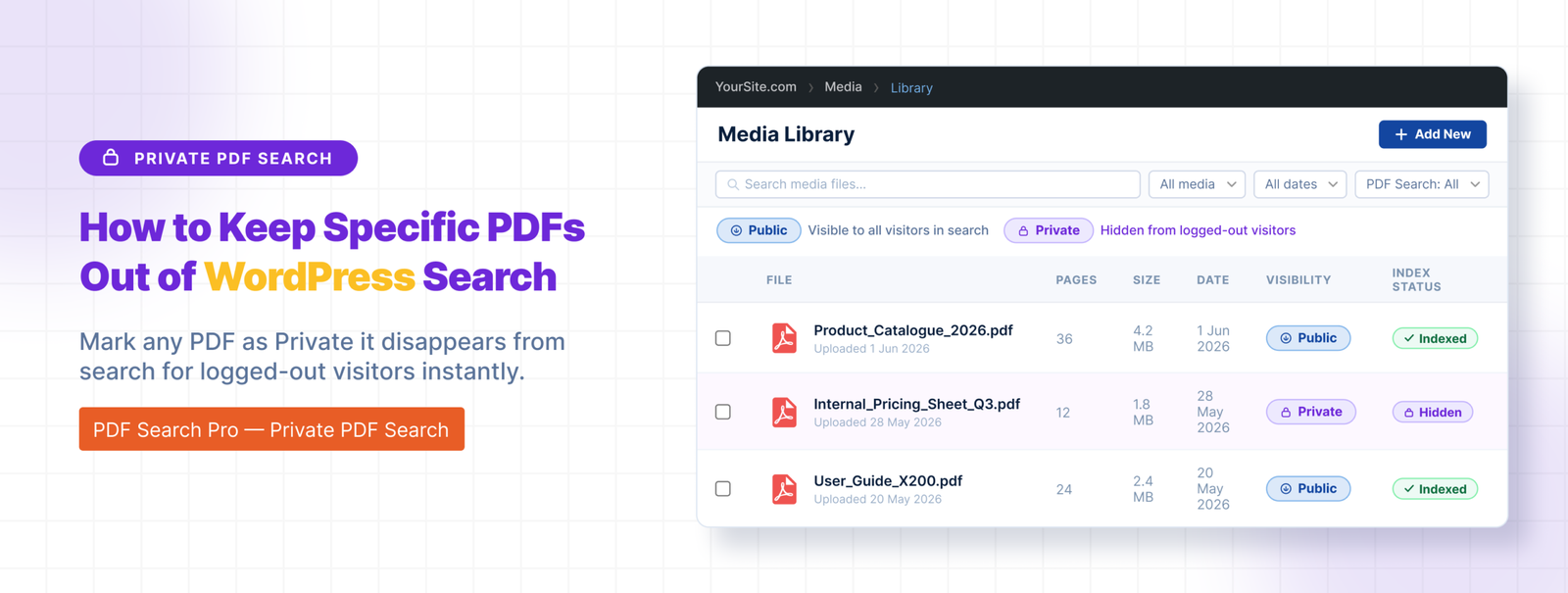
Private PDF Search keeps the PDF indexed but hides it from logged-out visitors. Logged-in users can still find it through search. The file is fully searchable for your members, subscribers, or staff — just invisible to anyone who hasn’t signed in.
The right choice depends on what you’re trying to do:
🟥 Draft document that isn’t ready yet → Exclude
🟥 Outdated version you’re keeping for records → Exclude
🟥 Internal file that should never be public → Exclude
🟥 Member handbook your subscribers need to find → Private
🟥 Staff policy document for logged-in employees → Private
🟥 Client resource restricted to registered users → Private
How to Exclude a PDF
Exclude is available in the free plugin.
Go to Media → Library and open the PDF you want to exclude. In the WebEquipe PDF Search panel on the right side of the attachment screen, click Exclude.
The PDF is removed from the index immediately. If it was already showing in search results, it disappears. Running Re-index All PDFs in future will skip it automatically.
To reverse it, go back to the same panel and click Include, then re-index the file.
How to Set a PDF to Private
Private PDF Search requires a Pro or Agency licence.
Go to Media → Library and open the PDF. In the WebEquipe PDF Search panel, set Search Visibility to Private and save.
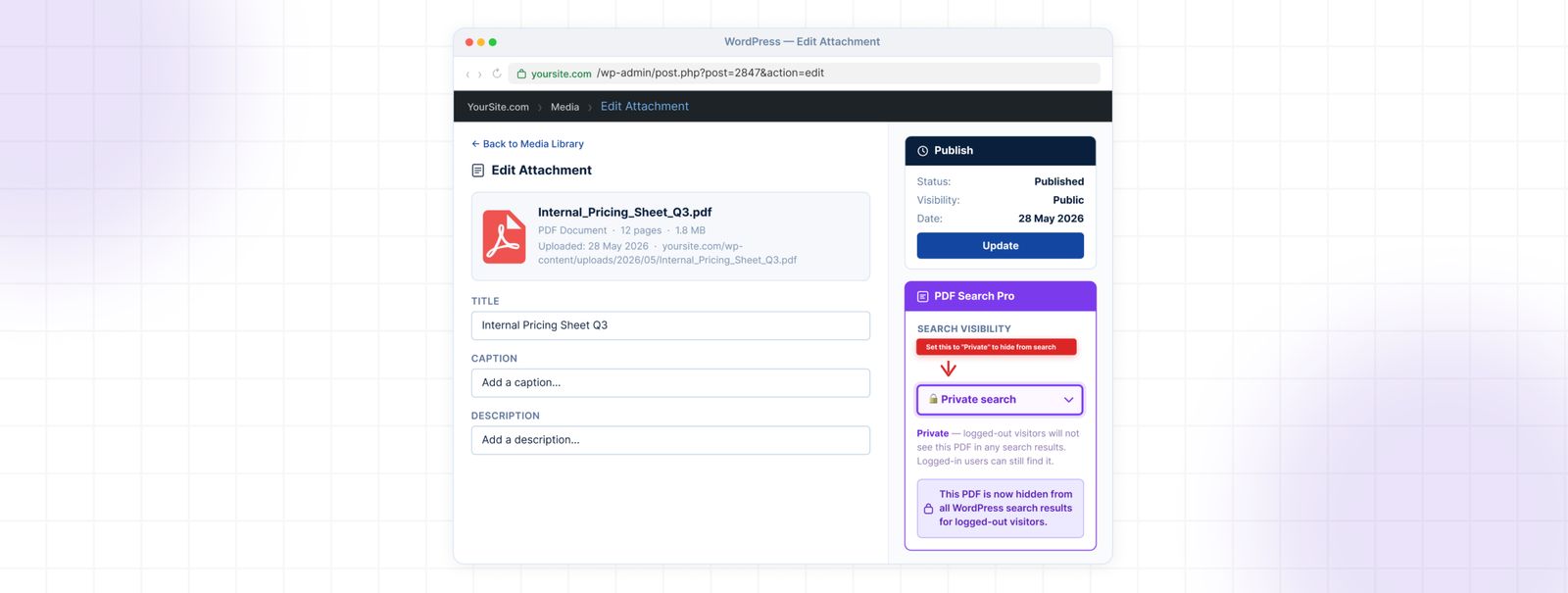
From that point, the PDF is invisible in search results for anyone not logged in. Logged-in users find it normally.
To confirm it’s working, open a private browsing window and search for the document title or a phrase from inside it. It shouldn’t appear. Log in and search again — it should show up.
Setting a Default Visibility for New PDFs
If most of your new uploads should be private by default, you can set that in PDF Search → Settings. Under Default Search Visibility, switch from Public to Private.
This means every new PDF you upload starts as Private. You can still change individual files to Public whenever needed.
What Private PDF Search Does Not Do
Private PDF Search is binary — logged in or logged out. It doesn’t restrict by user role, membership level, or subscription tier. A logged-in subscriber sees the same private PDFs as a logged-in administrator.
If you need per-role restrictions — showing certain PDFs only to specific membership levels or user groups — that’s on the roadmap but isn’t in the current version. For now, the combination of Exclude and Private covers most use cases.
Private PDF Search is available on Pro and Agency plans. The free plugin includes Exclude only.
View Pricing Plans →
Frequently Asked Questions
Does excluding a PDF delete the file?
No. Exclude only affects search indexing. The file stays in your Media Library and is still accessible via its direct URL. If you want to remove the file entirely, you’d delete it from the Media Library separately.
Can someone access a private PDF directly if they have the URL?
Yes. Private PDF Search only controls whether the file appears in search results. It doesn’t protect the file URL itself. If someone has a direct link to the PDF they can still open it. For full access control on the file itself, you’d need a file protection plugin alongside this.
Can I bulk set multiple PDFs to Private at once?
Yes. Go to PDF Search → Manage PDFs, select the files you want to restrict, and use the bulk action Make Private.
What happens to private PDFs if my Pro licence expires?
The PDFs stay in your library and stay indexed, but the Private visibility setting stops being enforced. They become visible in search results to everyone until the licence is renewed.
Can I make all new uploads Private by default?
Yes — set Default Search Visibility to Private in PDF Search → Settings. Individual files can still be switched to Public as needed.
The Right Tool for the Job
If a PDF shouldn’t be searchable by anyone, use Exclude. If it should be searchable only by logged-in users, use Private. Both are available from the same attachment panel in your Media Library — Exclude in the free plugin, Private in Pro.
If you haven’t set up PDF search yet: