
Most government and nonprofit websites have the same quiet problem sitting in their Media Library. Years of agendas, minutes, ordinances, budgets, and public notices are all uploaded faithfully as PDFs, but none of it is actually searchable by the people who need it.
A resident wants to know what was decided about a rezoning application eighteen months ago. A board member is trying to find which meeting first raised a budget item. Someone just wants last month’s agenda. Right now, all of them are stuck scrolling through a page of file names sorted by date, hoping they recognize the right one.
That’s not a records problem. It’s a search problem, and it’s fixable without touching a single existing file.
Why This Happens on Government and Nonprofit Sites Specifically
Public bodies produce an unusual volume of PDFs compared to most websites. Every meeting generates an agenda and minutes. Every policy change gets published as a document. Older records are often scanned from physical files that predate digital minute-taking entirely.
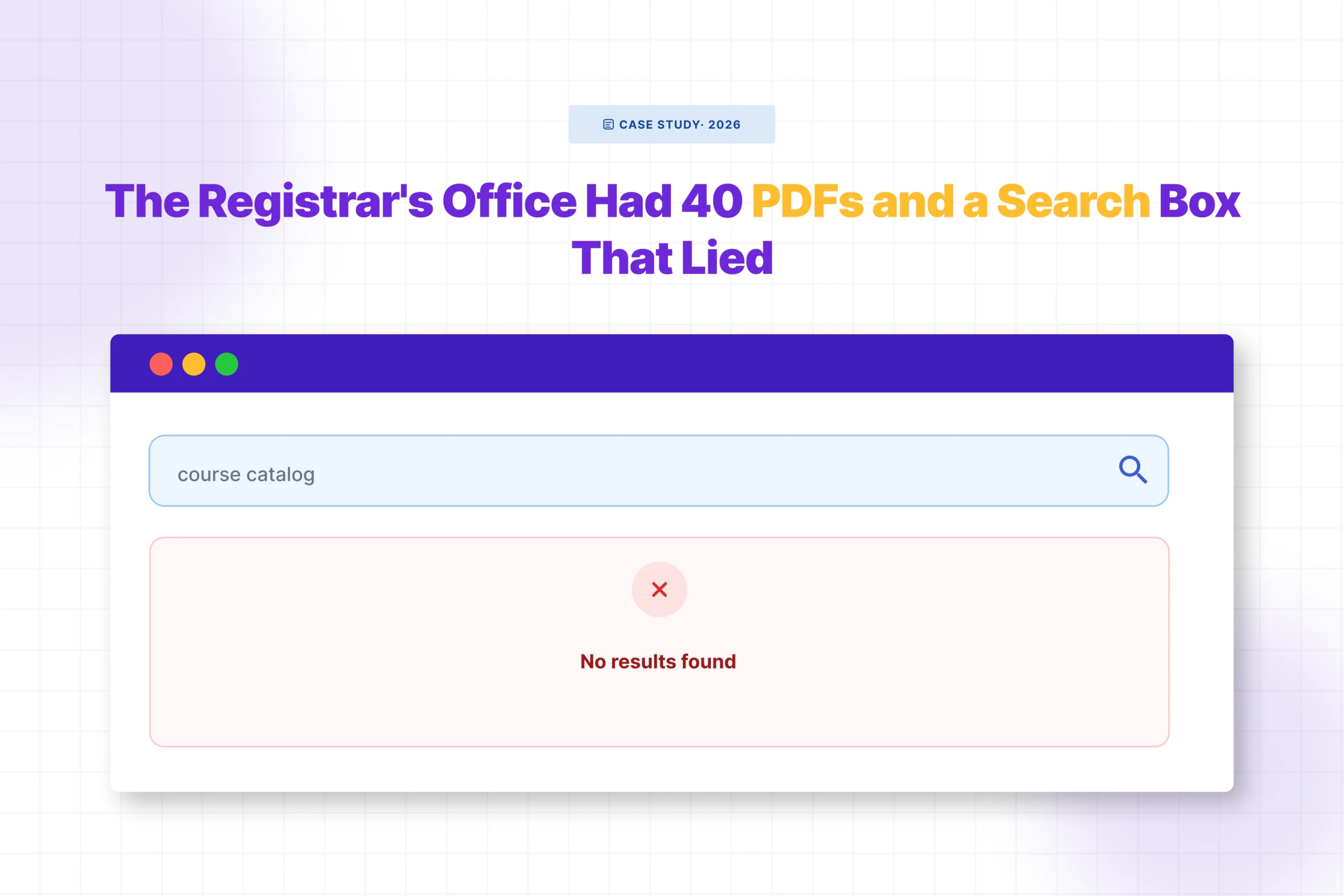
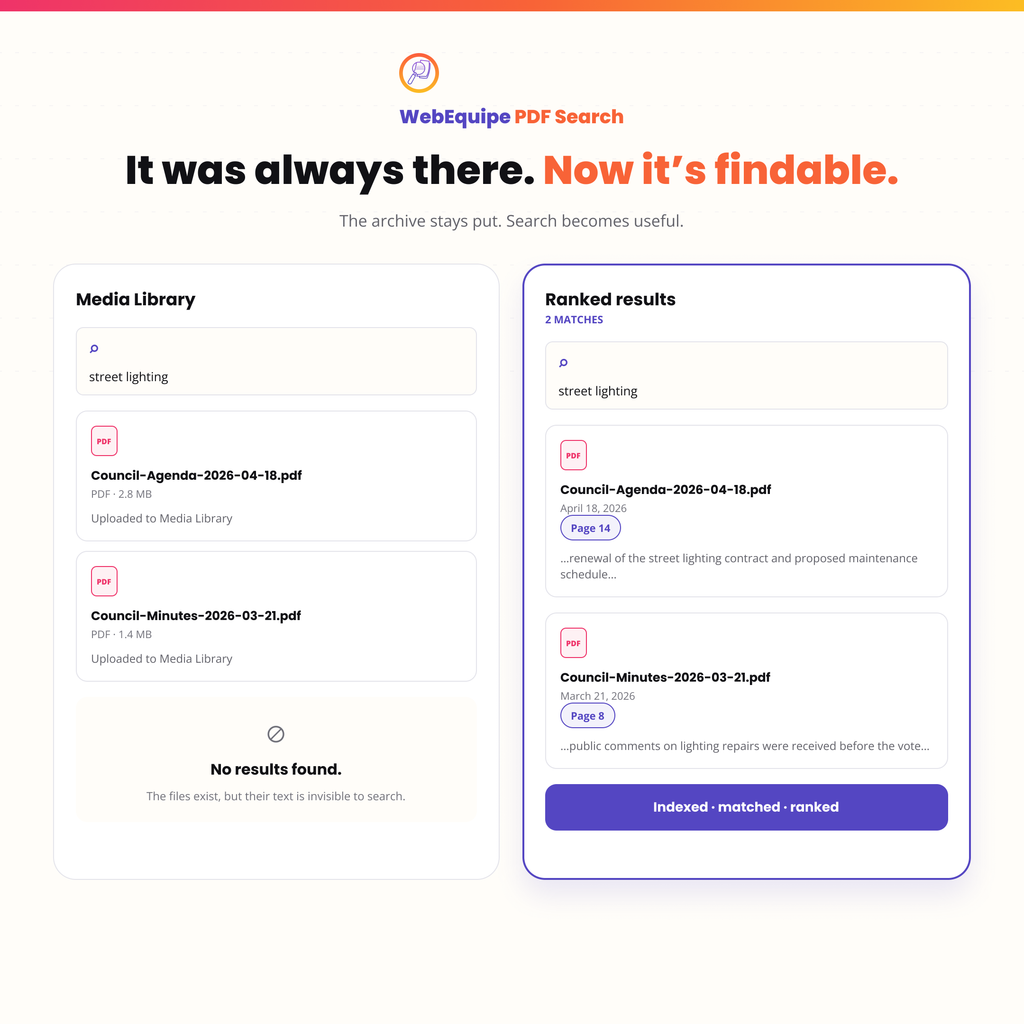
Default WordPress search was never built for this. It looks at post titles and page content, not the text buried inside an uploaded file. So even though the answer to “what happened at the March meeting” is sitting right there in a PDF, typing “March meeting” into the search bar turns up nothing.
The usual workaround is a clerk manually organizing files into folders by year, which helps browsing but does nothing for someone searching for a specific term, a name, an ordinance number, or a topic that could appear in any meeting from any year.
What Actually Fixes It
The fix isn’t to reorganize your archive. It’s indexing what’s already there.
WebEquipe PDF Search reads the actual text inside your PDFs and adds it to your site’s normal search. Once that’s done, searching “zoning” or a specific ordinance number returns every document that mentions it, not just ones with that word in the filename.
For older scanned records, the ones from before digital minutes were standard practice, OCR handles the rest of the process. Scanned pages get converted to searchable text automatically during indexing, so a 2014 meeting scanned from a printed original becomes just as searchable as last week’s PDF.
The Part That Matters Most: Landing on the Right Page
A council agenda or a set of annual minutes can easily run 30, 60, sometimes more than 100 pages. Finding the file is only half the problem. Finding the specific item inside it is the other half, and it’s usually the part that makes people give up.
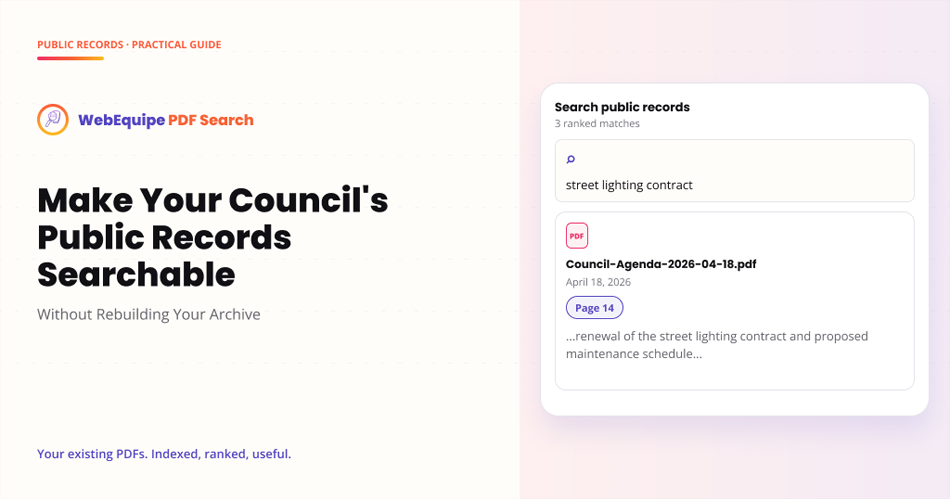
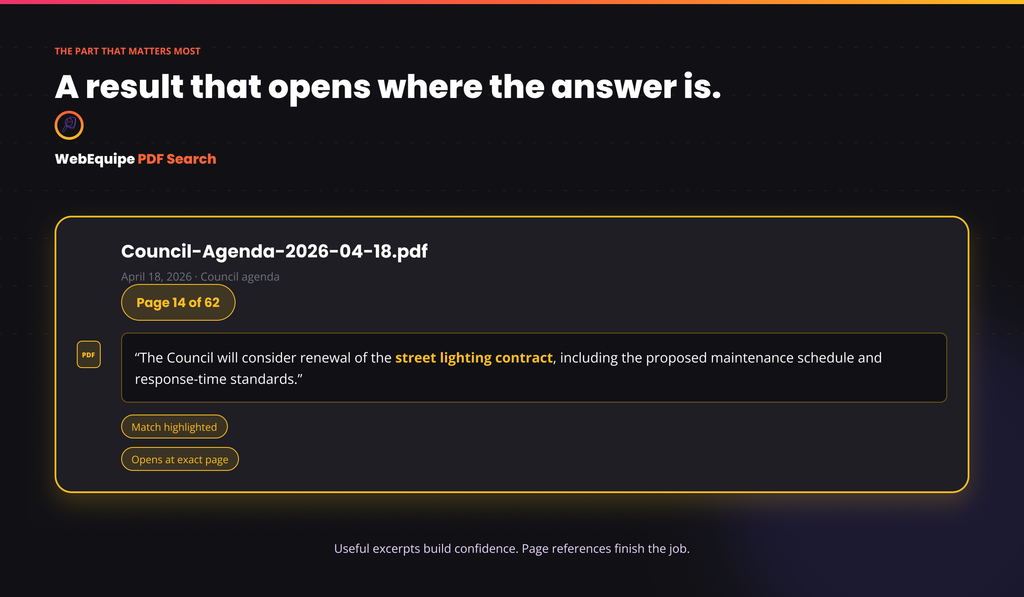
Search results link directly to the page where a match was found, not just the document. Someone searching for a specific agenda item lands on that item, not page one of a document they now have to scroll through themselves.
For a resident trying to confirm what was decided about a permit, or a staff member pulling up a specific ordinance during a call, that difference is the whole point of making records searchable in the first place.
No Migration Required
None of this requires moving files, renaming anything, or restructuring your Media Library. The PDFs stay exactly where they are. Indexing runs in the background and reads what’s already uploaded.
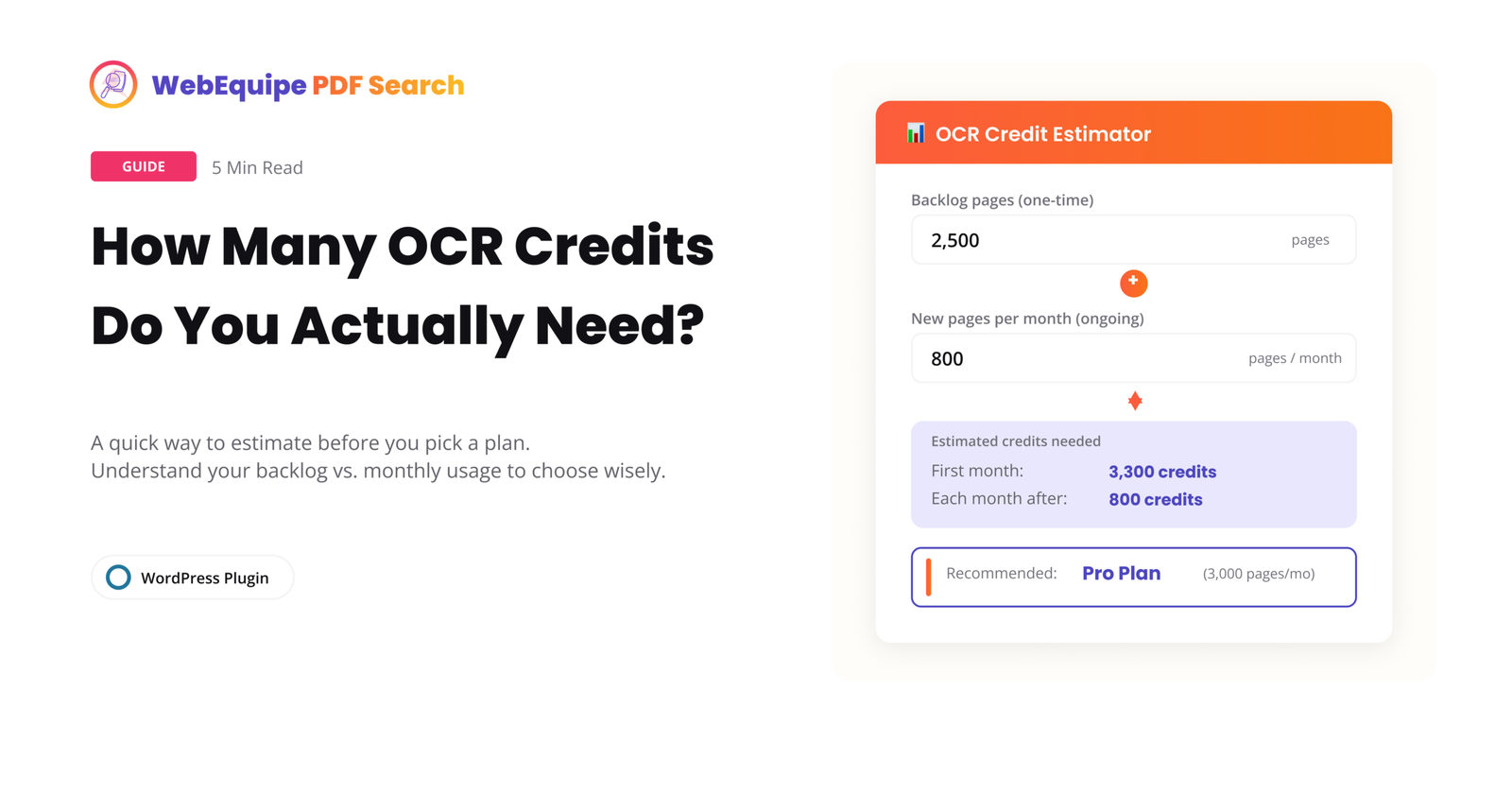
For sites with a genuinely large backlog, for instance, years of scanned historical minutes, indexing happens over time rather than all at once, and OCR usage scales with how much of that backlog is actually scanned versus already text-based.
What This Looks Like for Visitors
A search box on your site, or the same search WordPress already has, now actually reaches inside every indexed PDF. Someone looking for a term finds every agenda, every set of minutes, every ordinance that mentions it, going back as far as your records are indexed, and lands on the exact page rather than the top of the file.
For transparency and public-access purposes specifically, that’s a meaningful shift. Technically publishing records isn’t the same as making them findable.
Frequently Asked Questions
Do I need to reorganize my existing PDFs first?
No. Indexing works on files exactly where they already are in the Media Library.
Will this work on old scanned minutes, not just recent digital ones?
Yes. Scanned, image-based PDFs are handled through OCR, which converts them to searchable text during indexing.
Does this replace our existing document archive page?
No. It adds search capability on top of whatever page or structure you already have. Nothing about how documents are displayed needs to change.
Can visitors search without knowing which meeting or year to look in?
Yes. That’s the main benefit. A search for a topic or term returns every matching document regardless of date, rather than requiring the visitor to already know which file to open.
Does search find results inside long agendas, or just the file itself?
Results link to the specific page where the term was found, not just the document, so visitors land on the relevant item directly.
Is there a cost to indexing a large historical archive?
Text-based PDFs can be indexed at no extra cost. Scanned pages use OCR, which is included on paid plans with a monthly page quota that scales by plan.
Getting Started
Most sites can turn on search integration and run an initial index without any structural changes to their existing archive. For very large scanned backlogs, it’s worth planning the OCR volume ahead of time so the rollout matches your plan’s monthly quota.