
πŸŽ‰ Save 10% Extra on the Webequipe PDF Search Plugin Annual Plan β€” Use code YEARLY10 Β· Limited-time offer Β· Get discount β†’

WordPress PDF Search β€” The Complete Guide (2026)

WordPress PDF Search β€” The Complete Guide (2026)
WordPress PDF Search 2026

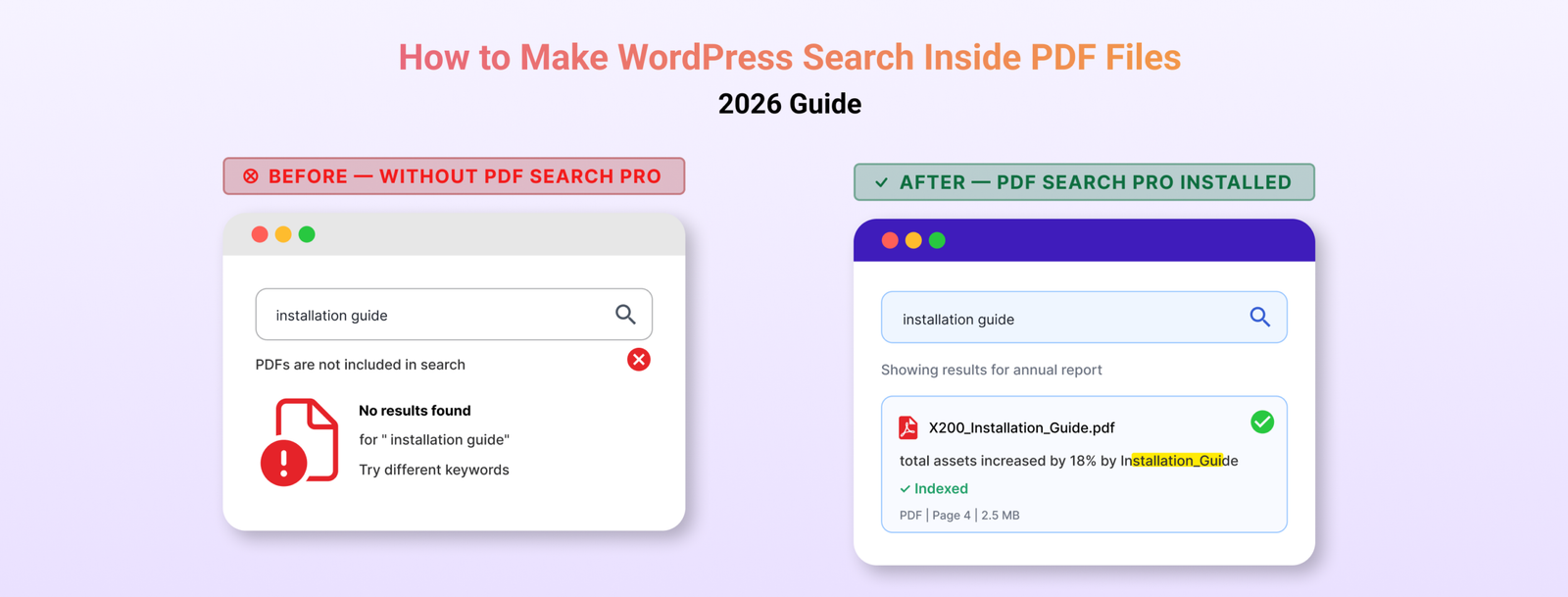
WordPress doesn’t search inside PDF files. Not by default, not ever. You can upload hundreds of documents and your site’s search bar will ignore every word inside all of them.

This guide covers everything β€” why it happens, how to fix it, how to handle scanned documents and private files, how to read your index activity, and what to do when things go wrong. If you manage PDFs on a WordPress site, this is the only reference you need.

Table of Contents

  1. Why WordPress Doesn’t Search Inside PDFs
  2. The Two Types of PDFs on Most Sites
  3. Setting Up PDF Search β€” Free
  4. Dashboard Overview
  5. Handling Scanned PDFs with OCR
  6. Keeping PDFs Private or Out of Search
  7. Managing Your PDF Library
  8. Index Activity
  9. Search Results β€” What Visitors See
  10. Common Problems and Fixes
  11. Free vs Pro β€” When to Upgrade
  12. FAQ

Why WordPress Doesn’t Search Inside PDFs

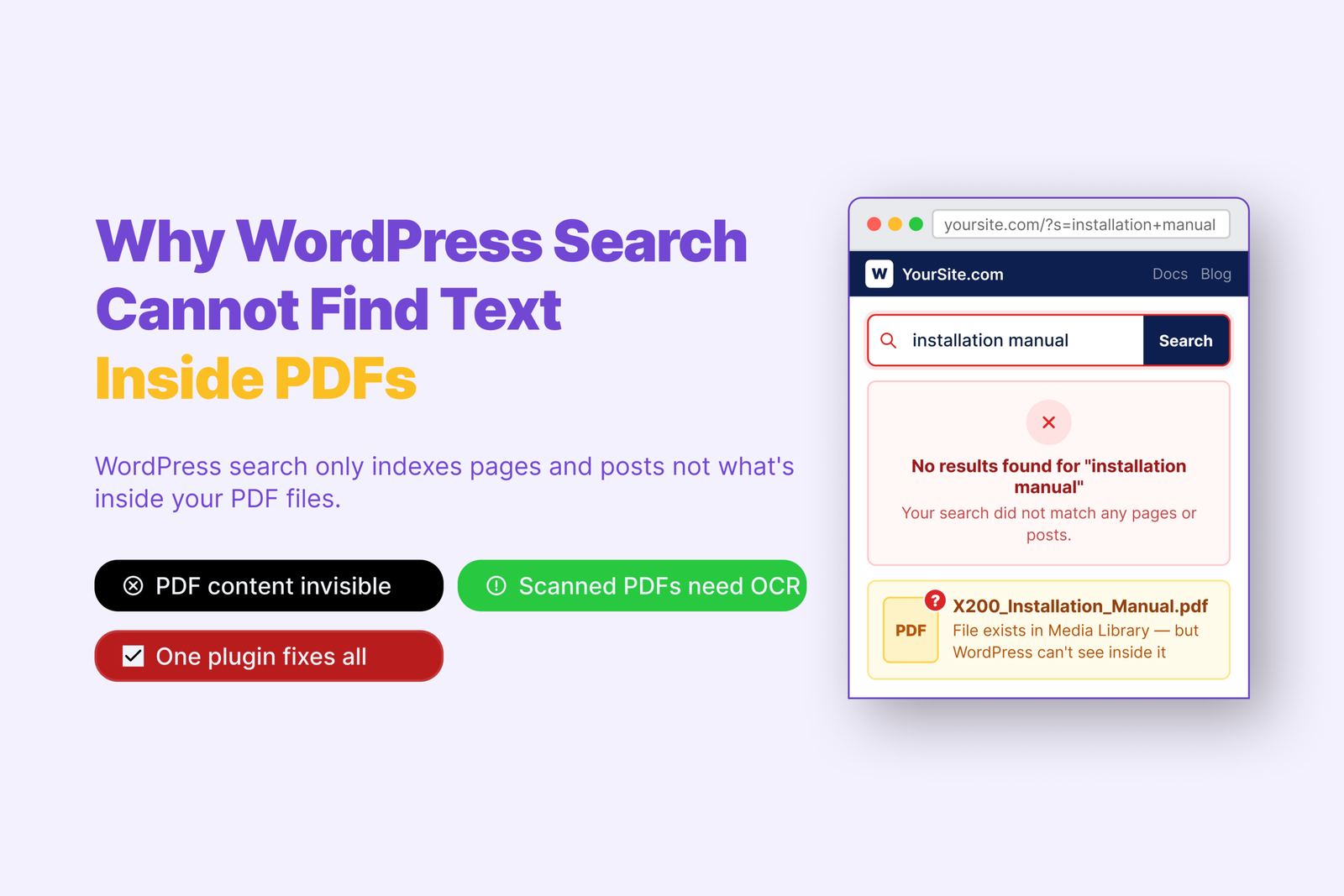
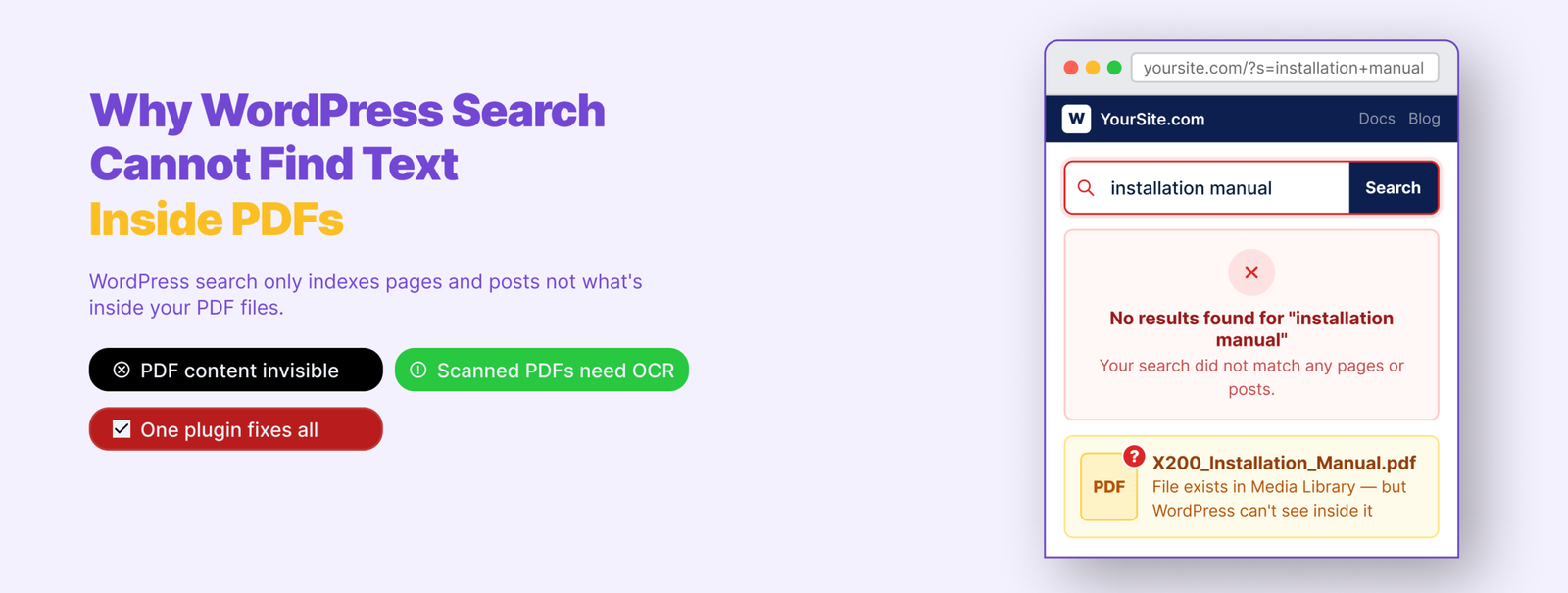
WordPress search queries a single database table that stores post and page content. When you upload a PDF, WordPress records the filename, file size, and URL. That’s the extent of it. The text inside the file is never read, never stored, never searchable.

This isn’t something that gets fixed by tweaking settings or installing a general search plugin. You need a plugin specifically built to extract text from PDF files and store it in a searchable index. That’s what WebEquipe PDF Search does.

The Two Types of PDFs on Most Sites

Before setting anything up, it helps to know what you’re working with.

Text-based PDFs are created digitally β€” exported from Word, Google Docs, InDesign, or any document software. The text exists as real, selectable characters inside the file. Open one in your browser and you can highlight words, copy sentences, search the document. These are straightforward to index.

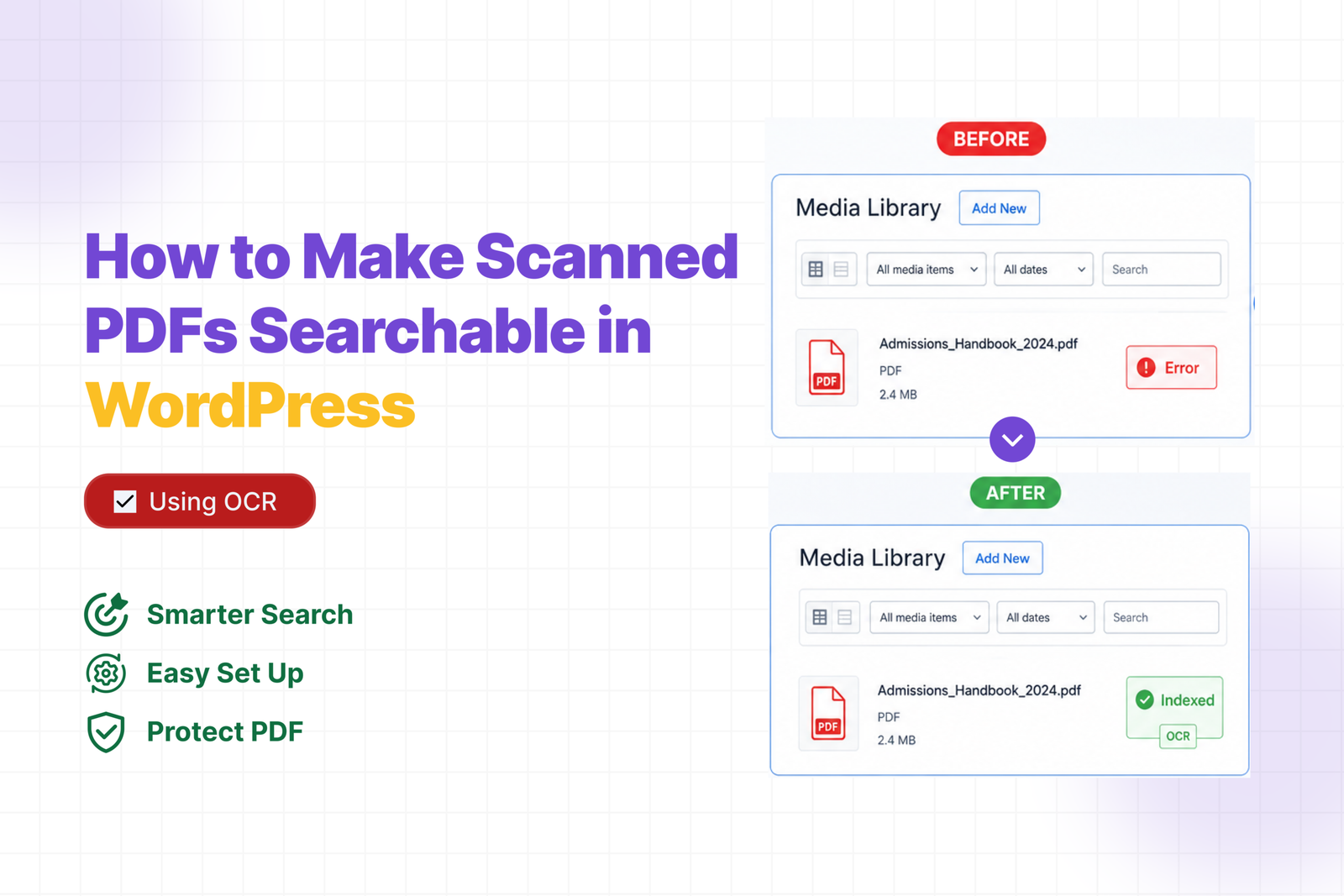
Scanned PDFs are photographs of physical pages saved as PDF files. The content is an image, not text. You can’t highlight anything inside them. A standard PDF search plugin marks these as Error because there’s nothing to extract.

Most document-heavy sites have both. Old archived reports, meeting minutes, forms designed for print β€” these tend to be scanned. Anything created or exported recently is usually text-based.

Knowing which type you’re dealing with determines which setup path you take.

Setting Up PDF Search β€” Free

The free version of WebEquipe PDF Search handles text-based PDFs. Install it, index your library, and your documents become searchable in minutes.

πŸŸ₯ Install and activate

Go to Plugins β†’ Add New, search for WebEquipe PDF Search, install and activate. A PDF Search menu appears in your WordPress admin sidebar.

πŸŸ₯ Configure settings

Go to PDF Search β†’ Settings and confirm two things are on:

  • Enable PDF Indexing β€” new uploads get indexed automatically when this is on. Every PDF you add to your Media Library gets processed without any extra steps.
  • Enable Search Integration β€” PDFs appear in your site’s standard search results alongside posts and pages.

If you want PDFs in a separate search form rather than mixed with posts and pages, you can leave Search Integration off and use the shortcode instead.

πŸŸ₯ How auto-indexing works

With Enable PDF Indexing on, the moment you upload a PDF to your Media Library the plugin queues it for processing. For small files this happens immediately. For larger files β€” or if Background Processing is enabled β€” it queues and runs in the background so it doesn’t block the upload.

You’ll see the PDF status change from Not Indexed to Processing to Indexed in your Media Library column as it works through.

πŸŸ₯ Index your existing library

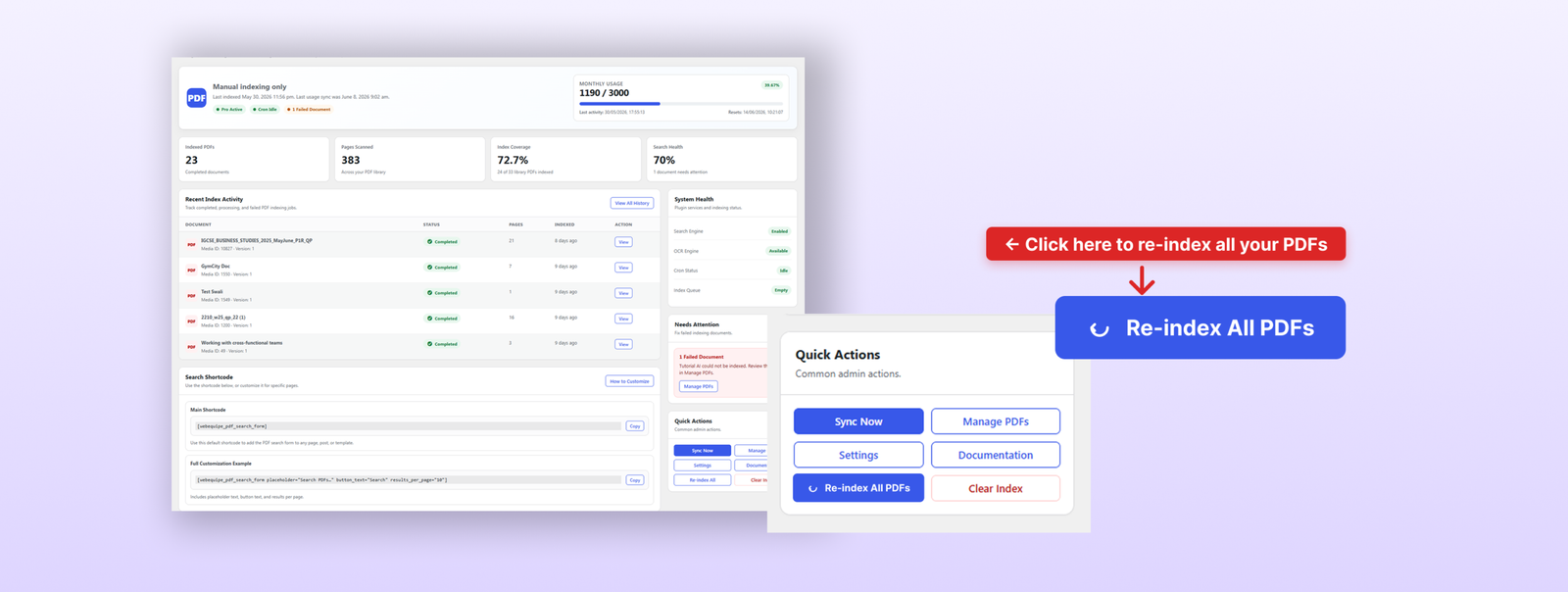
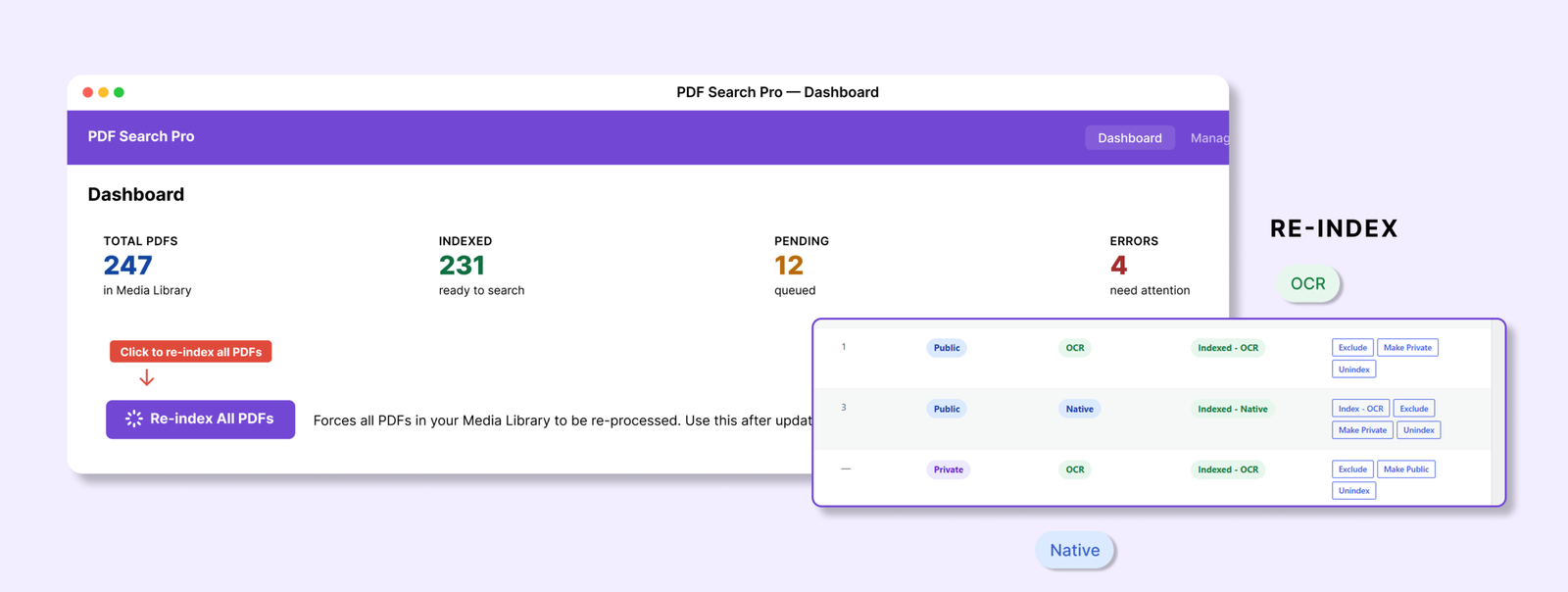
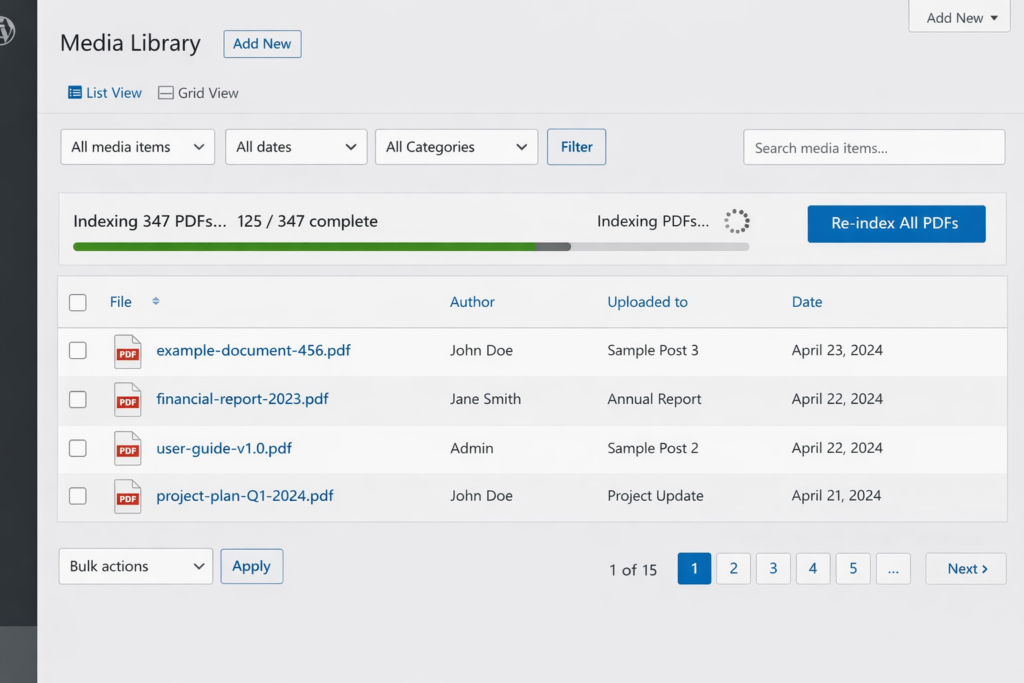
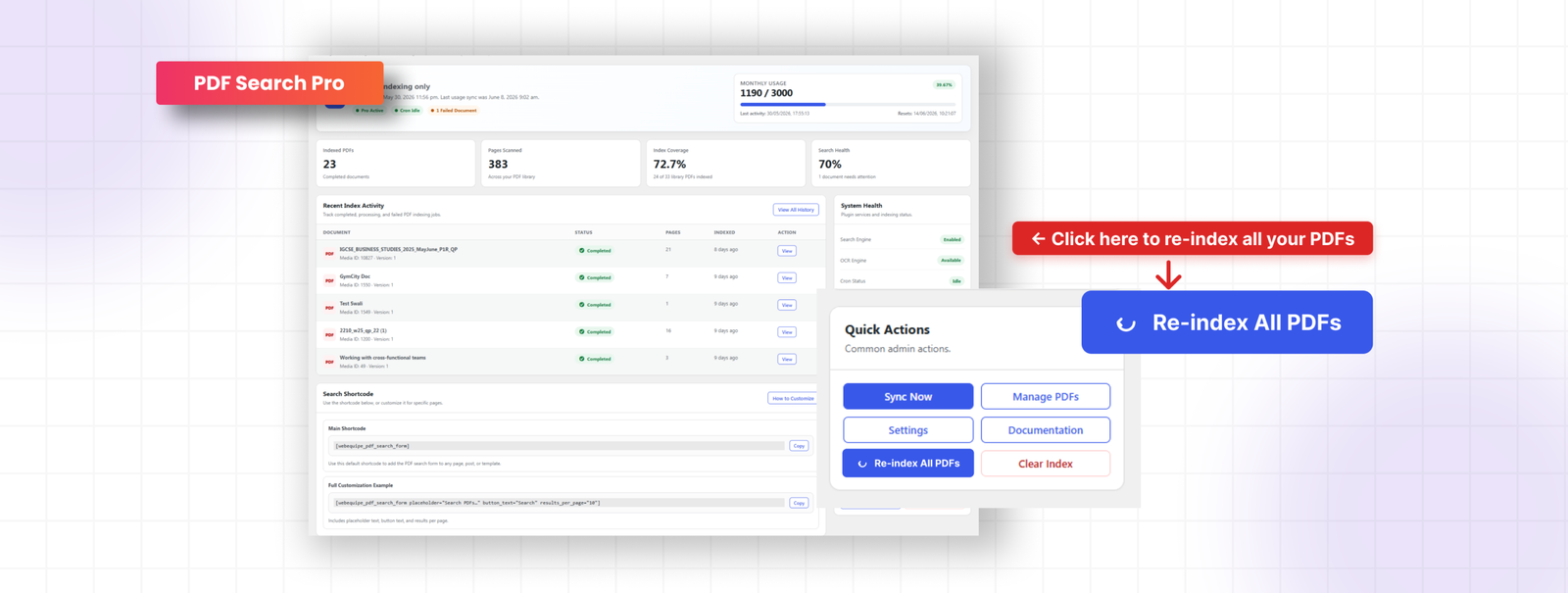
The plugin doesn’t automatically pick up PDFs already in your Media Library before it was installed. Go to PDF Search β†’ Dashboard and click Re-index All PDFs. This processes everything in your library and builds the index from scratch. Large libraries run in batches in the background.
Index your existing library

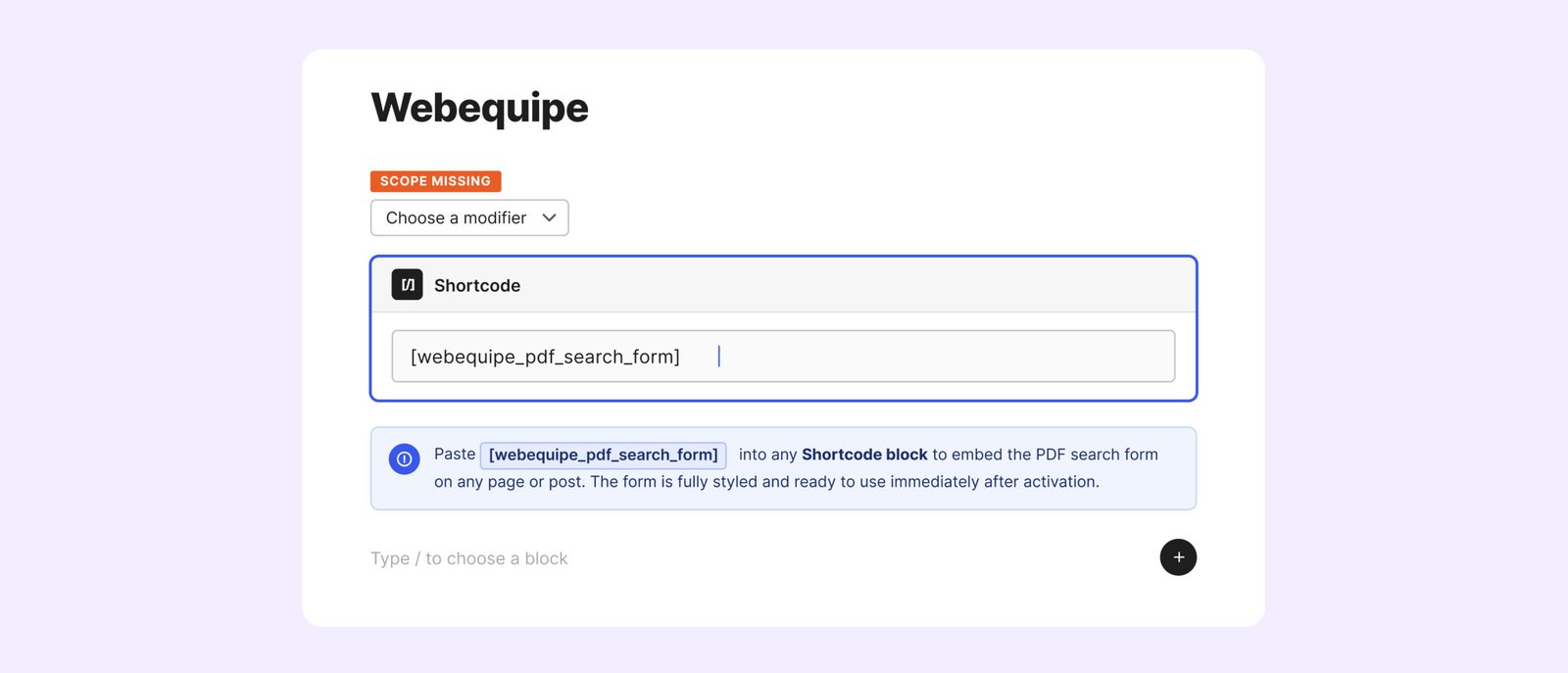
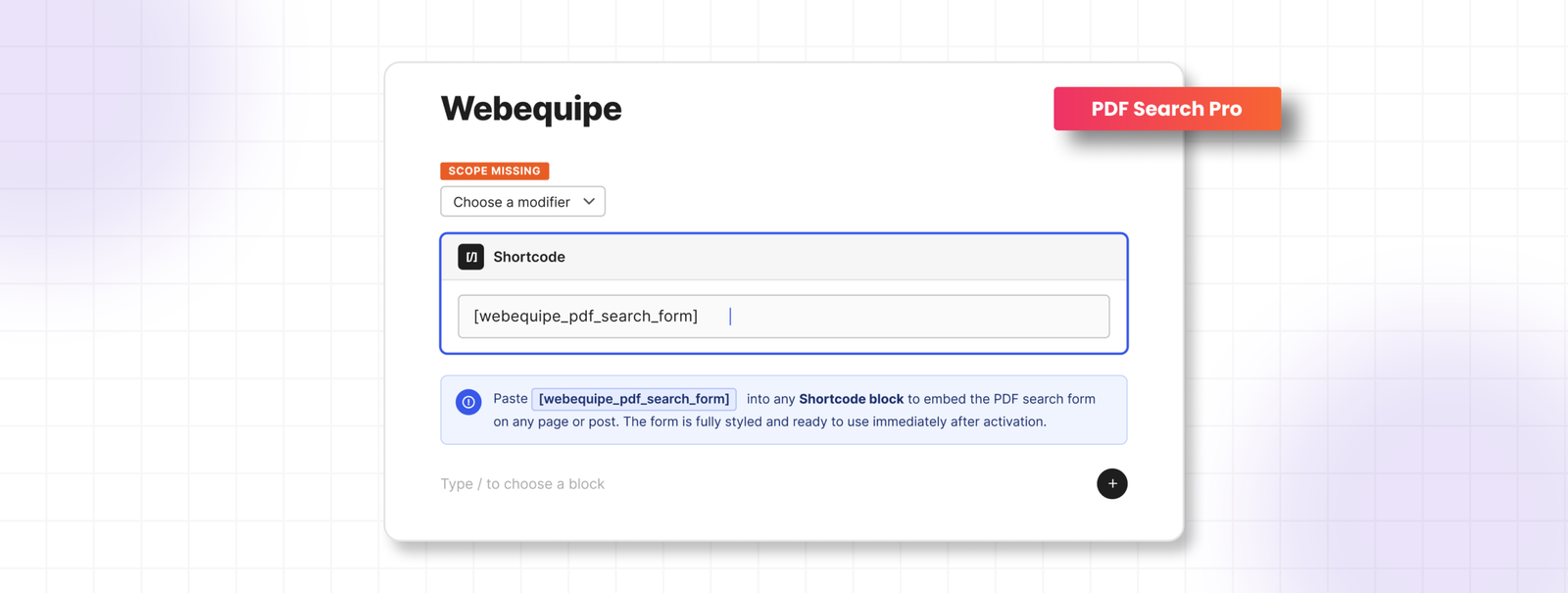
This searches only your indexed PDFs, completely separate from your site’s main search. Useful for resource centres, help sections, or document portals.
Index your existing library-2

Dashboard Overview

PDF Search β†’ Dashboard is your home screen. Here’s what everything means.

πŸŸ₯ Metric cards at the top

Metric cards at the top show indexed PDF count, total pages scanned, index coverage percentage, and search health status. Coverage tells you what proportion of your library is actually indexed β€” if it’s significantly below 100%, there are PDFs that need attention.

πŸŸ₯ Status headline

Status headline gives you an at-a-glance reading of your setup β€” whether indexing is healthy, whether there are failed documents, and whether your cron is running correctly. If something needs attention it flags it here with a link directly to the problem.

πŸŸ₯ Recent index activity

Recent index activity shows the latest indexing runs β€” which files were processed, when, and whether they succeeded. This is a preview of the full Index Activity log.

πŸŸ₯ System health sidebar

System health sidebar shows your PHP version, memory limit, processing timeout setting, and cron status. If background processing is running slowly or failing silently, the cron indicator here is usually the first place that shows it.

πŸŸ₯ Quick actions

Re-index All PDFs, go to Settings, go to Manage PDFs β€” are all accessible from the Dashboard without navigating away.
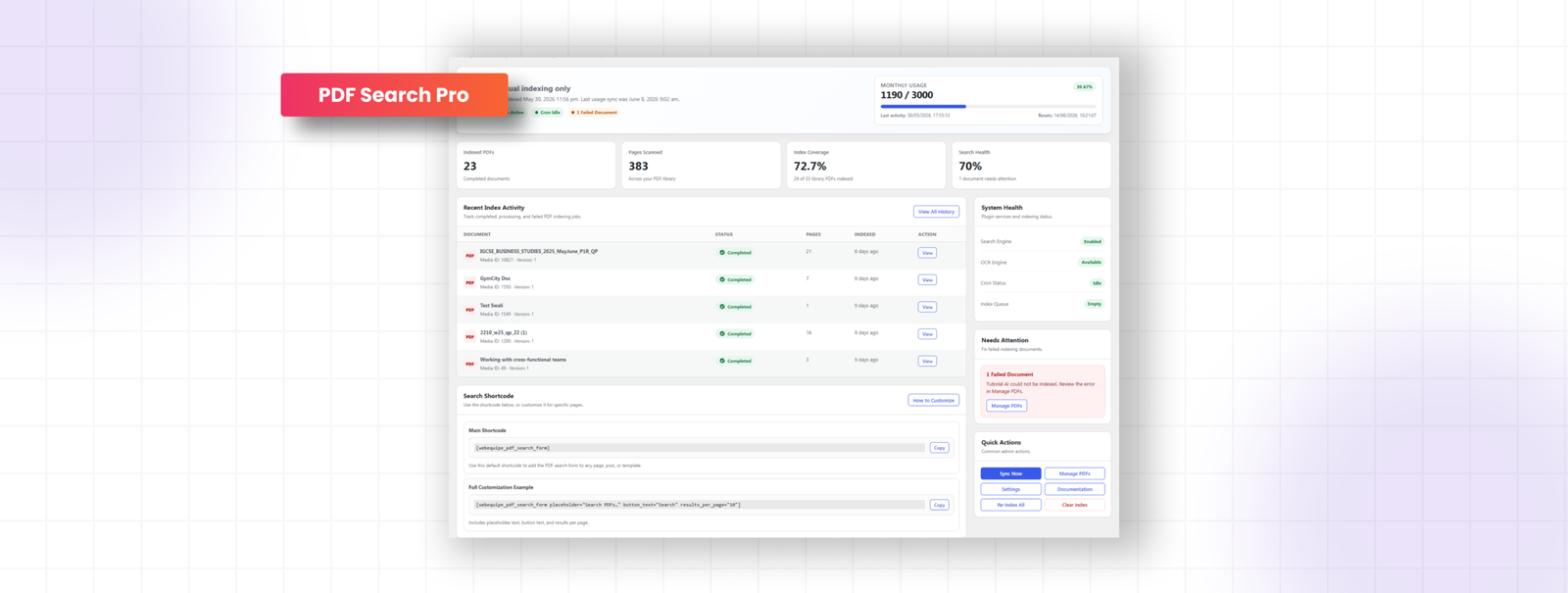
Quick actions

Handling Scanned PDFs with OCR

Scanned PDFs require OCR to be indexed. The plugin uses Google Vision β€” available on Starter, Pro, and Agency plans.

πŸŸ₯ Set up OCR

Once your licence is active, go to PDF Search β†’ Settings and set the Indexing Method to Native + OCR Fallback. Text-based PDFs get processed locally. Scanned files get routed to Google Vision automatically. You don’t decide per file.

πŸŸ₯ Fix existing scanned PDFs

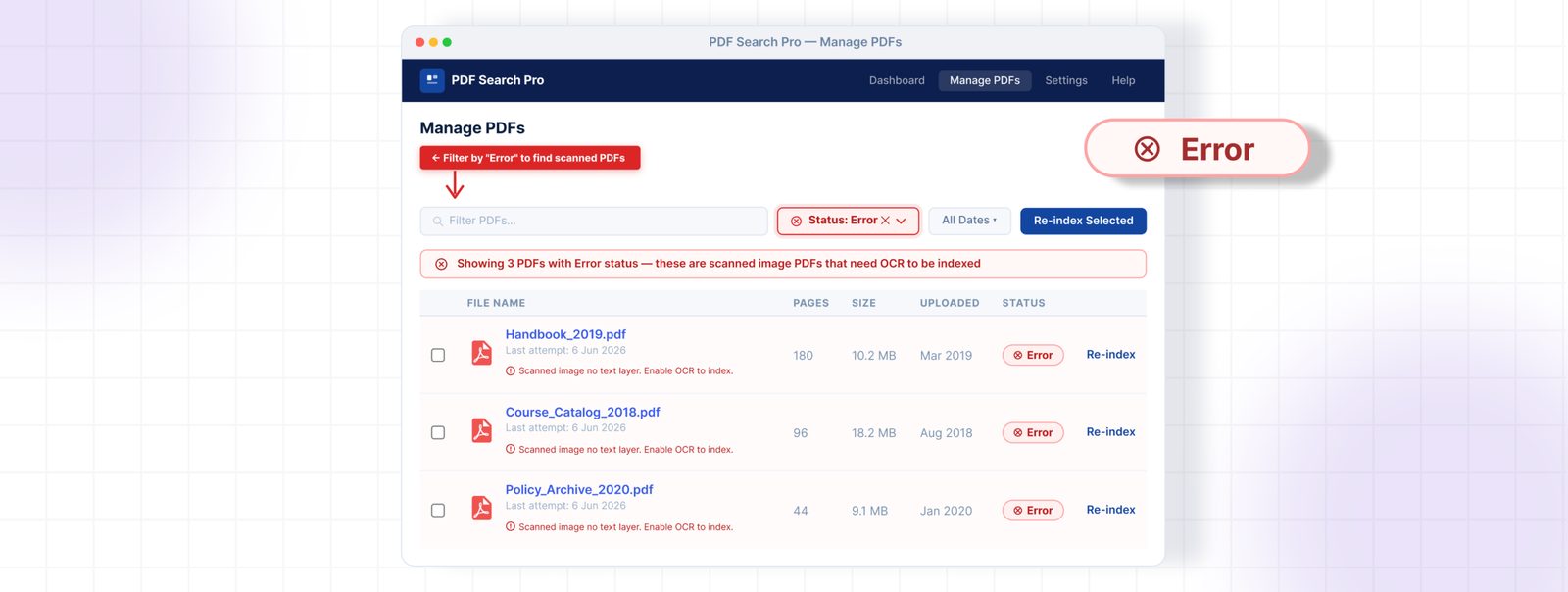
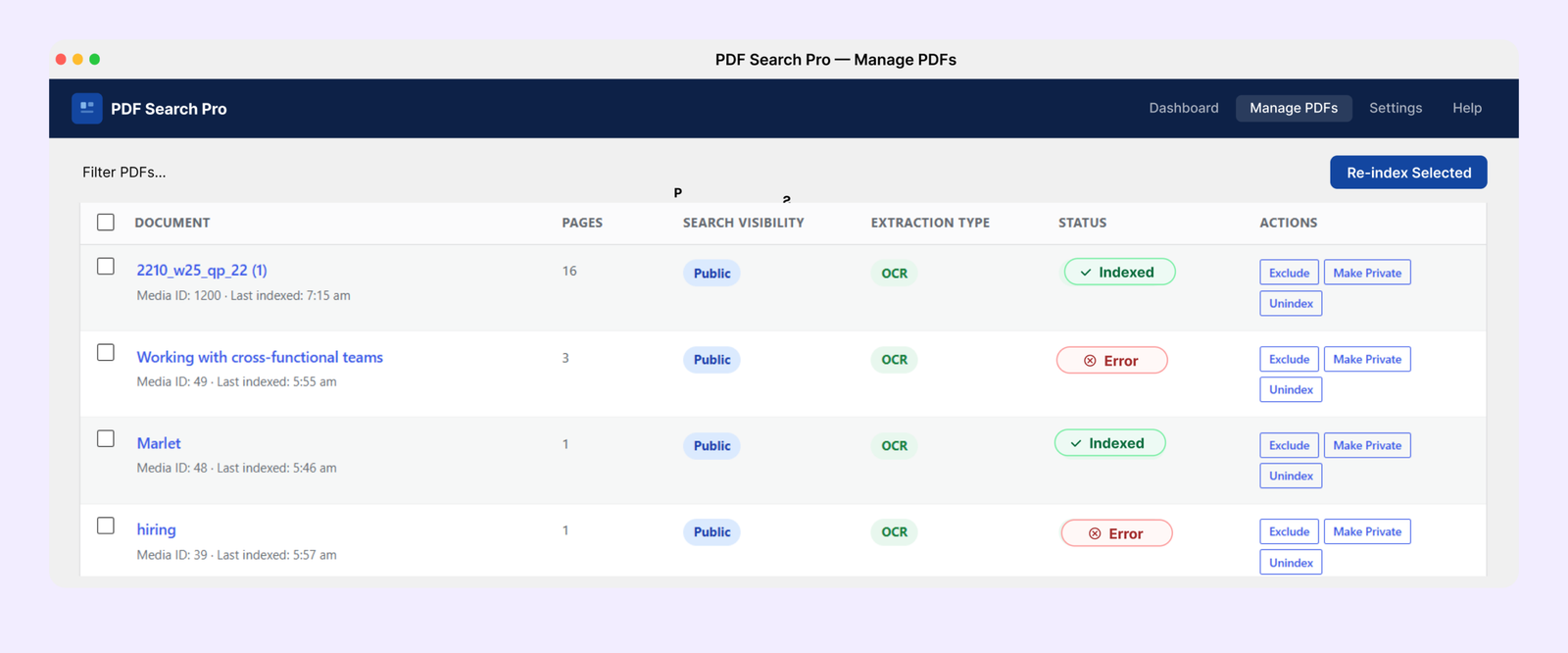
Go to PDF Search β†’ Manage PDFs, filter by Error, select all the failed files, and run the bulk action Index OCR. Those files get sent to Google Vision and come back indexed.

πŸŸ₯ OCR credits

Each plan includes a monthly page allowance β€” Starter gets 1,000 pages, Pro gets 3,000, Agency gets 10,000. Usage is visible in PDF Search β†’ Dashboard.

Full OCR walkthrough: How to Make Scanned PDFs Searchable in WordPress β†’

Not every PDF on a site should be publicly searchable. There are two ways to handle this.

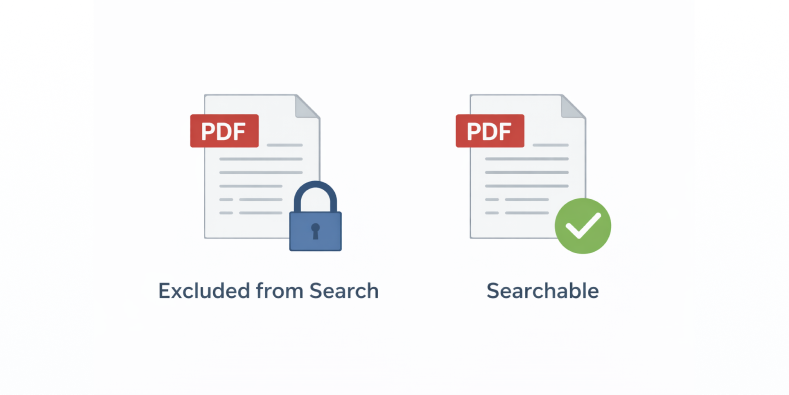
Exclude removes a PDF from search entirely. Nobody finds it β€” logged in or not. The file stays in your Media Library but is never indexed. Use this for drafts, outdated versions, and internal files that should never appear in any search results.

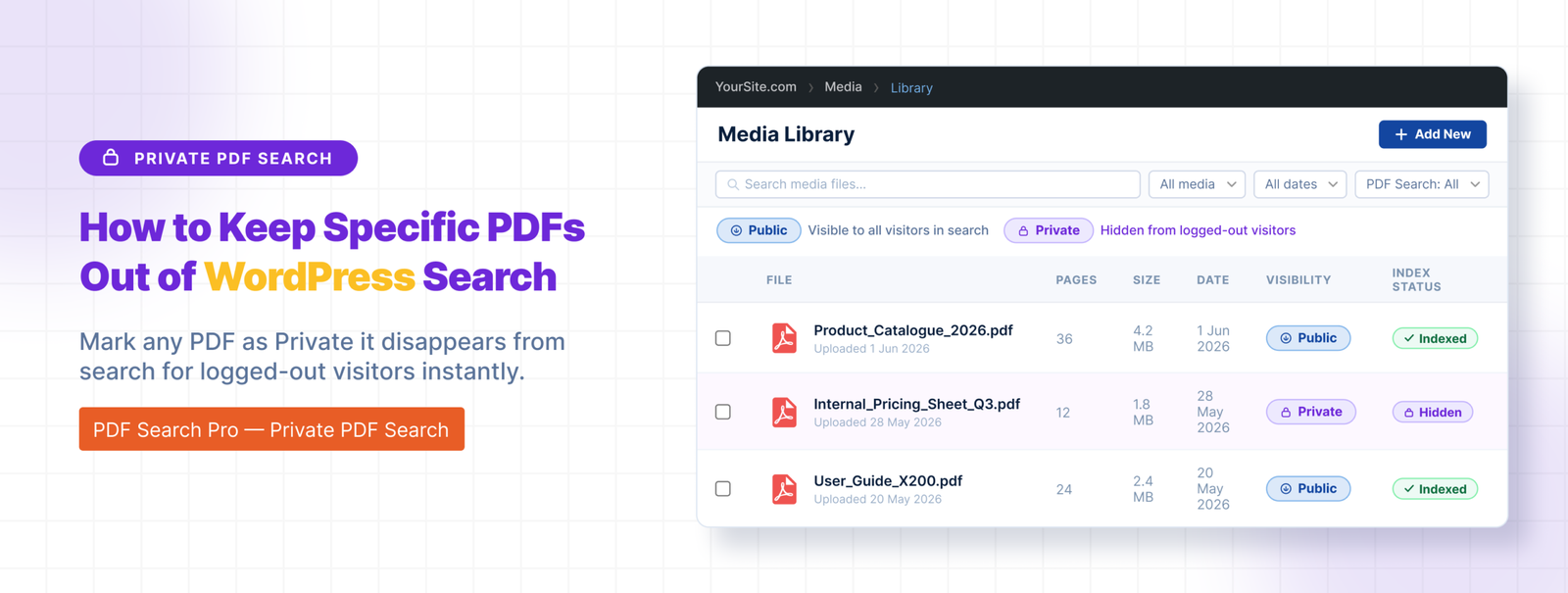
Private PDF Search keeps the PDF indexed but hides it from logged-out visitors. Logged-in users can still find it. Use this for member resources, staff documents, and restricted content that registered users need access to.

Exclude is available in the free plugin. Private PDF Search requires Pro or Agency.

To exclude a PDF: open it in Media β†’ Library, find the WebEquipe PDF Search panel, click Exclude.

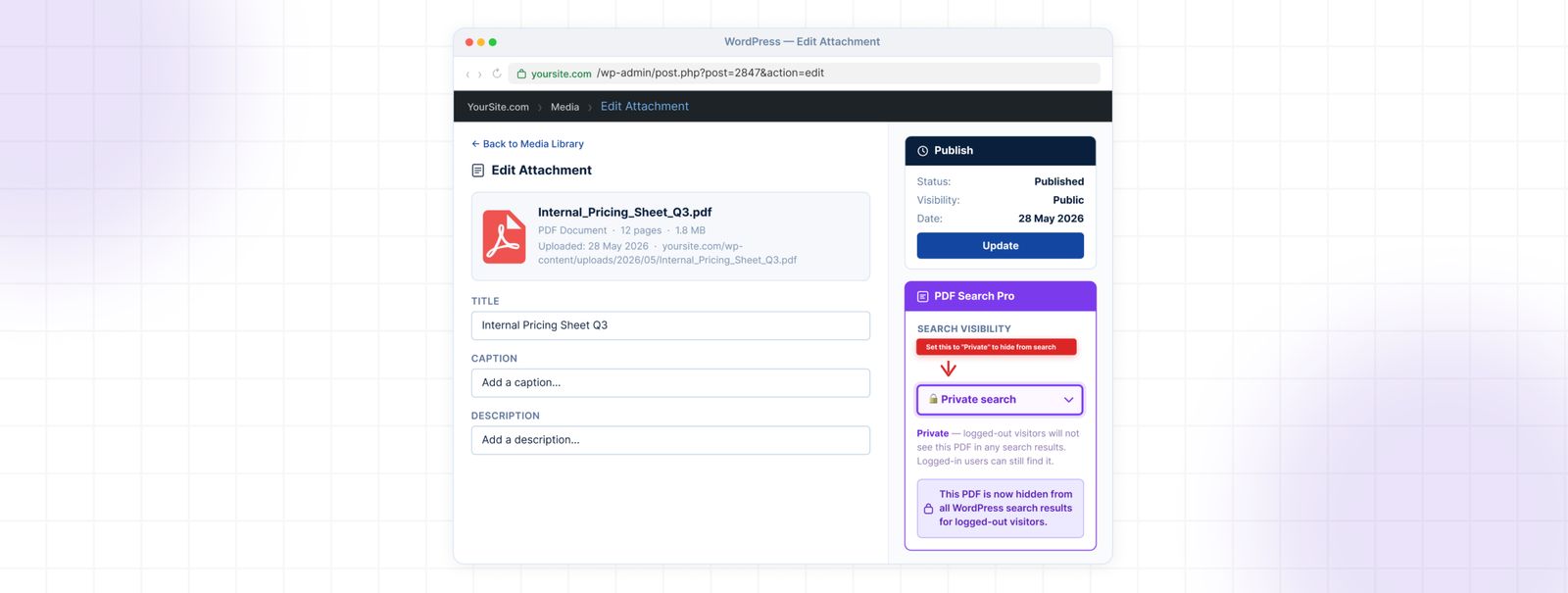
To set a PDF to private: open it in Media β†’ Library, set Search Visibility to Private, save.
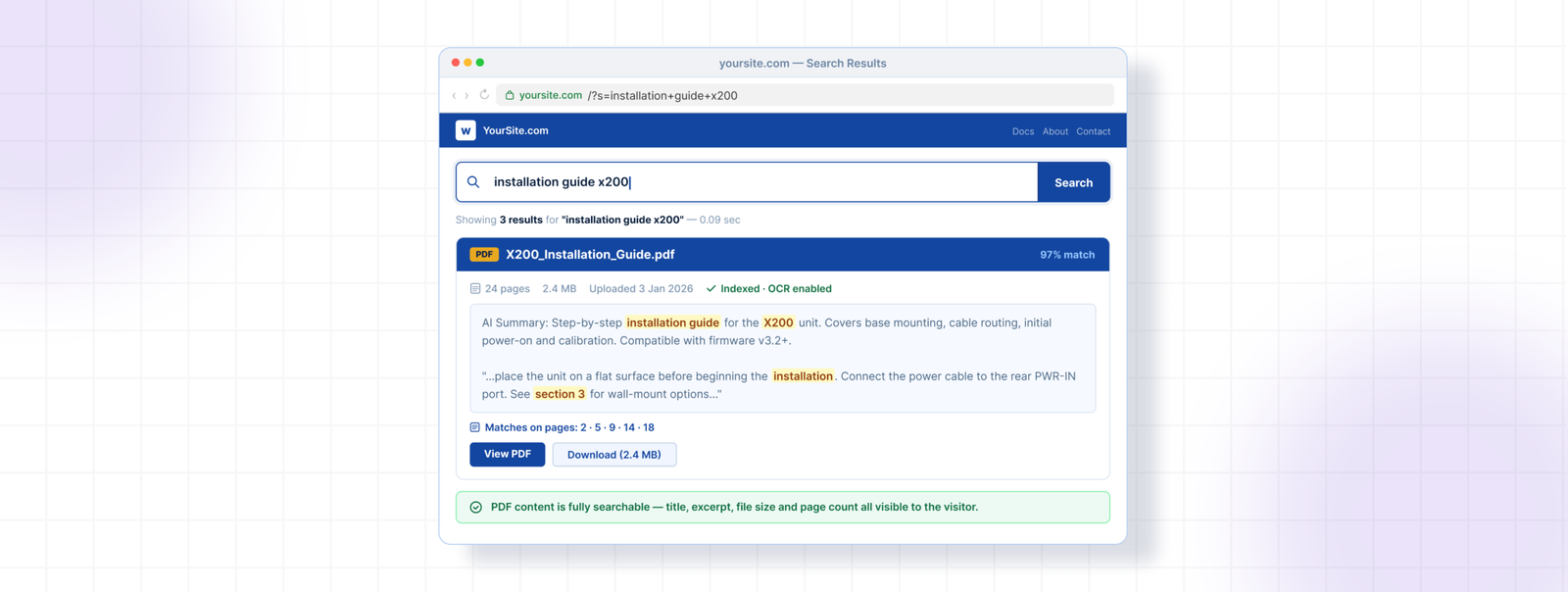
Keeping PDFs Private or Out of Search

Full guide: How to Keep Specific PDFs Out of WordPress Search β†’

Managing Your PDF Library

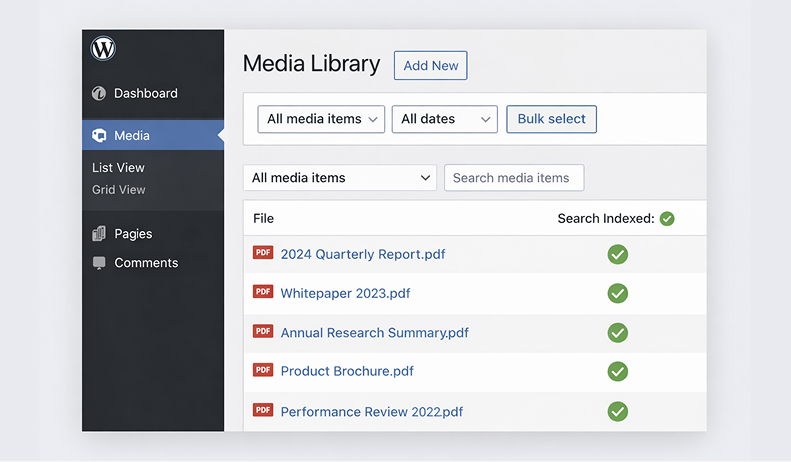
PDF Search β†’ Manage PDFs gives you a full picture of everything in your library with filtering, bulk actions, and per-file controls.

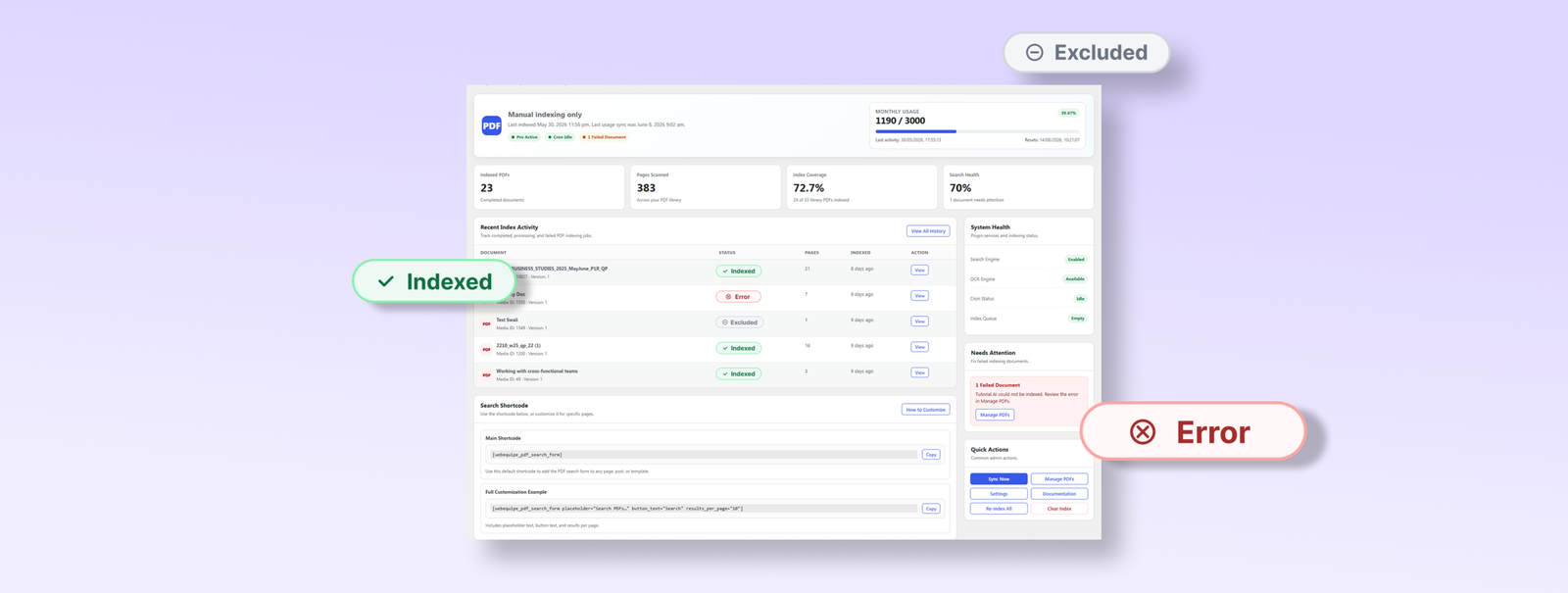
Every PDF has a status badge:

  • Indexed β€” in search, working correctly
  • Not Indexed β€” in your library but not yet processed
  • Processing β€” currently being indexed
  • Scheduled β€” queued for background processing
  • Error β€” indexing failed, usually scanned or corrupted
  • Excluded β€” deliberately removed from search

πŸŸ₯ Background processing

For large PDFs or libraries with many files, Background Processing moves indexing into a WP-Cron queue so it runs independently of the browser. Without it, a very large PDF can hit PHP execution limits mid-process and fail.

Enable it in PDF Search β†’ Settings β†’ Advanced β†’ Enable Background Processing. Once on, PDFs above the page index threshold are automatically queued as Scheduled and processed in batches. You can leave the admin and come back β€” the queue runs on its own.

The batch size and page threshold are configurable in the same settings screen if you need to tune performance for your hosting environment.

πŸŸ₯ Bulk actions

From Manage PDFs you can select multiple files and run: Index, Index OCR, Unindex, Exclude, Include, Make Public, Make Private. Useful for processing a filtered subset β€” for example, selecting all Error PDFs and bulk running Index OCR.

Index Activity

PDF Search β†’ Index Activity is the full processing log β€” every indexing run recorded with timestamp, file name, status, page count, processing method, and duration.

πŸŸ₯ Reading the log

Each row represents one indexing run for one file. The columns tell you:

  • File β€” which PDF was processed
  • Status β€” Completed, Processing, Failed, or Cancelled
  • Method β€” Native, OCR, or Partial (mixed PDF)
  • Pages β€” how many pages were indexed in that run
  • Time β€” when the run started and how long it took

If a run shows Failed, clicking the detail icon opens the full error message β€” exactly what went wrong and why. This is the fastest way to diagnose a stubborn file.

πŸŸ₯ Statuses explained

Completed β€” processed successfully, content is indexed and searchable.

Processing β€” currently running. If a file stays in Processing for an unusually long time, it may have stalled β€” the Dashboard status indicator will flag this.

Failed β€” indexing did not complete. The error detail explains why β€” scanned file, corrupted PDF, timeout, file too large, password protected.

Cancelled β€” a run was interrupted, either manually or because a newer run was triggered for the same file.

πŸŸ₯ Export log

The full activity log can be exported as a CSV from the top of the Index Activity page. Useful for auditing a large library, sharing with support, or keeping records of when specific documents were indexed.
Export Log

Search Results β€” What Visitors See

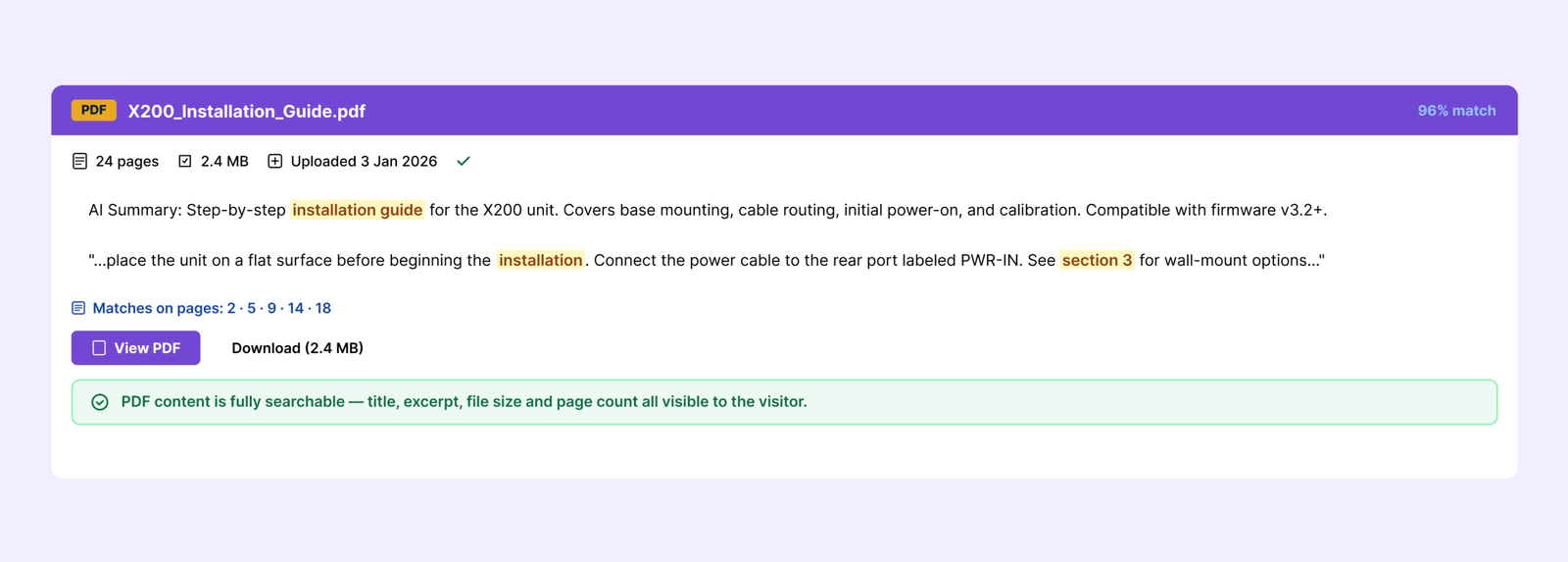
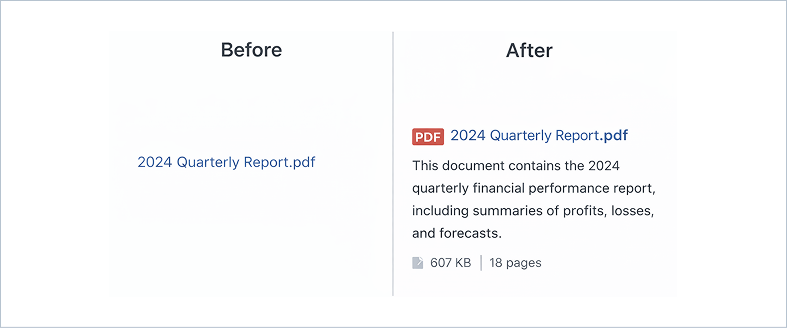
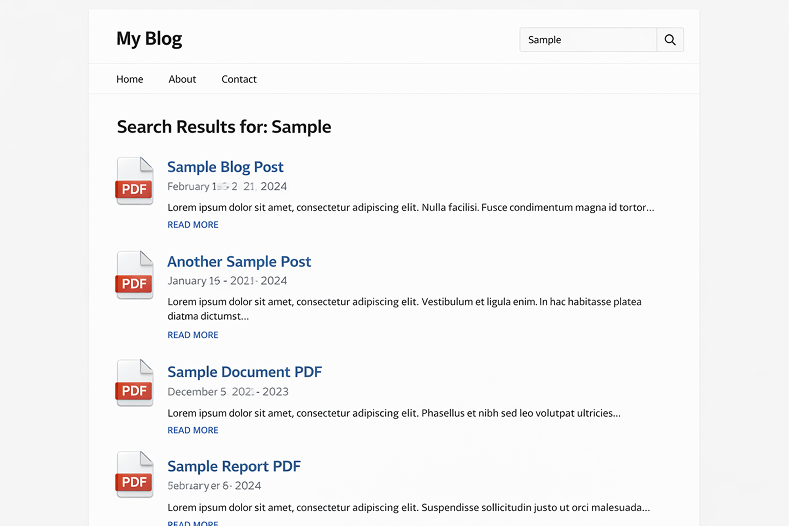
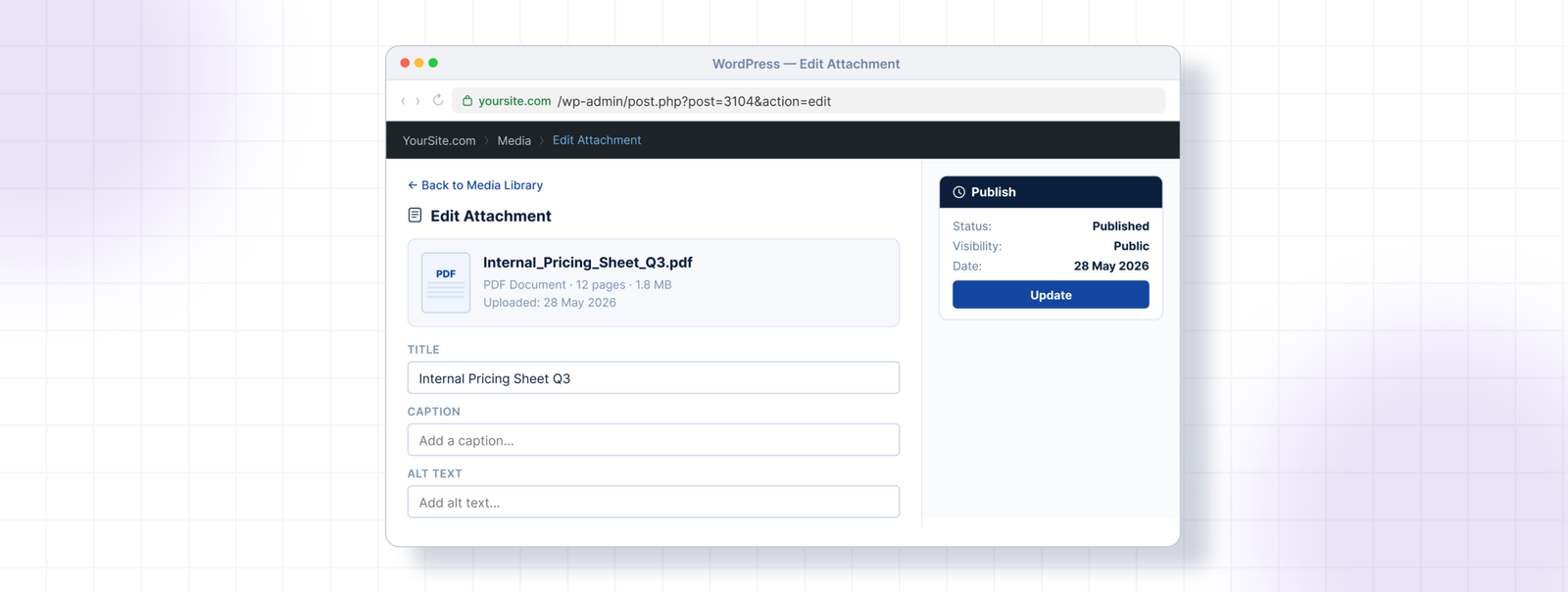
When a PDF appears in search results, visitors see the PDF title, a short excerpt from the best-matching page inside the document, file size, page count, and a direct link to open or download the file.

You can control which elements appear in PDF Search β†’ Settings β†’ Search Display Options. Icon, file size, page count, author, date, and excerpt can each be toggled independently.

Filenames become the displayed title in results. annual-report-2025.pdf is a lot more useful in search results than doc-v3-FINAL-revised.pdf β€” worth cleaning up filenames before indexing if yours are messy.

Common Problems and Fixes

PDFs not showing in search after indexing

Check that Enable Search Integration is on in PDF Search β†’ Settings. Confirm the specific PDF isn’t Excluded.

Indexing keeps timing out

Enable Background Processing in PDF Search β†’ Settings β†’ Advanced. Large files need more time than a standard browser request allows.

PDFs show as Error

Almost always means the file is scanned. Filter by Error in Manage PDFs, select the files, run Index OCR. Requires a paid plan.

PDF appears in results but shows no excerpt

Text extraction returned very little content. Open the file and try to select text β€” if you can’t, it’s scanned.

Status stuck on Processing

The indexing job may have stalled. Go to Dashboard and check the cron status indicator. If cron is showing as disabled or broken, that’s the root cause.

Private PDFs showing in public search after licence expires

Private visibility is enforced by an active licence. Renewing restores the restriction immediately.

Free vs Pro β€” When to Upgrade

The free plugin covers text-based PDFs, auto-indexing, WordPress search integration, the shortcode form, Media Library management, and the full Index Activity log. For a lot of sites that’s everything they need.

Upgrade when:

  • You have scanned PDFs showing as Error β€” OCR is the only fix, it’s not in the free plugin
  • You need PDFs restricted to logged-in users β€” Private PDF Search requires Pro or Agency
  • You’re managing multiple client sites β€” Agency plan covers unlimited sites with white-label mode
Soft CTA

The free plugin is on WordPress.org. Pro and Agency plans are at webequipe.com/pdf-search.

Frequently Asked Questions

Does WordPress search inside PDFs by default?

No. WordPress only searches post and page content. PDF files are stored as attachments β€” WordPress reads the filename but never the text inside. A dedicated plugin is required.

Will PDF search slow down my site?

No. Indexing runs in the background. Search queries run against the stored index, not the original files. No impact on page load times for visitors.

How many PDFs can it handle?

No hard limit. Sites with several hundred PDFs run fine. Large libraries index in batches so nothing times out.

What happens to my indexed content if I uninstall the plugin?

By default nothing is deleted β€” your WordPress database keeps the index tables. If you want a full clean removal, enable Delete Data on Uninstall in PDF Search β†’ Settings β†’ Advanced before deactivating. This removes all plugin tables, options, and post meta on uninstall.

Does it work on WordPress Multisite?

Yes. Each site in a network has its own separate index, settings, and Index Activity log.

What PDF types are supported?

Text-based and mixed PDFs work with the free plugin. Scanned PDFs require OCR (paid plans). Password-protected and corrupted PDFs can’t be indexed by any method.

Does it work with my theme?

Yes. It hooks into WordPress’s native search, so it works with any theme using standard search. The shortcode form is theme-independent.

Where to Go From Here

The free plugin setup above covers the basics. Most sites are running in under ten minutes.

For specific situations, these guides go deeper:

How to Make Scanned PDFs Searchable in WordPress β†’
How to Keep Specific PDFs Out of WordPress Search β†’

How to Keep Specific PDFs Out of WordPress Search Results

How to Keep Specific PDFs Out of WordPress Search Results

Not every PDF on your site should be searchable by everyone. Internal documents, draft files, member-only resources, staff handbooks β€” these need to stay out of public search results.

There are two ways to handle this in WebEquipe PDF Search, and they solve different problems. Using the wrong one causes its own issues, so it’s worth knowing the difference before you start.

Exclude vs Private β€” What’s the Difference

Exclude removes a PDF from search entirely. Nobody finds it β€” logged in or not. The file stays in your Media Library, but it’s never indexed and never appears in any search result. Even if you run Re-index All PDFs, excluded files get skipped.

Private PDF Search keeps the PDF indexed but hides it from logged-out visitors. Logged-in users can still find it through search. The file is fully searchable for your members, subscribers, or staff β€” just invisible to anyone who hasn’t signed in.

The right choice depends on what you’re trying to do:

πŸŸ₯ Draft document that isn’t ready yet β†’ Exclude

πŸŸ₯ Outdated version you’re keeping for records β†’ Exclude

πŸŸ₯ Internal file that should never be public β†’ Exclude

πŸŸ₯ Member handbook your subscribers need to find β†’ Private

πŸŸ₯ Staff policy document for logged-in employees β†’ Private

πŸŸ₯ Client resource restricted to registered users β†’ Private

How to Exclude a PDF

Exclude is available in the free plugin.

Go to Media β†’ Library and open the PDF you want to exclude. In the WebEquipe PDF Search panel on the right side of the attachment screen, click Exclude.

The PDF is removed from the index immediately. If it was already showing in search results, it disappears. Running Re-index All PDFs in future will skip it automatically.

To reverse it, go back to the same panel and click Include, then re-index the file.

How to Set a PDF to Private

Private PDF Search requires a Pro or Agency licence.

Go to Media β†’ Library and open the PDF. In the WebEquipe PDF Search panel, set Search Visibility to Private and save.

From that point, the PDF is invisible in search results for anyone not logged in. Logged-in users find it normally.

To confirm it’s working, open a private browsing window and search for the document title or a phrase from inside it. It shouldn’t appear. Log in and search again β€” it should show up.

Setting a Default Visibility for New PDFs

If most of your new uploads should be private by default, you can set that in PDF Search β†’ Settings. Under Default Search Visibility, switch from Public to Private.

This means every new PDF you upload starts as Private. You can still change individual files to Public whenever needed.

What Private PDF Search Does Not Do

Private PDF Search is binary β€” logged in or logged out. It doesn’t restrict by user role, membership level, or subscription tier. A logged-in subscriber sees the same private PDFs as a logged-in administrator.

If you need per-role restrictions β€” showing certain PDFs only to specific membership levels or user groups β€” that’s on the roadmap but isn’t in the current version. For now, the combination of Exclude and Private covers most use cases.

Private PDF Search is available on Pro and Agency plans. The free plugin includes Exclude only.

View Pricing Plans β†’


Frequently Asked Questions

Does excluding a PDF delete the file?

No. Exclude only affects search indexing. The file stays in your Media Library and is still accessible via its direct URL. If you want to remove the file entirely, you’d delete it from the Media Library separately.

Can someone access a private PDF directly if they have the URL?

Yes. Private PDF Search only controls whether the file appears in search results. It doesn’t protect the file URL itself. If someone has a direct link to the PDF they can still open it. For full access control on the file itself, you’d need a file protection plugin alongside this.

Can I bulk set multiple PDFs to Private at once?

Yes. Go to PDF Search β†’ Manage PDFs, select the files you want to restrict, and use the bulk action Make Private.

What happens to private PDFs if my Pro licence expires?

The PDFs stay in your library and stay indexed, but the Private visibility setting stops being enforced. They become visible in search results to everyone until the licence is renewed.

Can I make all new uploads Private by default?

Yes β€” set Default Search Visibility to Private in PDF Search β†’ Settings. Individual files can still be switched to Public as needed.

The Right Tool for the Job

If a PDF shouldn’t be searchable by anyone, use Exclude. If it should be searchable only by logged-in users, use Private. Both are available from the same attachment panel in your Media Library β€” Exclude in the free plugin, Private in Pro.

If you haven’t set up PDF search yet:

How to Make WordPress Search Inside PDF Files β†’

How to Make Scanned PDFs Searchable in WordPress (Using OCR)

How to Make Scanned PDFs Searchable in WordPress (Using OCR)

Your PDF search plugin is throwing Error on certain files because it’s trying to read a photo, not text. Scanned PDFs don’t have a text layer β€” they’re images of pages. There’s nothing to extract.

OCR fixes that. Here’s how to set it up.

Why Scanned PDFs Fail

When you export a PDF from Word or Google Docs, the text is stored inside the file as real characters. A search plugin opens it, reads the content, indexes it.

A scanned PDF is different. Someone put a physical page on a scanner and saved the result. What’s inside is a image of text, not text itself. Your plugin has nothing to work with, so it errors out.

You can confirm this in seconds β€” open the PDF in your browser and try to highlight some words. If you can select text, it’s text-based. If your cursor just draws a rectangle over the page, it’s scanned.

Setting Up OCR in WebEquipe PDF Search Pro

OCR is available on Starter, Pro, and Agency plans via Google Vision. Once your licence is active, here’s how to configure it.

Go to PDF Search β†’ Settings. Under Indexing Method, set it to Native + OCR Fallback.

This is the right choice for most sites. The plugin tries standard text extraction first β€” faster, uses no OCR credits. If a PDF has no extractable text, it automatically sends it to Google Vision. Text-based PDFs get processed locally. Scanned ones get OCR without you having to decide per file.

If your library is almost entirely scanned documents, use OCR Only instead.

Fixing the PDFs Already in Your Library

Changing the indexing method doesn’t reprocess files that are already marked as Error. You need to trigger that manually.

Go to PDF Search β†’ Manage PDFs and filter by Error status.

Fixing the PDFs Already in Your Library

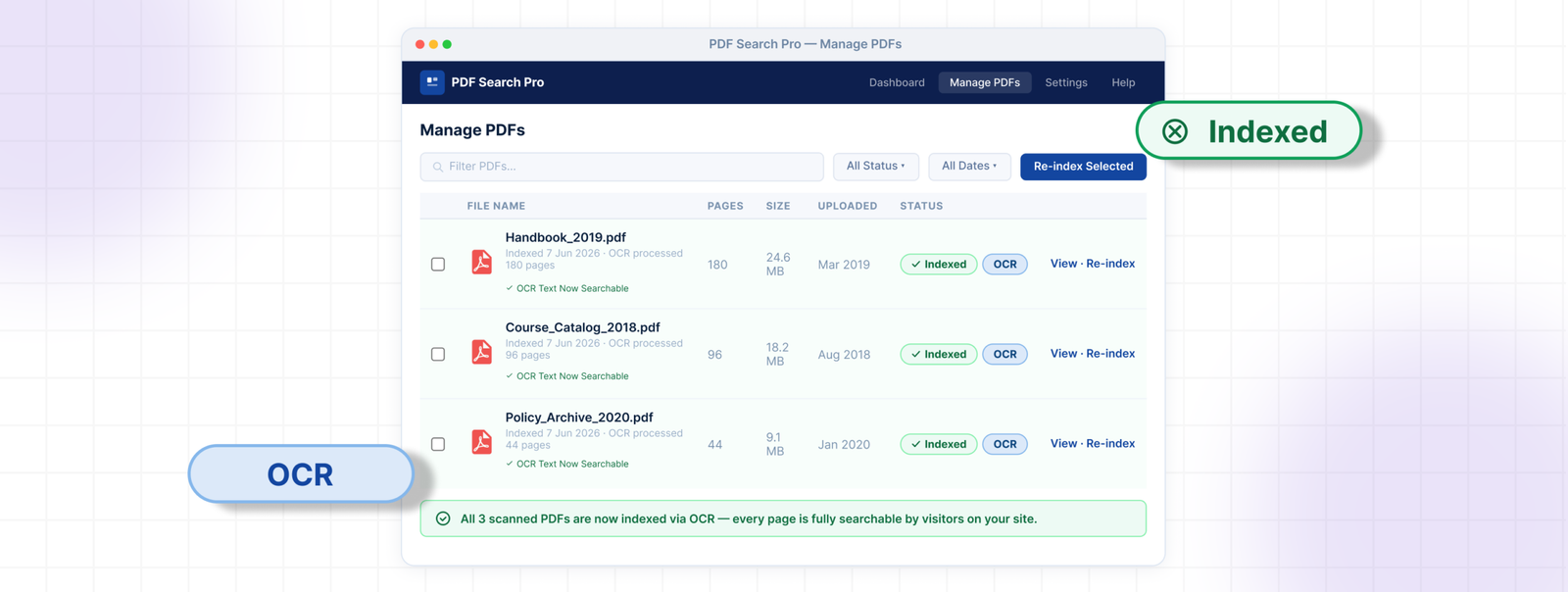
Select all of them and run the bulk action Index OCR. The plugin sends those files to Google Vision for processing. Depending on volume and file size this may take a few minutes β€” you can check progress in PDF Search β†’ Index Activity.

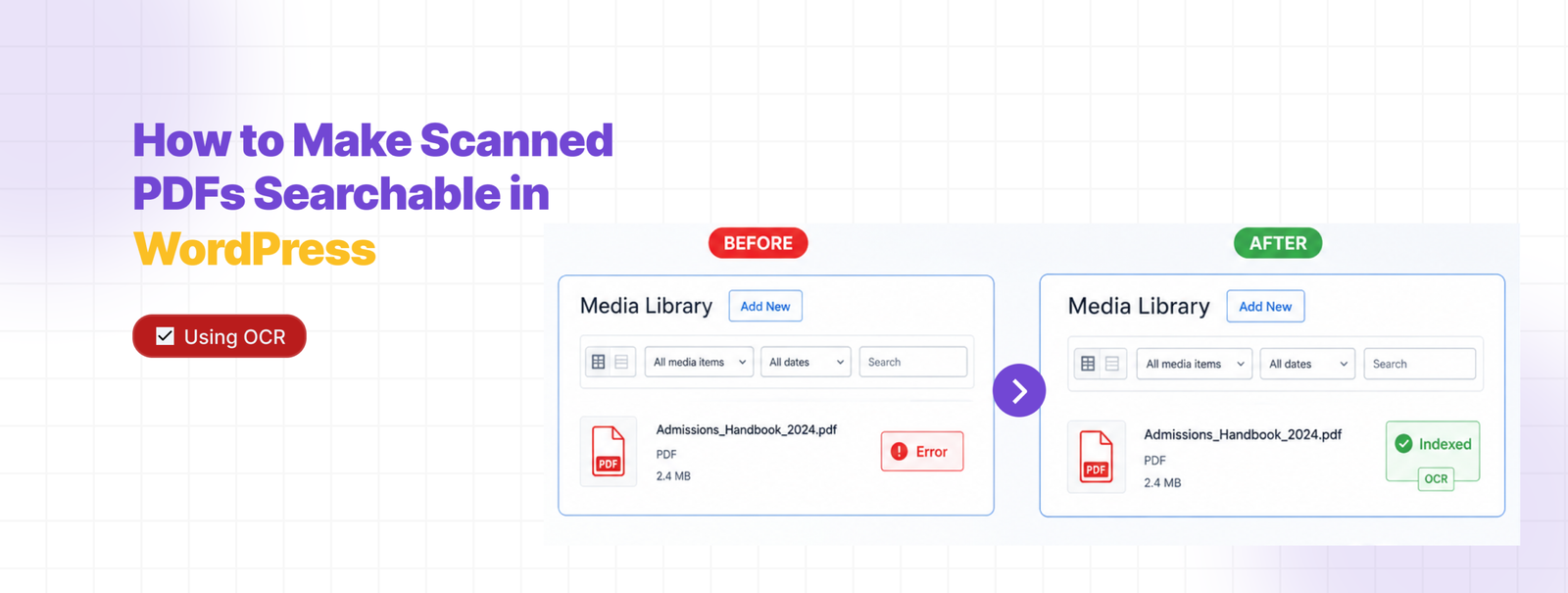
Once done, those PDFs will show as Indexed with an OCR label. Search for a phrase from one of those documents to confirm it’s working.

A Few Things Worth Knowing

πŸŸ₯ OCR uses credits. Each plan has a monthly page allowance β€” Starter gets 1,000 pages, Pro gets 3,000, Agency gets 10,000. Each scanned page uses one credit. Current usage is visible in PDF Search β†’ Dashboard.

πŸŸ₯ New uploads are handled automatically. Once OCR is enabled, any scanned PDF you upload going forward gets processed without extra steps. The plugin detects that standard extraction returned nothing and routes it to OCR.

πŸŸ₯ Mixed PDFs index with a warning. If a PDF has some text pages and some scanned pages, the text pages index normally and the scanned ones get flagged. You’ll see a partial index warning in the status column.

πŸŸ₯ Password-protected PDFs still can’t be indexed. OCR doesn’t help with locked files β€” the content isn’t accessible regardless of processing method.

Password-protected PDFs still can't be indexed

Frequently Asked Questions

How do I know which PDFs are scanned?

Filter by Error in PDF Search β†’ Manage PDFs after running a standard re-index. Any file that failed extraction is almost certainly scanned. You can also open individual files in your browser and try to select text.

How do I know which PDFs are scanned?

Filter by Error in PDF Search β†’ Manage PDFs after running a standard re-index. Any file that failed extraction is almost certainly scanned. You can also open individual files in your browser and try to select text.

Will OCR work on handwritten documents?

Google Vision handles printed text reliably. Handwriting accuracy varies depending on legibility β€” worth testing on a sample before processing a large batch.

What happens when I hit my monthly OCR limit?

New scanned PDFs queue but don’t process until credits reset at the start of the next billing cycle. Existing indexed content stays searchable. You can upgrade your plan if you consistently need more capacity.

Can I use OCR on some PDFs and standard extraction on others?

Native + OCR Fallback handles this automatically. You don’t need to decide per file.

That’s the Fix

Filter your Error PDFs, bulk run Index OCR, and they’ll be searchable the same way any other document on your site is. For anything new coming in, Native + OCR Fallback takes care of it automatically from that point on.

Filter your Error PDFs, bulk run Index OCR, and they’ll be searchable the same way any other document on your site is. For anything new coming in, Native + OCR Fallback takes care of it automatically from that point on.

View PDF Search Pro plans β†’

Why WordPress Search Cannot Find Text Inside PDFs (and How to Fix It)

Why WordPress Search Cannot Find Text Inside PDFs (and How to Fix It)

Why WordPress Cannot Find Text Inside PDFs

What’s Going Wrong β€” and How to Fix It

πŸŸ₯ No PDF search plugin installed

Without a dedicated plugin, WordPress has no way to index PDF content. There’s nothing built in to do it.
Install WebEquipe PDF Search from Plugins β†’ Add New. It’s free. Once active, go to PDF Search β†’ Dashboard and click Re-index All PDFs.

That one step indexes everything in your Media Library and makes the content searchable. Test it straight after search for a phrase you know is inside one of your PDFs.

πŸŸ₯ PDFs were uploaded before the plugin was installed

πŸŸ₯ Search integration is turned off

Some PDF search plugins index content but don’t automatically push results into WordPress search. There’s usually a separate toggle for this.
Go to PDF Search β†’ Settings and confirm Enable Search Integration is on. Without it, your PDFs are indexed but invisible in search results.

πŸŸ₯ A specific PDF has a status problem

If most PDFs are working but one or two aren’t, the issue is with those files specifically β€” not the plugin setup.
Go to PDF Search β†’ Manage PDFs and look at the status badge on each file.

 A specific PDF has a status problem
  • Not Indexed β€” hasn’t been processed yet. Click Index.
  • Excluded β€” deliberately removed from search. Click Include if it should be searchable.
  • Error β€” indexing failed. Usually means the file is scanned, corrupted, or password-protected.

πŸŸ₯ The file is too large and timed out

Very large PDFs can hit PHP execution time limits mid-process. Indexing stops partway through and the file ends up in an error state.
Go to PDF Search β†’ Settings β†’ Advanced and enable Background Processing. This moves indexing into a queue that runs independently β€” large files get the time they need without hitting server limits.

πŸŸ₯ The PDF is a scanned document

Scanned PDFs β€” documents that were printed and photographed, or run through a scanner β€” are images packaged as PDF files. There’s no text layer inside. No standard plugin can read them.
Open the PDF in your browser and try to highlight some text. If your cursor just draws a box over the image without selecting anything, it’s scanned.

Soft CTA

The free plugin can’t index scanned PDFs β€” that requires OCR. PDF Search Pro handles scanned documents automatically on upload, no extra setup needed.

Full guide: How to Make Scanned PDFs Searchable on WordPress β†’

Frequently Asked Questions

I installed a plugin but my old PDFs still don’t show up.

Some PDFs index fine but others show Error. What’s wrong with them?

My PDFs are indexed but still not appearing in search results.

Can WordPress search inside password-protected PDFs?

Still Not Working?

Run through the fixes above in order β€” most cases resolve at the first or second step. If you’re stuck on scanned PDFs showing as Error, that’s not something the free plugin can solve. It genuinely needs OCR, and PDF Search Pro handles that without any extra setup.

If you’re starting fresh and want the full setup walkthrough:

How to Make WordPress Search Inside PDF Files β†’

How to Make WordPress Search Inside PDF Files (2026 Guide)

How to Make WordPress Search Inside PDF Files (2026 Guide)

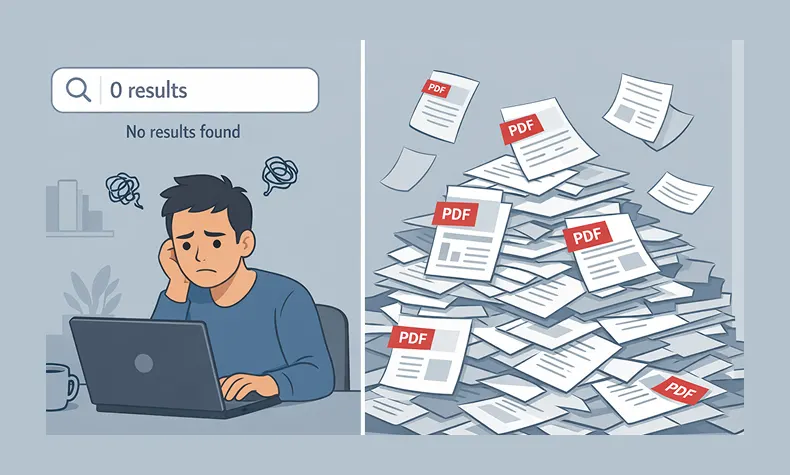
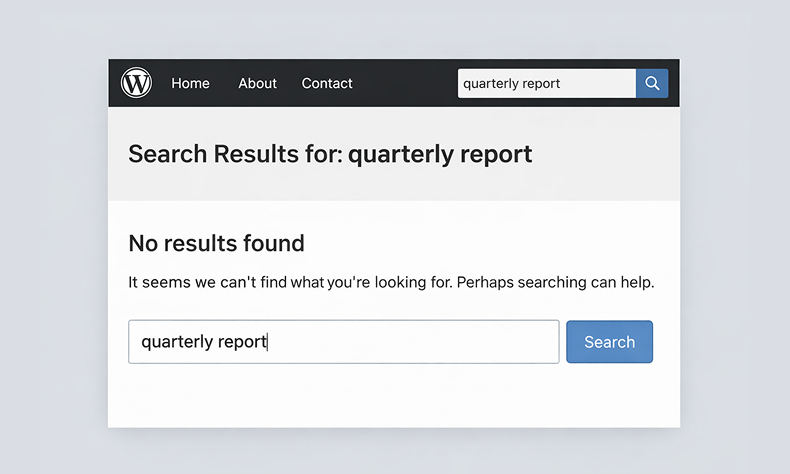
You upload a PDF to WordPress. A visitor comes to your site, searches for something they know is in that document β€” and gets nothing back.
No results. The file is sitting right there in your Media Library. The answer they need is on page three. WordPress just has no idea it exists.
We hear this constantly from site owners. People who’ve done everything right β€” uploaded their documents, organised their library, built a decent site β€” and still can’t figure out why search ignores their PDFs entirely.
The reason is straightforward once you know it. And so is the fix. Here’s both.

Why WordPress Search Ignores PDF Content

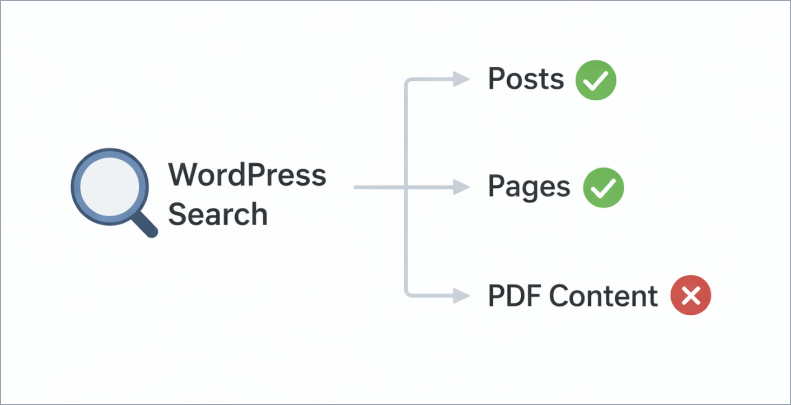
WordPress search works by looking at your posts and pages β€” the content you type directly into the editor. When you upload a PDF, WordPress stores the filename, a URL, and some basic file details. That’s all.

It never opens the file. It never reads what’s inside.

So when someone searches your site for “refund policy” or “installation guide” or “chapter three” β€” and those words only exist inside a PDF β€” WordPress comes back empty-handed. Not because the content isn’t there, but because it was never told to look inside PDF files.

This isn’t a bug. It’s just a gap that WordPress was never designed to fill.

What You Actually Need

To make WordPress search inside PDF files, you need a plugin that does two things.

First, it needs to extract the text from your PDFs. This means actually opening each file and reading the words inside β€” something WordPress doesn’t do on its own.

Second, it needs to store that text in a searchable index so that when someone types a query, it can match against that content.

A PDF search plugin fills that gap. There are a few options out there, but the simplest purpose-built one for WordPress is WebEquipe PDF Search. The free version handles standard PDFs and gets them into WordPress search in a few minutes. The Pro version adds OCR for scanned documents and private search for member-only content β€” more on those at the end.

Before You Start β€” Check Your PDFs

Not all PDFs are the same, and this matters before you install anything.

Text-based PDFs are documents created digitally β€” exported from Word, Google Docs, InDesign, or any document editor. These contain an actual text layer. A PDF search plugin can read them without any issues.

Scanned PDFs are photos of physical pages. Someone put a piece of paper on a scanner and saved the image as a PDF. There’s no text layer β€” just pixels. A standard PDF search plugin can’t read these.

How to tell the difference: open the PDF in your browser and try to highlight some text. If you can click and drag to select words, it’s text-based. If clicking just draws a box with nothing selected, it’s scanned.

The free plugin handles text-based PDFs well. If you have scanned documents, you’ll need OCR β€” covered at the end.

How to Make WordPress Search Inside PDF Files

Step 1 β€” Install WebEquipe PDF Search

Go to Plugins β†’ Add New in your WordPress dashboard. Search for WebEquipe PDF Search. Install it and activate it.

Once it’s active, you’ll see a PDF Search item in your WordPress admin sidebar.

Step 2 β€” Check Your Settings

Head to PDF Search β†’ Settings. You don’t need to change much here, but confirm two things:

  • Enable PDF Indexing is turned on β€” this makes sure new PDFs you upload get indexed automatically going forward.
  • Enable Search Integration is turned on β€” this is what makes PDFs show up alongside posts and pages in your site’s normal search results.

If you’d rather keep PDF results separate from your posts and pages, you can leave Search Integration off and use the shortcode instead (Step 5).

Step 3 β€” Index Your Existing PDFs

The plugin won’t automatically pick up PDFs you’ve already uploaded. You need to run indexing once for your existing library.

Go to PDF Search β†’ Dashboard and click Re-index All PDFs.

The plugin will work through every PDF in your Media Library and extract the text. For a large library this runs in batches in the background β€” you can leave it and come back. Check the progress in PDF Search β†’ Index Activity.

Step 4 β€” Test It

Once indexing is done, search for a word or phrase you know appears inside one of your PDFs.

It should now appear in results β€” with the PDF title, a short excerpt from the matching page, and basic file details like size and page count.

If a PDF isn’t showing up, go to PDF Search β†’ Manage PDFs and check its status. Anything showing as Error or Not Indexed needs attention β€” the status badge tells you exactly why.

Step 5 β€” Add a PDF-Only Search Form (Optional)

If you want a dedicated search box that only searches your PDFs β€” useful for help centres, resource libraries, or document portals β€” add this shortcode to any page:

Visitors get a search box that only looks at your PDFs β€” nothing else on the site, just the documents.

Soft CTA

The free plugin covers everything above at no cost. If you’re dealing with scanned documents or need to restrict certain PDFs to logged-in users only, that’s what PDF Search Pro is built for.

Best Practices

Filenames become titles. In search results, the PDF’s filename is what gets displayed as the title. annual-report-2025.pdf is a lot more useful than doc-final-v2-FINAL.pdf. It’s worth cleaning up filenames before you index.

The index doesn’t update automatically when you replace a file. If you swap out a PDF for a newer version, you need to manually re-index that file. Go to it in your Media Library and click Re-index.

Use Exclude for PDFs that shouldn’t be searchable. Draft documents, internal files, outdated versions β€” use the Exclude option on these. The file stays in your Media Library, it just won’t be indexed or show up in any search results.

Large files take longer. The default size limit is 50MB. You can raise this in settings up to 500MB. Very large PDFs are processed in background batches automatically so they don’t time out.

Common Problems and How to Fix Them

PDFs still aren’t showing up after indexing

Check that Enable Search Integration is on in PDF Search β†’ Settings. Also confirm the specific PDF isn’t set to Excluded.

Indexing keeps stopping or timing out

Go to PDF Search β†’ Settings β†’ Advanced and turn on Background Processing. This moves indexing out of the browser and into a background queue so it doesn’t need to finish in a single page load.

Some PDFs index fine but others show Error

This almost always means those PDFs are scanned β€” image-only files with no text layer. The free plugin can’t read them. You’ll need OCR for those.

PDFs show in results but with no excerpt

Usually means the text extraction returned very little content. Try opening the PDF and selecting some text. If you can’t highlight anything, it’s likely a scanned file.

When the Free Plugin Isn’t Enough

The free plugin handles text-based PDFs well. But two situations need the Pro version.

You have scanned PDFs

Archived reports, meeting minutes, old handbooks, government forms β€” these are all image-only files. The free plugin marks them as Error because there’s no text to extract.

WebEquipe PDF Search Pro includes OCR powered by Google Vision. Turn it on and scanned PDFs get processed automatically when you upload them β€” the text gets pulled from the images and indexed the same way a normal PDF would be. Nothing extra to set up on your end.

How to Make Scanned PDFs Searchable on WordPress β†’

You need some PDFs visible only to logged-in users

The free plugin’s Exclude feature removes a PDF from search entirely. But sometimes you want a document findable β€” just not by everyone. Member handbooks, staff policies, client resources.

Private PDF Search (available on Pro and Agency plans) lets you mark individual PDFs as Private. They stay indexed but disappear from results for anyone who isn’t logged in. Logged-in users find them normally.

Frequently Asked Questions

Does WordPress search inside PDFs by default?

No β€” and this surprises a lot of people. WordPress only searches content you’ve typed directly into posts and pages. PDF files are stored as attachments. WordPress knows the filename exists but has never looked inside it. That’s what the plugin fixes.

Will this slow down my site?

Not in any noticeable way. Indexing happens in the background, either when a PDF is uploaded or when you manually kick it off. When someone searches, the query runs against the stored index β€” not the original files. Your visitors won’t feel a thing.

What about PDFs I’ve already uploaded?

Those won’t be picked up automatically. You run Re-index All PDFs once from the Dashboard after installing the plugin and it processes everything in your library. New uploads after that are handled automatically.

Can it handle password-protected PDFs?

No. If a PDF is locked, the plugin can’t get to the text inside it. Those files need to be unlocked before they can be indexed.

How many PDFs can it handle?

No hard limit. We’ve seen it work fine on sites with several hundred PDFs. Large libraries just run in batches so nothing times out.

Does it work with my theme?

Yes. It plugs into WordPress’s native search, so any theme using standard WordPress search will show PDF results. The shortcode form works independently of your theme entirely.

Getting Your PDFs Into Search

If your site has text-based PDFs, you’re ten minutes away from having them fully searchable. Install the free plugin, run Re-index All PDFs once, and your documents will start showing up in results straight away.

If you’re dealing with scanned files or need to keep certain documents restricted to logged-in users, that’s exactly what PDF Search Pro is built for.

View WebEquipe PDF Search plans β†’

How to Make Scanned PDFs Searchable on WordPress β€” v2.0.0

Two types of PDFs exist on most WordPress sites β€” only one is searchable by default. Most site owners don’t know which of their PDFs are scanned. This guide explains the difference, how to check, and how to make scanned documents searchable.

The Difference Between Text PDFs and Scanned PDFs

  • Text-based PDF: created digitally in Word, Google Docs etc. Contains actual text layer. Any search plugin can read it.
  • Scanned PDF: a photograph of a physical page. No text layer. Just pixels.
  • How to tell: open PDF in browser, try to select text. If you can highlight words β†’ text-based. If selection draws a rectangle β†’ scanned.

Why Scanned PDFs Are Invisible to WordPress Search

  • WordPress search queries post_content field
  • PDF plugins extract text from PDFs and store it
  • Extraction works by reading the text layer
  • Scanned PDFs have no text layer β€” extraction returns empty
  • No error shown β€” just silently returns nothing

Step 1 β€” Set Up the Free Plugin (Text PDFs)

  • Install WebEquipe PDF Search from WordPress.org
  • Activate, go to Settings β†’ PDF Search β†’ Re-index All PDFs
  • Test: search a term inside a text-based PDF
  • Stop here if this covers your needs

Step 2 β€” Enable OCR for Scanned PDFs (Pro)

  • Upgrade to Starter or higher
  • Settings β†’ PDF Search β†’ OCR β†’ enable
  • Enter Google Vision API key
  • Click Bulk OCR Scan
  • Test: search a term from a scanned document

What to Expect After OCR

  • Previously invisible scanned PDFs appear in search
  • Text excerpts show matched content
  • New scanned PDFs OCR’d automatically on upload

Common Questions

  • Does OCR work on password-protected PDFs? Yes on paid plans
  • What languages? Google Vision supports 50+ automatically
  • What happens when OCR limit hit? Queue until next cycle

Conclusion

If you have scanned documents on your site, the free plugin won’t index them. OCR is the only way β€” PDF Search Pro has it built in.

We Had 347 PDFs Nobody Could Find. Here’s What We Did.

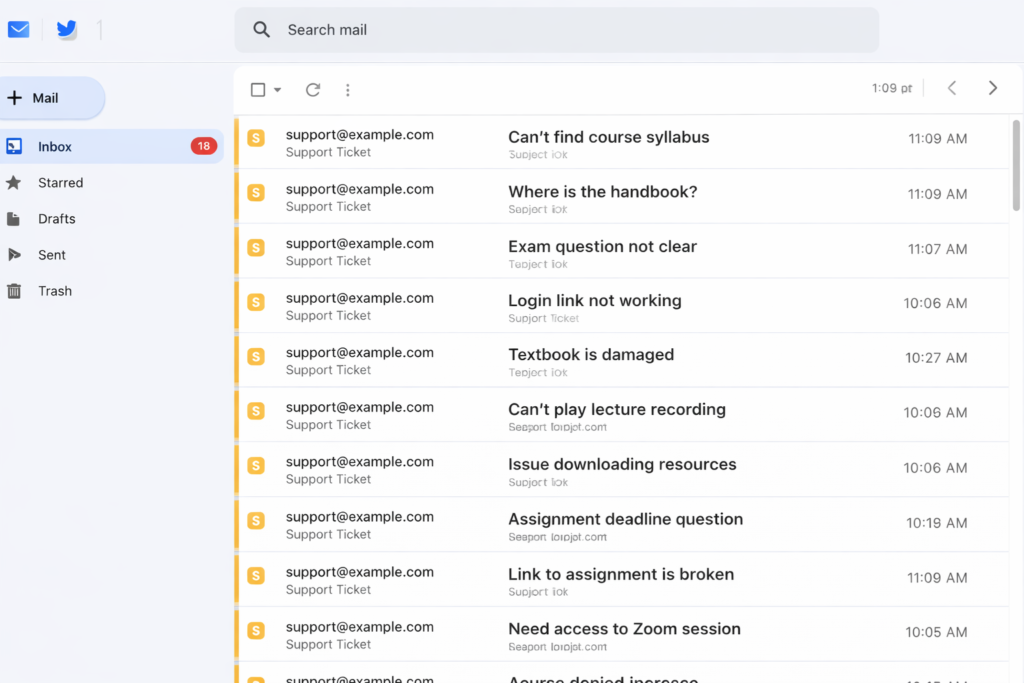
It started with an email from a student at 11:47 PM on a Tuesday.
“Hi, I can’t find the Week 3 reading assignment anywhere on the site. Can you send me the link? My paper is due tomorrow.”
Sarah, our department coordinator, forwarded it to me with a note: “This is the 4th one today.”
I logged into our WordPress site’s Media Library and did a quick count. We had 347 PDF files. Course syllabi, reading lists, assignment guidelines, research papers, administrative formsβ€”years of accumulated documents.
All of them were uploaded. All of them were on the site. And apparently, none of them were findable.


The Moment We Realized We Had a Problem

Here’s the thing: we thought our site was working fine.
Students could find blog posts about upcoming events. They could search for faculty bios. The main navigation worked perfectly.
But the actual academic contentβ€”the stuff students needed to do their courseworkβ€”was invisible.
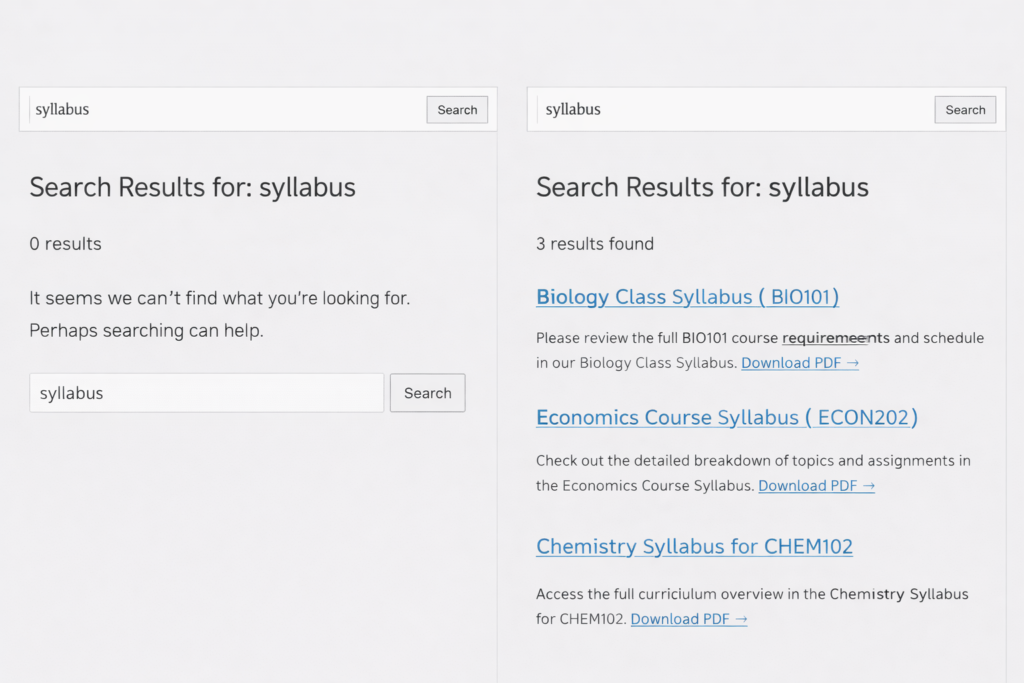
I did a test. I went to our site’s search bar and typed “research methodology syllabus.” I knew we had that document because I’d uploaded it myself last semester.
Zero results.
I tried just “methodology.” Nothing.
I tried the professor’s name. Still nothing.
The only way to find it was to manually browse through the Media Library, which students didn’t have access to anyway.


The Real Cost of Invisible PDFs

Once we started paying attention, the problem was everywhere.
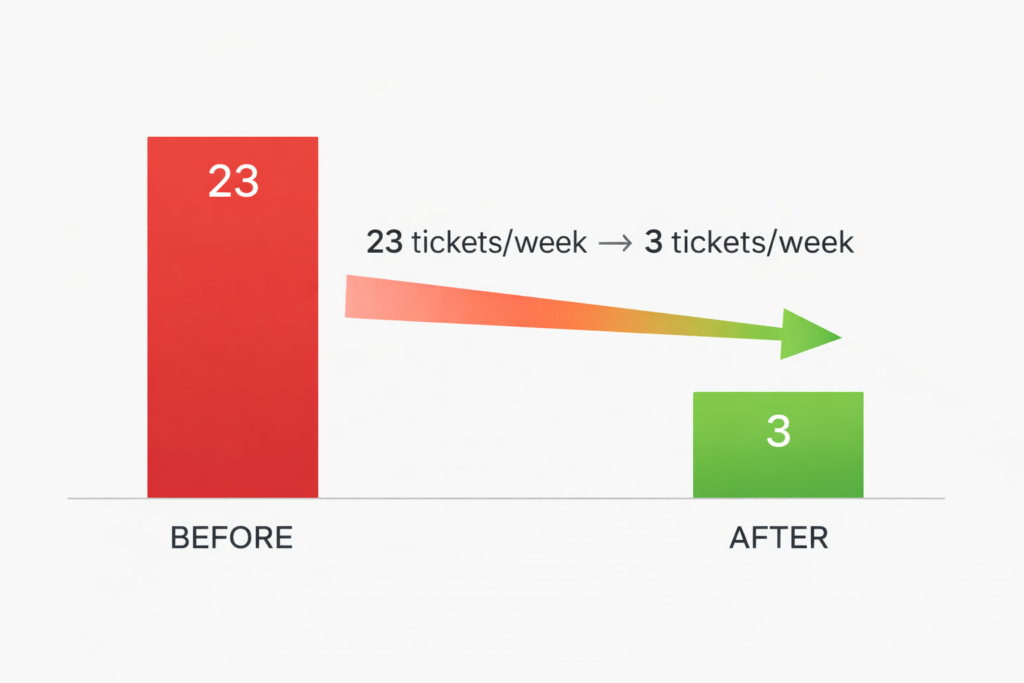
Sarah pulled up her support email folder. In the past month, she’d received 23 emails per week asking where to find documents. That’s not counting the ones that went directly to professors or TAs.
We did some quick math:

  • 23 emails per week Γ— 5 minutes per response = 115 minutes per week
  • That’s nearly 2 hours every week just sending people direct links to documents
  • Over a semester (16 weeks), that’s 30+ hours of administrative time

And that was just the measurable cost. We had no idea how many students:

  • Gave up searching and never asked
  • Submitted incomplete assignments because they couldn’t find requirements
  • Got frustrated and blamed the department for being disorganized

One student told us later: “I honestly thought you guys just didn’t post the materials. I didn’t realize they were there and I just couldn’t find them.”
That stung.

What We Tried First (Spoiler: It Didn’t Work)

Attempt #1: Better File Names

We spent an afternoon renaming PDFs with detailed, keyword-rich names:

  • syllabus.pdf β†’ research-methodology-fall-2024-syllabus-prof-johnson.pdf
  • reading.pdf β†’ week-3-reading-assignment-social-theory.pdf

It helped a tiny bit. But only if students searched for the exact keywords we’d chosen. And we still couldn’t fit enough context into a filename to make documents truly discoverable.
Plus, we had 347 files. Renaming all of them would take days.

Attempt #2: Create Posts for Everything

Someone suggested creating a blog post for each PDF with a description and download link.
We tried it for one week’s worth of assignments. It was tedious. And then when a professor updated a reading list, we had to remember to update both the PDF and the post.
After two weeks, we had duplicate content that was already getting out of sync. This wasn’t sustainable.

Attempt #3: Better Site Organization

We created a dedicated “Resources” page with categories and links to major documents.
This helped for the main syllabi and handbooks. But we had hundreds of weekly readings, assignment sheets, and supplementary materials. They couldn’t all go on one pageβ€”it would be overwhelming.
Plus, students still had to know to go to that page instead of using search.

The Solution We Should Have Found First

Two months into this mess, I was complaining to a colleague at another university.
“How do you handle PDFs on your WordPress site?” I asked.
“What do you mean? We just upload them. Students search for them like anything else.”
I blinked. “Your WordPress search finds content inside PDFs?”
“Yeah, doesn’t yours?”
No. No, it did not.
She explained that they used a plugin that automatically extracts text from PDFs and makes it searchable. When students search the site, they get results from posts, pages, and PDF documents.
“It took like five minutes to set up,” she said. “We haven’t thought about it since.”
I felt like I’d been doing things the hard way for no reason.

Here’s What We Actually Did

I’m going to walk through our exact process because I wish someone had done this for me:

Step 1: Found the Right Tool (15 minutes)

We needed something that:

  • Extracted text from PDFs automatically
  • Integrated with WordPress’s existing search
  • Could handle our 347 existing files
  • Didn’t require us to manually trigger indexing for new uploads

We found a free plugin that did all of this. No premium upsell, no complicated setup.

Step 2: Installation (2 minutes)

  • Literally: Plugins β†’ Add New β†’ Install β†’ Activate.
  • The kind of setup where you wonder if you missed a step because it was too easy.

Step 3: Initial Indexing (5 minutes of work, 2 hours of waiting)

  • The plugin had a “Re-index All PDFs” button.
  • I clicked it. A progress bar appeared: “Indexing 347 PDFs…”
  • The system processed them in batches in the background. I went to lunch. When I came back, it was done.

Step 4: Privacy Check (10 minutes)

We had about 20 PDFs that were administrative documentsβ€”internal meeting notes, budget drafts, things students shouldn’t see.
The plugin had an “Exclude” feature. I marked those 20 files as excluded, and they were removed from the search index.
Even better: the exclusion was permanent. When we ran “Re-index All PDFs” again later, those 20 files stayed excluded. No need to remember to skip them manually.

Step 5: Testing (5 minutes)

I went to the site’s search bar and typed “research methodology.”
Boom. Four PDFs appeared in the results, including the syllabus I’d been looking for originally. Each result showed:

  • PDF icon (so you knew it was a document)
  • Title
  • Excerpt from inside the PDF with the search term highlighted
  • File size and page count

I tried a few more searches. Every single one returned relevant PDFs that had been invisible before.
Total setup time: Less than 30 minutes of actual work.

What Happened Over the Next 30 Days

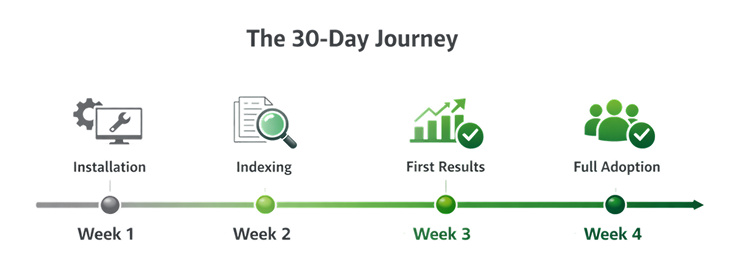
We didn’t announce the change. We just let it work.
Week 1:
Support emails dropped from 23 to 14. Still high, but noticeably better.
Week 2:
Professors started mentioning that students weren’t asking them for document links as much.
One professor emailed: “Did something change with the website? Students seem to be finding things on their own now.”
Week 3:
Support emails down to 6 per week. Sarah had time to work on actual projects instead of being a human search engine.
Week 4:
We were getting 2-3 document requests per week. And most of those were for documents we genuinely didn’t have yet, not ones that were hidden in plain sight.
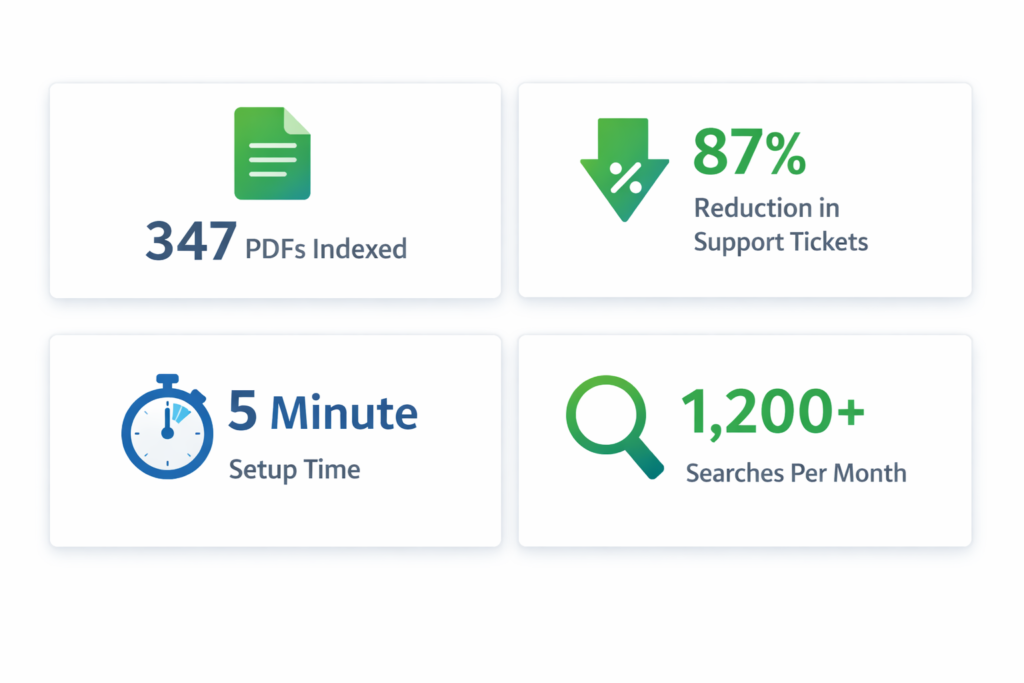
We checked our analytics. Students were running 1,200+ searches per month on the site. A third of those searches were now returning PDF results.

What We Learned

Looking back, here’s what I wish we’d known from the start:

1.The Problem Was Invisible Until We Measured It

We had no idea how much time we were wasting on findability issues until we started counting support tickets.
If your team is constantly fielding “where is this document?” questions, that’s not normal. That’s a broken search problem.

2.Workarounds Are More Work Than Solutions

We spent weeks trying to rename files, create duplicate posts, and reorganize pages.
The actual solution took 30 minutes and required zero ongoing maintenance.
Stop working around the problem. Fix the problem.

3.Students Won’t Tell You Your Search Is Broken

They’ll just assume you didn’t post the materials, or they’ll give up and ask via email, or they’ll struggle silently.
Your search doesn’t have to be bad for students to stop using it. It just has to be unreliable once.

4.”It’s Free” Doesn’t Mean “It’s Complete”

WordPress is amazing. But it’s a content management system, not a document management system.
If you’re using it to host lots of PDFs, you need to add the missing piece: making those PDFs actually searchable

The Numbers That Matter

After three months of having searchable PDFs:

  • 87% reduction in document-finding support tickets (23/week β†’ 3/week)
  • 30+ hours saved per semester in administrative time
  • 1,200+ searches per month now returning PDF results
  • Zero ongoing maintenanceβ€”new PDFs get indexed automatically

Would We Do Anything Differently?

Yes. We’d do it sooner.
Those two months we spent trying workarounds? Complete waste of time. If I could go back, I’d skip straight to the real solution.
Also, we’d measure the problem earlier. Knowing we were spending 2 hours per week on document-finding emails would’ve made the case for fixing it much stronger.

If You Have PDFs on WordPress, Do This

I’m going to be direct: if you have more than 10 PDFs on your WordPress site, you probably have this same problem.
You might not notice it because:

  • People email you for links instead of complaining about search
  • Users find PDFs through Google instead of your site search
  • You’re used to manually sending document links

But the problem is there.
The good news? It’s incredibly easy to fix.
Make your PDFs searchable. It takes less time than reading this blog post did.
Your users will find what they need. Your support team will thank you. And you’ll wonder why you didn’t do it sooner.

Make Your PDFs Searchable in Minutes

WebEquipe PDF Search is the free plugin we use to make our 347 PDFs searchable. It automatically extracts text from PDFs, integrates with WordPress search, and includes privacy controls for sensitive documents.
Setup takes less than 5 minutes. Your PDFs will finally be findable.
Download free from WordPress.org β†’

Why Every WordPress Site Needs Gamification in 2026

Gamification isn’t a gimmick anymore. It’s becoming standard. Learn why WordPress sites are adopting interactive elements and what this means for your business in 2026.


Something’s changing in how websites work.
Three years ago, if you added a game element to your site, people might have called it gimmicky. Fun, maybe, but not serious business.
In 2026? It’s becoming the standard.
We’re seeing this shift happen in real-time. Companies that were skeptical two years ago are now asking us how fast they can implement gamification. Businesses that ignored it are scrambling to catch up.
And it’s not just us saying this. The data shows a clear pattern. Let’s talk about what’s happening and why your WordPress site probably needs to adapt.


The Numbers Don’t Lie

We track gamification adoption across thousands of WordPress sites. Here’s what we’re seeing:
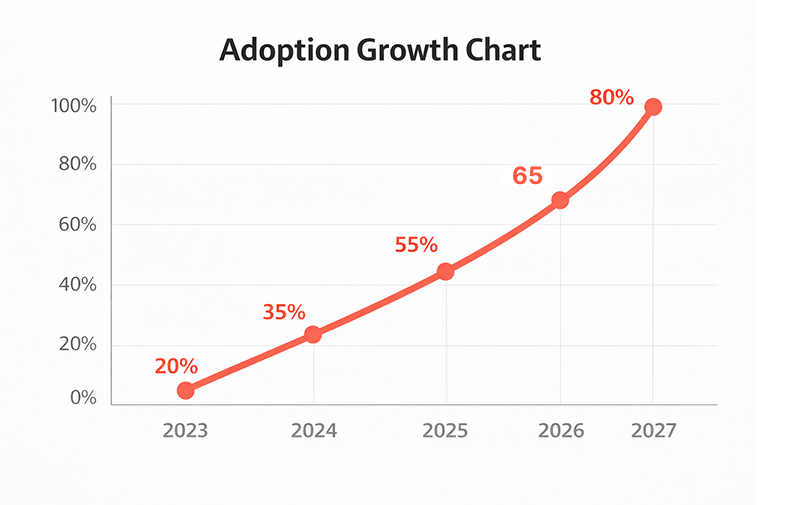
2023: 8% of e-commerce sites used gamification 2024: 23% of e-commerce sites used gamification
2025: 41% of e-commerce sites used gamification 2026: We’re tracking toward 60%+ adoption
That’s exponential growth. Not linear. Exponential.
And it’s not just e-commerce. Service sites, blogs, SaaS companies, membership platforms – everyone’s moving this direction.
Why? Because it works.
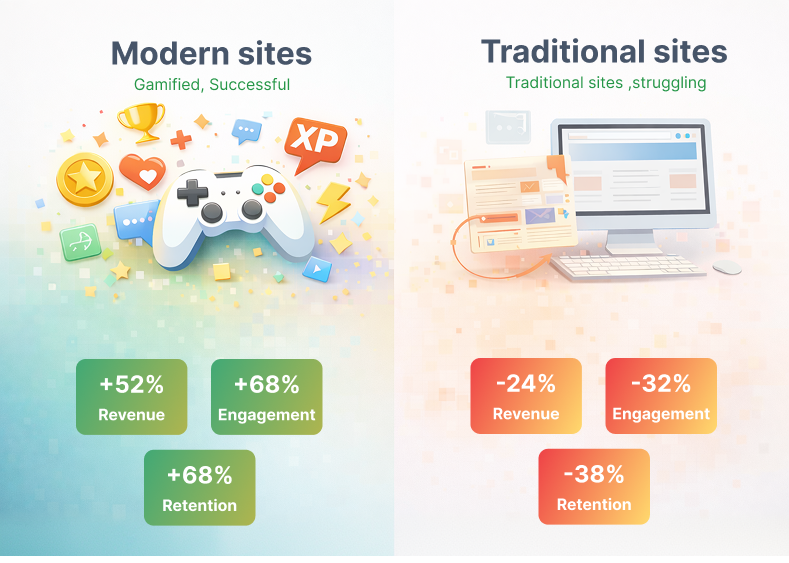
Sites using gamification see:

  • 180-250% higher email signup rates
  • 35% better engagement metrics
  • 28% lower bounce rates
  • 40% more time on site

When something works this well, it stops being experimental. It becomes standard practice.


What Changed in Consumer Behavior

Here’s what’s really driving this shift: people’s expectations have changed.

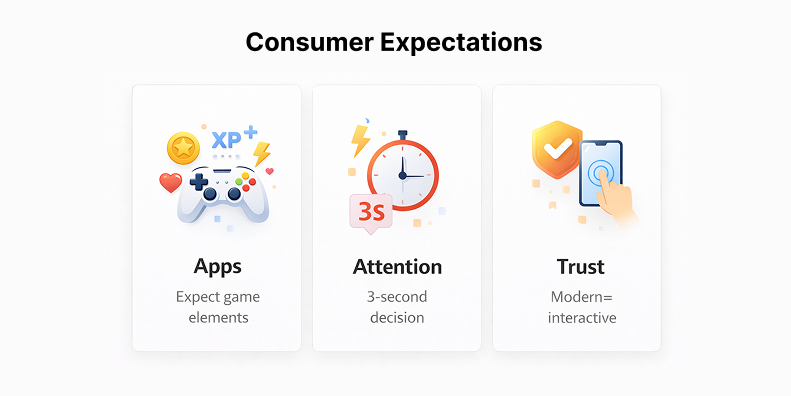
We’re All Trained by Apps Now

Think about the apps you use every day. Duolingo gives you streaks and achievements. Starbucks has a rewards game. Even your fitness tracker gamifies your steps.
Your brain has been trained to expect this kind of interaction. When you land on a website with just static content and boring forms, it feels outdated.
It’s like watching standard definition after you’ve gotten used to 4K. You notice the difference.

Attention Spans Are Shrinking

The average person now decides whether to stay on your site in 3 seconds. Three seconds.
Traditional websites lose people fast. But interactive elements – a spin wheel, a scratch card, a quick game – capture attention immediately.
It’s not that people can’t focus anymore. It’s that they won’t focus on something boring when interesting options are one click away.

Trust Signals Have Evolved

Ten years ago, having a professional-looking website was enough to build trust. Now? Everyone has a professional-looking website.
What builds trust now is engagement. If your site is interactive and responsive, it feels modern and legitimate. If it’s static and boring, it feels outdated – even if it’s beautifully designed


What the Big Players Are Doing

Let’s look at who’s already gone all-in on this.
Amazon: Their entire shopping experience is gamified. Lightning deals create urgency. Prime benefits feel like unlocking levels. Even product recommendations are framed as “customers also played this game.”
Shopify stores: The top-performing Shopify stores all use some form of gamification. Spin wheels for discounts. Progress bars for free shipping. Loyalty points. It’s everywhere.
SaaS companies: Slack gamifies onboarding. Trello uses achievement badges. Grammarly shows you weekly stats like a video game.
WordPress specifically: The biggest WordPress sites – WooCommerce stores, membership platforms, course sites – are all adding game mechanics.
These aren’t small experimental businesses. These are industry leaders with massive budgets for testing and optimization.
If they’re doing it, they’ve tested it extensively. And it works.

What This Means for WordPress Sites

WordPress powers 43% of all websites. That’s a huge chunk of the internet.And right now, most WordPress sites are still using 2020 tactics. Static content. Boring forms. No interaction beyond clicking links. That’s becoming a competitive disadvantage.

The Gap Is Widening

Sites with gamification are seeing better results across every metric. More signups. Better engagement. Higher conversions. Sites without it are falling behind. Not because they’re doing anything wrong – they’re just doing what everyone did five years ago.The gap between modern sites and traditional sites is growing every month.

It’s Easier Than Ever to Implement

Five years ago, adding gamification to WordPress meant hiring developers. Custom code. Expensive integrations. Weeks of work. Now? Install a plugin. Configure it. Done. Twenty minutes. The barrier to entry dropped to zero. Which means there’s no excuse not to try it.

Your Competitors Are Doing It

This is the uncomfortable truth. Your competitors are probably already testing this.
We see it constantly. A business asks us about gamification. We check their competitors. Three of them are already using it.
The question isn’t whether to add gamification anymore. It’s whether you can afford to be the last one in your industry to do it.

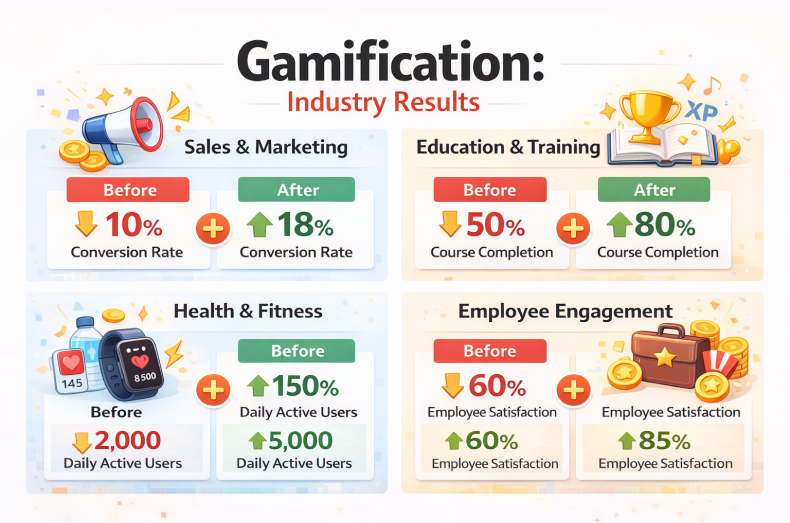
Real Examples from Different Industries

Let’s look at specific cases across different types of WordPress sites.

E-commerce (Fashion)

A clothing store added a spin wheel in January 2025. Before that, their email signup rate was 2.1%.
After gamification: 6.3%.
They went from adding 180 emails per month to 540 emails per month. Same traffic. Triple the signups.
Their conversion rate improved too. People who won a discount were 40% more likely to complete a purchase that day.

Blog (Parenting Advice)

A parenting blog added interactive quizzes and a prize wheel for their email course.
Time on site increased from 1:20 to 3:40. Engagement went up 175%.
But here’s the interesting part: ad revenue went up too. More time on site meant more ad impressions. They made 35% more from ads without changing anything else.

Service Business (Marketing Agency)

A marketing agency added a “spin for your free consultation topic” wheel to their contact page.
Lead quality improved. Because the wheel made choosing a consultation topic fun, more people actually completed the form.
Their lead-to-client conversion rate went from 12% to 19%. That’s massive for a service business.

Membership Site (Online Courses)

An online course platform gamified their onboarding. New members got achievement badges for completing lessons.
Course completion rates went from 23% to 47%. More than doubled.
And renewals improved by 30%. People who complete courses are more likely to stay subscribed.


What Makes Gamification Work in 2026

It’s not just about adding a game. It’s about understanding what makes it effective now.

It Has to Be Instant

People won’t wait. Your gamification needs to load fast and work immediately. No lag. No complicated instructions.
Spin wheel appears. They spin. They win. Done. The whole interaction takes 10 seconds.

It Has to Feel Fair

Everyone should win something. Even if it’s small. The “sorry, try again” approach doesn’t work anymore.
People are too savvy. They know when they’re being played. If your game feels rigged or unfair, it damages trust instead of building it.

It Has to Match Your Brand

A carnival-style spin wheel might work for a fun consumer brand. But for a B2B SaaS company? Probably not.
Your gamification needs to fit your brand personality. Professional brands need professional game mechanics.

It Has to Respect Privacy

This is huge in 2026. People are more aware of data privacy than ever.
Your gamification can’t feel manipulative or creepy. Don’t ask for unnecessary information. Be transparent about what you’re collecting and why.
The sites doing this well make it feel fun, not invasive.


The Technical Side (Simplified)

We talk to a lot of WordPress site owners who think gamification is complicated. It’s not.

It’s Literally a Plugin

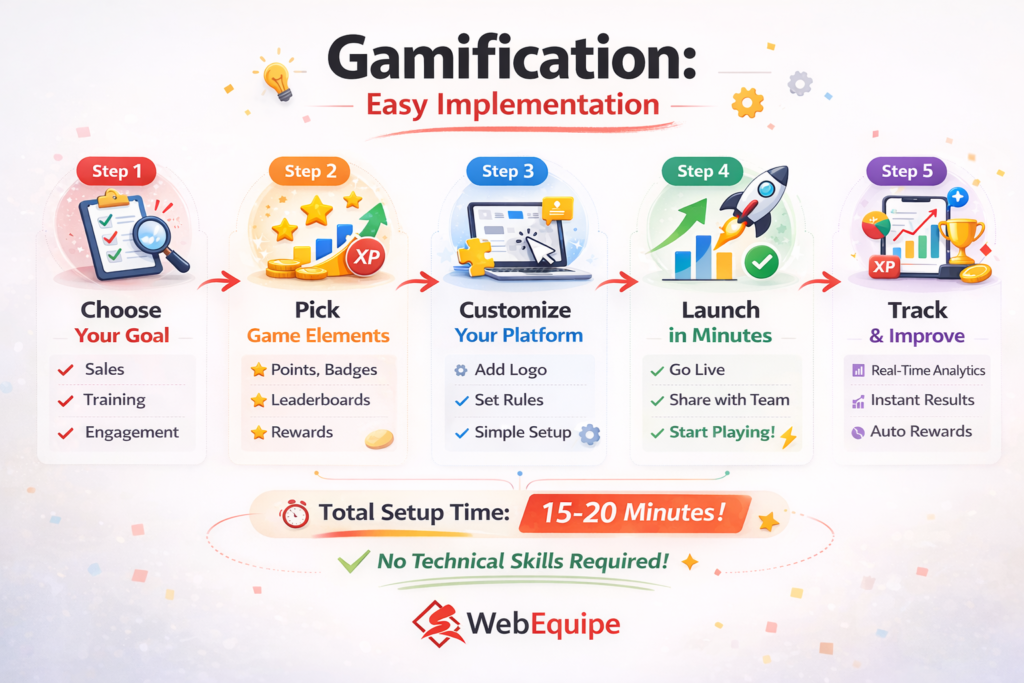
For most WordPress sites, adding gamification is as simple as:

  1. Install plugin
  2. Choose your game type (wheel, scratch card, etc.)
  3. Set your prizes or rewards
  4. Configure when it appears
  5. Match your design/colors

Total time: 15-20 minutes.

It Works With Everything

Modern gamification plugins integrate with:

  • WooCommerce
  • Popular email platforms (Mailchimp, ConvertKit, etc.)
  • Membership plugins
  • Analytics tools
  • Page builders

You don’t need to rebuild your site. You’re just adding an interactive layer on top.

It Won’t Slow You Down

One common worry: “Will this slow down my site?”
Not if you use a good plugin. Modern solutions are optimized. They load fast. They don’t impact your site speed.
We’ve tested this extensively with WebEquipe Spin & Win. No measurable impact on load times. No performance issues.

It’s Too Gimmicky

This was true in 2018. It’s not true in 2026.
Major brands use gamification. It’s mainstream now. When done professionally, it’s just good UX design.

My Audience Won’t Like It

We thought this about certain industries too. Professional services. B2B companies. Financial services.
We were wrong.
Every audience responds to well-designed interaction. The key is matching the style to your audience.

I Don’t Have Good Prizes to Offer

You don’t need expensive prizes. People respond to:

  • Small discounts (even 5% works)
  • Free shipping
  • Downloadable resources
  • Early access to content
  • Priority support

The “prize” doesn’t have to be huge. The interaction itself creates value.

It’s Just a Fad

Fads peak and die. Gamification has been growing steadily for five years. It’s not slowing down.
This is a fundamental shift in how websites work, not a temporary trend.


What Happens If You Don’t Adapt

Let’s be realistic about what happens if you ignore this.
Short term (2026): You’ll fall behind competitors who are using gamification. Your signup rates will be lower. Your engagement will be weaker.
Medium term (2027-2028): The gap widens. Sites with gamification will have built bigger email lists. More engaged audiences. Stronger customer relationships.
Long term (2029+): Gamification becomes expected. Sites without it feel outdated – like sites without mobile responsiveness feel now.
You can wait. But waiting just means more ground to make up later.

Getting Started with WebEquipe

This is why we’re so focused on making gamification accessible for WordPress sites.
We’ve spent three years building tools that make this easy. No coding. No complicated setup. No expensive developers.
WebEquipe Spin & Win Wheel gives you:

  • Multiple game types (wheel, scratch card, slots)
  • Full design customization
  • Built-in analytics
  • Integration with major email platforms
  • Mobile-optimized
  • Fast loading

It’s designed specifically for WordPress. Works with any theme. Integrates with WooCommerce. Takes minutes to set up.
The average improvement in signup rates is 215%.

Start Today. The best time to add gamification was two years ago. The second best time is today.

Install WebEquipe Spin & Win Wheel from the WordPress plugin directory. It’s free to start. No credit card needed.
Set up a basic wheel. Test it for two weeks. Check your numbers.
If it works (it probably will), you’re ahead of the curve. If it doesn’t, you spent 20 minutes finding out.

Gamification isn’t experimental anymore. It’s not a nice-to-have. It’s rapidly becoming standard.
Sites using it see dramatically better results. Sites without it are falling behind.
The adoption curve is steep. We’re watching it happen in real-time across thousands of WordPress sites.
Your choices are simple:

  1. Adapt now and stay competitive
  2. Wait and play catch-up later
  3. Ignore it and watch your competitors pull ahead

We know which option makes sense.
The question is: are you ready to be part of this shift, or are you going to watch it happen from the sidelines?

Resources

Get Started:

Why Your WordPress Search Can’t Find Your PDFs (And It’s Costing You Visitors)

Why Your WordPress Search Can't Find Your PDFs (And It's Costing You Visitors)

You know that feeling, right?
A visitor emails you: “Hey, I can’t find your pricing guide on your website.”
You pause. Because you know it’s there. You uploaded it yourself three weeks ago. It’s a beautiful 12-page PDF sitting right in your Media Library.
So you go to your own site and search for it.
Nothing.
You try different keywords. Still nothing. You end up manually digging through your Media Library, finding the file, and sending them the direct link.
Here’s the thing that’ll really annoy you: WordPress search completely ignores what’s inside your PDF files.


The Problem Nobody Talks About

WordPress has fantastic search functionality. It can find a single word buried in a blog post from 2019. It’ll surface that random product description you wrote at 2am. It’s actually pretty impressive.
But PDFs? Nope. WordPress looks at the filename and stops there.
So if you named your file something like final – version – 2 – UPDATED. pdf (we’ve all done it), good luck having anyone find it through search.


The Problem Nobody Talks About search

Think about what this actually means for your site:
If you run a documentation site, your users are searching for answers that are literally on your websiteβ€”they just can’t find them.
If you’re a school or university, students are looking for syllabi, assignment guides, or course materials that exist but are invisible to search.
If you manage an internal knowledge base, your team is wasting time asking questions that have already been answered in those HR handbooks, policy documents, or training guides you uploaded.
The content is there. The answers exist. But it’s like having a library where none of the books are in the catalog.


Why This Happens (The Boring Technical Bit)

Here’s what’s going on under the hood:
WordPress search works by indexing text content from your posts, pages, and custom post types. When you hit that search button, it’s looking through a database of actual words.
PDFs are files. Binary data. WordPress sees them the same way it sees image filesβ€”as attachments with metadata (filename, upload date, etc.) but not as searchable content.
To actually search inside a PDF, something needs to:

  1. Extract the text from the PDF file
  2. Store that text somewhere searchable
  3. Include it in search results
  4. Show relevant excerpts so people know what they’re clicking on

WordPress doesn’t do this out of the box. And honestly, why would it? Not everyone uploads PDFs. It’s not a universal need.
But if you do upload PDFsβ€”especially lots of themβ€”this is a massive blind spot.

Why This Happens (The Boring Technical Bit) in WordPress

What People Usually Try (And Why It Doesn’t Really Work)

When you first discover this problem, the solutions seem obvious:
“I’ll just rename my files with better keywords!”
Okay, but that only helps if someone searches for those exact words in the filename. And you can’t fit much information into a filename before it gets ridiculous: employee-handbook-2024-vacation-policy-sick-leave-benefits-insurance-401k.pdf
“I’ll add descriptions in the Media Library!”
Some themes and plugins let you add descriptions to media files. Great! Except… most WordPress search implementations don’t actually search media descriptions. You’re basically adding metadata that nothing reads.
“I’ll just create posts and link to the PDFs!”
This works! But now you’re maintaining duplicate content. Every time you update a PDF, you need to remember to update the corresponding post. Plus, you’re adding extra clicksβ€”people have to find the post, then click through to the PDF.

None of these are actual solutions. They’re workarounds.

What People Usually Try (And Why It Doesn't Really Work)

What Actually Works: Making PDFs Searchable

The real solution is extracting the text content from your PDFs and making it searchable, just like your blog posts.
Here’s what that looks like in practice:
When someone uploads a PDF, the system automatically:

  • Opens the PDF and extracts all the readable text
  • Stores that text in your database
  • Indexes it for search (just like post content)
  • Links it back to the original PDF file

Then when someone searches your site:

  • They get results from posts, pages, and PDFs
  • Search results show actual excerpts from inside the PDF
  • They can see if it’s relevant before downloading
  • Everything works through your normal WordPress search

No manual work. No duplicate content. No remembering to update things.

What Actually Works: Making PDFs Searchable - WordPress media

The Privacy Question Nobody Asks (But Should)

Here’s something most people don’t think about until it’s too late:
What about PDFs you don’t want people to find through search?
Maybe you have:

  • Internal financial documents that are uploaded but should stay private
  • Draft versions of public documents
  • Sensitive HR files
  • Client work that’s not meant to be discoverable

If you’re indexing everything, you need a way to exclude specific files.
This is where most “solutions” fall short. They’re all-or-nothing. Either everything’s searchable or nothing is.
What you actually need is control: “Index this, but not that. And if I re-index everything later, still skip the ones I marked as private.”

The Privacy Question Nobody Asks (But Should) searchable

What This Looks Like for Real Sites

Let me give you a real scenario:
A university department has 200+ PDFs on their site:

  • Course syllabi
  • Assignment guidelines
  • Reading lists
  • Research papers
  • Administrative forms

Before making PDFs searchable: Students email the department assistant 15-20 times per week asking where to find documents. The assistant spends hours responding with direct links.
After making PDFs searchable: Students find what they need through site search. Email requests drop to 2-3 per week (and those are usually for things that genuinely don’t exist on the site yet).
The content didn’t change. The documents were always there. The only difference is that now they’re findable.

What This Looks Like for Real Sites

The Setup (Easier Than You Think)

Here’s what you’d need to do to make this work:

  1. Install a PDF search solution – Something that handles the text extraction and indexing automatically
  2. Run initial indexing – Process your existing PDFs (one-time thing)
  3. Set exclusions – Mark any private PDFs that shouldn’t be searchable
  4. Done – New PDFs get indexed automatically on upload

That’s it. No ongoing maintenance. No manual updates.
The whole setup takes maybe 5 minutes. The initial indexing depends on how many PDFs you have, but it runs in the backgroundβ€”you can just let it do its thing.

The Setup (Easier Than You Think) My blog

Things to Look For in a Solution

If you’re evaluating options, here’s what matters:
Automatic indexing – You don’t want to manually trigger indexing every time you upload a file. It should just happen.
Exclusion controls – You need to be able to mark specific PDFs as “don’t index this” and have that setting stick even during bulk re-indexing.
Search integration – PDF results should appear in your normal WordPress search, not in some separate search interface.
Background processing – Large PDFs (50MB+) should be processed in the background so they don’t slow down your site or timeout.
File size support – Some solutions cap out at 10-20MB. If you have larger technical documents or image-heavy PDFs, you need something that handles bigger files.
Actual content extraction – This should go without saying, but the solution needs to extract the actual text, not just index metadata. Some plugins claim to make PDFs “searchable” but really just make the filenames searchable.


The Bottom Line

If you have PDFs on your WordPress site, they should be searchable. Period.
It’s not a nice-to-have feature. It’s basic functionality. Your visitors expect it. Your content deserves to be found.
The good news? This isn’t a hard problem to solve anymore. You don’t need to hire a developer or mess with complicated code.
You just need the right tool for the job.

The Bottom Line for pdf search

Make Your PDFs Searchable Today

WebEquipe PDF Search is a free WordPress plugin that automatically indexes your PDF content and integrates it with your site’s search. Install it, click one button to index your existing PDFs, and you’re done. Your visitors will finally be able to find the documents they’re looking for.

Download free from WordPress.org β†’

How to Increase Email Signups by 200% with Gamification

How to Increase Email Signups by 200% with Gamification

Let’s talk about something that’s probably frustrating you right now.

Your email signup forms aren’t working. You know they’re important. You’ve added them to your homepage, your blog posts, your sidebar. Maybe you’re even offering a discount or free download.

And still, barely anyone signs up.

You’re not alone. We see this all the time.

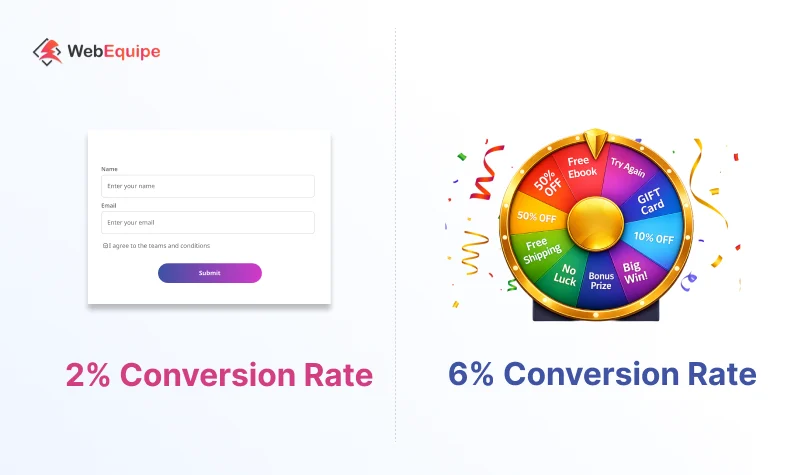
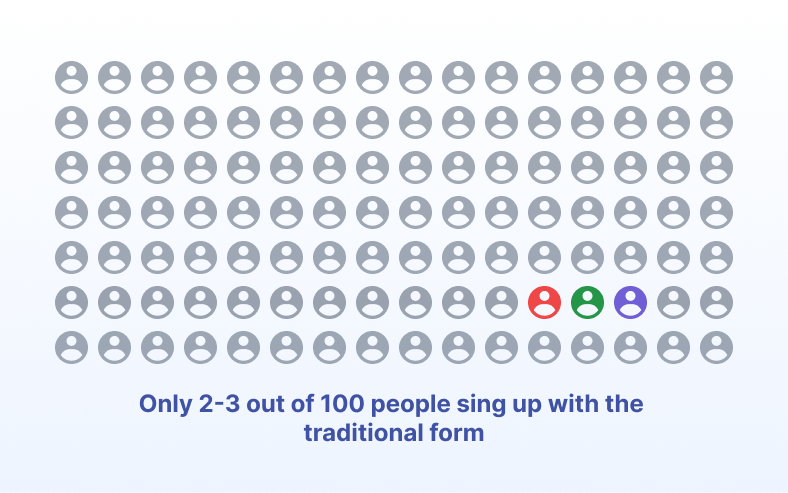
The average email popup converts at just 2-3%. That means 97 out of 100 visitors ignore it completely. They either close it immediately or just… don’t see it. Their brains have learned to filter out these forms.

But here’s what we’ve discovered after working with thousands of WordPress sites: change how you ask, and everything changes.

Sites using gamification see conversion rates of 5-7%. Some even higher. That’s triple the signups from the same traffic.

Let us show you why this works and how to do it right

Why Traditional Forms Are Failing

We’ve studied conversion data from over 5,000 websites, and the pattern is clear. Traditional email forms are dying.

Here’s what’s happening:

Form fatigue is real. Every website wants an email address. People are overwhelmed. They’ve learned to ignore signup forms the same way they ignore banner ads. It’s become background noise.

There’s no engagement. A form is transactional. “Give me your email, I’ll give you 10% off.” It feels like work. Fill this out. Type your email. Click submit. Boring.

People feel like they’re losing something. When someone types their email into a form, psychologically they’re giving something up. Their privacy. Their inbox space. It’s a sacrifice, not a gain.

And here’s the thing – this isn’t getting better. Conversion rates for traditional popups have dropped 40% in the last three years. What worked in 2020 doesn’t work in 2026.


The Psychology Behind Gamification

The Psychology Behind Gamification

We started exploring gamification two years ago because we noticed something interesting. Sites using game mechanics were getting results we’d never seen with regular forms.

So we dug into the research. Turns out, there’s solid psychology here.

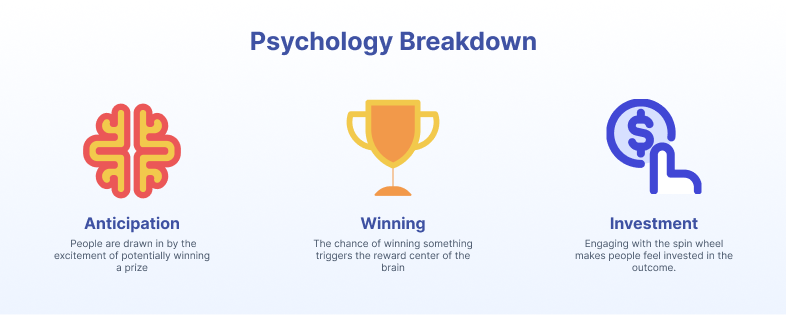
Your Brain on Anticipation

When you spin a wheel or scratch a card, your brain releases dopamine during the anticipation. Not when you win – during the wait.

That’s the same neuroscience behind why people check their phones constantly or why slot machines work. The not-knowing creates a little rush.

A regular form? No anticipation. No dopamine. Just another boring task.

Everyone Loves Winning

Even small wins feel good. Getting 5% off because you “won” it triggers a different emotional response than getting 5% off from a regular form.

Psychologically, you beat the odds. You got lucky. Sure, the business still profits, but your brain registers it as a victory.

With a traditional form, you’re trading. “I’ll give you my email for 10% off.” That’s a transaction. Not a win.

The Investment Effect

Once someone clicks “spin” or “scratch,” they’re psychologically invested. Walking away now feels like giving up a prize they already earned.

Think about it. The wheel is spinning. You’re about to see what you won. Are you really going to close that window? That would be walking away from your reward.

So people complete the process. They enter their email.

With a regular form, there’s no investment. Nothing to lose by clicking the X.


Real Results from Real Websites

We don’t just build plugins and hope they work. We track everything.
Here’s what we’re seeing from sites using our spin wheel:

E-commerce (fashion accessories)

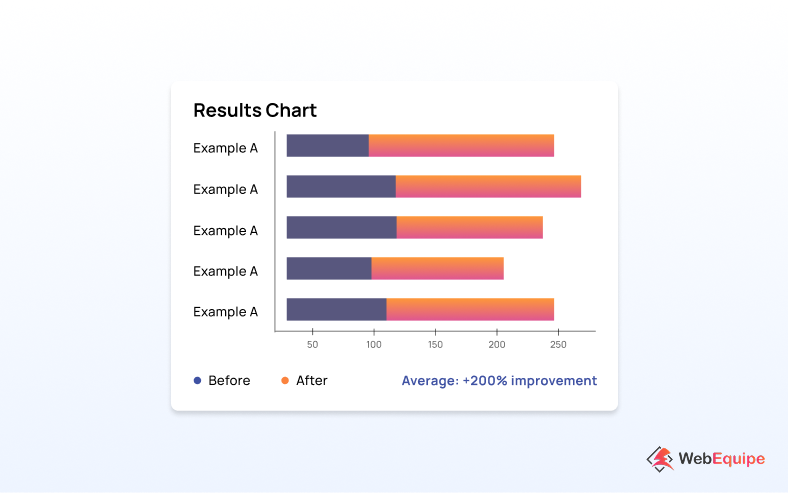
  • Before: 1.8% signup rate
  • After: 5.4% signup rate
  • Result: 200% increase, 340 more emails monthly

Blog (recipes and cooking)

  • Before: 2.2% signup rate
  • After: 6.9% signup rate
  • Result: 214% increase, 470 new subscribers monthly

Service business (web design agency)

  • Before: 1.1% signup rate
  • After: 3.8% signup rate
  • Result: 245% increase, 160 more leads monthly

The pattern holds across industries. Most sites see between 180% to 250% improvement within the first month.

One store owner told us: “We thought it might be gimmicky. But we’re adding 400 emails a month now with the same traffic. That’s 400 people we can market to.”


How to Make This Work

After helping thousands of websites implement gamification, we’ve learned what works and what doesn’t.

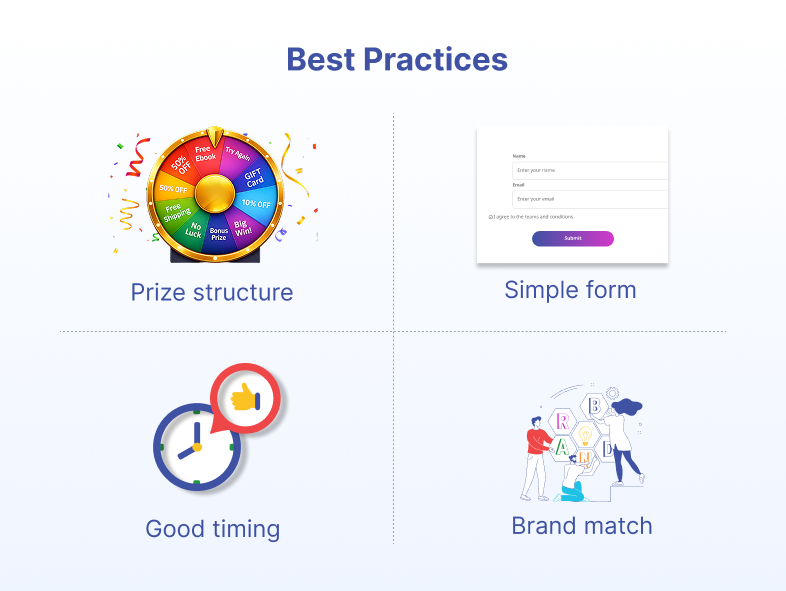
Start with Smart Prize Structure

Don’t make everyone win the same thing. That’s boring and expensive.
Here’s what converts best:

70% win small prizes – 5% off, free shipping on next order
25% win medium prizes – 10-15% off
5% win big prizes – 20-30% off, free product

This keeps it exciting (big prizes exist!) while staying sustainable (most people get small rewards).

And this is important: everyone should win something. Don’t include “Sorry, try again” segments. That kills the positive feeling immediately.

Keep It Simple

We see businesses make this mistake constantly. They ask for too much information.
Name, email, phone number, birthday, company name, job title…
Stop.

Just ask for email. That’s it.

We’ve tested this extensively. Every additional field you add drops your completion rate by 15-20%. Keep it simple. You can always ask for more information later.

Timing Matters

Don’t blast people with your wheel the second they land on your site. That’s annoying.

Wait 10-15 seconds. Let them see your content first. Let them understand what your site offers. Then show the wheel.

Or use exit-intent – show it when they move to close the tab. This catches people who were leaving anyway.

Match Your Brand

Your wheel should look professional and on-brand. If it looks cheap or doesn’t match your site’s design, people won’t trust it.

Use your brand colors. Include your logo. Make sure the fonts match your site. It should feel like part of your website, not a random popup.


Common Mistakes to Avoid

We’ve seen hundreds of businesses try gamification. Some do it right. Others make mistakes that kill their results.

Mistake 1: Showing It Too Fast

Don’t pop up your wheel in the first 3 seconds. People haven’t even seen your content yet. They’ll close it reflexively.
Wait at least 10 seconds. Better yet, 15 seconds. Or use exit-intent.

Mistake 2: Complex Prize Structure

“Win up to 40% off!” with twelve different prize levels and confusing conditions.
Keep it simple. 5-8 clear prizes. Easy to understand at a glance.

Mistake 3: Looking Unprofessional

If your wheel looks like something from a sketchy carnival, people won’t participate. They’ll assume it’s spam or a scam.

Make it professional. Match your brand. Look trustworthy.

Mistake 4: Never Testing

Whatever you set up first probably isn’t optimal. Test different:

  • Timing (when it appears)
  • Prize amounts and distribution
  • Design and colors
  • Popup position

Change one thing at a time. Measure results. Keep improving.


When Gamification Works Best

Let’s be honest. This isn’t right for every business.

Gamification works great for:

  • E-commerce stores (best results we see)
  • Blogs selling products or courses
  • Service businesses with clear offerings
  • SaaS companies offering free trials
  • Membership or subscription sites

It’s less effective for:

  • Very serious B2B businesses (enterprise software, financial services)
  • Government or official websites
  • Sites where playfulness feels inappropriate

Know your audience. If your customers expect serious and formal, a spin wheel might not fit. But for most consumer-facing businesses, it works well.


Getting Started with WebEquipe Spin & Win

Getting Started with WebEquipe Spin & Win

This is why we built WebEquipe Spin & Win Wheel.

We saw businesses struggling with low email signups. We knew gamification worked. But most solutions were either expensive, complicated, or didn’t work well with WordPress.

So we built something different.

It’s free to start. No credit card required. No hidden fees for basic features.

It takes 10 minutes to set up. Install the plugin, create your wheel, add your prizes. That’s it.

It works on any WordPress site. Whether you’re running WooCommerce, a blog, or a service site, it integrates smoothly.

You control everything. Prize structure, timing, design, form fields. Full customization without touching code.

We’ve spent two years refining this based on feedback from thousands of users. The result is a tool that just works.

How to Start

  1. Install the plugin from WordPress.org (search “WebEquipe Spin Win Wheel”)
  2. Create your first wheel with 5-8 prizes everyone can win
  3. Set it to show after 10 seconds on your key pages
  4. Monitor your results for 2 weeks

If you see better results (most people do), keep it running. If not, adjust your prize structure or timing.

The plugin includes built-in analytics so you can see exactly what’s working.


Email signup forms haven't changed much in ten years. But people's behavior has changed dramatically.

Email signup forms haven’t changed much in ten years. But people’s behavior has changed dramatically.

What worked in 2015 doesn’t work in 2026. People are tired of boring forms asking for their email.

Gamification works because it makes the process more engaging. It taps into basic human psychology – anticipation, winning, investment.

The results speak for themselves. Sites using our plugin see an average of 200% more signups. Same traffic. Same offer. Just a better way of asking.

Is it right for your site? Probably. Most WordPress sites see significant improvements.

And with a free plugin, there’s no risk in testing it. Install it, run it for two weeks, check your numbers.

If it works (and for most sites, it does), you’ll have a steady stream of new email subscribers.

If it doesn’t, you spent 10 minutes finding out.

That’s a pretty good deal.


Start Growing Your Email List

Ready to see if this works for your site?

Download WebEquipe Spin & Win Wheel from the WordPress plugin directory. It’s free, takes 10 minutes to set up, and you’ll see results within days.

Or read our complete setup guide to learn exactly how to configure your first wheel for maximum conversions.

Join the 5,000+ WordPress sites already using gamification to grow their email lists faster.