
πŸŽ‰ Save 10% Extra on the Webequipe PDF Search Plugin Annual Plan β€” Use code YEARLY10 Β· Limited-time offer Β· Get discount β†’

What I’d Check on Every WordPress Site Before Calling Its PDF Section Done

What I'd Check on Every WordPress Site Before Calling Its PDF Section Done

Before I call a PDF section done on any WordPress site, I do not only check if the files are uploaded.

I check if people can actually find them.

A PDF section may look fine from the outside. But behind the scenes, some files may not be searchable. Scanned PDFs may not work. Private files may show in public search. Large PDFs may fail before they finish processing.

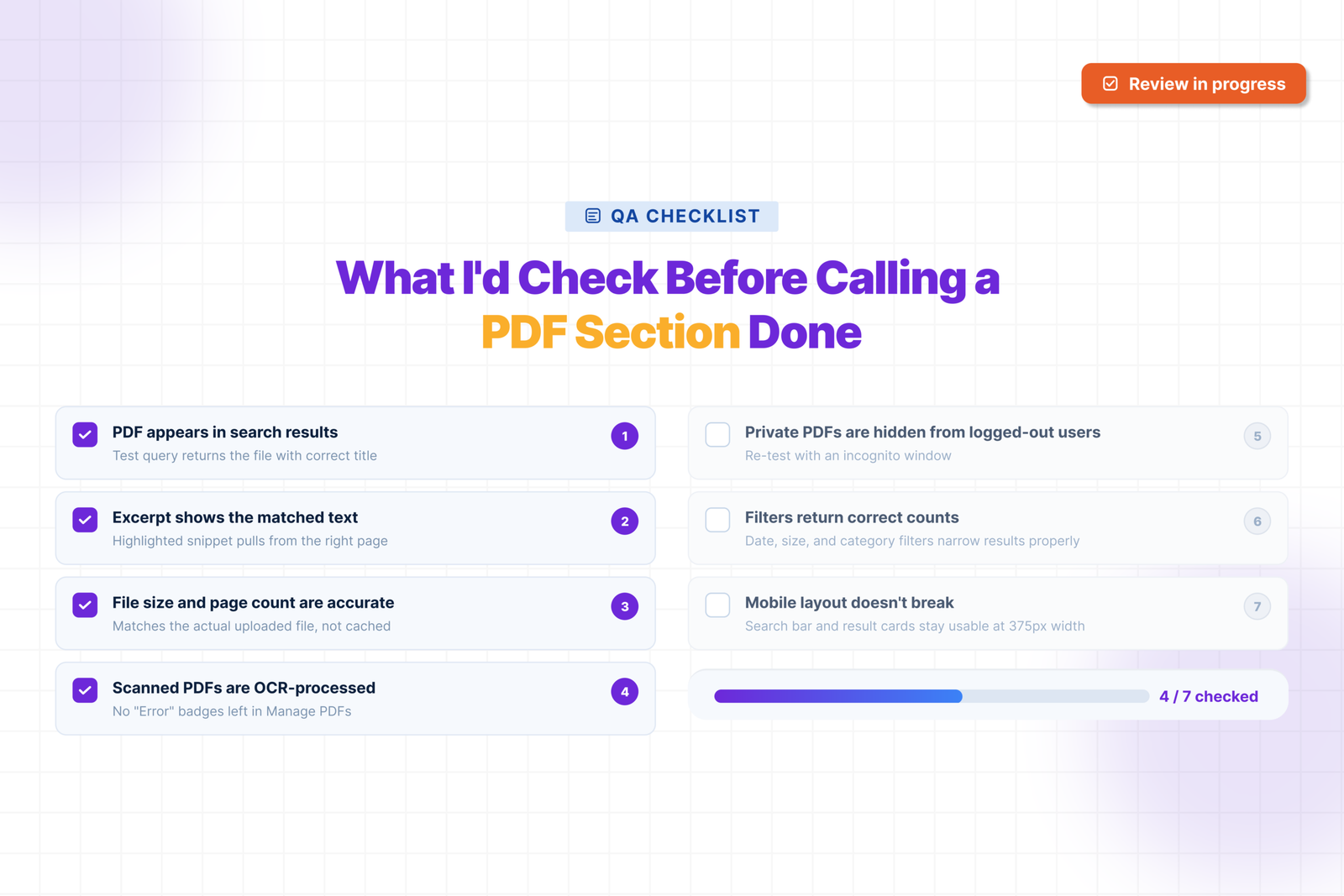
Here are the 7 checks I would run before saying a WordPress PDF section is ready.

Check 1 β€” Is every PDF actually indexed?

The first thing I check is whether each PDF is indexed.

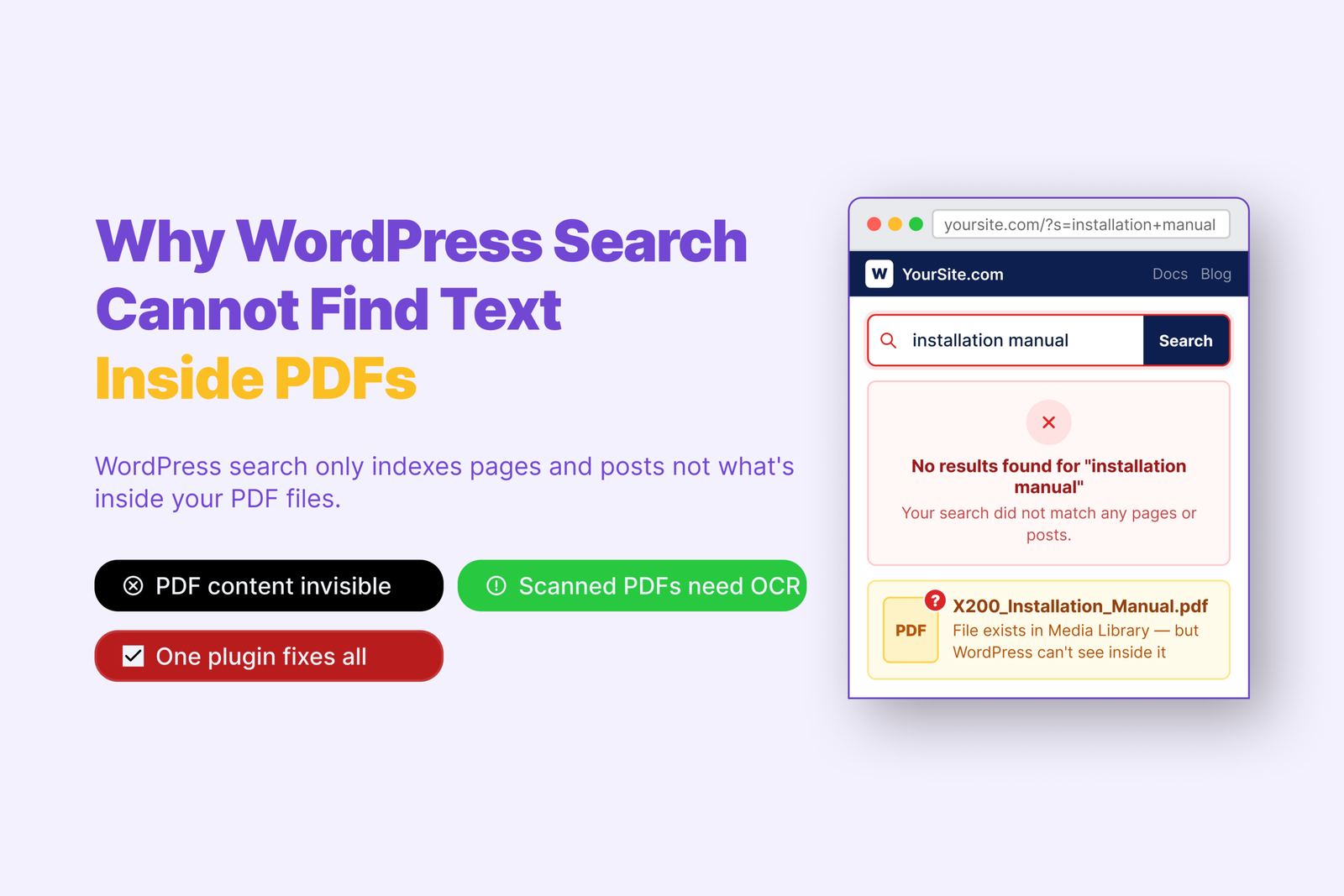
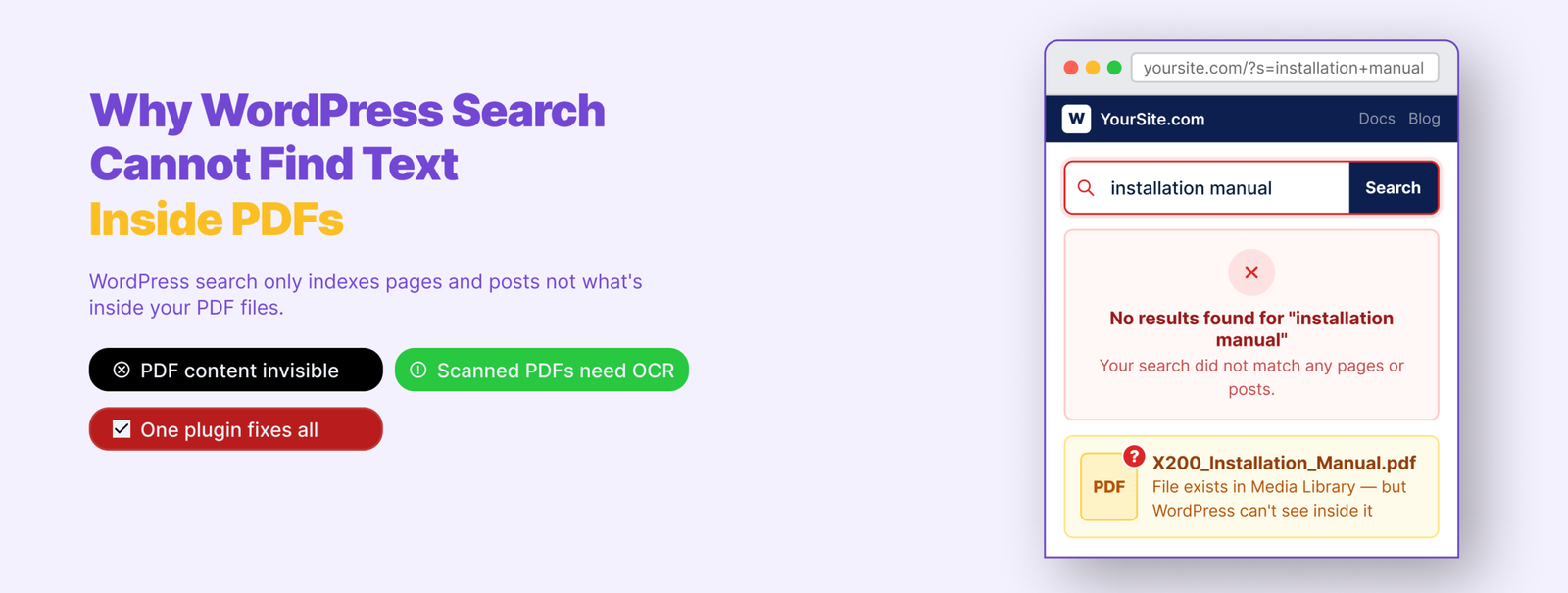
When you upload a PDF to WordPress, WordPress stores the file. But it does not read the text inside the PDF by default. So a visitor may search for a word that exists inside the PDF and still get no result.

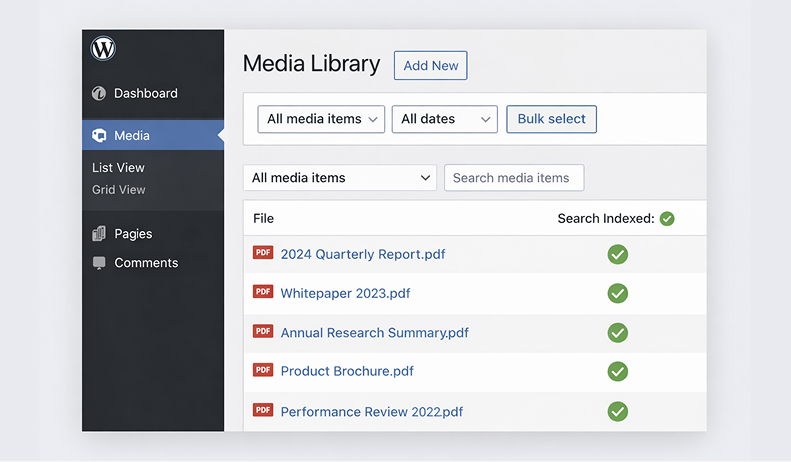
In WebEquipe PDF Search, I would go to the Media Library and check the PDF status column. This shows which files are indexed and which files still need work.

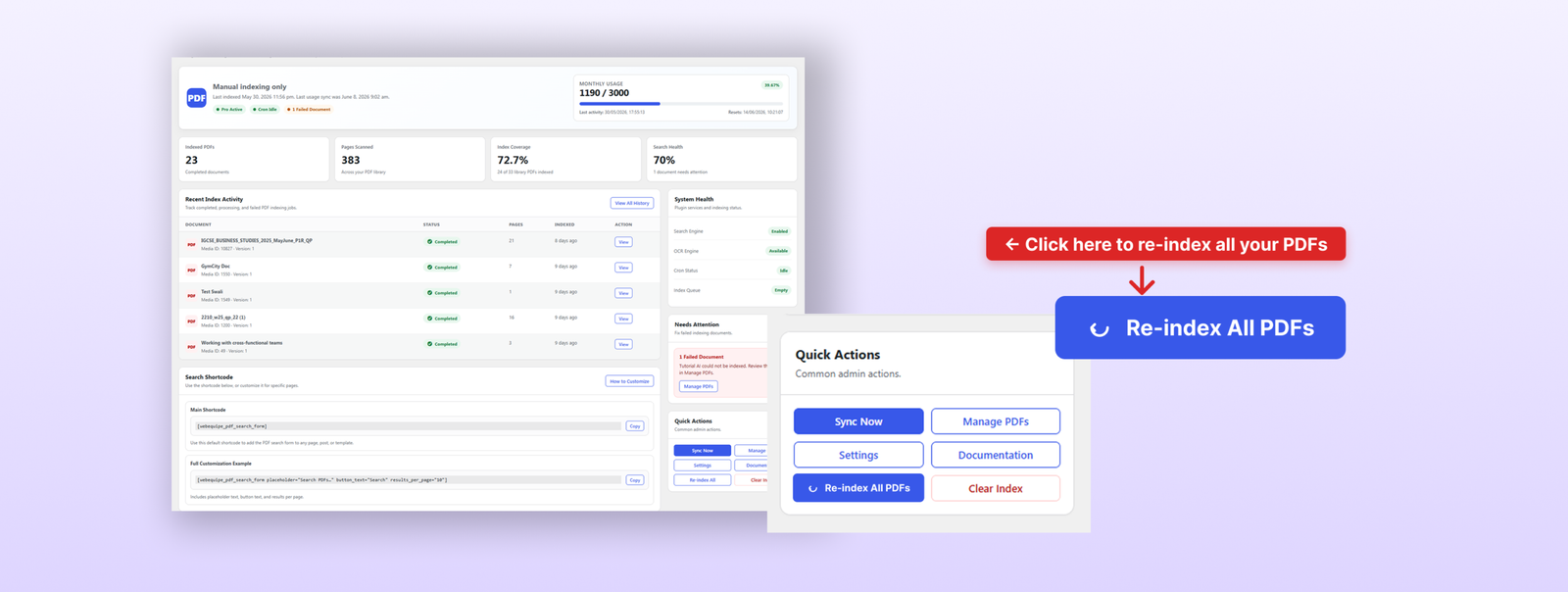
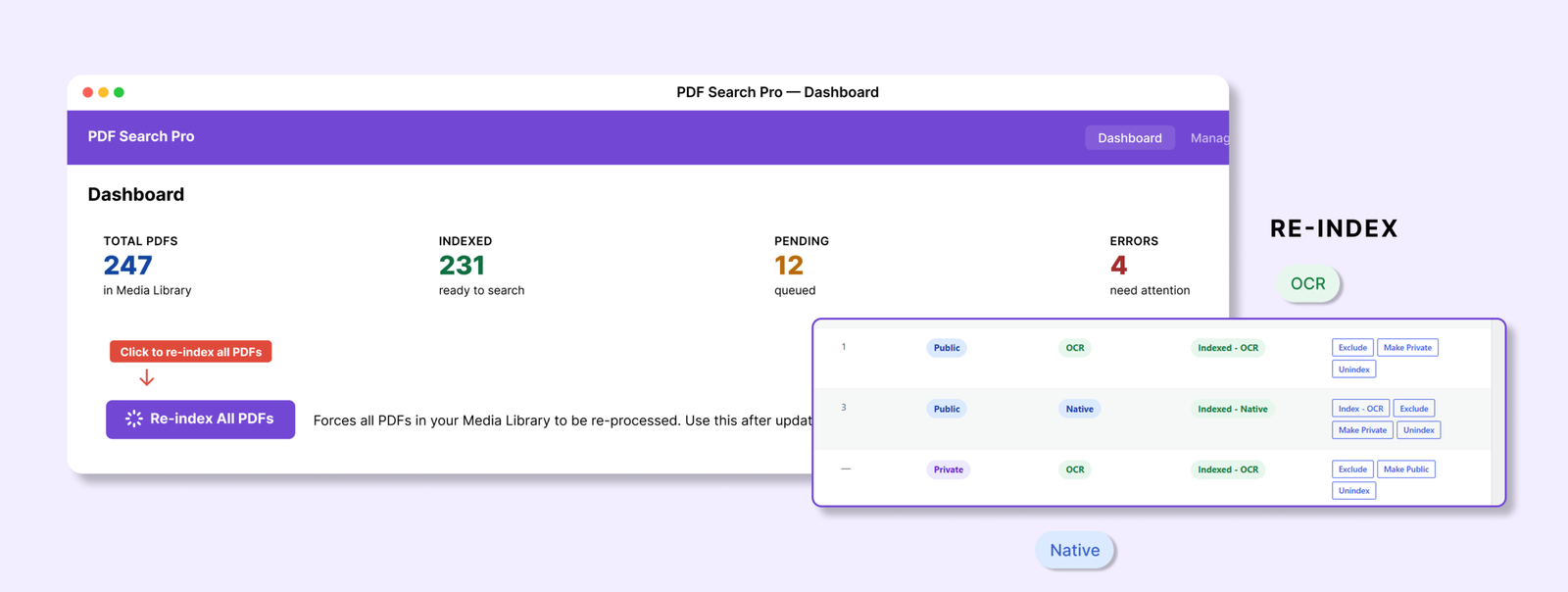
After installing the plugin, I would run Re-index All PDFs. This helps the plugin check the PDFs that were already uploaded before the plugin was installed.

If a file still shows Not Indexed after that, I would not ignore it. It may be too large. It may be scanned. It may have failed while processing. Or it may simply need to be indexed again.

For a small site, I would check every PDF. For a large site, I would filter by status and start with the problem files.

Check 2 β€” Are there scanned PDFs in the library?

This is a common reason PDF search does not work.

Some PDFs are text-based. These are usually made from Word, Google Docs, or another document tool. You can open the PDF, select a word, copy text, and search inside it.

Scanned PDFs are different. They are images of pages. Someone scanned a paper document and saved it as a PDF. It looks like a normal PDF, but there is no real text inside for the plugin to read.

The quick test is simple. Open the PDF in a browser and try to highlight a word.

If you can select the word, it is text-based. If your mouse only draws a box over the page, it is probably scanned.

Normal PDF indexing cannot read scanned text. The plugin tries to extract text, but there is nothing to extract. That is why scanned PDFs may show an error or stay missing from search.

If scanned PDFs need to be searchable, they need OCR. OCR reads the image and turns the words into searchable text.

Check 3 β€” Are private documents showing up in public search?

The next thing I check is visibility.

A lot of teams assume that if a PDF is not linked clearly, it is private. That is not true. If a PDF is uploaded to WordPress and indexed, it may appear in search results unless visibility is controlled properly.

There are two different needs here.

If a PDF should not appear in search at all, use Exclude. This removes the file from search indexing. The PDF stays in the Media Library, but it does not show in search results.

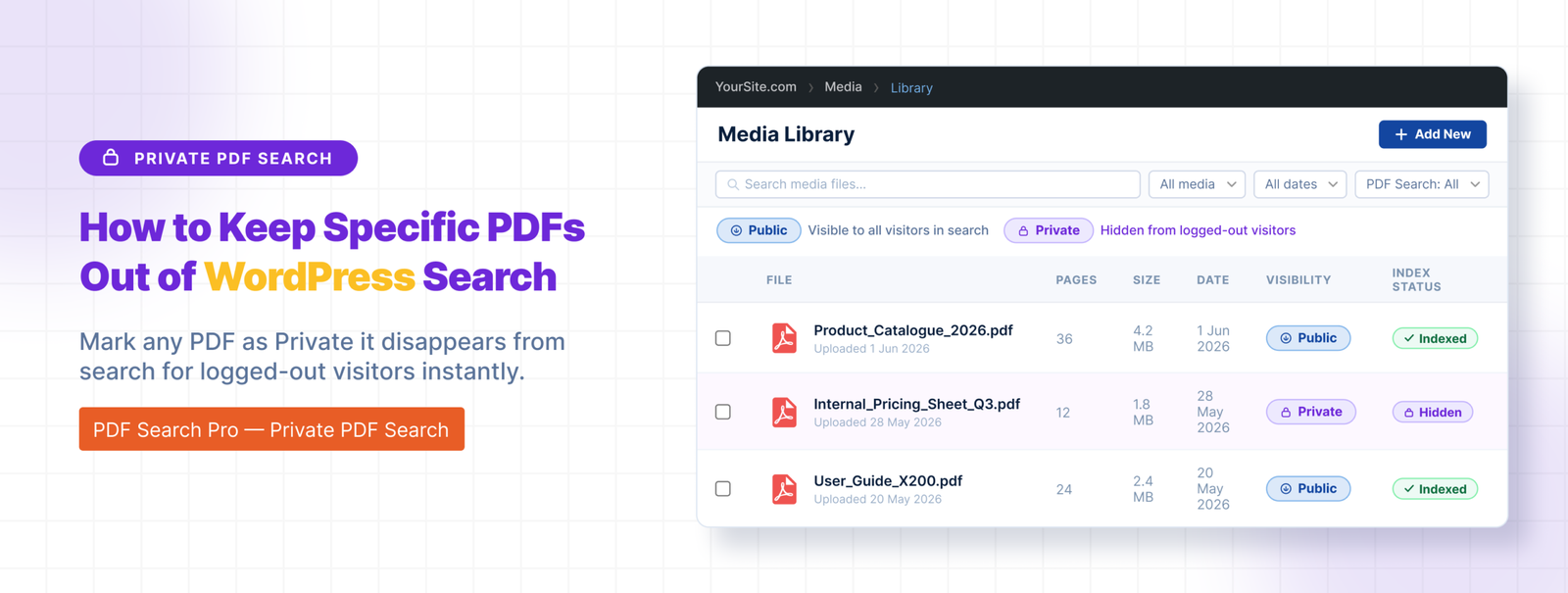
If a PDF should be searchable only for logged-in users, use Private PDF Search. This is useful for member handbooks, staff documents, or client resources.

I always test this from both sides. First, I search while logged in. Then I open a private/incognito window and search again as a logged-out visitor. If a restricted document appears publicly, the PDF section is not ready.

PDF search is not only about helping users find documents. It is also about making sure the wrong users cannot find the wrong documents.

Check 4 β€” Does the search form work standalone?

I also test the PDF search form separately from the main website search.

For many websites, this matters a lot. A resource center, document portal, help section, or membership area may need its own PDF-only search form. Visitors in that section usually do not want blog posts, pages, or products mixed into the results. They only want documents.

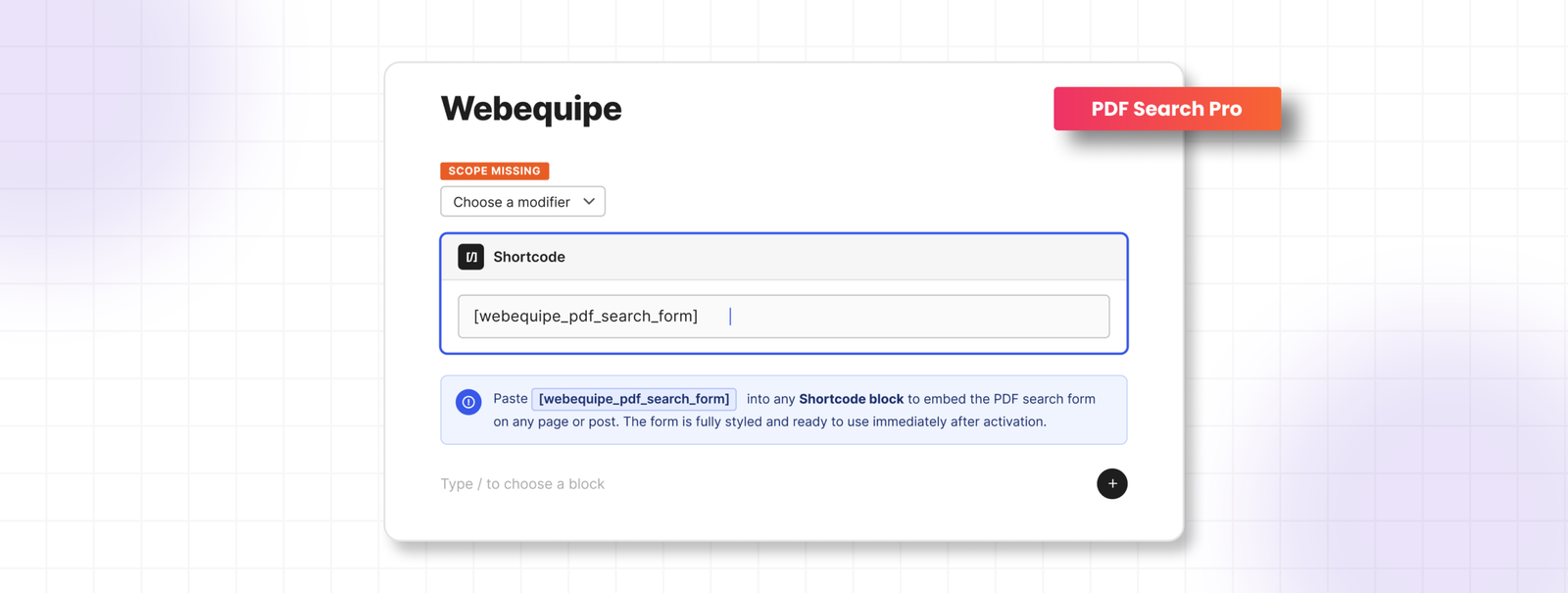
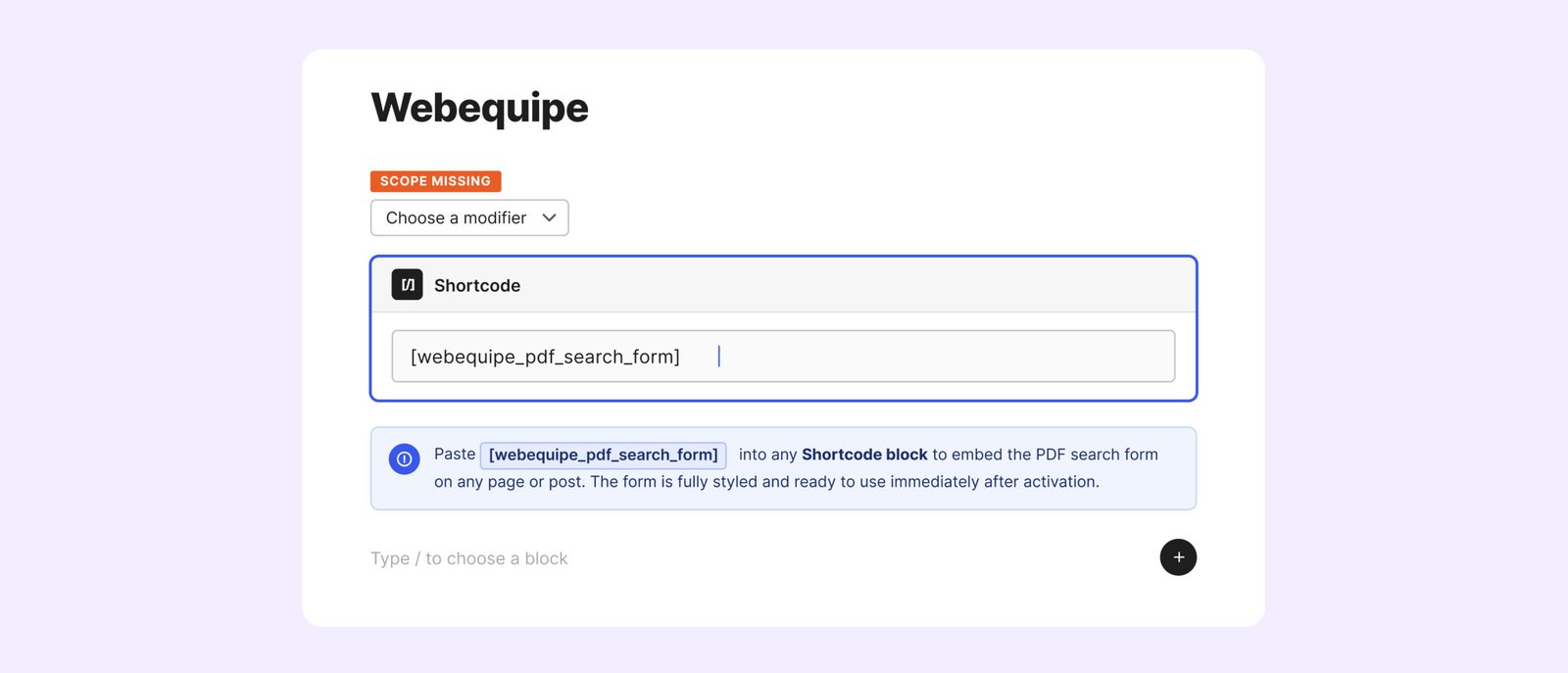
With WebEquipe PDF Search, the shortcode form can be added to a page using:

[ webequipe_pdf_search_form]

I would place this on a test page and search for a few known PDF terms. I check whether the right results appear, whether the title makes sense, whether the excerpt is useful, and whether the file link opens correctly.

This is also helpful when the main WordPress search is controlled by another plugin or theme. A standalone form keeps PDF search easier to test and manage.

Check 5 β€” What do zero-result searches look like?

A search system should also be tested when it fails.

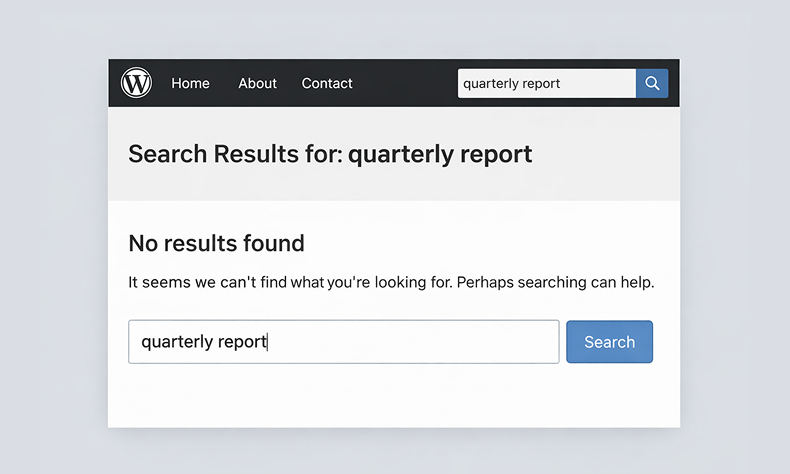
I always try a few searches that should return no results. Visitors may use the wrong word, a short term, a spelling mistake, or a phrase that is not inside any PDF.

If the page only says β€œNo results found” with no next step, users may think the site is broken. They may not know whether the document is missing, not indexed, private, or named differently.

A better zero-result message should help them continue. It can suggest trying another keyword, checking spelling, browsing the document category, or contacting the site owner.

This is a small detail, but it matters in real use. A good empty result page can stop visitors from giving up too quickly.

Check 6 β€” Is the excerpt length right?

PDF search results need context.

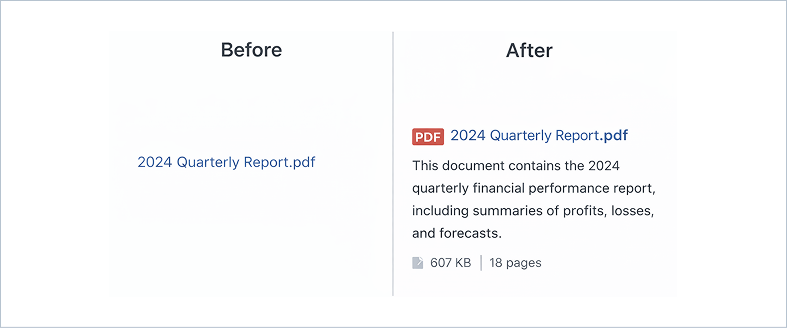
If the result only shows the file name, users may not know whether that PDF is useful. A good excerpt shows the matching text and helps the visitor decide whether to open the file.

The default excerpt length is around 200 characters. That may be fine for short documents, but technical PDFs, manuals, reports, and policies often need more context.

I would search for a term inside a PDF and check the front-end result. Does the excerpt show enough surrounding text? Does it explain why the PDF matched? Or is it too short to be helpful?

If needed, I would adjust the excerpt length from the PDF search display/settings area. This is not only a design decision. It affects whether users trust the result.

Check 7 β€” Are large PDFs processing correctly?

Large PDFs need extra attention.

A small PDF may index quickly. A large PDF with many pages can take longer. If the server has a low timeout limit, indexing may stop before it finishes.

That is why I check whether Background Processing is enabled for large libraries or large files.

Background Processing lets the plugin handle indexing in a queue instead of trying to complete everything in one browser request. This is safer for websites with many PDFs or heavy documents.

If it is turned off, large PDFs may stay stuck in Processing, fail during indexing, or never become searchable. The admin may think everything is done, but some important files are still missing.

I would also check the index activity or processing log. If I see repeated failures, timeout errors, or files stuck for too long, I would fix that before approval.

Conclusion

Before calling a WordPress PDF section done, I would check more than the upload page.

I would confirm that PDFs are indexed, scanned files are handled, private files are protected, the standalone search form works, zero-result searches are helpful, excerpts give enough context, and large PDFs process correctly.

For text-based PDFs, the free WebEquipe PDF Search plugin is enough to get started. If the site has scanned documents or member-only PDFs, those need extra handling. But the first step is always the same: check the library properly before calling the work complete.
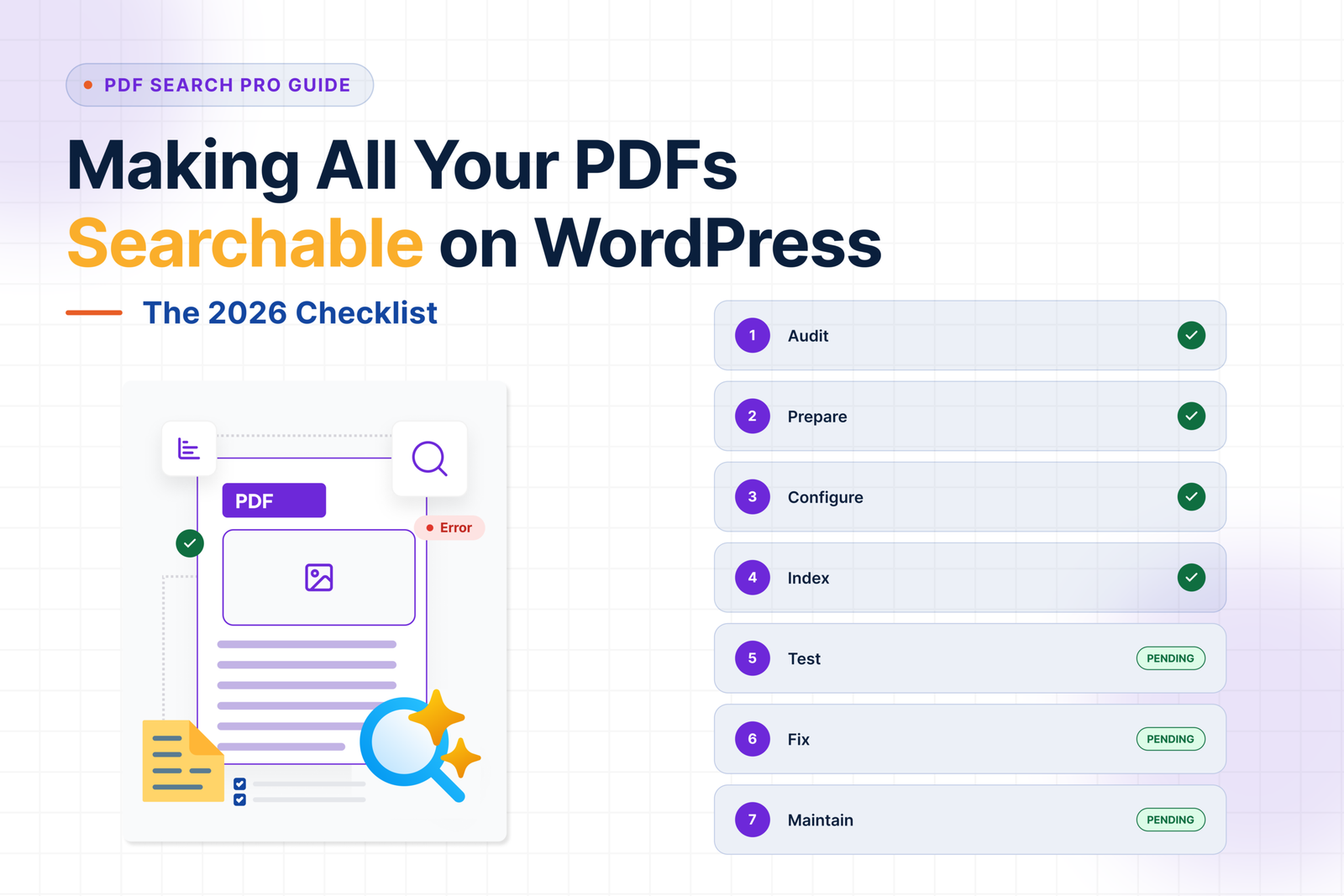
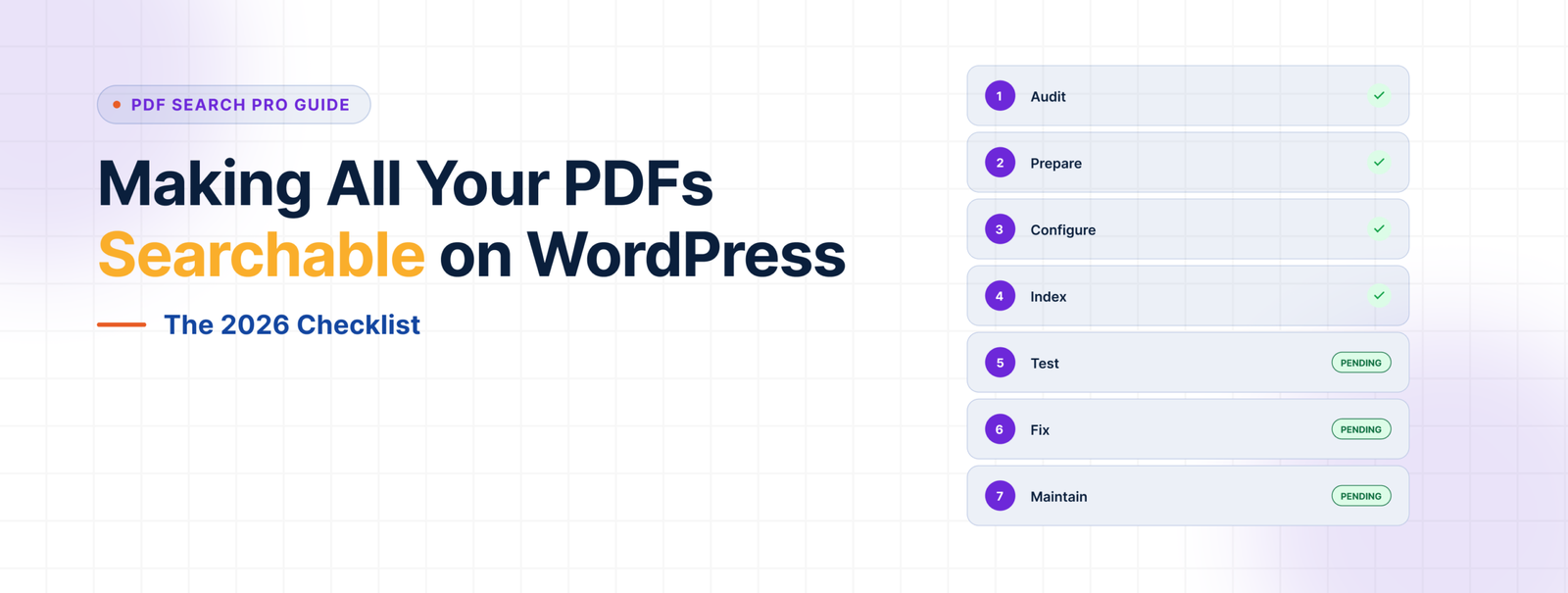
Checklist: Making All Your PDFs Searchable on WordPress in 2026

Checklist: Making All Your PDFs Searchable on WordPress in 2026

Getting PDF search working on WordPress isn’t complicated β€” but it’s easy to miss a step and end up with half your library invisible to search, a handful of Error files nobody’s looked at, or private documents showing up where they shouldn’t.

This checklist covers the full process from start to finish. Use it when setting up PDF search for the first time, after a major plugin update, or as a periodic audit on a large document library.

Table of Contents

  1. Audit Your PDF Library
  2. Prepare Your PDFs
  3. Install and Configure the Plugin
  4. Index Your Library
  5. Test Search
  6. Handle Problem Files
  7. Ongoing Maintenance

Step 1 β€” Audit Your PDF Library

Before touching any plugin settings, know what you’re working with.

πŸŸ₯ Identify how many PDFs you have.

Go to Media β†’ Library, filter by PDF file type, and get a rough count. Large libraries β€” hundreds of files β€” will take longer to index and may need Background Processing enabled from the start.

πŸŸ₯ Separate text-based PDFs from scanned ones.

Open a sample of your PDFs in a browser and try to highlight text. If you can select words, it’s text-based. If you can’t, it’s scanned. Scanned PDFs need OCR β€” a paid feature β€” so knowing how many you have tells you whether you need a Pro plan from day one or whether the free plugin covers your whole library.

πŸŸ₯ Flag PDFs that shouldn’t be searchable.

Drafts, outdated versions, internal working documents, anything that shouldn’t appear in public search results β€” note these now. You’ll exclude them during setup.

πŸŸ₯ Flag PDFs that should be restricted to logged-in users.

Member handbooks, staff policies, client resources β€” anything that should be searchable but only by people who are signed in. These get set to Private. Also a paid feature.

Step 2 β€” Prepare Your PDFs

A few things to sort out before indexing saves problems later.

πŸŸ₯ Clean up filenames.

The filename becomes the title in search results. 2025-annual-report.pdf is useful. doc-FINAL-v3-revised.pdf is not. Rename files with messy names before indexing β€” renaming after means re-indexing.

πŸŸ₯ Remove password protection from files that need to be searchable.

Password-protected PDFs can’t be indexed by any method. If a file needs to be searchable, the password needs to come off first.

πŸŸ₯ Check file sizes.

The default maximum indexable file size is 50MB. Files above that won’t be processed unless you raise the limit in settings. Check if any of your PDFs exceed this and decide whether to raise the limit or split those files.

πŸŸ₯ Make sure PDFs are in your WordPress Media Library.

The plugin indexes PDFs attached to WordPress. Files hosted externally or embedded via iframe won’t be picked up.

Step 3 β€” Install and Configure the Plugin

πŸŸ₯ Install WebEquipe PDF Search.

Go to Plugins β†’ Add New, search for WebEquipe PDF Search, install and activate. For scanned PDFs or private search, activate your Pro or Agency licence in PDF Search β†’ Settings.

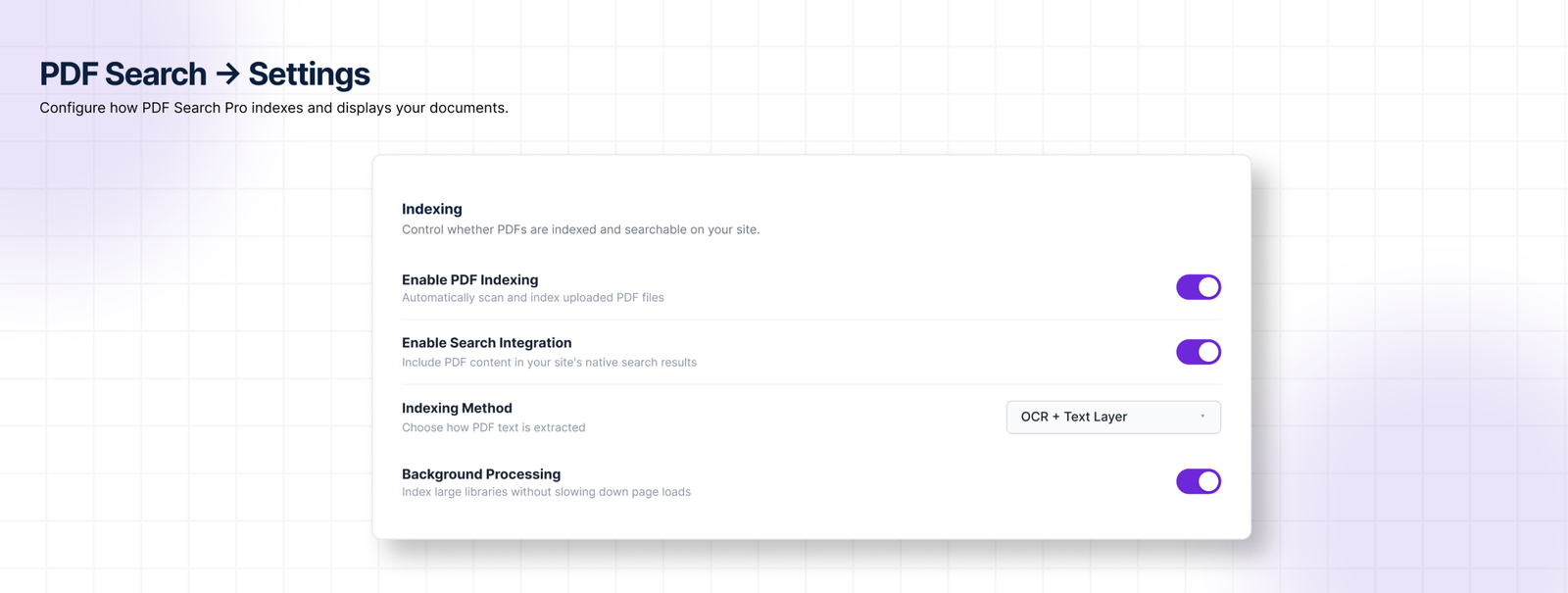
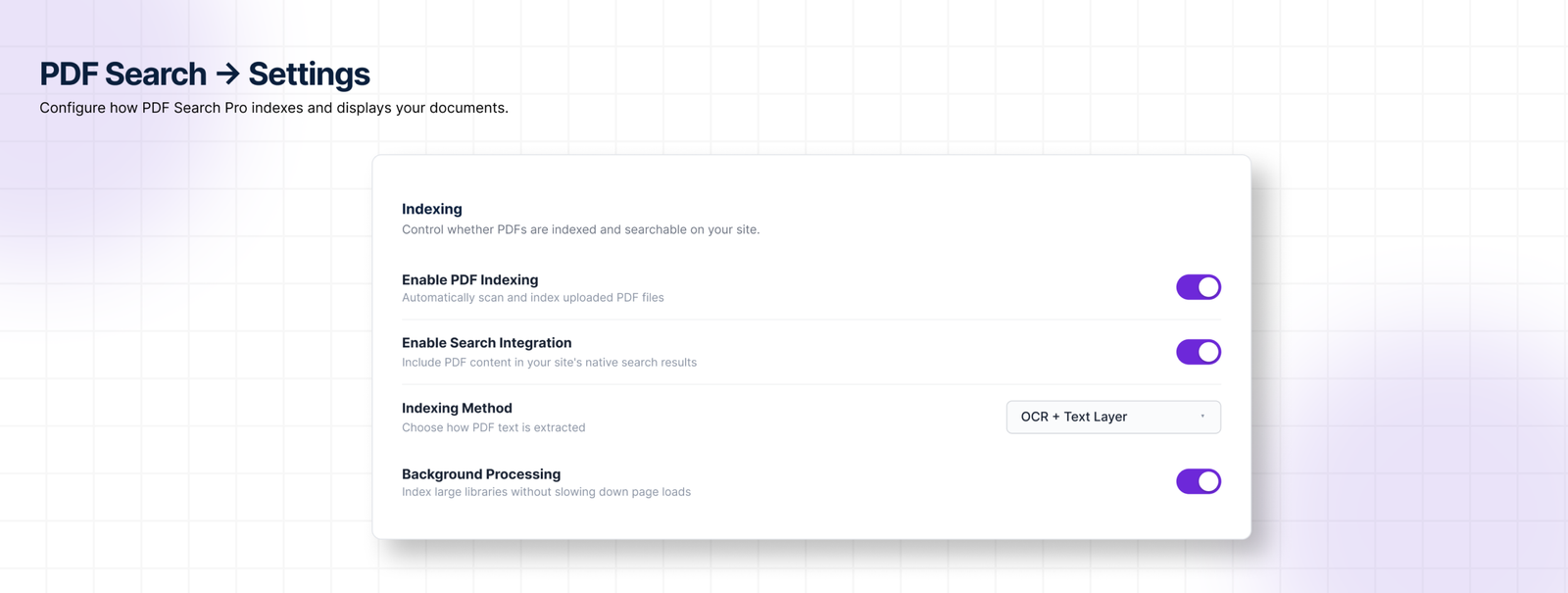
πŸŸ₯ Turn on Enable PDF Indexing.

In PDF Search β†’ Settings β€” this ensures new uploads get indexed automatically going forward.

πŸŸ₯ Turn on Enable Search Integration.

Also in PDF Search β†’ Settings β€” this makes PDF results appear in your site’s standard WordPress search. Leave it off if you only want PDFs in a dedicated shortcode form.

πŸŸ₯ Set your Indexing Method.

  • Text-based PDFs only β†’ Native
  • Scanned PDFs only β†’ OCR Only
  • Mix of both β†’ Native + OCR Fallback (recommended for most sites)

πŸŸ₯ Enable Background Processing for large libraries.

In PDF Search β†’ Settings β†’ Advanced. Essential for sites with large PDFs or many files β€” moves indexing into a background queue so it doesn’t hit PHP execution limits.

πŸŸ₯ Set Default Search Visibility if needed.

If most new uploads should be Private by default, set this in PDF Search β†’ Settings. Individual files can still be switched to Public as needed.

πŸŸ₯ Set your file size limit.

If you have PDFs over 50MB that need indexing, raise the Maximum File Size in PDF Search β†’ Settings.

Set your file size limit

Step 4 β€” Index Your Library

πŸŸ₯ Run Re-index All PDFs.

Go to PDF Search β†’ Dashboard and click Re-index All PDFs. This processes every non-excluded PDF in your library. For large libraries this runs in batches β€” leave it running and check back.

πŸŸ₯ Exclude PDFs that shouldn’t be searchable.

While indexing is running or after it completes, go through PDF Search β†’ Manage PDFs and Exclude any files you flagged in Step 1. Excluded files get skipped in all future re-index runs.

πŸŸ₯ Set Private PDFs.

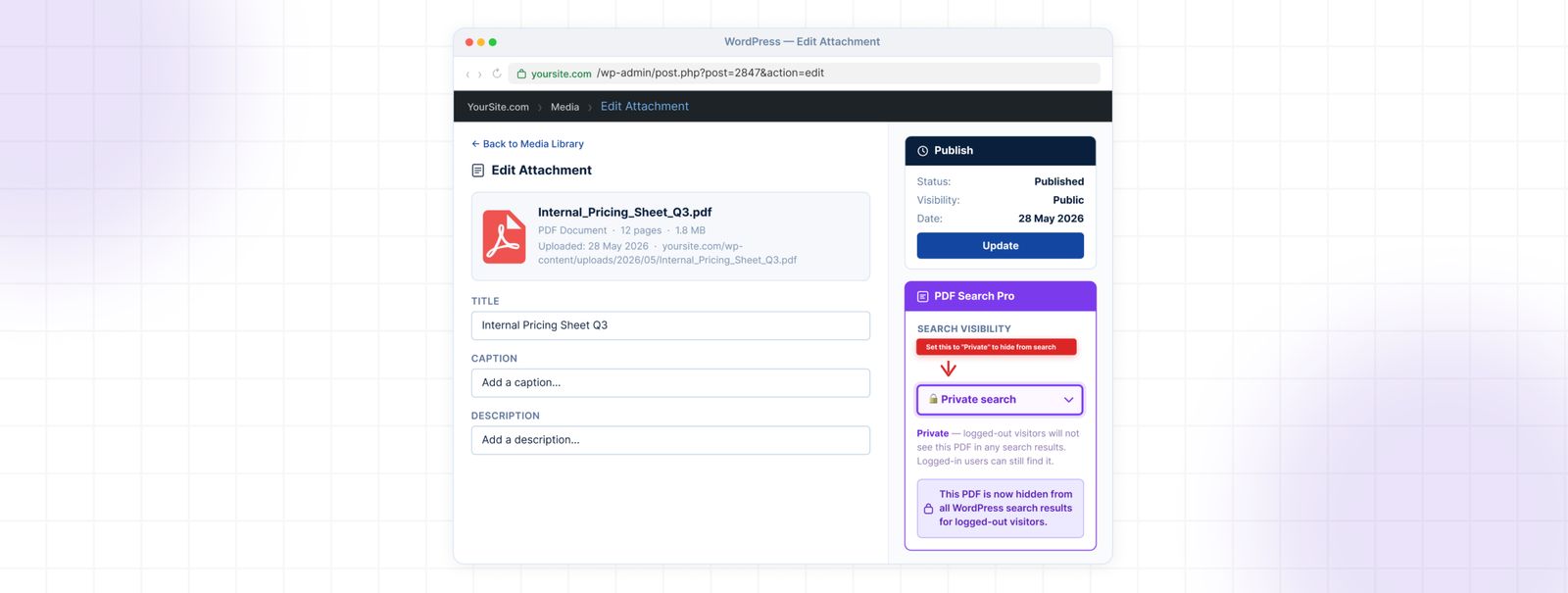
For files that should be searchable only by logged-in users, open each one in Media β†’ Library, set Search Visibility to Private, and save. Or use the bulk action Make Private in Manage PDFs for multiple files at once.

πŸŸ₯ Check index coverage.

Once Re-index All PDFs completes, go to PDF Search β†’ Dashboard and check the coverage percentage. If it’s significantly below 100%, there are PDFs that need attention.

πŸŸ₯ Test standard search.

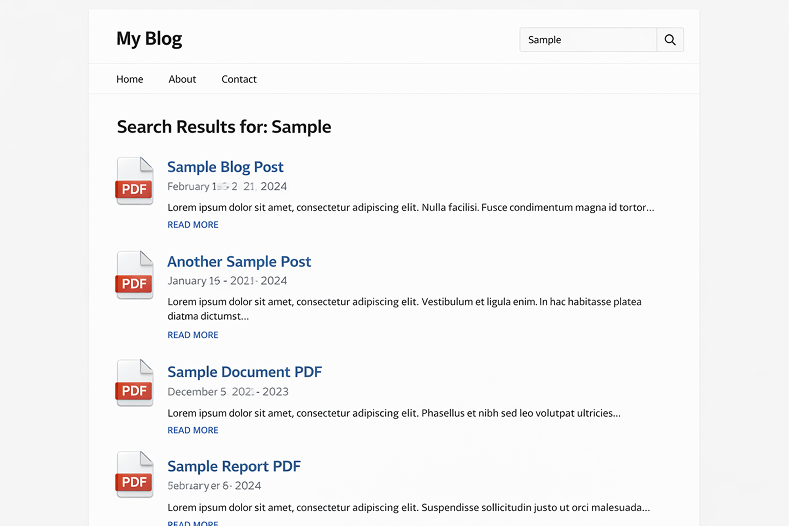
Search for a specific phrase you know appears inside one of your PDFs. It should appear in results with a title, excerpt from the matching page, and file details.

πŸŸ₯ Test a PDF-only shortcode form if you’re using one.

Add [ webequipe_pdf_search_form ] to a test page and search for the same phrase. Confirm results appear correctly.

πŸŸ₯ Test private PDF visibility.

Open a private browsing window and search for a PDF you’ve set to Private. It should not appear. Log in and search again β€” it should show up.

πŸŸ₯ Test an excluded PDF.

Search for content from a PDF you’ve excluded. It should not appear in any results.

Test an excluded PDF.

Step 6 β€” Handle Problem Files

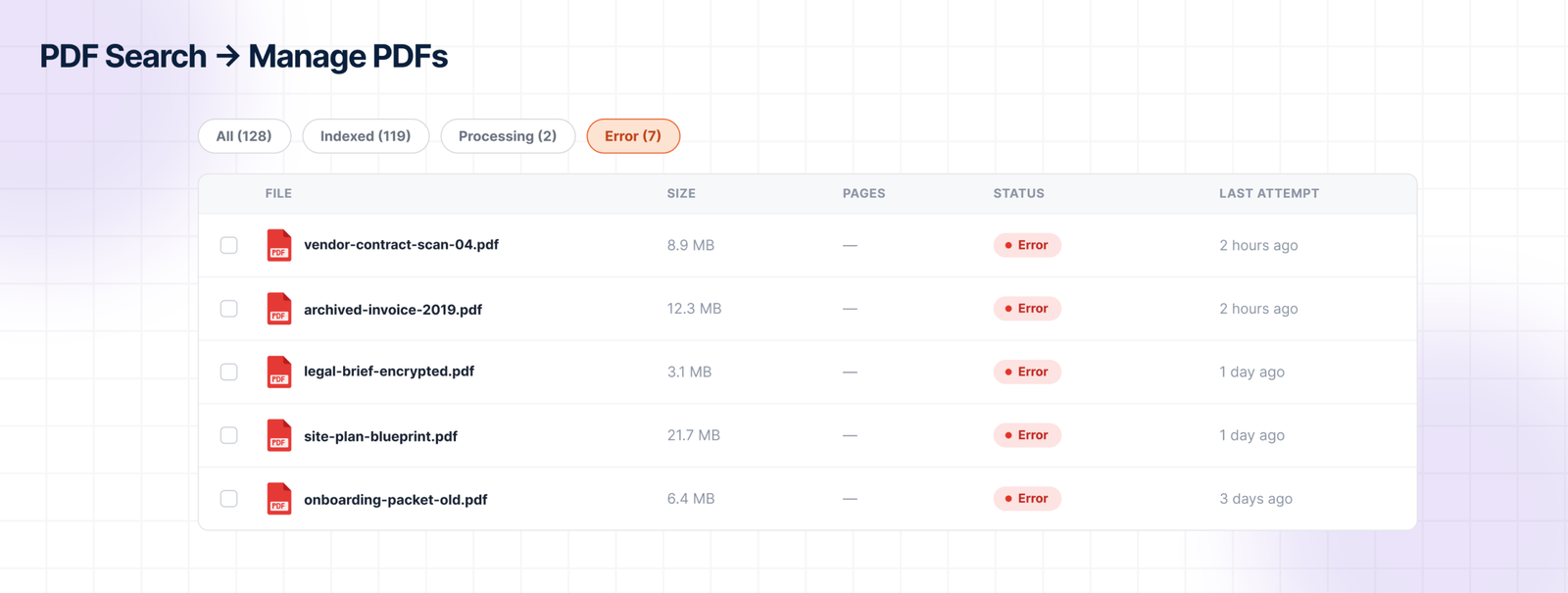
πŸŸ₯ Check for Error status PDFs.

Go to PDF Search β†’ Manage PDFs and filter by Error. These are files that failed indexing.

  • If they’re scanned β†’ run bulk action Index OCR (requires paid plan)
  • If they’re password-protected β†’ remove the password, then re-index
  • If they’re corrupted β†’ replace the file, then re-index

πŸŸ₯ Check for PDFs stuck in Processing.

If any files have been in Processing status for an unusually long time, check the cron status indicator on the Dashboard. A broken cron is the most common cause of stalled indexing jobs.

πŸŸ₯ Review the Index Activity log.

Go to PDF Search β†’ Index Activity and scan for Failed runs. Click the detail icon on any failed entry to see exactly what went wrong. This is the fastest way to diagnose stubborn files.

Review the Index Activity log.

Step 7 β€” Ongoing Maintenance

PDF search isn’t set and forget. A few habits keep it running cleanly.

πŸŸ₯ Re-index after replacing a PDF.

If you swap out a file for a newer version, the index doesn’t update automatically. Go to that PDF in your Media Library and click Re-index.

πŸŸ₯ Check index coverage periodically.

New PDFs uploaded without indexing enabled, files that failed silently, PDFs that got excluded by mistake β€” these all show up as gaps in coverage. A monthly check of the Dashboard coverage metric catches them early.

πŸŸ₯ Monitor OCR credit usage.

If you’re on a paid plan using OCR, keep an eye on your monthly page allowance in PDF Search β†’ Dashboard. Running out mid-month means new scanned uploads queue but don’t process until credits reset.

πŸŸ₯ Export Index Activity logs for large libraries.

For sites managing hundreds of PDFs, exporting the Index Activity CSV periodically gives you a record of what was indexed, when, and by which method. Useful for audits and for diagnosing patterns in failures.

πŸŸ₯ Test search after WordPress or plugin updates.

Major WordPress updates and plugin updates can occasionally affect how search results are rendered. A quick search test after any significant update confirms everything is still working.

Quick Reference β€” Status Badges in Manage PDFs

Status What it means Action
Indexed In search, working correctly None needed
Not Indexed In library, not yet processed Click Index
Processing Currently being indexed Wait
Scheduled Queued for background processing Wait
Error Indexing failed Check error detail, re-index or use OCR
Excluded Removed from search deliberately Click Include to restore

Frequently Asked Questions

How long does Re-index All PDFs take?

Depends on library size and file sizes. A library of 50 standard PDFs typically completes in a few minutes. Several hundred PDFs, or files with many pages, can take longer β€” especially if Background Processing is handling them in batches. Check progress in PDF Search β†’ Index Activity.

Do I need to re-index every time I upload a new PDF?

No. With Enable PDF Indexing turned on, new uploads are indexed automatically. You only need to run Re-index All PDFs manually for files that were uploaded before the plugin was installed, or to reprocess files after changing the indexing method.

What’s the difference between Exclude and Delete?

Exclude only affects search indexing β€” the file stays in your Media Library and is still accessible via its direct URL. Delete removes the file entirely from WordPress. Use Exclude for files you want to keep but not make searchable.

Can I index PDFs that are stored outside WordPress?

No. The plugin indexes PDFs in your WordPress Media Library. Files hosted on external servers, embedded via iframe, or linked from third-party storage aren’t picked up.

What happens to my index if I deactivate the plugin?

The index tables stay in your database β€” nothing is deleted on deactivation. If you want a full clean removal, enable Delete Data on Uninstall in PDF Search β†’ Settings β†’ Advanced before uninstalling.

Done

If you’ve worked through every step above, your PDF library is fully indexed, problem files are diagnosed, restricted documents are properly controlled, and you have a maintenance routine in place.

For the full setup guide if you’re starting from scratch:

How to Make WordPress Search Inside PDF Files β†’

Relevanssi vs WebEquipe PDF Search: Which Is Better for PDFs?

Relevanssi vs WebEquipe PDF Search: Which Is Better for PDFs?

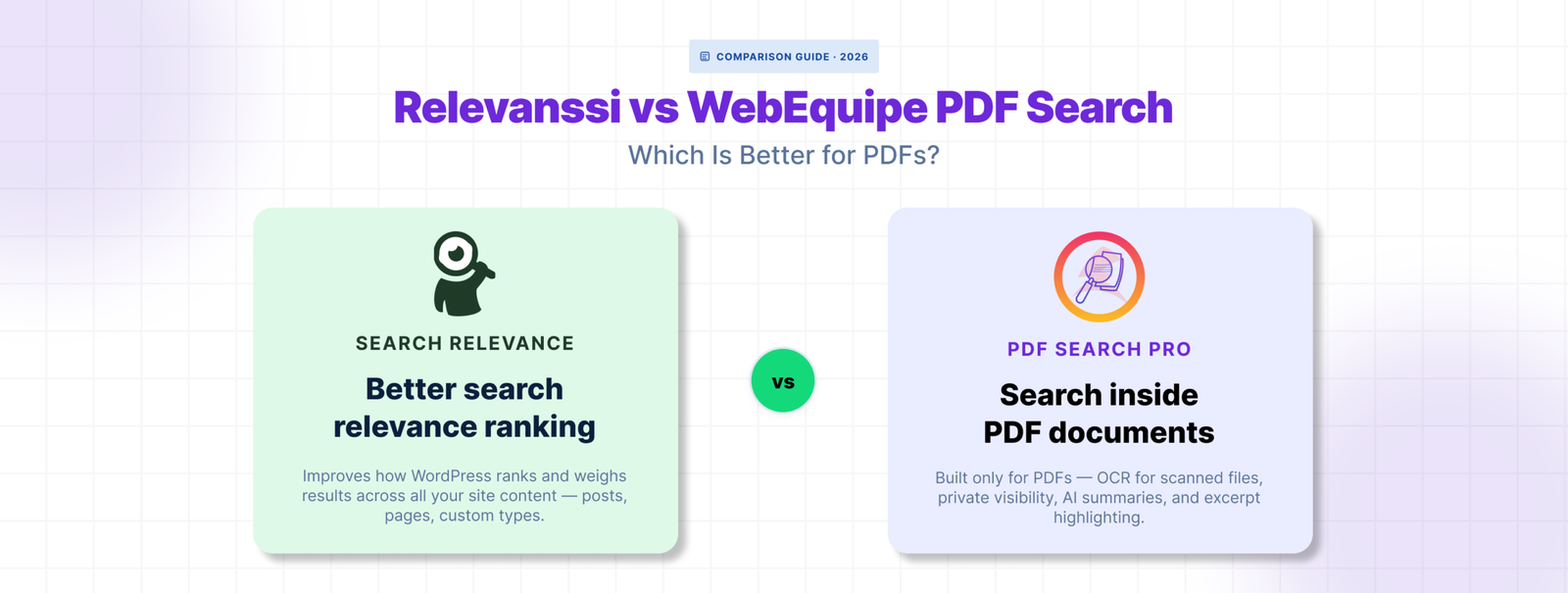
Relevanssi is one of the most popular WordPress search plugins for a good reason. It fixes the relevance problems that make default WordPress search frustrating β€” better ranking, fuzzy matching, AND-OR logic, highlighted excerpts. For sites where search quality matters, it’s a significant upgrade.

But if your problem is specifically that visitors can’t find content inside your PDF files, Relevanssi is solving a different problem. PDF support exists in the Premium version, but it’s not what the plugin was built around.

Here’s how the two compare for sites where PDFs are a primary concern.

What Relevanssi Does Well

Relevanssi replaces WordPress’s default search algorithm with a more sophisticated relevance engine. It weights matches differently depending on where the term appears β€” title, content, tags, comments β€” and lets you tune those weights. Search results feel more accurate because they are.

The free version already covers most of that. Fuzzy matching, AND search by default, search term highlighting in excerpts β€” all free. For a site where visitors struggle to find posts and pages because default search is too literal, Relevanssi free fixes most of it.

Premium adds PDF indexing, searching of user profiles and taxonomy descriptions, multi-site search, and a few other advanced features. It’s $99/yr and well maintained.

Where Relevanssi Falls Short for PDF-Heavy Sites

πŸŸ₯ PDF support is Premium-only with no free tier

The free version doesn’t touch PDFs at all. If you want PDF content in search results you need Premium at $99/yr. For sites where PDF search is the only thing they’re after, that’s paying for a full search relevance engine to get document indexing.

πŸŸ₯ No built-in OCR for scanned PDFs

Relevanssi Premium extracts text from PDF files directly. Scanned PDFs β€” image-based files with no text layer β€” can’t be indexed. There’s no OCR built in and no native path to index scanned documents without pre-processing them externally first.

For sites with historical archives, old meeting minutes, scanned handbooks, or government forms, this is a hard stop.

πŸŸ₯ No private PDF search

Relevanssi doesn’t have a built-in mechanism for marking individual PDFs as visible only to logged-in users. Restricting document visibility requires a separate access control or membership plugin, and the integration isn’t always clean.

πŸŸ₯ No per-file PDF management

Relevanssi doesn’t give you a dedicated screen for managing PDF index status. There’s no way to see which PDFs are indexed, which have failed, and why β€” at a per-file level. Diagnosing a PDF that isn’t showing up in search means working through general plugin settings rather than a document-specific workflow.

How WebEquipe PDF Search Compares

WebEquipe PDF Search is purpose-built for the PDF search problem. The free version indexes text-based PDFs, integrates with WordPress search, and gives you a full Media Library management screen with per-file status. No relevance tuning, no post/page search improvements β€” just PDF search done properly.

The Pro version adds OCR via Google Vision for scanned documents, Private PDF Search for logged-in-only visibility, and an Index Activity log that records every processing run with full error detail.

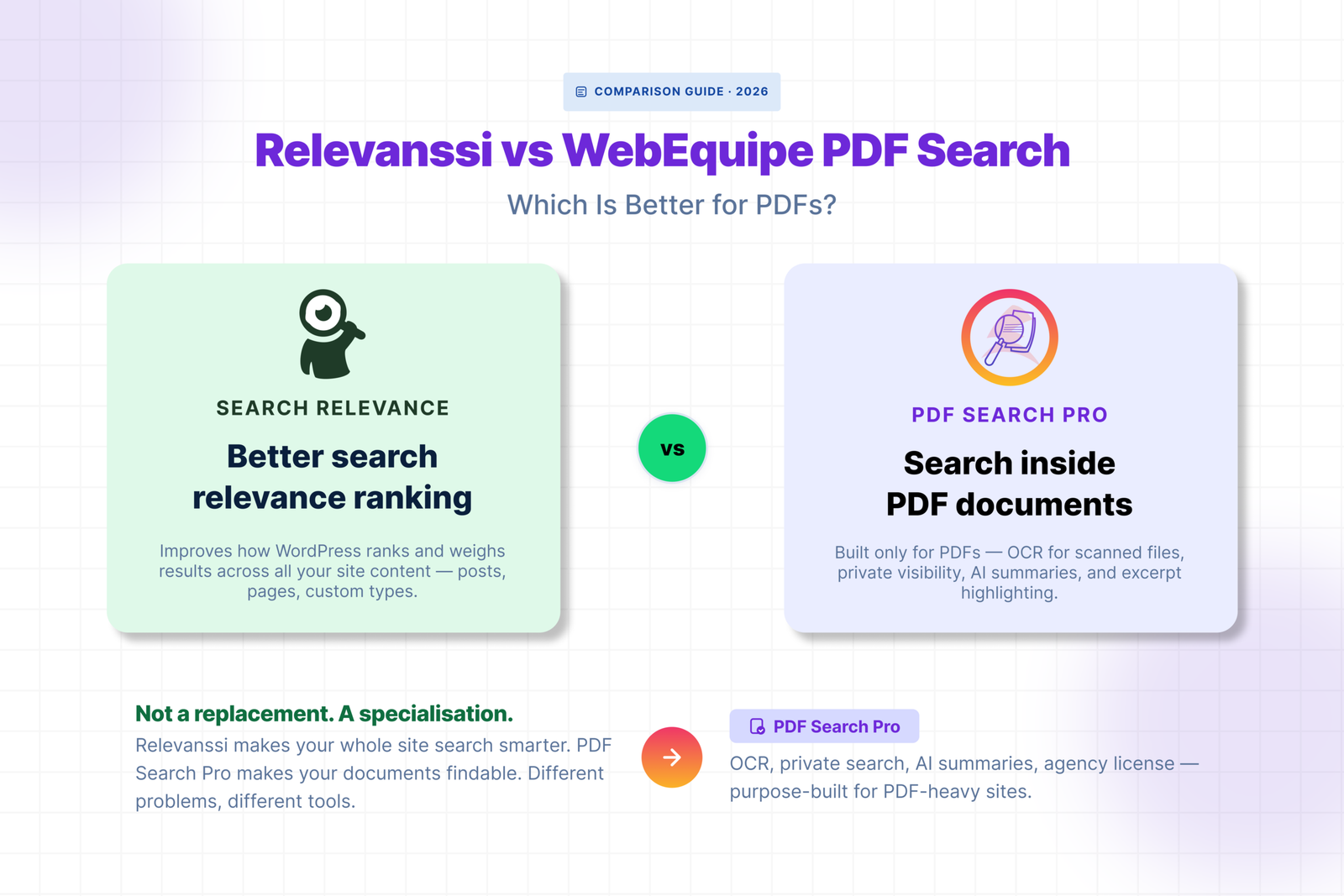
The two plugins are solving different problems. Relevanssi makes your whole site’s search better. WebEquipe makes your PDFs searchable β€” including the scanned ones.

Feature Comparison

Feature WebEquipe PDF Search Relevanssi Premium
Text-based PDF indexing βœ“ Paid βœ“ Paid ($99/yr)
Scanned PDF / OCR βœ“ Paid (from $89/yr) Γ—
Private / restricted PDFs βœ“ Paid Γ—
Per-file status management Γ— Γ—
Index Activity log βœ“ Γ—
Free tier with PDF search βœ“ Γ—
Search relevance tuning Γ— βœ“
Fuzzy matching Γ— βœ“
Post / page search improvement Γ— βœ“
Starting price (paid) Free / $89/yr $99/yr
Soft CTA

WebEquipe PDF Search free version is on WordPress.org. Pro plans start at $89/yr at webequipe.com/pdf-search.

Using Both Together

These two plugins don’t conflict the way site-wide search replacements do. Relevanssi improves how WordPress searches posts and pages. WebEquipe adds PDF content to that search.

Running both is a clean setup for sites that need better relevance across all content AND proper PDF search. Relevanssi handles the ranking and relevance layer. WebEquipe feeds PDF content into the same search results.

The one thing to watch: both plugins hook into WordPress search results. Test the combined output after activating both to make sure PDF results are appearing and ranked sensibly alongside post results.

Who Should Use Which

πŸŸ₯ Use WebEquipe PDF Search if:

  • Your main problem is that PDF content isn’t searchable at all
  • You have scanned documents that need OCR
  • You need to restrict certain PDFs to logged-in users
  • You want to start free and only pay for what you need

πŸŸ₯ Use Relevanssi if:

  • Your search results feel irrelevant or miss obvious matches across posts and pages
  • You need fuzzy matching, AND/OR logic, or weighted relevance tuning
  • PDFs are a secondary concern and standard text-based documents are all you have

πŸŸ₯ Use both if:

  • You want better search relevance across your whole site AND proper PDF indexing with OCR and private search support

Frequently Asked Questions

Does Relevanssi support scanned PDFs?

No. Relevanssi Premium extracts text from PDFs directly. Scanned PDFs have no text layer so they can’t be indexed without pre-processing the files externally. WebEquipe PDF Search Pro handles scanned documents automatically with built-in OCR.

Is Relevanssi free version enough for PDF search?

No. PDF indexing is a Premium-only feature in Relevanssi. The free version doesn’t index PDF content at all. WebEquipe PDF Search indexes text-based PDFs at no cost.

Can Relevanssi and WebEquipe run on the same site?

Yes. They complement each other well β€” Relevanssi improves relevance for posts and pages, WebEquipe handles the PDF-specific workflow. Test the combined search output after activating both to confirm PDF results appear correctly.

Which is better for a membership site with restricted PDFs?

WebEquipe PDF Search Pro. Private PDF Search lets you mark individual files as visible only to logged-in users without needing a separate access control plugin. Relevanssi doesn’t have an equivalent feature.

For the full WebEquipe PDF Search setup:

How to Make WordPress Search Inside PDF Files β†’

SearchWP Alternative for PDF Search in WordPress

Search WP Alternative for PDF Search in WordPress

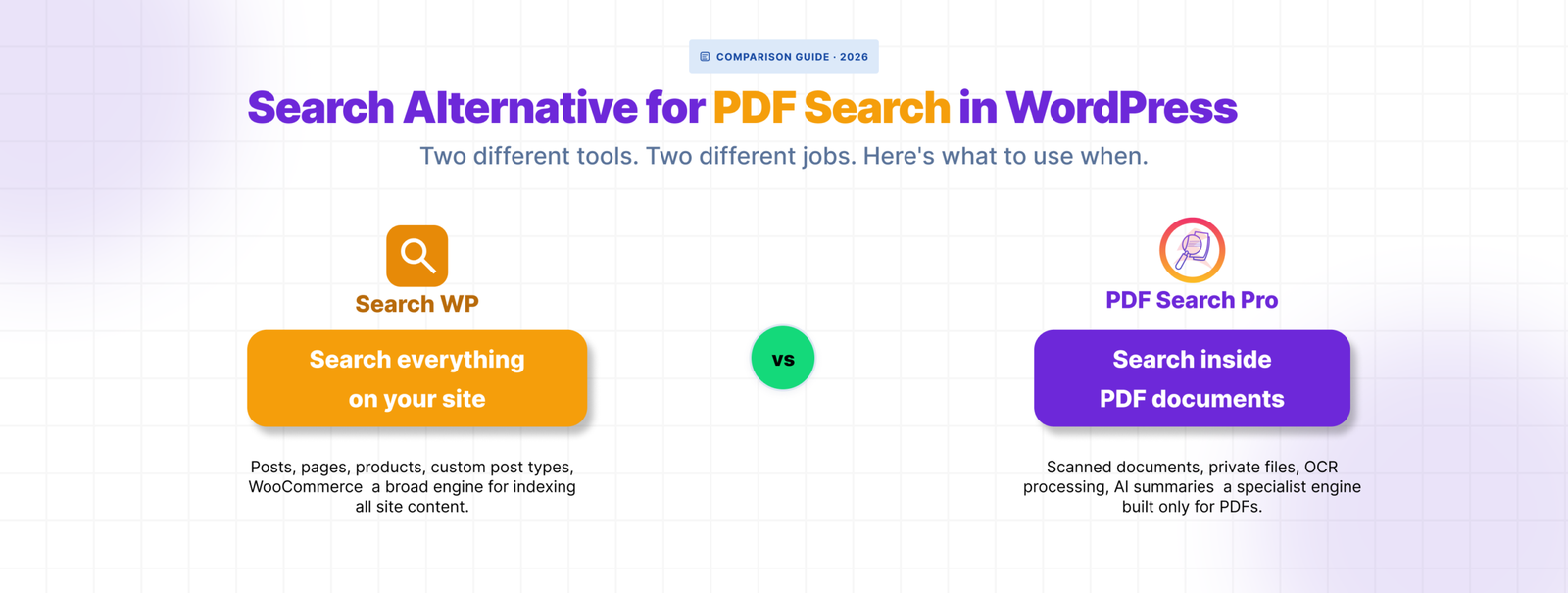
SearchWP is a well-built plugin. If you need to search across custom post types, WooCommerce products, custom fields, and ACF data all at once, it’s probably the right tool.

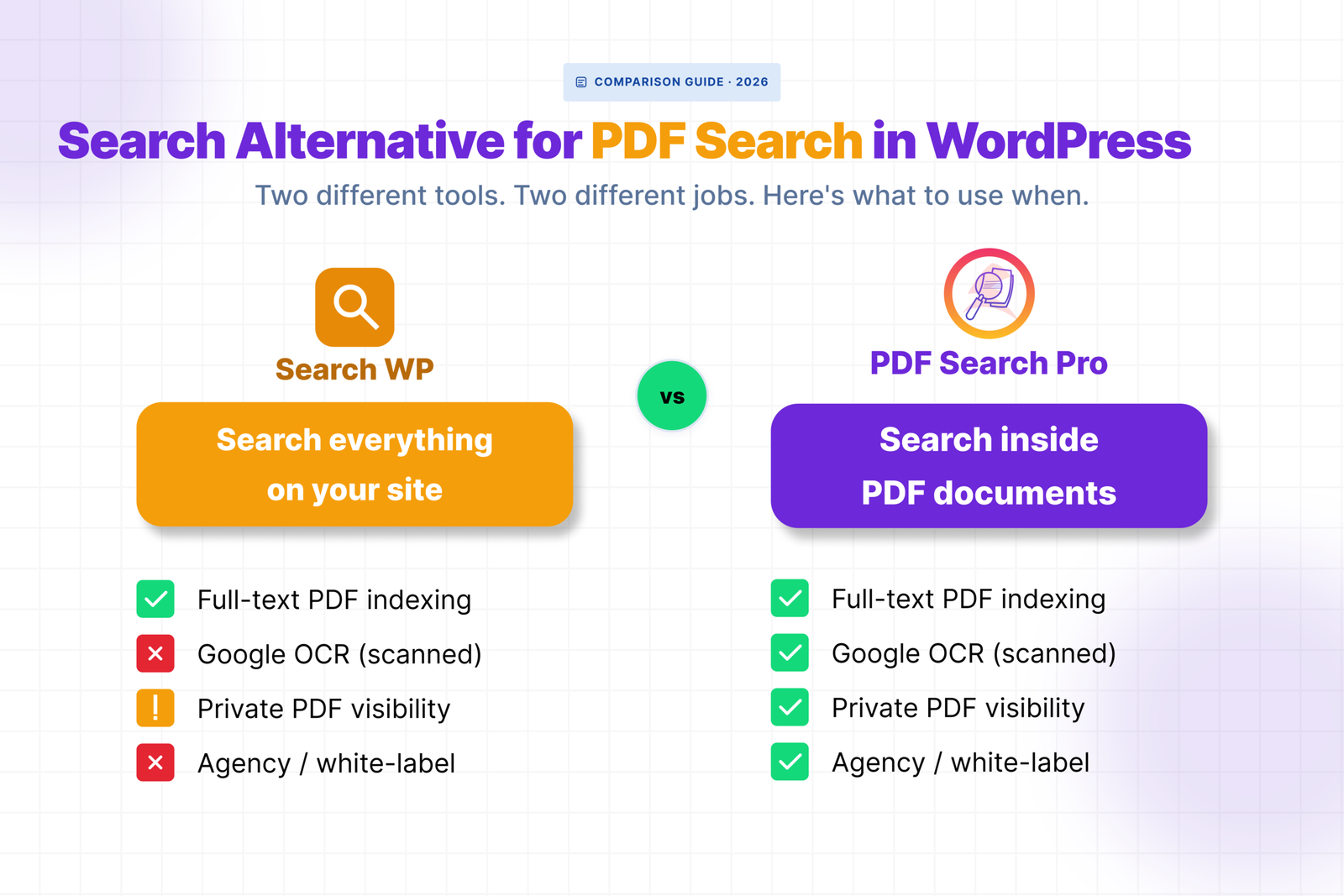
But if your main problem is that visitors can’t find content inside your PDF files β€” especially scanned documents or restricted member resources β€” SearchWP isn’t really built for that. PDF search is one line item in a long feature list, not the thing it was designed to solve.

Here’s where the gap shows up and what fills it.

What SearchWP Does Well

SearchWP replaces WordPress’s default search engine entirely. It gives you control over what gets searched, how results are weighted, and what content types appear. For sites with complex content structures β€” multiple post types, WooCommerce catalogues, lots of custom fields β€” that level of control is genuinely useful.

It indexes PDF content as part of its document search feature, available on the Professional plan. For standard text-based PDFs on a site that’s already using SearchWP for everything else, it works fine.

Where It Falls Short for PDF-Heavy Sites

πŸŸ₯ No built-in OCR for scanned PDFs

SearchWP’s PDF indexing relies on extracting text from the file directly. If the PDF is a scanned document β€” a photograph of a page rather than digitally created text β€” there’s nothing to extract. SearchWP doesn’t have native OCR. You’d need to pre-process scanned files externally before they can be indexed, which means extra steps every time a scanned document gets uploaded.

For sites with a handful of scanned files this is manageable. For sites with archives of old reports, meeting minutes, government forms, or historical records, it becomes a real workflow problem.

πŸŸ₯ No private PDF search

SearchWP doesn’t have a built-in way to mark individual PDFs as visible only to logged-in users. If you need member resources, staff handbooks, or restricted documents to be searchable only by people who are signed in, you’d need to handle that through a separate membership or access control plugin and hope the integration holds together.

πŸŸ₯ PDF search requires the $199/yr plan

SearchWP’s PDF and document indexing is locked to the Professional plan. If PDF search is your primary need, you’re paying for the full search suite to get it β€” custom post type search, WooCommerce integration, metrics, live search β€” none of which you necessarily need.

πŸŸ₯ No per-file status management

SearchWP doesn’t give you a dedicated screen showing which PDFs are indexed, which have failed, and why. If a PDF isn’t showing up in search, diagnosing the problem means digging through general search settings rather than looking at a per-file status log.

How WebEquipe PDF Search Fills the Gap

WebEquipe PDF Search was built specifically for the PDF search problem. Everything in it β€” the admin screens, the indexing workflow, the status management β€” exists because PDF search is the only thing it does.

πŸŸ₯ OCR for scanned PDFs is built in.

On paid plans, Google Vision processes scanned documents automatically on upload. No pre-processing, no external tools, no extra steps. Scanned PDFs get indexed the same way as any other document.

πŸŸ₯ Private PDF Search is a core feature.

Mark individual files as Private and they disappear from search results for logged-out visitors. Logged-in users find them normally. No membership plugin integration required.

πŸŸ₯ The free version includes real PDF search.

Text-based PDFs, WordPress search integration, a shortcode form, and full Media Library management β€” all at no cost. You only pay when you need OCR or private search.

πŸŸ₯ Per-file status is visible and actionable

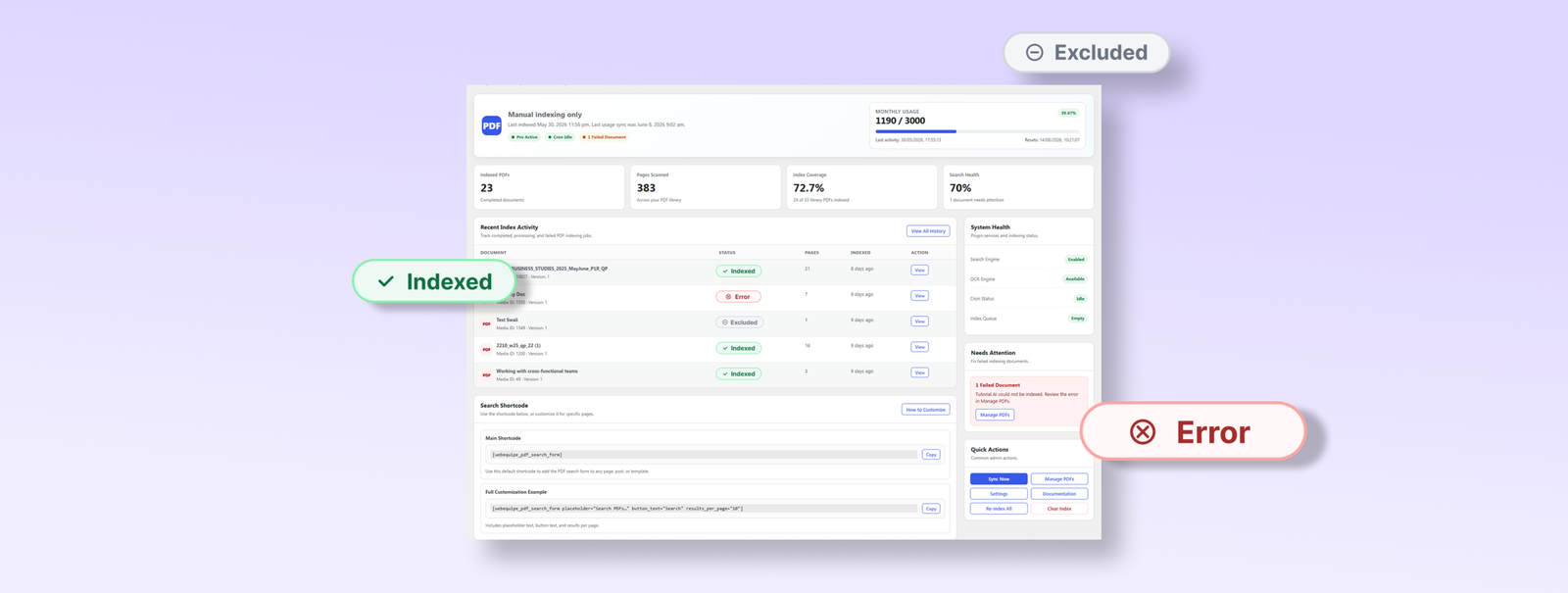
Every PDF in your library has a status badge β€” Indexed, Error, Excluded, Processing. The Index Activity log records every processing run with full error detail. When something goes wrong you can see exactly why.

Feature Comparison

WebEquipe PDF Search SearchWP Professional
Text-based PDF indexing βœ“ Free βœ“ Paid ($199/yr)
Scanned PDF / OCR βœ“ Paid (from $89/yr) βœ• Requires pre-processing
Private / logged-in-only PDFs βœ“ Paid βœ•
Per-file status management βœ“ βœ•
Index Activity log βœ“ βœ•
Free tier with PDF search βœ“ βœ•
Full site search replacement βœ• βœ“
Custom post type search βœ• βœ“
WooCommerce search βœ• βœ“
Starting price Free / $89/yr $199/yr

Can You Use Both Together?

Yes β€” and for some sites this is the right setup.

If you’re already using SearchWP for site-wide search across posts, products, and custom fields, you don’t need to replace it. You can run WebEquipe PDF Search alongside it using the standalone shortcode form rather than the WordPress search integration.

This keeps SearchWP handling your general search while WebEquipe handles the PDF-specific workflow β€” OCR, private search, per-file status management β€” through a dedicated search form on your resources or documents page.

To avoid conflicts, leave Enable Search Integration off in WebEquipe PDF Search settings when running alongside SearchWP. Use the [webequipe_pdf_search_form] shortcode for PDF search instead.

Who Should Switch and Who Shouldn’t

πŸŸ₯ Switch to WebEquipe PDF Search if:

  • PDFs are your primary search problem and you don’t need site-wide search replacement
  • You have scanned documents that need OCR
  • You need to restrict specific PDFs to logged-in users
  • You want to start free and only pay when you need advanced features

πŸŸ₯ Stick with SearchWP if:

  • You need to search across custom post types, WooCommerce, and ACF alongside PDFs
  • PDF search is one small part of a larger search overhaul
  • You’re already on SearchWP Professional and standard text-based PDFs are all you need

πŸŸ₯ Use both if:

  • You need SearchWP for general site search and WebEquipe for OCR and private PDF search specifically

Frequently Asked Questions

Does SearchWP support scanned PDFs?

Not natively. SearchWP extracts text directly from PDF files. Scanned PDFs have no text layer, so they can’t be indexed without pre-processing the files externally first. WebEquipe PDF Search Pro handles this automatically with built-in OCR.

Is WebEquipe PDF Search cheaper than SearchWP for PDF search?

For PDF search specifically, yes. WebEquipe’s free version covers text-based PDFs at no cost. The Starter plan at $89/yr adds OCR. SearchWP’s PDF indexing requires the Professional plan at $199/yr.

Can WebEquipe PDF Search replace SearchWP entirely?

No β€” and it’s not designed to. WebEquipe is purpose-built for PDF search. It doesn’t replace site-wide search across custom post types, WooCommerce, or custom fields. If you need those, SearchWP is still the right tool for that job.

Will running both plugins cause conflicts?

Only if both are trying to modify WordPress search results at the same time. To avoid that, disable Enable Search Integration in WebEquipe PDF Search settings and use the shortcode form instead. SearchWP handles the main search, WebEquipe handles PDFs through its own form.

For the full WebEquipe PDF Search setup:

How to Make WordPress Search Inside PDF Files β†’

Best WordPress PDF Search Plugins in 2026

Best WordPress PDF Search Plugins in 2026
Best WordPress PDF Search Plugins in 2026_2nd

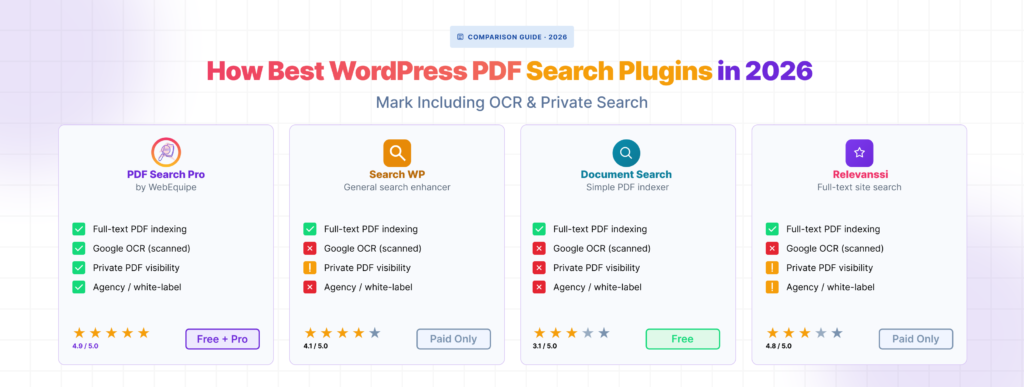
Most WordPress search plugins treat PDFs as an afterthought. They’ll index a filename, maybe a description field β€” but the actual text inside the document? Usually not.

If your site runs on documents β€” manuals, handbooks, reports, forms, catalogs β€” that gap matters a lot. Here’s an honest look at the plugins that actually solve it, what each one does well, and which situation each one fits.

What to Look for in a WordPress PDF Search Plugin

Before comparing options, it’s worth being clear about what the problem actually is. WordPress search doesn’t read PDF content by default. A plugin needs to do three things to fix that:

πŸŸ₯ Extract text from the PDF.

This means opening the file and reading the content β€” not just the filename or metadata. For text-based PDFs this is straightforward. For scanned PDFs it requires OCR

πŸŸ₯ Store that text in a searchable index.

Fast search requires the content to be pre-processed and stored, not read from the file on every query.

πŸŸ₯ Surface results properly.

Showing a PDF title with no context isn’t useful. A good result includes an excerpt from the matching page so visitors know they’ve found what they’re looking for.

Beyond those basics, the things that separate good plugins from average ones are: how they handle scanned documents, whether they support private or restricted PDFs, how they manage large libraries, and what the admin workflow looks like when something goes wrong.

The Plugins Worth Considering

πŸŸ₯ WebEquipe PDF Search

Purpose-built for PDF search. The free version handles text-based PDFs β€” auto-indexing on upload, WordPress search integration, a shortcode form, and a full Media Library management screen with per-file status.

The Pro version adds OCR via Google Vision for scanned documents, Private PDF Search for restricting files to logged-in users, and an Index Activity log that records every processing run with full error detail. Agency plan covers unlimited sites with white-label mode.

It’s the only plugin on this list built specifically around the PDF search problem rather than bolting it on to a broader search suite.

Best for: Sites where PDFs are the primary content β€” document libraries, resource centres, membership portals, government archives, product manual repositories.

Free plan: Yes β€” full text-based PDF search at no cost.

Paid plans: From $89/yr (Starter), $169/yr (Pro), $529/yr (Agency).

πŸŸ₯ SearchWP

SearchWP is a full site search replacement that extends WordPress search across custom post types, custom fields, WooCommerce products, and documents including PDFs. PDF indexing is one feature among many.

It handles text-based PDFs reliably. Scanned PDF support requires a separate integration. The admin is comprehensive but reflects that breadth β€” there’s a lot to configure if you only need PDF search.

Pricing starts at $99/yr for the Standard plan. PDF document indexing requires the Professional plan at $199/yr.

Best for: Sites that need a complete search overhaul across multiple content types β€” not just PDFs.

πŸŸ₯ Relevanssi

Relevanssi improves WordPress search relevance with better ranking, fuzzy matching, and highlighted excerpts. It’s widely used and well-maintained.

PDF indexing is a Premium feature. It extracts text from PDFs using external tools and adds them to the search index alongside posts and pages. There’s no built-in OCR for scanned documents.

The free version doesn’t include PDF support at all. Relevanssi Premium starts at $99/yr.

Best for: Sites that want better relevance and search quality across all content types, with PDF support as a secondary need.

πŸŸ₯ WP File Download (JoomUnited)

WP File Download is a document management plugin that includes file search functionality. It handles multiple file types β€” PDFs, Word documents, spreadsheets β€” and provides a front-end file browser.

The search is file-content search rather than WordPress-native search integration. Results appear in its own interface rather than your site’s standard search results. PDF text extraction works for standard files; scanned document support isn’t a core feature.

Best for: Sites that need a full document library with browsing, filtering, and download management β€” not just PDF search.

Side-by-Side Comparison

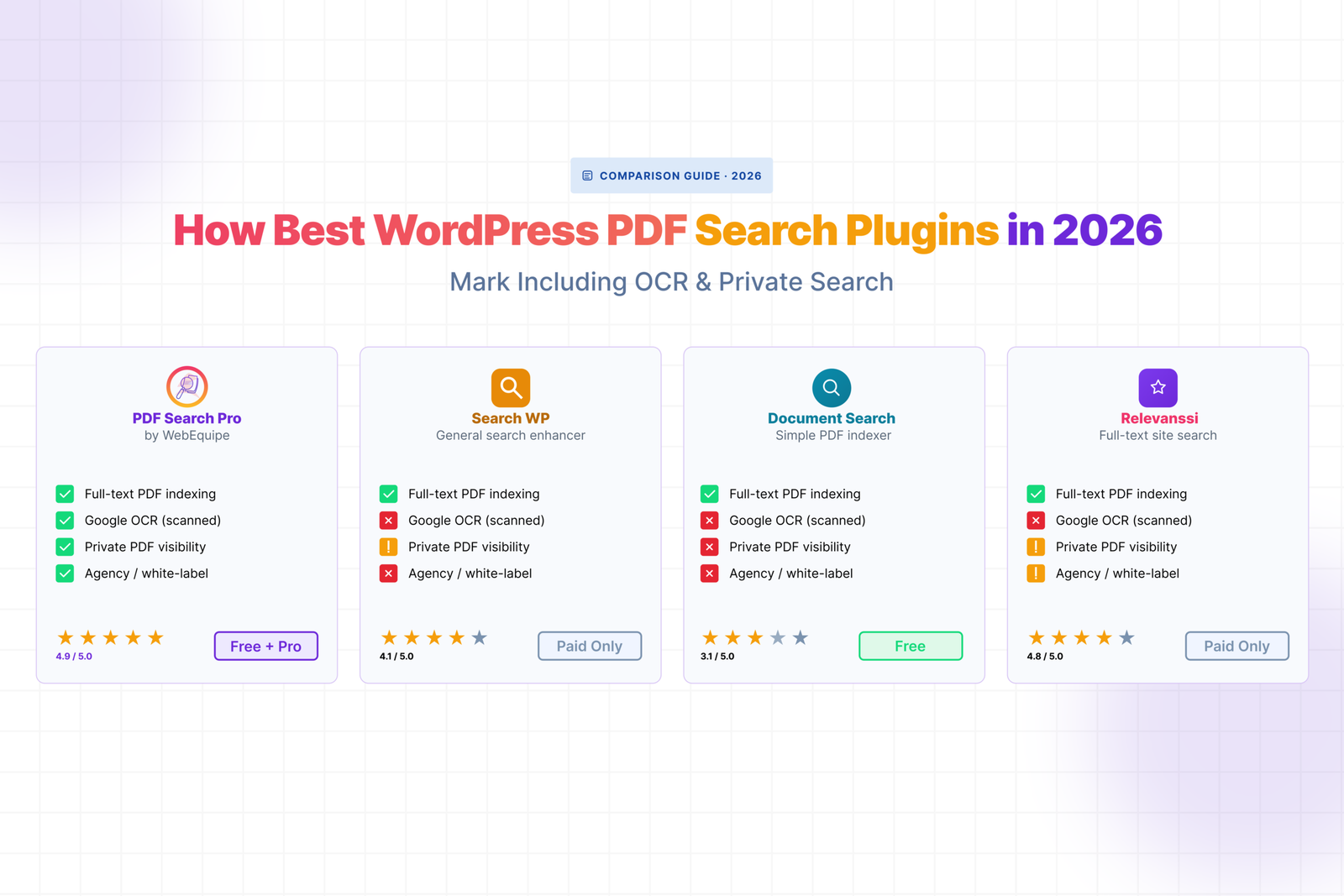
WebEquipe PDF Search SearchWP Relevanssi Premium WP File Download
Text-based PDF indexing βœ“ Free βœ“ Paid βœ“ Paid βœ“ Paid
Scanned PDF / OCR βœ“ Paid Via integration Γ— Γ—
Private / restricted PDFs βœ“ Paid Γ— Γ— Partial
WordPress search integration βœ“ βœ“ βœ“ Γ—
Dedicated shortcode search form βœ“ βœ“ Γ— βœ“
Per-file status management βœ“ Γ— Γ— Γ—
Index Activity log βœ“ Γ— Γ— Γ—
Free tier with PDF search βœ“ Γ— Γ— Γ—
Starting price (paid) $89/yr $199/yr $99/yr $69/yr
Soft CTA

WebEquipe PDF Search free version is on WordPress.org. Pro plans start at $89/yr at webequipe.com/pdf-search.

Which One Should You Use

You only need to search text-based PDFs and want to start free

WebEquipe PDF Search free version. Install it, run Re-index All PDFs, done. No paid plan required.

You have scanned documents that keep showing as Error

WebEquipe PDF Search Pro with OCR. It’s the only option here with built-in scanned PDF support that doesn’t require a separate integration or manual pre-processing.

You need PDFs restricted to logged-in users

WebEquipe PDF Search Pro. Private PDF Search is purpose-built for this β€” mark individual files as Private and they disappear from search for logged-out visitors.

You need to overhaul search across your entire site β€” posts, products, custom fields, and PDFs

SearchWP. It’s broader, more expensive, and more complex to configure β€” but it’s the right tool if PDF search is one piece of a larger search problem.

You want better search relevance across all content with PDF support as a bonus

Relevanssi Premium. Strong on relevance and ranking, PDF support is solid for standard documents.

You need a full document library with browsing, filtering, and multiple file types

WP File Download. Built for document management rather than search-first workflows.

A Note on Using Multiple Plugins Together

SearchWP and Relevanssi are site-wide search replacements. Running them alongside WebEquipe PDF Search on the same site can cause conflicts β€” both trying to modify the same WordPress search results.

If you’re already using SearchWP or Relevanssi for general search and only need to add PDF-specific features like OCR or private search, the cleanest approach is to use WebEquipe’s standalone shortcode form rather than the WordPress search integration. This keeps the two plugins out of each other’s way.

Frequently Asked Questions

Is there a free WordPress plugin that searches inside PDFs?

Yes β€” WebEquipe PDF Search. The free version indexes text-based PDFs and integrates with WordPress search at no cost. Scanned PDFs and private search require a paid plan.

Which WordPress PDF search plugin supports scanned documents?

WebEquipe PDF Search Pro is the only option on this list with built-in OCR for scanned PDFs via Google Vision. SearchWP can be extended with a third-party integration, but it’s not native.

Can I restrict PDF search results to logged-in users only?

WebEquipe PDF Search Pro includes Private PDF Search for this. No other plugin on this list has a built-in equivalent.

Do I need a paid plugin to search inside PDFs in WordPress?

Not for text-based PDFs. WebEquipe PDF Search is free for standard documents. You only need a paid plan for scanned PDF support (OCR) or logged-in-only visibility.

WordPress PDF Search β€” The Complete Guide (2026)

WordPress PDF Search β€” The Complete Guide (2026)
WordPress PDF Search 2026

WordPress doesn’t search inside PDF files. Not by default, not ever. You can upload hundreds of documents and your site’s search bar will ignore every word inside all of them.

This guide covers everything β€” why it happens, how to fix it, how to handle scanned documents and private files, how to read your index activity, and what to do when things go wrong. If you manage PDFs on a WordPress site, this is the only reference you need.

Table of Contents

  1. Why WordPress Doesn’t Search Inside PDFs
  2. The Two Types of PDFs on Most Sites
  3. Setting Up PDF Search β€” Free
  4. Dashboard Overview
  5. Handling Scanned PDFs with OCR
  6. Keeping PDFs Private or Out of Search
  7. Managing Your PDF Library
  8. Index Activity
  9. Search Results β€” What Visitors See
  10. Common Problems and Fixes
  11. Free vs Pro β€” When to Upgrade
  12. FAQ

Why WordPress Doesn’t Search Inside PDFs

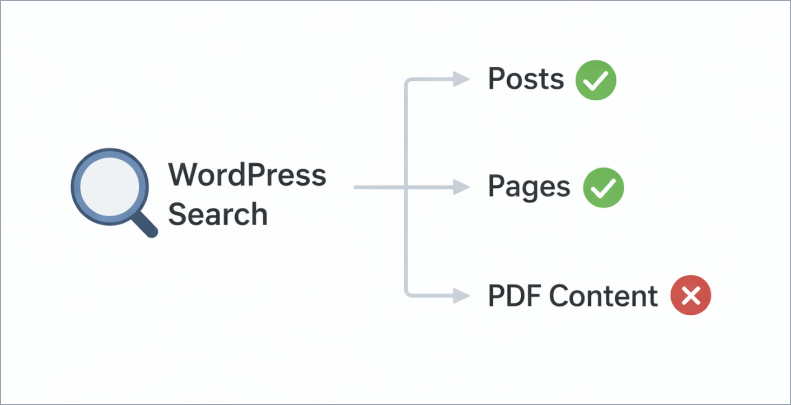
WordPress search queries a single database table that stores post and page content. When you upload a PDF, WordPress records the filename, file size, and URL. That’s the extent of it. The text inside the file is never read, never stored, never searchable.

This isn’t something that gets fixed by tweaking settings or installing a general search plugin. You need a plugin specifically built to extract text from PDF files and store it in a searchable index. That’s what WebEquipe PDF Search does.

The Two Types of PDFs on Most Sites

Before setting anything up, it helps to know what you’re working with.

Text-based PDFs are created digitally β€” exported from Word, Google Docs, InDesign, or any document software. The text exists as real, selectable characters inside the file. Open one in your browser and you can highlight words, copy sentences, search the document. These are straightforward to index.

Scanned PDFs are photographs of physical pages saved as PDF files. The content is an image, not text. You can’t highlight anything inside them. A standard PDF search plugin marks these as Error because there’s nothing to extract.

Most document-heavy sites have both. Old archived reports, meeting minutes, forms designed for print β€” these tend to be scanned. Anything created or exported recently is usually text-based.

Knowing which type you’re dealing with determines which setup path you take.

Setting Up PDF Search β€” Free

The free version of WebEquipe PDF Search handles text-based PDFs. Install it, index your library, and your documents become searchable in minutes.

πŸŸ₯ Install and activate

Go to Plugins β†’ Add New, search for WebEquipe PDF Search, install and activate. A PDF Search menu appears in your WordPress admin sidebar.

πŸŸ₯ Configure settings

Go to PDF Search β†’ Settings and confirm two things are on:

  • Enable PDF Indexing β€” new uploads get indexed automatically when this is on. Every PDF you add to your Media Library gets processed without any extra steps.
  • Enable Search Integration β€” PDFs appear in your site’s standard search results alongside posts and pages.

If you want PDFs in a separate search form rather than mixed with posts and pages, you can leave Search Integration off and use the shortcode instead.

πŸŸ₯ How auto-indexing works

With Enable PDF Indexing on, the moment you upload a PDF to your Media Library the plugin queues it for processing. For small files this happens immediately. For larger files β€” or if Background Processing is enabled β€” it queues and runs in the background so it doesn’t block the upload.

You’ll see the PDF status change from Not Indexed to Processing to Indexed in your Media Library column as it works through.

πŸŸ₯ Index your existing library

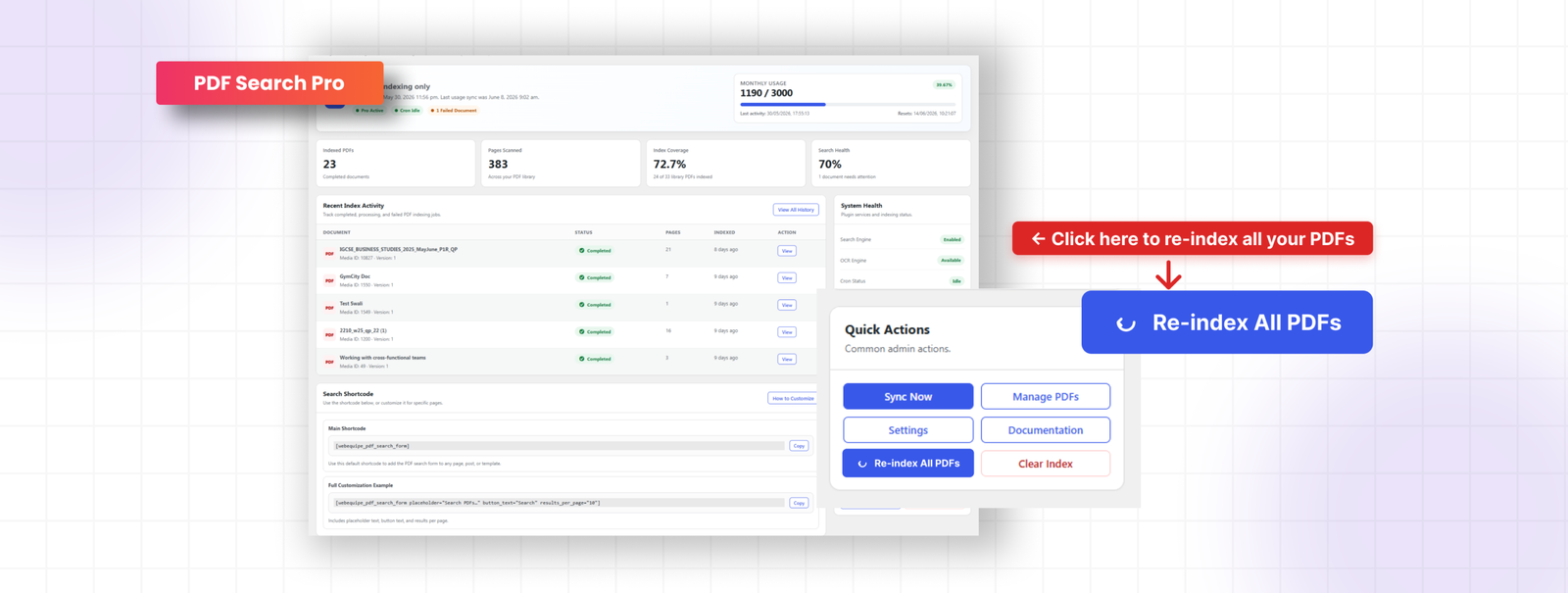
The plugin doesn’t automatically pick up PDFs already in your Media Library before it was installed. Go to PDF Search β†’ Dashboard and click Re-index All PDFs. This processes everything in your library and builds the index from scratch. Large libraries run in batches in the background.

Index your existing library

This searches only your indexed PDFs, completely separate from your site’s main search. Useful for resource centres, help sections, or document portals.

Index your existing library-2

Dashboard Overview

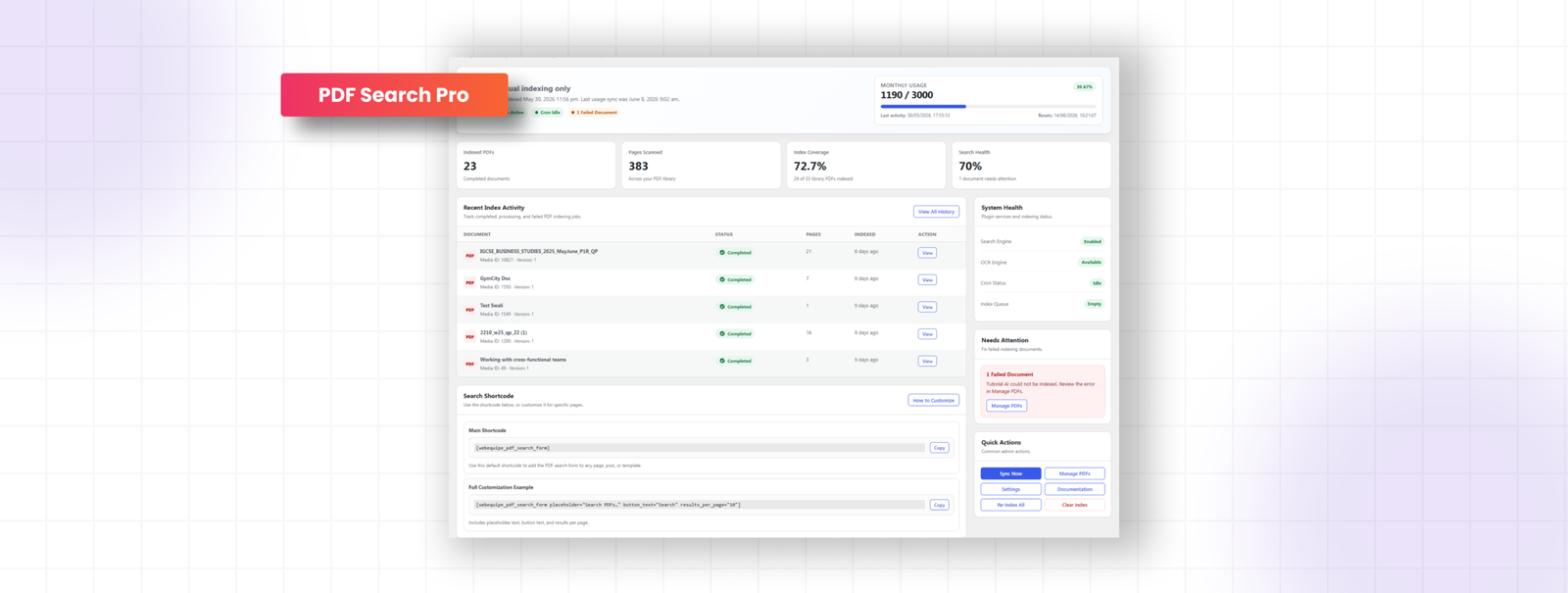
PDF Search β†’ Dashboard is your home screen. Here’s what everything means.

πŸŸ₯ Metric cards at the top

Metric cards at the top show indexed PDF count, total pages scanned, index coverage percentage, and search health status. Coverage tells you what proportion of your library is actually indexed β€” if it’s significantly below 100%, there are PDFs that need attention.

πŸŸ₯ Status headline

Status headline gives you an at-a-glance reading of your setup β€” whether indexing is healthy, whether there are failed documents, and whether your cron is running correctly. If something needs attention it flags it here with a link directly to the problem.

πŸŸ₯ Recent index activity

Recent index activity shows the latest indexing runs β€” which files were processed, when, and whether they succeeded. This is a preview of the full Index Activity log.

πŸŸ₯ System health sidebar

System health sidebar shows your PHP version, memory limit, processing timeout setting, and cron status. If background processing is running slowly or failing silently, the cron indicator here is usually the first place that shows it.

πŸŸ₯ Quick actions

Re-index All PDFs, go to Settings, go to Manage PDFs β€” are all accessible from the Dashboard without navigating away.

Quick actions

Handling Scanned PDFs with OCR

Scanned PDFs require OCR to be indexed. The plugin uses Google Vision β€” available on Starter, Pro, and Agency plans.

πŸŸ₯ Set up OCR

Once your licence is active, go to PDF Search β†’ Settings and set the Indexing Method to Native + OCR Fallback. Text-based PDFs get processed locally. Scanned files get routed to Google Vision automatically. You don’t decide per file.

πŸŸ₯ Fix existing scanned PDFs

Go to PDF Search β†’ Manage PDFs, filter by Error, select all the failed files, and run the bulk action Index OCR. Those files get sent to Google Vision and come back indexed.

πŸŸ₯ OCR credits

Each plan includes a monthly page allowance β€” Starter gets 1,000 pages, Pro gets 3,000, Agency gets 10,000. Usage is visible in PDF Search β†’ Dashboard.

Full OCR walkthrough: How to Make Scanned PDFs Searchable in WordPress β†’

Not every PDF on a site should be publicly searchable. There are two ways to handle this.

Exclude removes a PDF from search entirely. Nobody finds it β€” logged in or not. The file stays in your Media Library but is never indexed. Use this for drafts, outdated versions, and internal files that should never appear in any search results.

Private PDF Search keeps the PDF indexed but hides it from logged-out visitors. Logged-in users can still find it. Use this for member resources, staff documents, and restricted content that registered users need access to.

Exclude is available in the free plugin. Private PDF Search requires Pro or Agency.

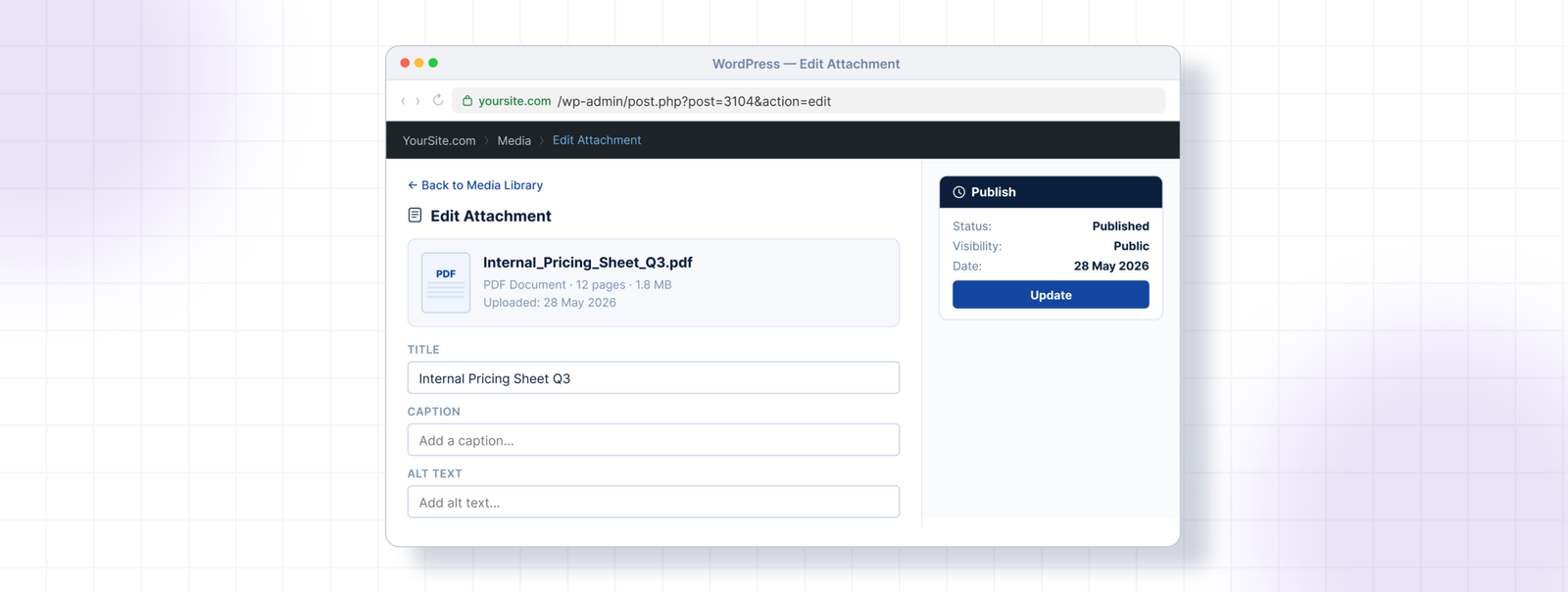
To exclude a PDF: open it in Media β†’ Library, find the WebEquipe PDF Search panel, click Exclude.

To set a PDF to private: open it in Media β†’ Library, set Search Visibility to Private, save.

Keeping PDFs Private or Out of Search

Full guide: How to Keep Specific PDFs Out of WordPress Search β†’

Managing Your PDF Library

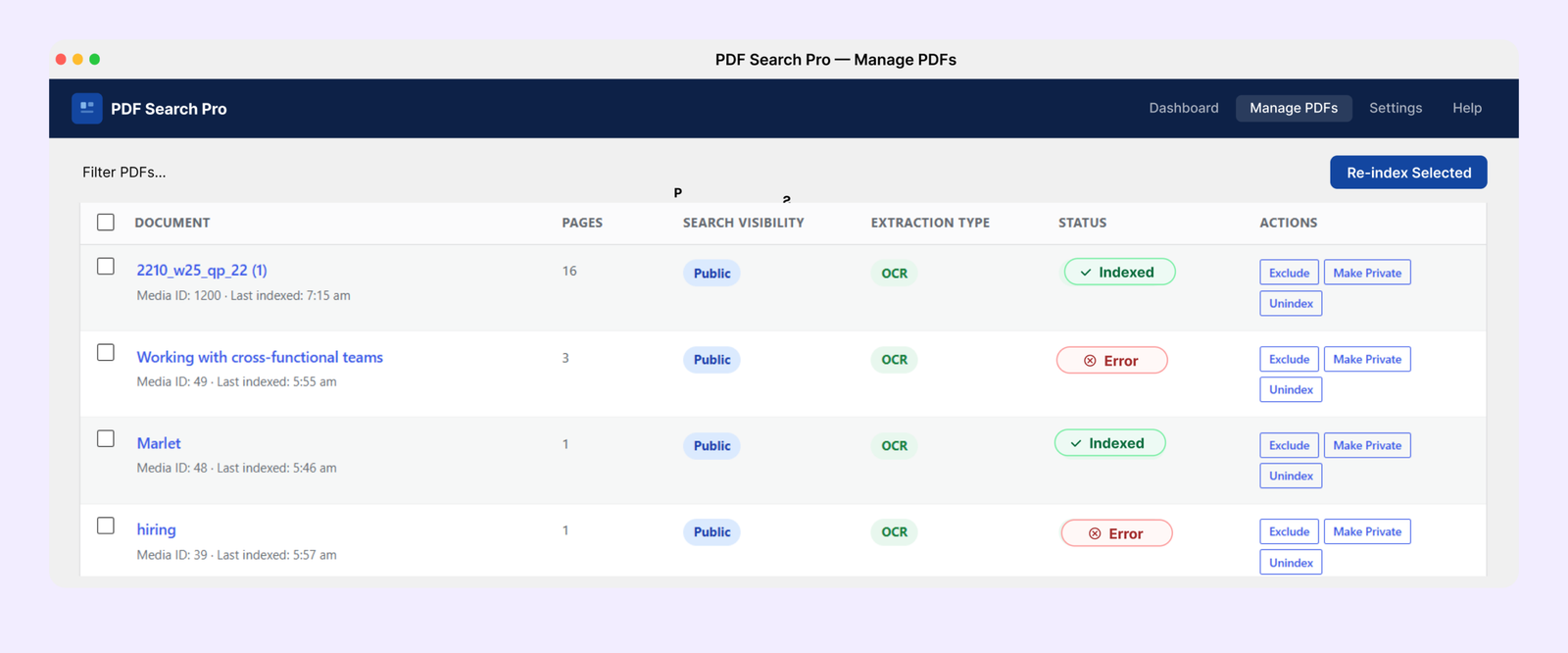
PDF Search β†’ Manage PDFs gives you a full picture of everything in your library with filtering, bulk actions, and per-file controls.

Every PDF has a status badge:

  • Indexed β€” in search, working correctly
  • Not Indexed β€” in your library but not yet processed
  • Processing β€” currently being indexed
  • Scheduled β€” queued for background processing
  • Error β€” indexing failed, usually scanned or corrupted
  • Excluded β€” deliberately removed from search

πŸŸ₯ Background processing

For large PDFs or libraries with many files, Background Processing moves indexing into a WP-Cron queue so it runs independently of the browser. Without it, a very large PDF can hit PHP execution limits mid-process and fail.

Enable it in PDF Search β†’ Settings β†’ Advanced β†’ Enable Background Processing. Once on, PDFs above the page index threshold are automatically queued as Scheduled and processed in batches. You can leave the admin and come back β€” the queue runs on its own.

The batch size and page threshold are configurable in the same settings screen if you need to tune performance for your hosting environment.

πŸŸ₯ Bulk actions

From Manage PDFs you can select multiple files and run: Index, Index OCR, Unindex, Exclude, Include, Make Public, Make Private. Useful for processing a filtered subset β€” for example, selecting all Error PDFs and bulk running Index OCR.

Index Activity

PDF Search β†’ Index Activity is the full processing log β€” every indexing run recorded with timestamp, file name, status, page count, processing method, and duration.

πŸŸ₯ Reading the log

Each row represents one indexing run for one file. The columns tell you:

  • File β€” which PDF was processed
  • Status β€” Completed, Processing, Failed, or Cancelled
  • Method β€” Native, OCR, or Partial (mixed PDF)
  • Pages β€” how many pages were indexed in that run
  • Time β€” when the run started and how long it took

If a run shows Failed, clicking the detail icon opens the full error message β€” exactly what went wrong and why. This is the fastest way to diagnose a stubborn file.

πŸŸ₯ Statuses explained

Completed β€” processed successfully, content is indexed and searchable.

Processing β€” currently running. If a file stays in Processing for an unusually long time, it may have stalled β€” the Dashboard status indicator will flag this.

Failed β€” indexing did not complete. The error detail explains why β€” scanned file, corrupted PDF, timeout, file too large, password protected.
Cancelled β€” a run was interrupted, either manually or because a newer run was triggered for the same file.

πŸŸ₯ Export log

The full activity log can be exported as a CSV from the top of the Index Activity page. Useful for auditing a large library, sharing with support, or keeping records of when specific documents were indexed.

Export Log

Search Results β€” What Visitors See

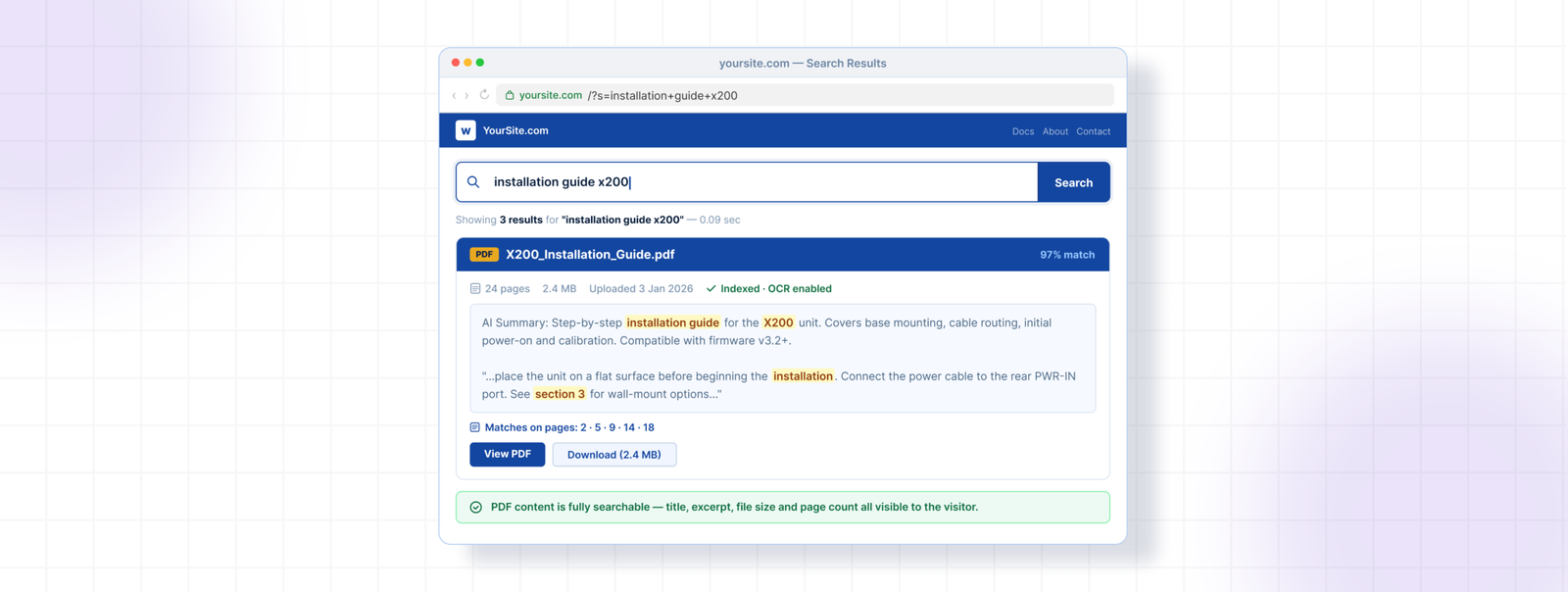
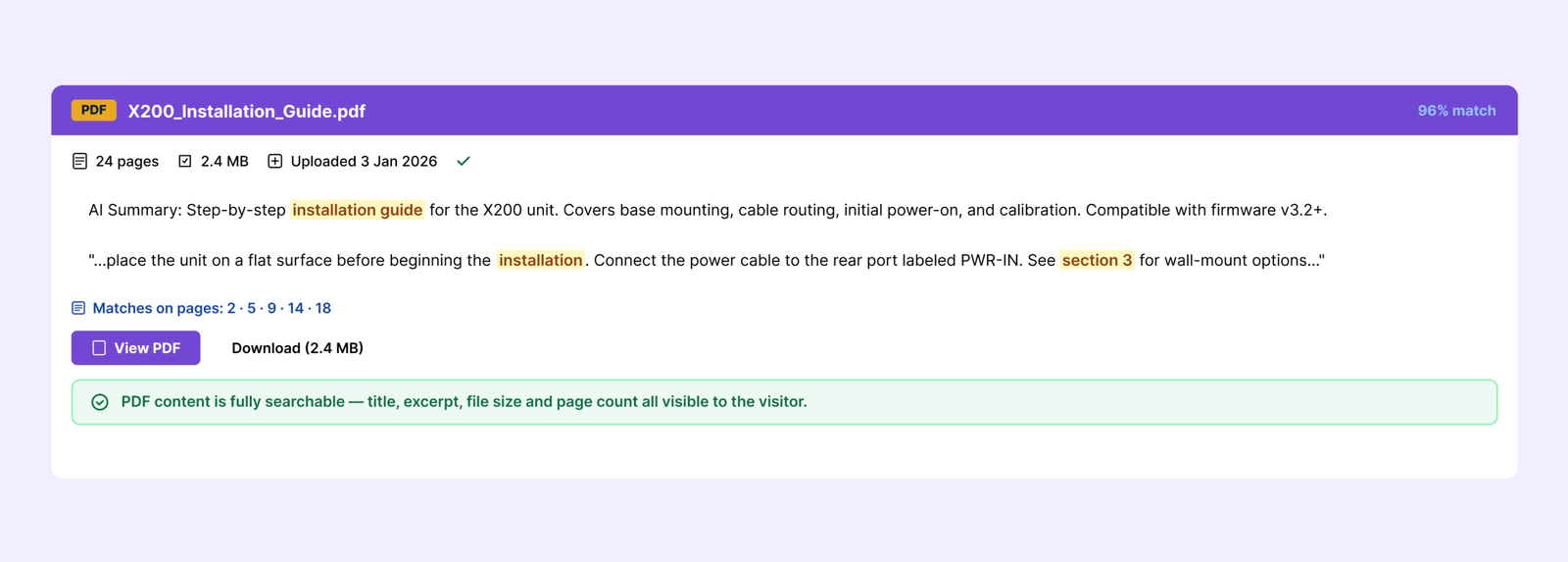
When a PDF appears in search results, visitors see the PDF title, a short excerpt from the best-matching page inside the document, file size, page count, and a direct link to open or download the file.

You can control which elements appear in PDF Search β†’ Settings β†’ Search Display Options. Icon, file size, page count, author, date, and excerpt can each be toggled independently.

Filenames become the displayed title in results. annual-report-2025.pdf is a lot more useful in search results than doc-v3-FINAL-revised.pdf β€” worth cleaning up filenames before indexing if yours are messy.

Common Problems and Fixes

PDFs not showing in search after indexing

Check that Enable Search Integration is on in PDF Search β†’ Settings. Confirm the specific PDF isn’t Excluded.

Indexing keeps timing out

Enable Background Processing in PDF Search β†’ Settings β†’ Advanced. Large files need more time than a standard browser request allows.

PDFs show as Error

Almost always means the file is scanned. Filter by Error in Manage PDFs, select the files, run Index OCR. Requires a paid plan.

PDF appears in results but shows no excerpt

Text extraction returned very little content. Open the file and try to select text β€” if you can’t, it’s scanned.

Status stuck on Processing

The indexing job may have stalled. Go to Dashboard and check the cron status indicator. If cron is showing as disabled or broken, that’s the root cause.

Private PDFs showing in public search after licence expires

Private visibility is enforced by an active licence. Renewing restores the restriction immediately.

Free vs Pro β€” When to Upgrade

The free plugin covers text-based PDFs, auto-indexing, WordPress search integration, the shortcode form, Media Library management, and the full Index Activity log. For a lot of sites that’s everything they need.

Upgrade when:

  • You have scanned PDFs showing as Error β€” OCR is the only fix, it’s not in the free plugin
  • You need PDFs restricted to logged-in users β€” Private PDF Search requires Pro or Agency
  • You’re managing multiple client sites β€” Agency plan covers unlimited sites with white-label mode
Soft CTA

The free plugin is on WordPress.org. Pro and Agency plans are at webequipe.com/pdf-search.

Frequently Asked Questions

Does WordPress search inside PDFs by default?

No. WordPress only searches post and page content. PDF files are stored as attachments β€” WordPress reads the filename but never the text inside. A dedicated plugin is required.

Will PDF search slow down my site?

No. Indexing runs in the background. Search queries run against the stored index, not the original files. No impact on page load times for visitors.

How many PDFs can it handle?

No hard limit. Sites with several hundred PDFs run fine. Large libraries index in batches so nothing times out.

What happens to my indexed content if I uninstall the plugin?

By default nothing is deleted β€” your WordPress database keeps the index tables. If you want a full clean removal, enable Delete Data on Uninstall in PDF Search β†’ Settings β†’ Advanced before deactivating. This removes all plugin tables, options, and post meta on uninstall.

Does it work on WordPress Multisite?

Yes. Each site in a network has its own separate index, settings, and Index Activity log.

What PDF types are supported?

Text-based and mixed PDFs work with the free plugin. Scanned PDFs require OCR (paid plans). Password-protected and corrupted PDFs can’t be indexed by any method.

Does it work with my theme?

Yes. It hooks into WordPress’s native search, so it works with any theme using standard search. The shortcode form is theme-independent.

Where to Go From Here

The free plugin setup above covers the basics. Most sites are running in under ten minutes.

For specific situations, these guides go deeper:

How to Make Scanned PDFs Searchable in WordPress β†’
How to Keep Specific PDFs Out of WordPress Search β†’

How to Keep Specific PDFs Out of WordPress Search Results

How to Keep Specific PDFs Out of WordPress Search Results

Not every PDF on your site should be searchable by everyone. Internal documents, draft files, member-only resources, staff handbooks β€” these need to stay out of public search results.

There are two ways to handle this in WebEquipe PDF Search, and they solve different problems. Using the wrong one causes its own issues, so it’s worth knowing the difference before you start.

Exclude vs Private β€” What’s the Difference

Exclude removes a PDF from search entirely. Nobody finds it β€” logged in or not. The file stays in your Media Library, but it’s never indexed and never appears in any search result. Even if you run Re-index All PDFs, excluded files get skipped.

Private PDF Search keeps the PDF indexed but hides it from logged-out visitors. Logged-in users can still find it through search. The file is fully searchable for your members, subscribers, or staff β€” just invisible to anyone who hasn’t signed in.

The right choice depends on what you’re trying to do:

πŸŸ₯ Draft document that isn’t ready yet β†’ Exclude

πŸŸ₯ Outdated version you’re keeping for records β†’ Exclude

πŸŸ₯ Internal file that should never be public β†’ Exclude

πŸŸ₯ Member handbook your subscribers need to find β†’ Private

πŸŸ₯ Staff policy document for logged-in employees β†’ Private

πŸŸ₯ Client resource restricted to registered users β†’ Private

How to Exclude a PDF

Exclude is available in the free plugin.

Go to Media β†’ Library and open the PDF you want to exclude. In the WebEquipe PDF Search panel on the right side of the attachment screen, click Exclude.

The PDF is removed from the index immediately. If it was already showing in search results, it disappears. Running Re-index All PDFs in future will skip it automatically.

To reverse it, go back to the same panel and click Include, then re-index the file.

How to Set a PDF to Private

Private PDF Search requires a Pro or Agency licence.

Go to Media β†’ Library and open the PDF. In the WebEquipe PDF Search panel, set Search Visibility to Private and save.

From that point, the PDF is invisible in search results for anyone not logged in. Logged-in users find it normally.

To confirm it’s working, open a private browsing window and search for the document title or a phrase from inside it. It shouldn’t appear. Log in and search again β€” it should show up.

Setting a Default Visibility for New PDFs

If most of your new uploads should be private by default, you can set that in PDF Search β†’ Settings. Under Default Search Visibility, switch from Public to Private.
This means every new PDF you upload starts as Private. You can still change individual files to Public whenever needed.
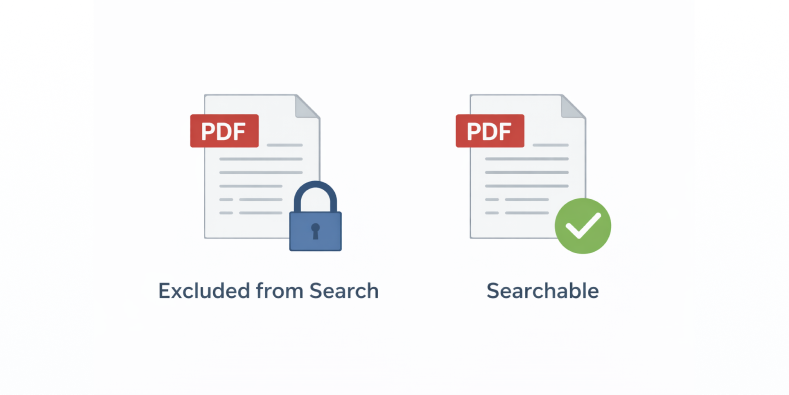

What Private PDF Search Does Not Do

Private PDF Search is binary β€” logged in or logged out. It doesn’t restrict by user role, membership level, or subscription tier. A logged-in subscriber sees the same private PDFs as a logged-in administrator.

If you need per-role restrictions β€” showing certain PDFs only to specific membership levels or user groups β€” that’s on the roadmap but isn’t in the current version. For now, the combination of Exclude and Private covers most use cases.

Private PDF Search is available on Pro and Agency plans. The free plugin includes Exclude only.

View Pricing Plans β†’


Frequently Asked Questions

Does excluding a PDF delete the file?

No. Exclude only affects search indexing. The file stays in your Media Library and is still accessible via its direct URL. If you want to remove the file entirely, you’d delete it from the Media Library separately.

Can someone access a private PDF directly if they have the URL?

Yes. Private PDF Search only controls whether the file appears in search results. It doesn’t protect the file URL itself. If someone has a direct link to the PDF they can still open it. For full access control on the file itself, you’d need a file protection plugin alongside this.

Can I bulk set multiple PDFs to Private at once?

Yes. Go to PDF Search β†’ Manage PDFs, select the files you want to restrict, and use the bulk action Make Private.

What happens to private PDFs if my Pro licence expires?

The PDFs stay in your library and stay indexed, but the Private visibility setting stops being enforced. They become visible in search results to everyone until the licence is renewed.

Can I make all new uploads Private by default?

Yes β€” set Default Search Visibility to Private in PDF Search β†’ Settings. Individual files can still be switched to Public as needed.

The Right Tool for the Job

If a PDF shouldn’t be searchable by anyone, use Exclude. If it should be searchable only by logged-in users, use Private. Both are available from the same attachment panel in your Media Library β€” Exclude in the free plugin, Private in Pro.

If you haven’t set up PDF search yet:

How to Make WordPress Search Inside PDF Files β†’

Why WordPress Search Cannot Find Text Inside PDFs (and How to Fix It)

Why WordPress Search Cannot Find Text Inside PDFs (and How to Fix It)

Why WordPress Cannot Find Text Inside PDFs

What’s Going Wrong β€” and How to Fix It

πŸŸ₯ No PDF search plugin installed

Without a dedicated plugin, WordPress has no way to index PDF content. There’s nothing built in to do it.
Install WebEquipe PDF Search from Plugins β†’ Add New. It’s free. Once active, go to PDF Search β†’ Dashboard and click Re-index All PDFs.

That one step indexes everything in your Media Library and makes the content searchable. Test it straight after search for a phrase you know is inside one of your PDFs.

πŸŸ₯ PDFs were uploaded before the plugin was installed

πŸŸ₯ Search integration is turned off

Some PDF search plugins index content but don’t automatically push results into WordPress search. There’s usually a separate toggle for this.
Go to PDF Search β†’ Settings and confirm Enable Search Integration is on. Without it, your PDFs are indexed but invisible in search results.

πŸŸ₯ A specific PDF has a status problem

If most PDFs are working but one or two aren’t, the issue is with those files specifically β€” not the plugin setup.
Go to PDF Search β†’ Manage PDFs and look at the status badge on each file.

 A specific PDF has a status problem
  • Not Indexed β€” hasn’t been processed yet. Click Index.
  • Excluded β€” deliberately removed from search. Click Include if it should be searchable.
  • Error β€” indexing failed. Usually means the file is scanned, corrupted, or password-protected.

πŸŸ₯ The file is too large and timed out

Very large PDFs can hit PHP execution time limits mid-process. Indexing stops partway through and the file ends up in an error state.
Go to PDF Search β†’ Settings β†’ Advanced and enable Background Processing. This moves indexing into a queue that runs independently β€” large files get the time they need without hitting server limits.

πŸŸ₯ The PDF is a scanned document

Scanned PDFs β€” documents that were printed and photographed, or run through a scanner β€” are images packaged as PDF files. There’s no text layer inside. No standard plugin can read them.
Open the PDF in your browser and try to highlight some text. If your cursor just draws a box over the image without selecting anything, it’s scanned.

Soft CTA

The free plugin can’t index scanned PDFs β€” that requires OCR. PDF Search Pro handles scanned documents automatically on upload, no extra setup needed.

Full guide: How to Make Scanned PDFs Searchable on WordPress β†’

Frequently Asked Questions

I installed a plugin but my old PDFs still don’t show up.

Some PDFs index fine but others show Error. What’s wrong with them?

My PDFs are indexed but still not appearing in search results.

Can WordPress search inside password-protected PDFs?

Still Not Working?

Run through the fixes above in order β€” most cases resolve at the first or second step. If you’re stuck on scanned PDFs showing as Error, that’s not something the free plugin can solve. It genuinely needs OCR, and PDF Search Pro handles that without any extra setup.

If you’re starting fresh and want the full setup walkthrough:

How to Make WordPress Search Inside PDF Files β†’

How to Make WordPress Search Inside PDF Files (2026 Guide)

How to Make WordPress Search Inside PDF Files (2026 Guide)

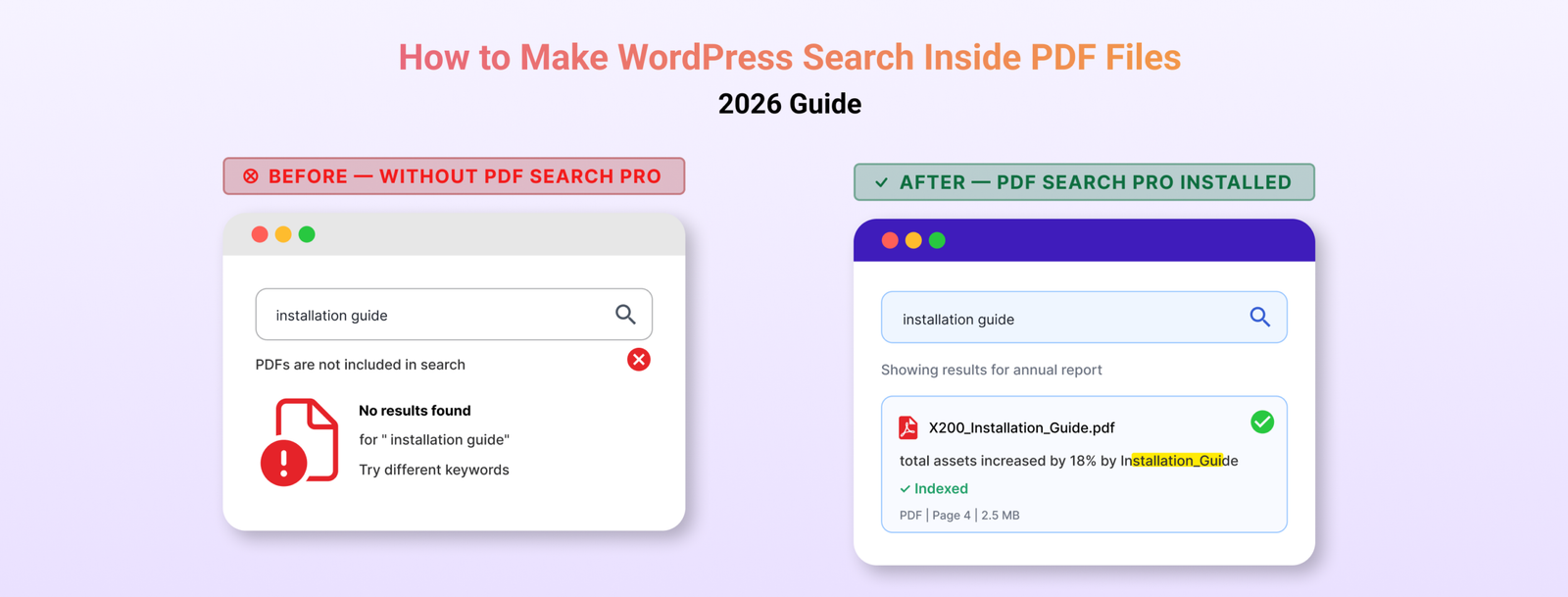
You upload a PDF to WordPress. A visitor comes to your site, searches for something they know is in that document β€” and gets nothing back.
No results. The file is sitting right there in your Media Library. The answer they need is on page three. WordPress just has no idea it exists.
We hear this constantly from site owners. People who’ve done everything right β€” uploaded their documents, organised their library, built a decent site β€” and still can’t figure out why search ignores their PDFs entirely.
The reason is straightforward once you know it. And so is the fix. Here’s both.

Why WordPress Search Ignores PDF Content

WordPress search works by looking at your posts and pages β€” the content you type directly into the editor. When you upload a PDF, WordPress stores the filename, a URL, and some basic file details. That’s all.

It never opens the file. It never reads what’s inside.

So when someone searches your site for “refund policy” or “installation guide” or “chapter three” β€” and those words only exist inside a PDF β€” WordPress comes back empty-handed. Not because the content isn’t there, but because it was never told to look inside PDF files.

This isn’t a bug. It’s just a gap that WordPress was never designed to fill.

What You Actually Need

To make WordPress search inside PDF files, you need a plugin that does two things.

First, it needs to extract the text from your PDFs. This means actually opening each file and reading the words inside β€” something WordPress doesn’t do on its own.

Second, it needs to store that text in a searchable index so that when someone types a query, it can match against that content.

A PDF search plugin fills that gap. There are a few options out there, but the simplest purpose-built one for WordPress is WebEquipe PDF Search. The free version handles standard PDFs and gets them into WordPress search in a few minutes. The Pro version adds OCR for scanned documents and private search for member-only content β€” more on those at the end.

Before You Start β€” Check Your PDFs

Not all PDFs are the same, and this matters before you install anything.

Text-based PDFs are documents created digitally β€” exported from Word, Google Docs, InDesign, or any document editor. These contain an actual text layer. A PDF search plugin can read them without any issues.

Scanned PDFs are photos of physical pages. Someone put a piece of paper on a scanner and saved the image as a PDF. There’s no text layer β€” just pixels. A standard PDF search plugin can’t read these.

How to tell the difference: open the PDF in your browser and try to highlight some text. If you can click and drag to select words, it’s text-based. If clicking just draws a box with nothing selected, it’s scanned.

The free plugin handles text-based PDFs well. If you have scanned documents, you’ll need OCR β€” covered at the end.

How to Make WordPress Search Inside PDF Files

Step 1 β€” Install WebEquipe PDF Search

Go to Plugins β†’ Add New in your WordPress dashboard. Search for WebEquipe PDF Search. Install it and activate it.

Once it’s active, you’ll see a PDF Search item in your WordPress admin sidebar.

Step 2 β€” Check Your Settings

Head to PDF Search β†’ Settings. You don’t need to change much here, but confirm two things:

  • Enable PDF Indexing is turned on β€” this makes sure new PDFs you upload get indexed automatically going forward.
  • Enable Search Integration is turned on β€” this is what makes PDFs show up alongside posts and pages in your site’s normal search results.

If you’d rather keep PDF results separate from your posts and pages, you can leave Search Integration off and use the shortcode instead (Step 5).

Step 3 β€” Index Your Existing PDFs

The plugin won’t automatically pick up PDFs you’ve already uploaded. You need to run indexing once for your existing library.

Go to PDF Search β†’ Dashboard and click Re-index All PDFs.

The plugin will work through every PDF in your Media Library and extract the text. For a large library this runs in batches in the background β€” you can leave it and come back. Check the progress in PDF Search β†’ Index Activity.

Step 4 β€” Test It

Once indexing is done, search for a word or phrase you know appears inside one of your PDFs.

It should now appear in results β€” with the PDF title, a short excerpt from the matching page, and basic file details like size and page count.

If a PDF isn’t showing up, go to PDF Search β†’ Manage PDFs and check its status. Anything showing as Error or Not Indexed needs attention β€” the status badge tells you exactly why.

Step 5 β€” Add a PDF-Only Search Form (Optional)

If you want a dedicated search box that only searches your PDFs β€” useful for help centres, resource libraries, or document portals β€” add this shortcode to any page:

Visitors get a search box that only looks at your PDFs β€” nothing else on the site, just the documents.

Soft CTA

The free plugin covers everything above at no cost. If you’re dealing with scanned documents or need to restrict certain PDFs to logged-in users only, that’s what PDF Search Pro is built for.

Best Practices

Filenames become titles. In search results, the PDF’s filename is what gets displayed as the title. annual-report-2025.pdf is a lot more useful than doc-final-v2-FINAL.pdf. It’s worth cleaning up filenames before you index.

The index doesn’t update automatically when you replace a file. If you swap out a PDF for a newer version, you need to manually re-index that file. Go to it in your Media Library and click Re-index.

Use Exclude for PDFs that shouldn’t be searchable. Draft documents, internal files, outdated versions β€” use the Exclude option on these. The file stays in your Media Library, it just won’t be indexed or show up in any search results.

Large files take longer. The default size limit is 50MB. You can raise this in settings up to 500MB. Very large PDFs are processed in background batches automatically so they don’t time out.

Common Problems and How to Fix Them

PDFs still aren’t showing up after indexing

Check that Enable Search Integration is on in PDF Search β†’ Settings. Also confirm the specific PDF isn’t set to Excluded.

Indexing keeps stopping or timing out

Go to PDF Search β†’ Settings β†’ Advanced and turn on Background Processing. This moves indexing out of the browser and into a background queue so it doesn’t need to finish in a single page load.

Some PDFs index fine but others show Error

This almost always means those PDFs are scanned β€” image-only files with no text layer. The free plugin can’t read them. You’ll need OCR for those.

PDFs show in results but with no excerpt

Usually means the text extraction returned very little content. Try opening the PDF and selecting some text. If you can’t highlight anything, it’s likely a scanned file.

When the Free Plugin Isn’t Enough

The free plugin handles text-based PDFs well. But two situations need the Pro version.

You have scanned PDFs

Archived reports, meeting minutes, old handbooks, government forms β€” these are all image-only files. The free plugin marks them as Error because there’s no text to extract.

WebEquipe PDF Search Pro includes OCR powered by Google Vision. Turn it on and scanned PDFs get processed automatically when you upload them β€” the text gets pulled from the images and indexed the same way a normal PDF would be. Nothing extra to set up on your end.

How to Make Scanned PDFs Searchable on WordPress β†’

You need some PDFs visible only to logged-in users

The free plugin’s Exclude feature removes a PDF from search entirely. But sometimes you want a document findable β€” just not by everyone. Member handbooks, staff policies, client resources.

Private PDF Search (available on Pro and Agency plans) lets you mark individual PDFs as Private. They stay indexed but disappear from results for anyone who isn’t logged in. Logged-in users find them normally.

Frequently Asked Questions

Does WordPress search inside PDFs by default?

No β€” and this surprises a lot of people. WordPress only searches content you’ve typed directly into posts and pages. PDF files are stored as attachments. WordPress knows the filename exists but has never looked inside it. That’s what the plugin fixes.

Will this slow down my site?

Not in any noticeable way. Indexing happens in the background, either when a PDF is uploaded or when you manually kick it off. When someone searches, the query runs against the stored index β€” not the original files. Your visitors won’t feel a thing.

What about PDFs I’ve already uploaded?

Those won’t be picked up automatically. You run Re-index All PDFs once from the Dashboard after installing the plugin and it processes everything in your library. New uploads after that are handled automatically.

Can it handle password-protected PDFs?

No. If a PDF is locked, the plugin can’t get to the text inside it. Those files need to be unlocked before they can be indexed.

How many PDFs can it handle?

No hard limit. We’ve seen it work fine on sites with several hundred PDFs. Large libraries just run in batches so nothing times out.

Does it work with my theme?

Yes. It plugs into WordPress’s native search, so any theme using standard WordPress search will show PDF results. The shortcode form works independently of your theme entirely.

Getting Your PDFs Into Search

If your site has text-based PDFs, you’re ten minutes away from having them fully searchable. Install the free plugin, run Re-index All PDFs once, and your documents will start showing up in results straight away.

If you’re dealing with scanned files or need to keep certain documents restricted to logged-in users, that’s exactly what PDF Search Pro is built for.

View WebEquipe PDF Search plans β†’

Why Your WordPress Search Can’t Find Your PDFs (And It’s Costing You Visitors)

Why Your WordPress Search Can't Find Your PDFs (And It's Costing You Visitors)

You know that feeling, right?
A visitor emails you: “Hey, I can’t find your pricing guide on your website.”
You pause. Because you know it’s there. You uploaded it yourself three weeks ago. It’s a beautiful 12-page PDF sitting right in your Media Library.
So you go to your own site and search for it.
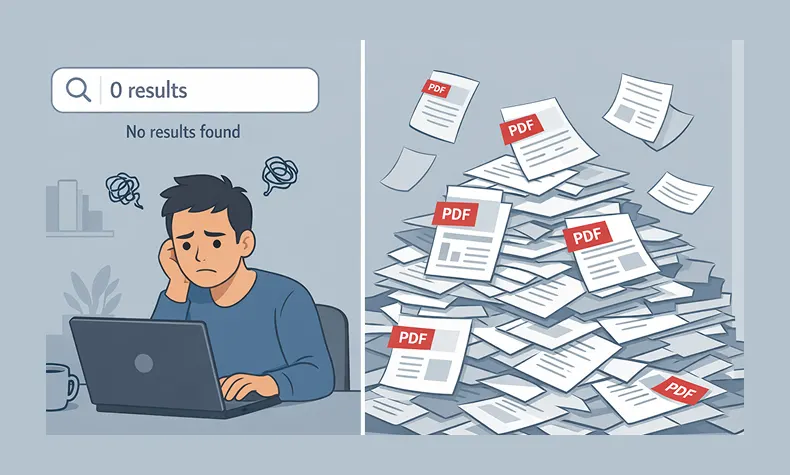
Nothing.
You try different keywords. Still nothing. You end up manually digging through your Media Library, finding the file, and sending them the direct link.
Here’s the thing that’ll really annoy you: WordPress search completely ignores what’s inside your PDF files.


The Problem Nobody Talks About

WordPress has fantastic search functionality. It can find a single word buried in a blog post from 2019. It’ll surface that random product description you wrote at 2am. It’s actually pretty impressive.
But PDFs? Nope. WordPress looks at the filename and stops there.
So if you named your file something like final – version – 2 – UPDATED. pdf (we’ve all done it), good luck having anyone find it through search.


The Problem Nobody Talks About search

Think about what this actually means for your site:
If you run a documentation site, your users are searching for answers that are literally on your websiteβ€”they just can’t find them.
If you’re a school or university, students are looking for syllabi, assignment guides, or course materials that exist but are invisible to search.
If you manage an internal knowledge base, your team is wasting time asking questions that have already been answered in those HR handbooks, policy documents, or training guides you uploaded.
The content is there. The answers exist. But it’s like having a library where none of the books are in the catalog.


Why This Happens (The Boring Technical Bit)

Here’s what’s going on under the hood:
WordPress search works by indexing text content from your posts, pages, and custom post types. When you hit that search button, it’s looking through a database of actual words.
PDFs are files. Binary data. WordPress sees them the same way it sees image filesβ€”as attachments with metadata (filename, upload date, etc.) but not as searchable content.
To actually search inside a PDF, something needs to:

  1. Extract the text from the PDF file
  2. Store that text somewhere searchable
  3. Include it in search results
  4. Show relevant excerpts so people know what they’re clicking on

WordPress doesn’t do this out of the box. And honestly, why would it? Not everyone uploads PDFs. It’s not a universal need.
But if you do upload PDFsβ€”especially lots of themβ€”this is a massive blind spot.

Why This Happens (The Boring Technical Bit) in WordPress

What People Usually Try (And Why It Doesn’t Really Work)

When you first discover this problem, the solutions seem obvious:
“I’ll just rename my files with better keywords!”
Okay, but that only helps if someone searches for those exact words in the filename. And you can’t fit much information into a filename before it gets ridiculous: employee-handbook-2024-vacation-policy-sick-leave-benefits-insurance-401k.pdf
“I’ll add descriptions in the Media Library!”
Some themes and plugins let you add descriptions to media files. Great! Except… most WordPress search implementations don’t actually search media descriptions. You’re basically adding metadata that nothing reads.
“I’ll just create posts and link to the PDFs!”
This works! But now you’re maintaining duplicate content. Every time you update a PDF, you need to remember to update the corresponding post. Plus, you’re adding extra clicksβ€”people have to find the post, then click through to the PDF.

None of these are actual solutions. They’re workarounds.

What People Usually Try (And Why It Doesn't Really Work)

What Actually Works: Making PDFs Searchable

The real solution is extracting the text content from your PDFs and making it searchable, just like your blog posts.
Here’s what that looks like in practice:
When someone uploads a PDF, the system automatically:

  • Opens the PDF and extracts all the readable text
  • Stores that text in your database
  • Indexes it for search (just like post content)
  • Links it back to the original PDF file

Then when someone searches your site:

  • They get results from posts, pages, and PDFs
  • Search results show actual excerpts from inside the PDF
  • They can see if it’s relevant before downloading
  • Everything works through your normal WordPress search

No manual work. No duplicate content. No remembering to update things.

What Actually Works: Making PDFs Searchable - WordPress media

The Privacy Question Nobody Asks (But Should)

Here’s something most people don’t think about until it’s too late:
What about PDFs you don’t want people to find through search?
Maybe you have:

  • Internal financial documents that are uploaded but should stay private
  • Draft versions of public documents
  • Sensitive HR files
  • Client work that’s not meant to be discoverable

If you’re indexing everything, you need a way to exclude specific files.
This is where most “solutions” fall short. They’re all-or-nothing. Either everything’s searchable or nothing is.
What you actually need is control: “Index this, but not that. And if I re-index everything later, still skip the ones I marked as private.”

The Privacy Question Nobody Asks (But Should) searchable

What This Looks Like for Real Sites

Let me give you a real scenario:
A university department has 200+ PDFs on their site:

  • Course syllabi
  • Assignment guidelines
  • Reading lists
  • Research papers
  • Administrative forms

Before making PDFs searchable: Students email the department assistant 15-20 times per week asking where to find documents. The assistant spends hours responding with direct links.
After making PDFs searchable: Students find what they need through site search. Email requests drop to 2-3 per week (and those are usually for things that genuinely don’t exist on the site yet).
The content didn’t change. The documents were always there. The only difference is that now they’re findable.

What This Looks Like for Real Sites

The Setup (Easier Than You Think)

Here’s what you’d need to do to make this work:

  1. Install a PDF search solution – Something that handles the text extraction and indexing automatically
  2. Run initial indexing – Process your existing PDFs (one-time thing)
  3. Set exclusions – Mark any private PDFs that shouldn’t be searchable
  4. Done – New PDFs get indexed automatically on upload

That’s it. No ongoing maintenance. No manual updates.
The whole setup takes maybe 5 minutes. The initial indexing depends on how many PDFs you have, but it runs in the backgroundβ€”you can just let it do its thing.

The Setup (Easier Than You Think) My blog

Things to Look For in a Solution

If you’re evaluating options, here’s what matters:
Automatic indexing – You don’t want to manually trigger indexing every time you upload a file. It should just happen.
Exclusion controls – You need to be able to mark specific PDFs as “don’t index this” and have that setting stick even during bulk re-indexing.
Search integration – PDF results should appear in your normal WordPress search, not in some separate search interface.
Background processing – Large PDFs (50MB+) should be processed in the background so they don’t slow down your site or timeout.
File size support – Some solutions cap out at 10-20MB. If you have larger technical documents or image-heavy PDFs, you need something that handles bigger files.
Actual content extraction – This should go without saying, but the solution needs to extract the actual text, not just index metadata. Some plugins claim to make PDFs “searchable” but really just make the filenames searchable.


The Bottom Line

If you have PDFs on your WordPress site, they should be searchable. Period.
It’s not a nice-to-have feature. It’s basic functionality. Your visitors expect it. Your content deserves to be found.
The good news? This isn’t a hard problem to solve anymore. You don’t need to hire a developer or mess with complicated code.
You just need the right tool for the job.

The Bottom Line for pdf search

Make Your PDFs Searchable Today

WebEquipe PDF Search is a free WordPress plugin that automatically indexes your PDF content and integrates it with your site’s search. Install it, click one button to index your existing PDFs, and you’re done. Your visitors will finally be able to find the documents they’re looking for.

Download free from WordPress.org β†’