
πŸŽ‰ Save 10% Extra on the Webequipe PDF Search Plugin Annual Plan β€” Use code YEARLY10 Β· Limited-time offer Β· Get discount β†’

WordPress PDF Search β€” The Complete Guide (2026)

WordPress PDF Search β€” The Complete Guide (2026)
WordPress PDF Search 2026

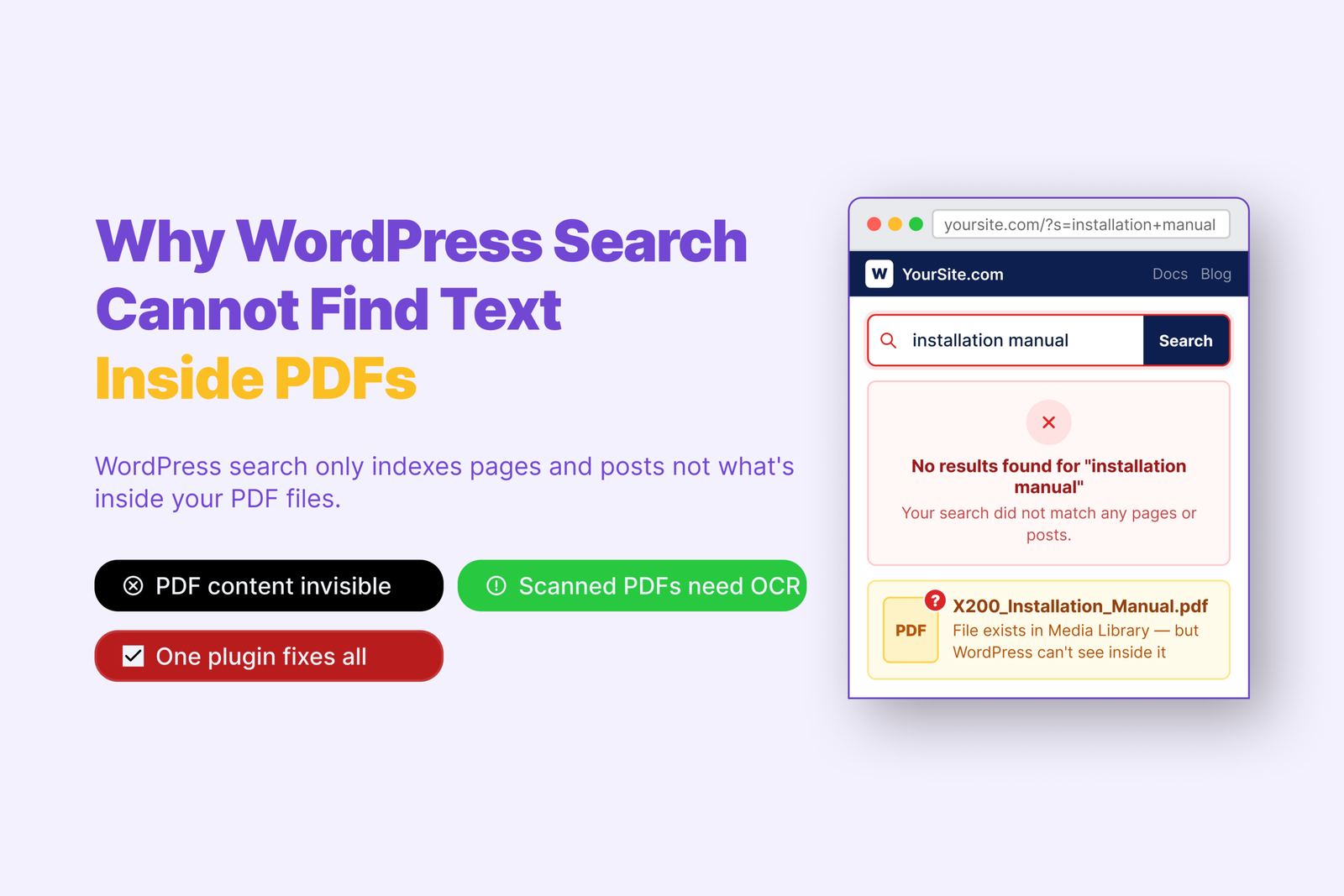
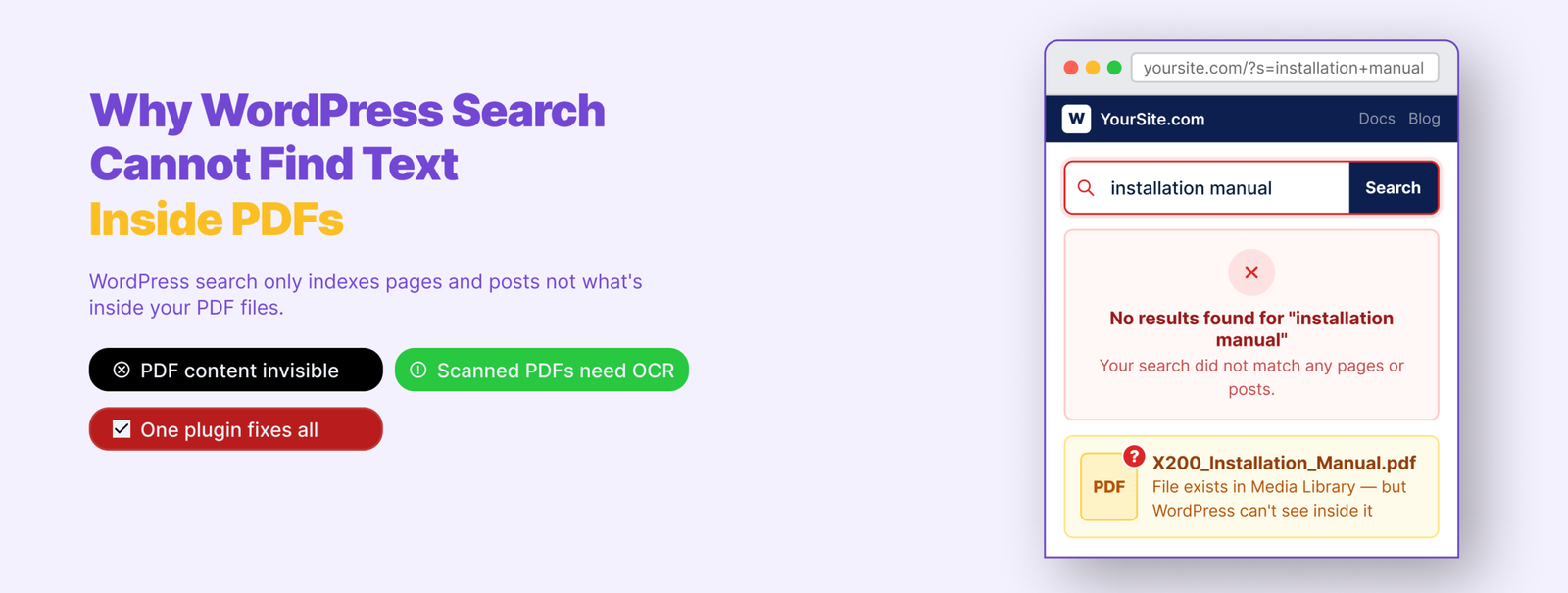
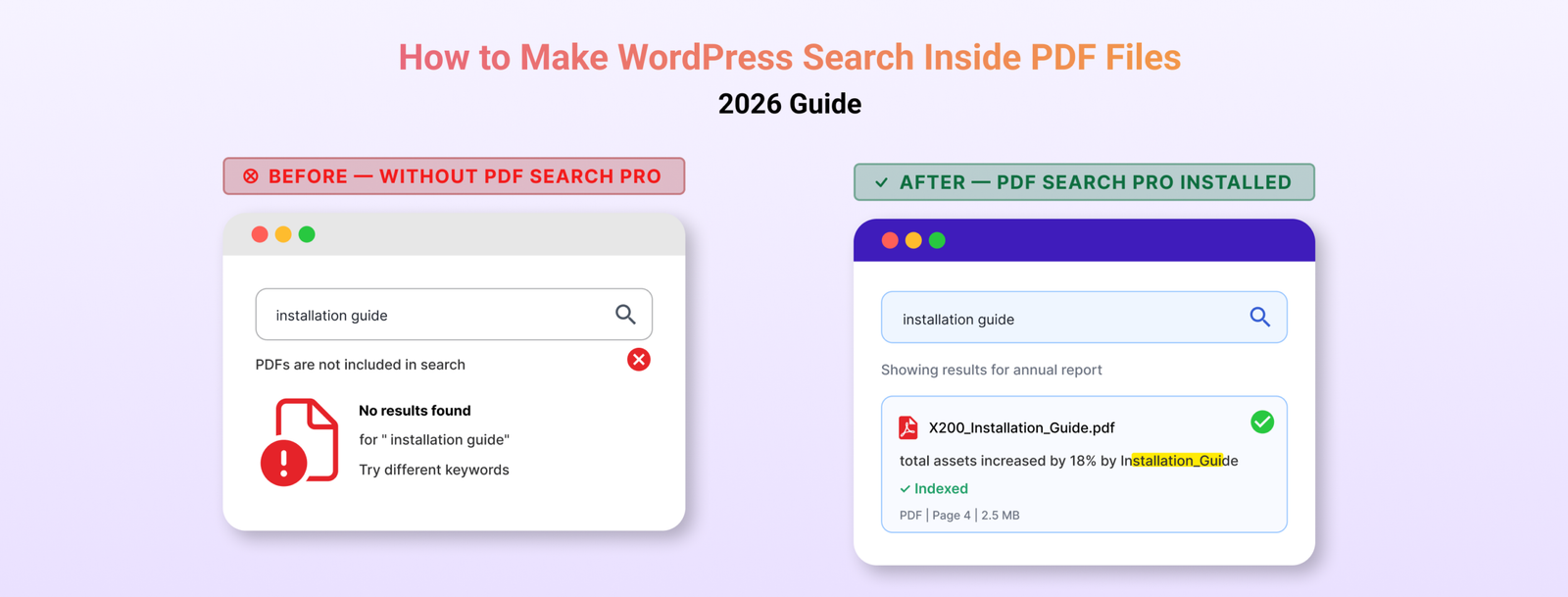
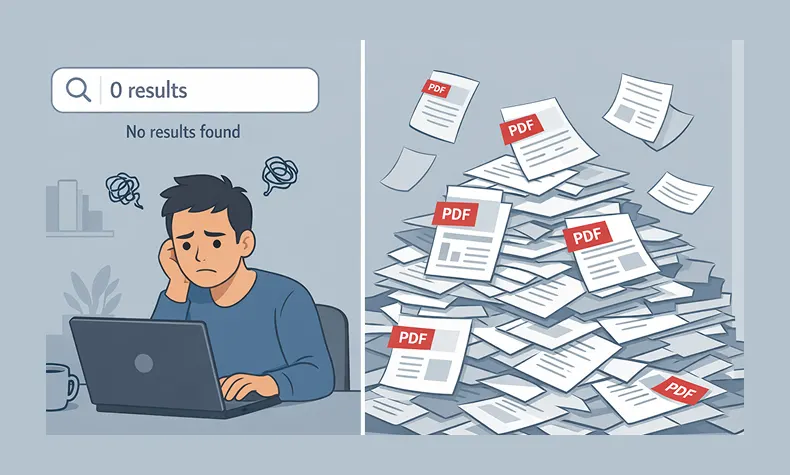
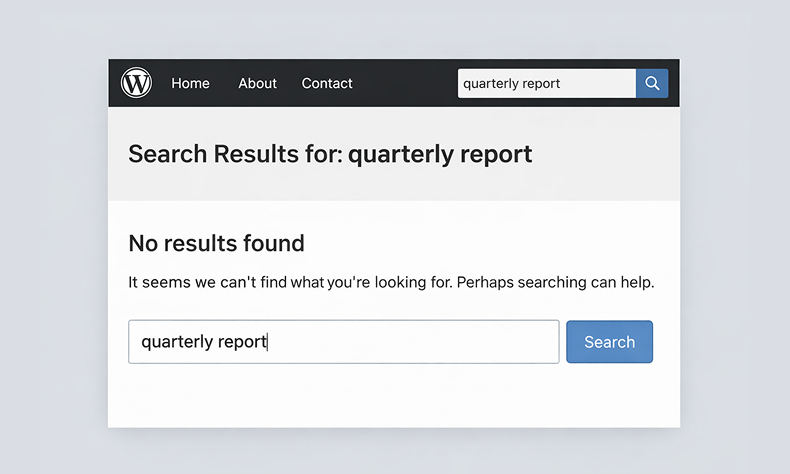
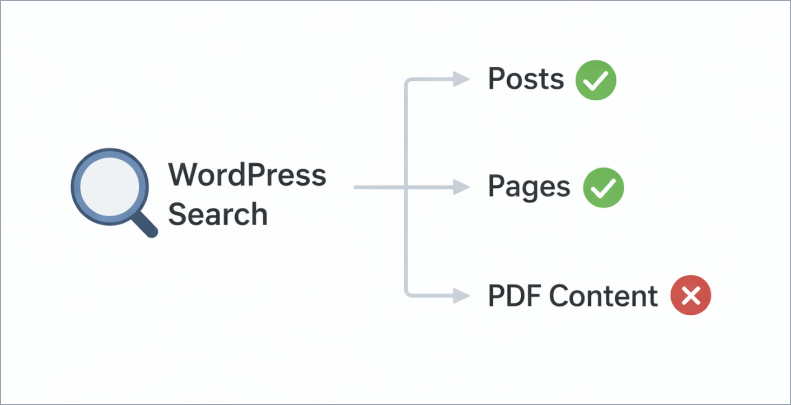
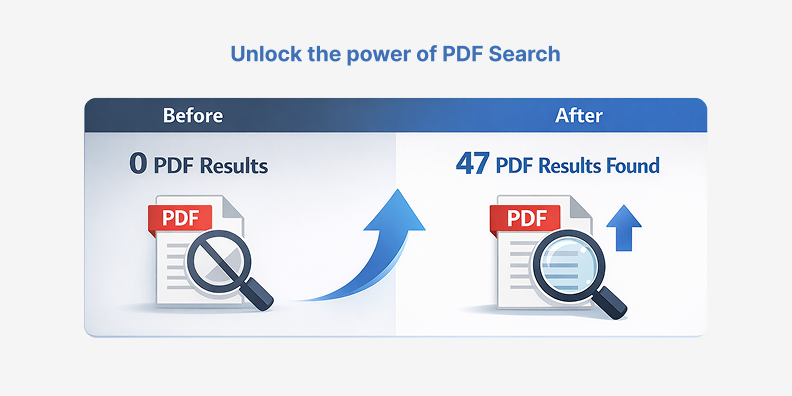
WordPress doesn’t search inside PDF files. Not by default, not ever. You can upload hundreds of documents and your site’s search bar will ignore every word inside all of them.

This guide covers everything β€” why it happens, how to fix it, how to handle scanned documents and private files, how to read your index activity, and what to do when things go wrong. If you manage PDFs on a WordPress site, this is the only reference you need.

Table of Contents

  1. Why WordPress Doesn’t Search Inside PDFs
  2. The Two Types of PDFs on Most Sites
  3. Setting Up PDF Search β€” Free
  4. Dashboard Overview
  5. Handling Scanned PDFs with OCR
  6. Keeping PDFs Private or Out of Search
  7. Managing Your PDF Library
  8. Index Activity
  9. Search Results β€” What Visitors See
  10. Common Problems and Fixes
  11. Free vs Pro β€” When to Upgrade
  12. FAQ

Why WordPress Doesn’t Search Inside PDFs

WordPress search queries a single database table that stores post and page content. When you upload a PDF, WordPress records the filename, file size, and URL. That’s the extent of it. The text inside the file is never read, never stored, never searchable.

This isn’t something that gets fixed by tweaking settings or installing a general search plugin. You need a plugin specifically built to extract text from PDF files and store it in a searchable index. That’s what WebEquipe PDF Search does.

The Two Types of PDFs on Most Sites

Before setting anything up, it helps to know what you’re working with.

Text-based PDFs are created digitally β€” exported from Word, Google Docs, InDesign, or any document software. The text exists as real, selectable characters inside the file. Open one in your browser and you can highlight words, copy sentences, search the document. These are straightforward to index.

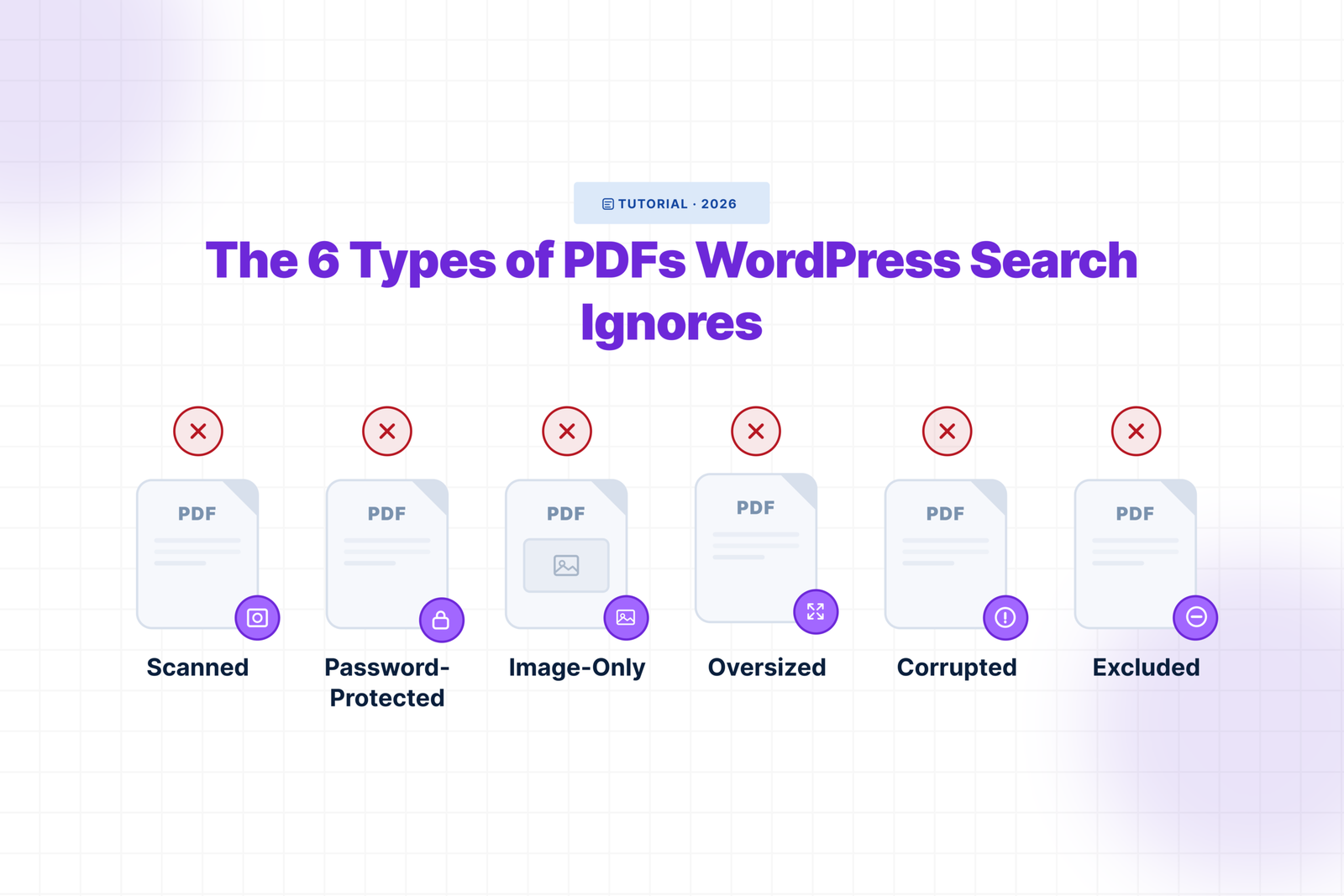
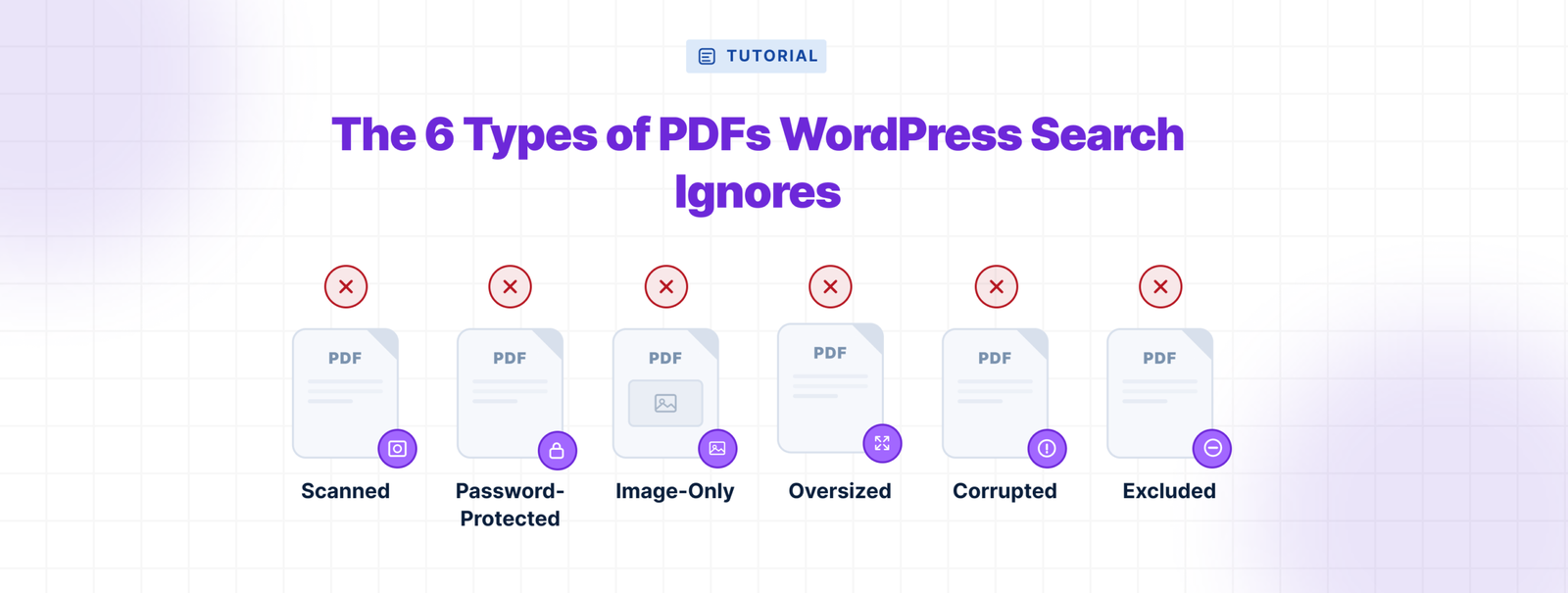
Scanned PDFs are photographs of physical pages saved as PDF files. The content is an image, not text. You can’t highlight anything inside them. A standard PDF search plugin marks these as Error because there’s nothing to extract.

Most document-heavy sites have both. Old archived reports, meeting minutes, forms designed for print β€” these tend to be scanned. Anything created or exported recently is usually text-based.

Knowing which type you’re dealing with determines which setup path you take.

Setting Up PDF Search β€” Free

The free version of WebEquipe PDF Search handles text-based PDFs. Install it, index your library, and your documents become searchable in minutes.

πŸŸ₯ Install and activate

Go to Plugins β†’ Add New, search for WebEquipe PDF Search, install and activate. A PDF Search menu appears in your WordPress admin sidebar.

πŸŸ₯ Configure settings

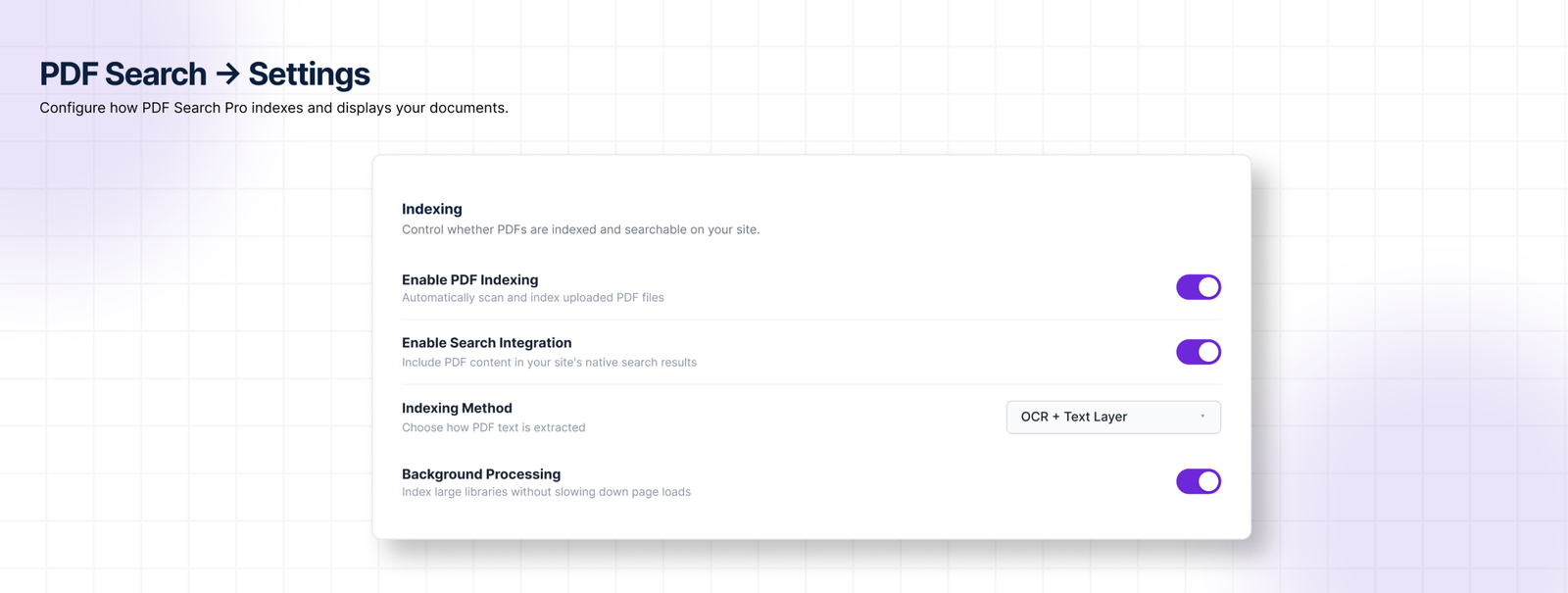
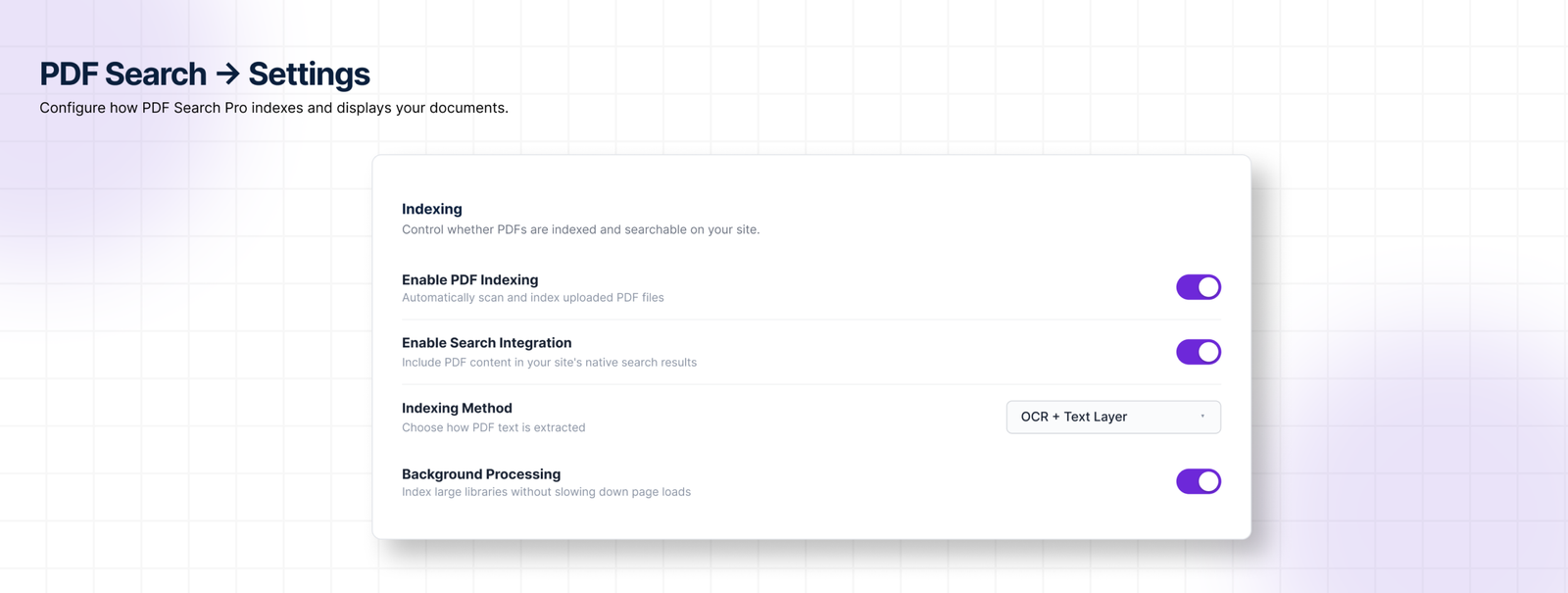
Go to PDF Search β†’ Settings and confirm two things are on:

  • Enable PDF Indexing β€” new uploads get indexed automatically when this is on. Every PDF you add to your Media Library gets processed without any extra steps.
  • Enable Search Integration β€” PDFs appear in your site’s standard search results alongside posts and pages.

If you want PDFs in a separate search form rather than mixed with posts and pages, you can leave Search Integration off and use the shortcode instead.
πŸŸ₯ How auto-indexing works

With Enable PDF Indexing on, the moment you upload a PDF to your Media Library the plugin queues it for processing. For small files this happens immediately. For larger files β€” or if Background Processing is enabled β€” it queues and runs in the background so it doesn’t block the upload.
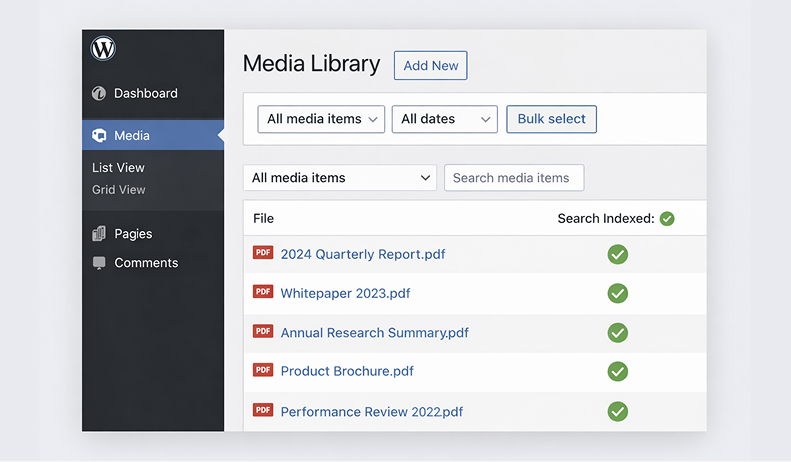
You’ll see the PDF status change from Not Indexed to Processing to Indexed in your Media Library column as it works through.

πŸŸ₯ Index your existing library

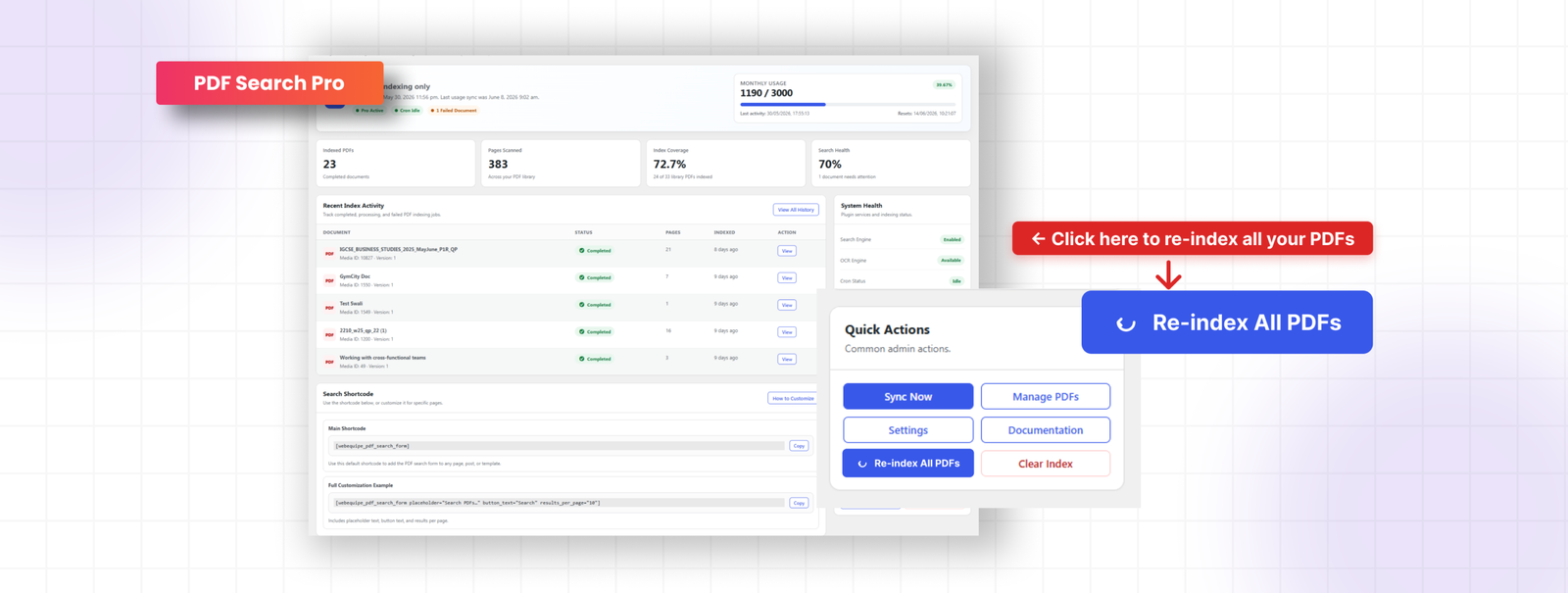
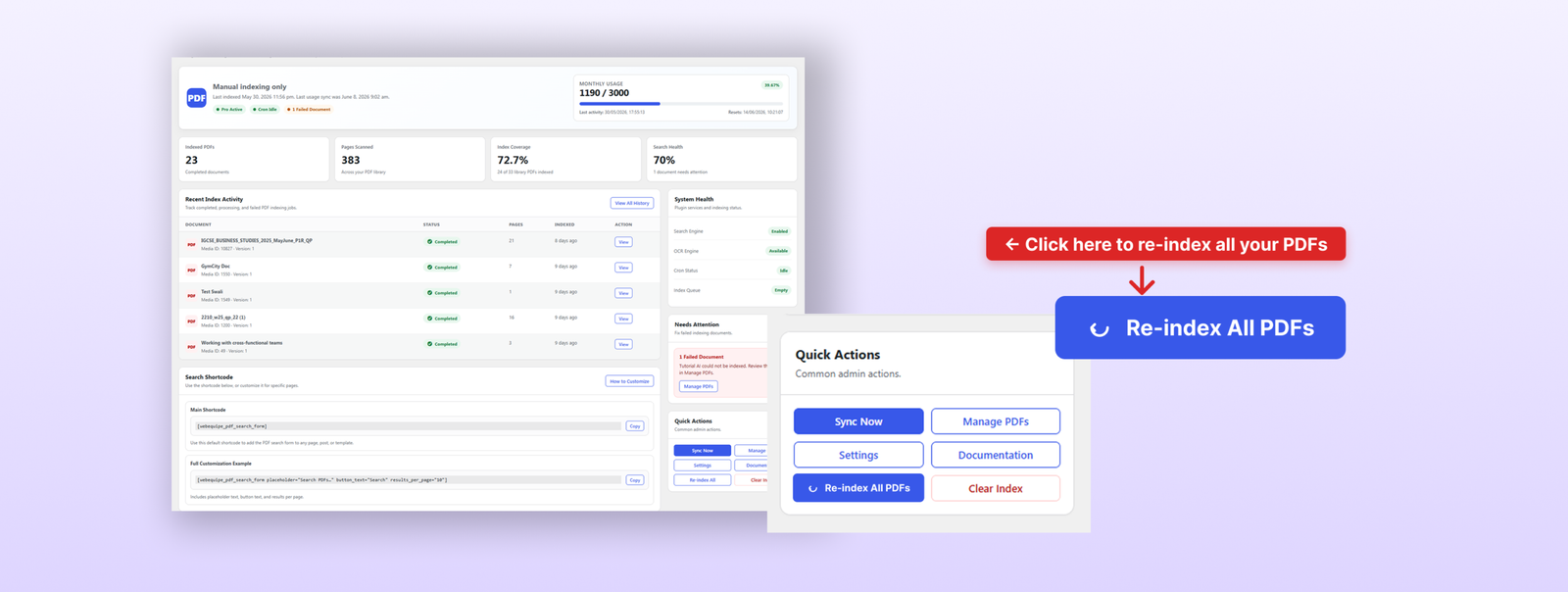
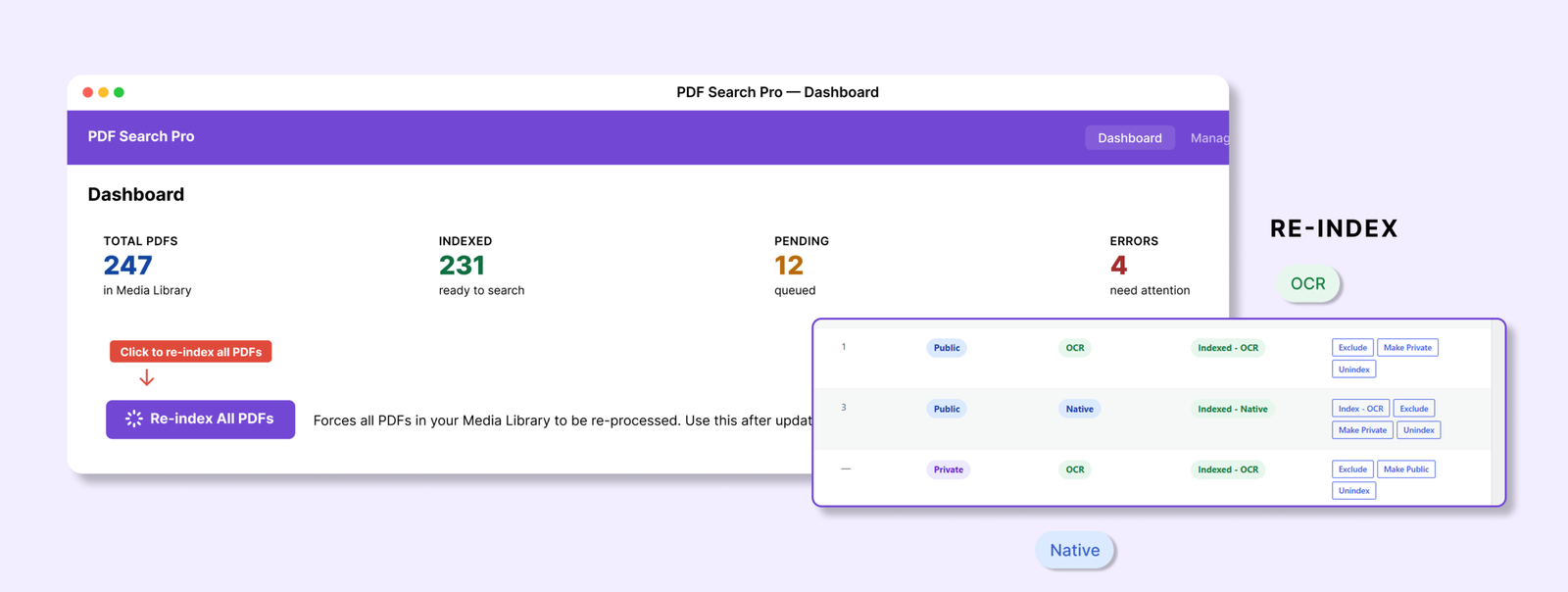
The plugin doesn’t automatically pick up PDFs already in your Media Library before it was installed. Go to PDF Search β†’ Dashboard and click Re-index All PDFs. This processes everything in your library and builds the index from scratch. Large libraries run in batches in the background.

Index your existing library

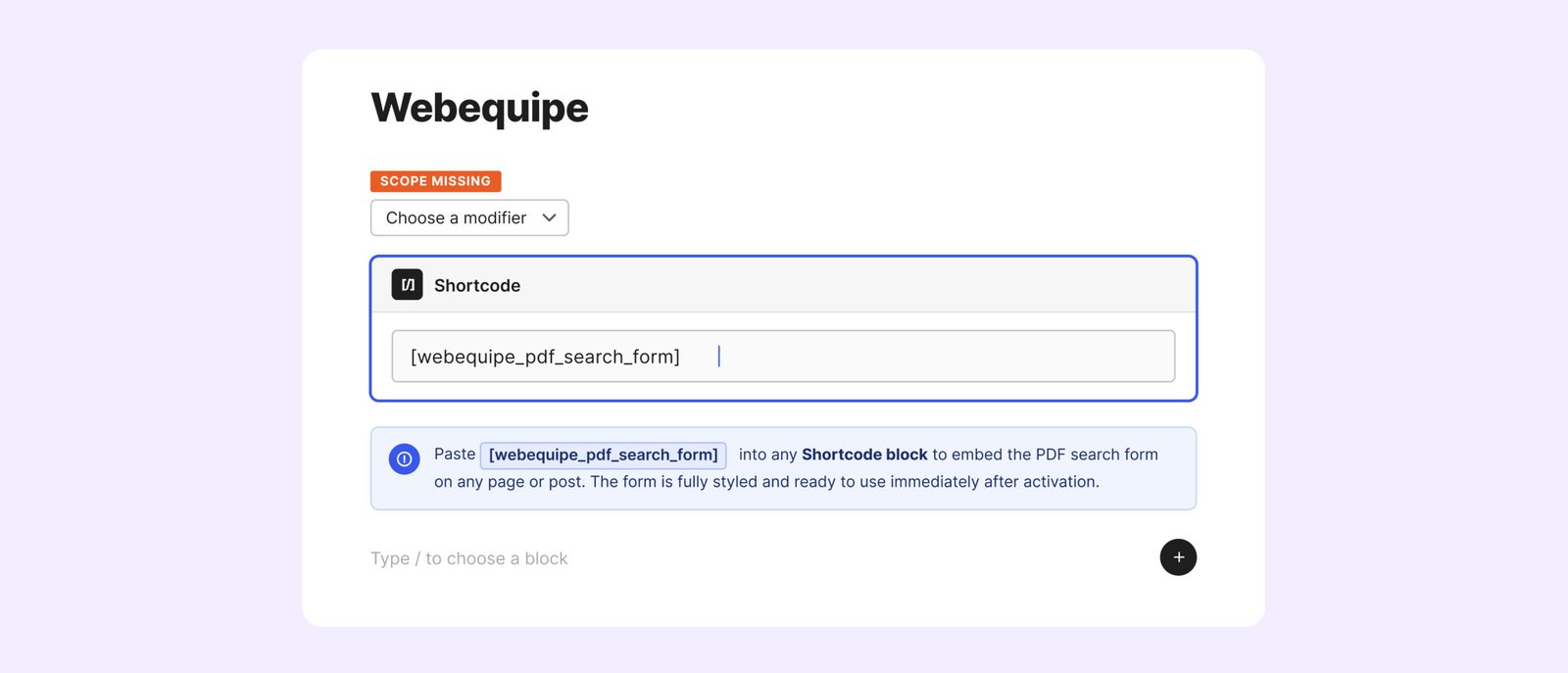
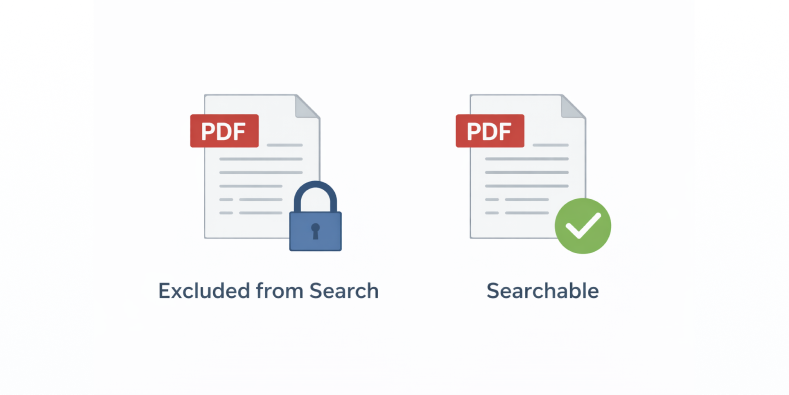
This searches only your indexed PDFs, completely separate from your site’s main search. Useful for resource centres, help sections, or document portals.

Index your existing library-2

Dashboard Overview

PDF Search β†’ Dashboard is your home screen. Here’s what everything means.

πŸŸ₯ Metric cards at the top

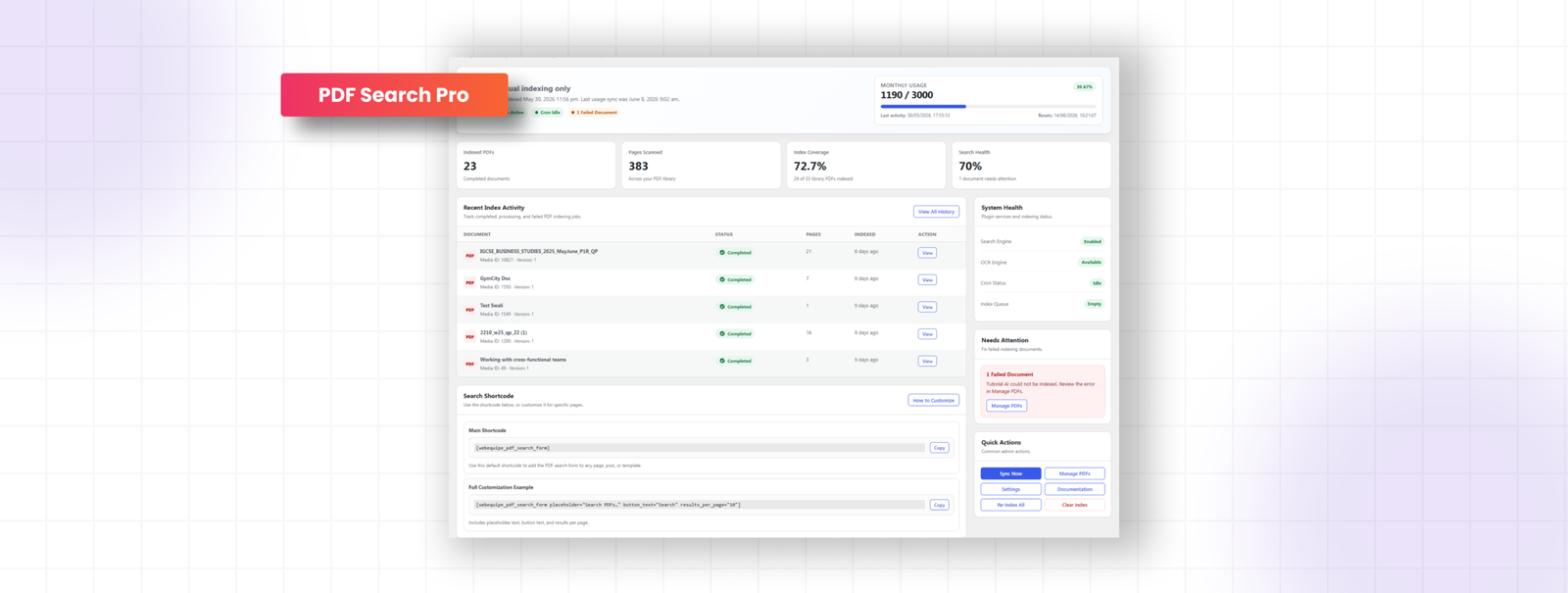
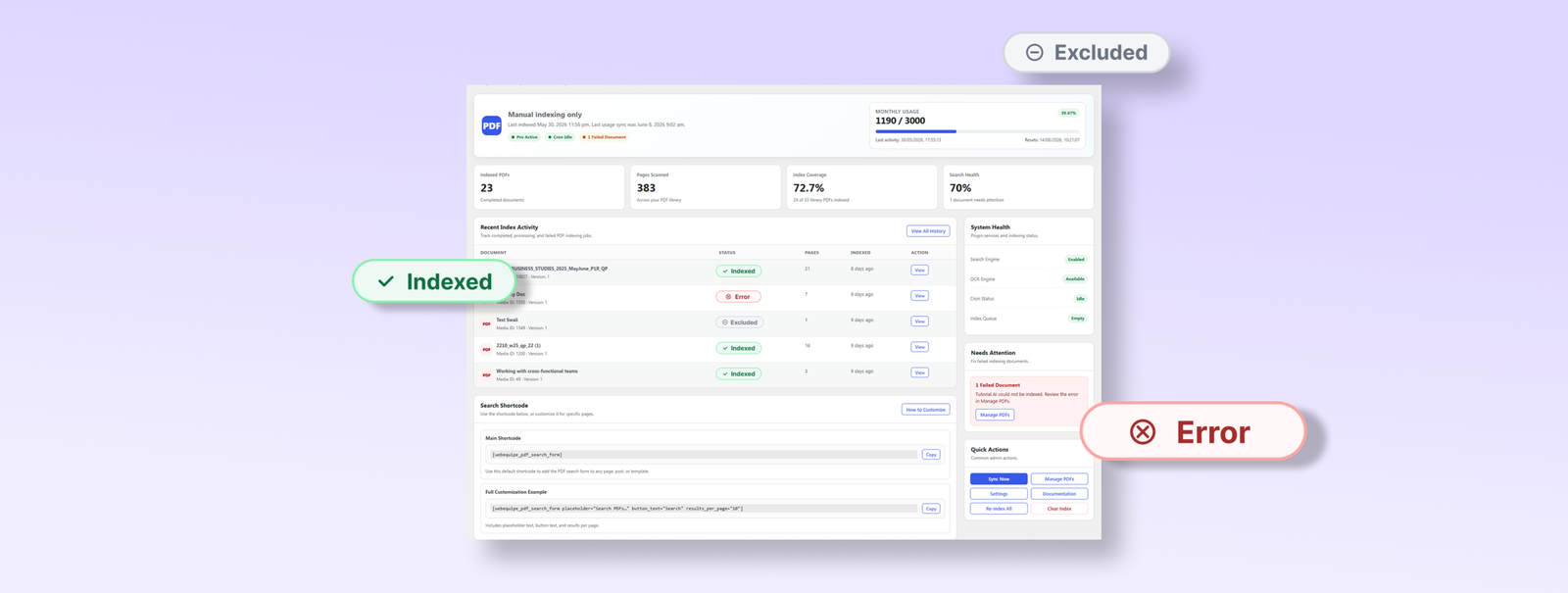
Metric cards at the top show indexed PDF count, total pages scanned, index coverage percentage, and search health status. Coverage tells you what proportion of your library is actually indexed β€” if it’s significantly below 100%, there are PDFs that need attention.

πŸŸ₯ Status headline

Status headline gives you an at-a-glance reading of your setup β€” whether indexing is healthy, whether there are failed documents, and whether your cron is running correctly. If something needs attention it flags it here with a link directly to the problem.

πŸŸ₯ Recent index activity

Recent index activity shows the latest indexing runs β€” which files were processed, when, and whether they succeeded. This is a preview of the full Index Activity log.

πŸŸ₯ System health sidebar

System health sidebar shows your PHP version, memory limit, processing timeout setting, and cron status. If background processing is running slowly or failing silently, the cron indicator here is usually the first place that shows it.

πŸŸ₯ Quick actions

Re-index All PDFs, go to Settings, go to Manage PDFs β€” are all accessible from the Dashboard without navigating away.

Quick actions

Handling Scanned PDFs with OCR

Scanned PDFs require OCR to be indexed. The plugin uses Google Vision β€” available on Starter, Pro, and Agency plans.

πŸŸ₯ Set up OCR

Once your licence is active, go to PDF Search β†’ Settings and set the Indexing Method to Native + OCR Fallback. Text-based PDFs get processed locally. Scanned files get routed to Google Vision automatically. You don’t decide per file.

πŸŸ₯ Fix existing scanned PDFs

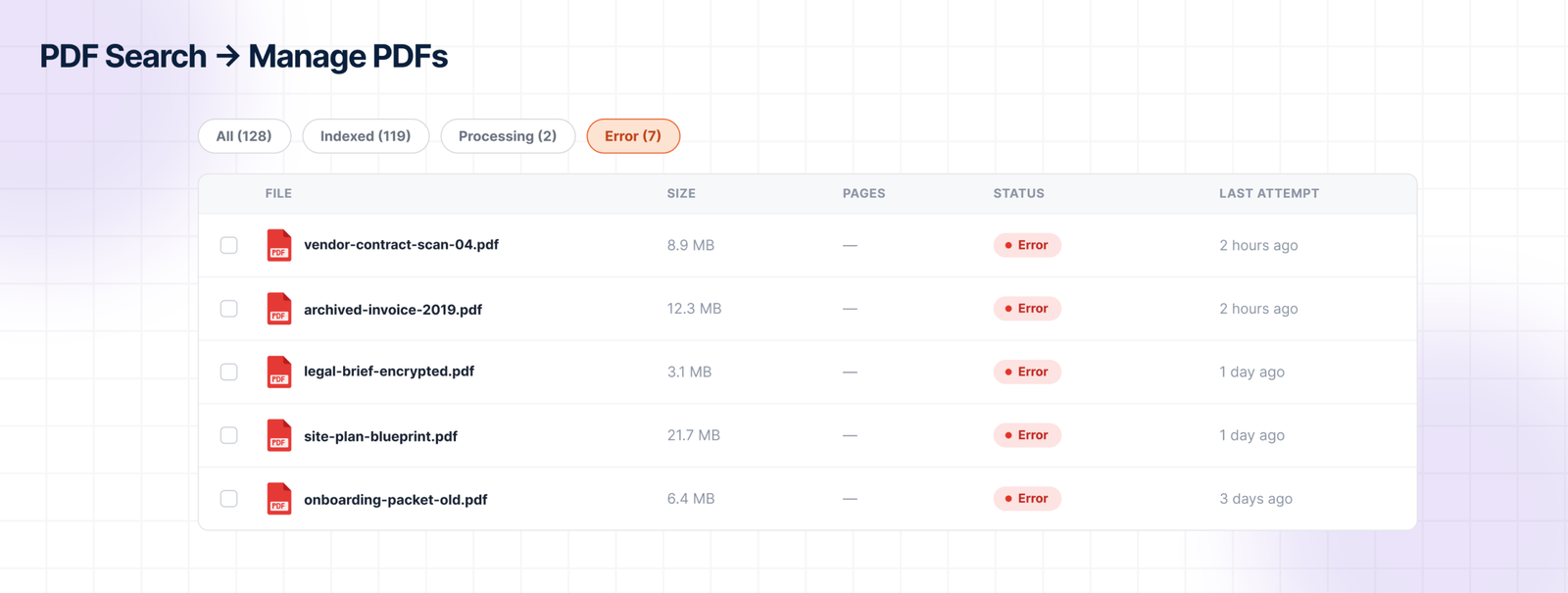
Go to PDF Search β†’ Manage PDFs, filter by Error, select all the failed files, and run the bulk action Index OCR. Those files get sent to Google Vision and come back indexed.

πŸŸ₯ OCR credits

Each plan includes a monthly page allowance β€” Starter gets 1,000 pages, Pro gets 3,000, Agency gets 10,000. Usage is visible in PDF Search β†’ Dashboard.

Full OCR walkthrough: How to Make Scanned PDFs Searchable in WordPress β†’

Not every PDF on a site should be publicly searchable. There are two ways to handle this.

Exclude removes a PDF from search entirely. Nobody finds it β€” logged in or not. The file stays in your Media Library but is never indexed. Use this for drafts, outdated versions, and internal files that should never appear in any search results.

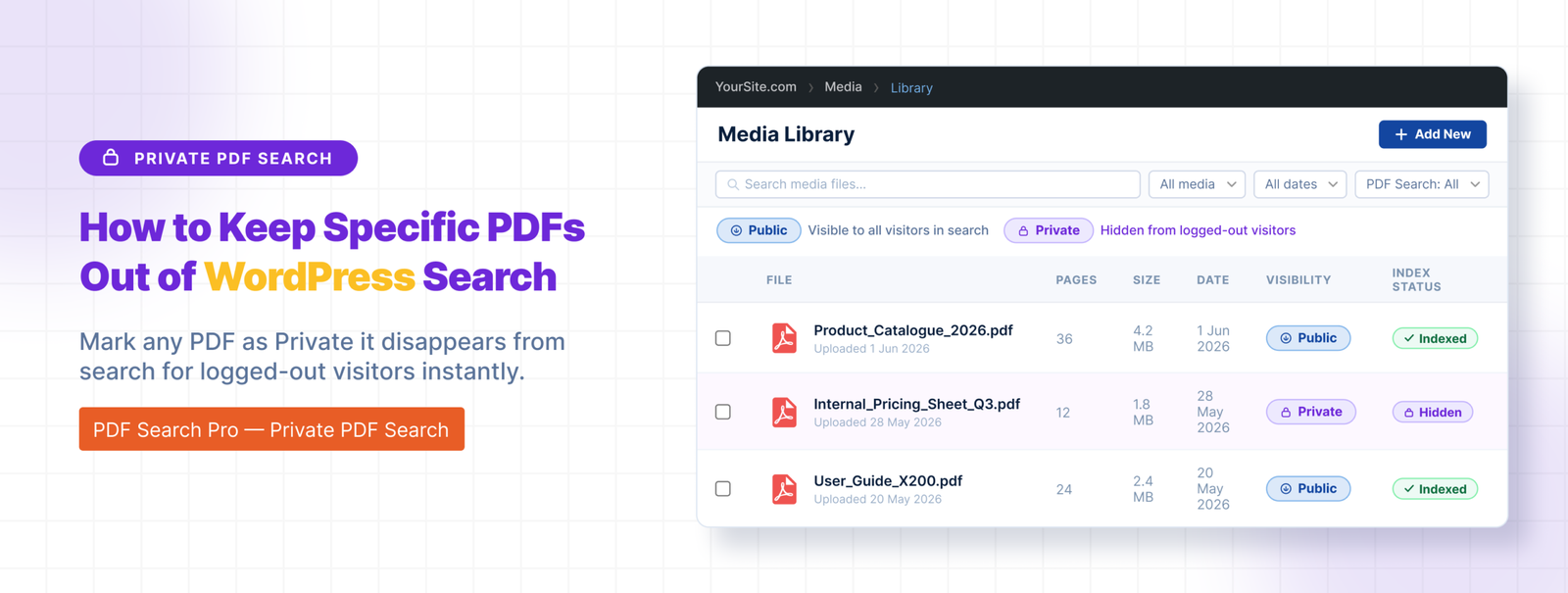
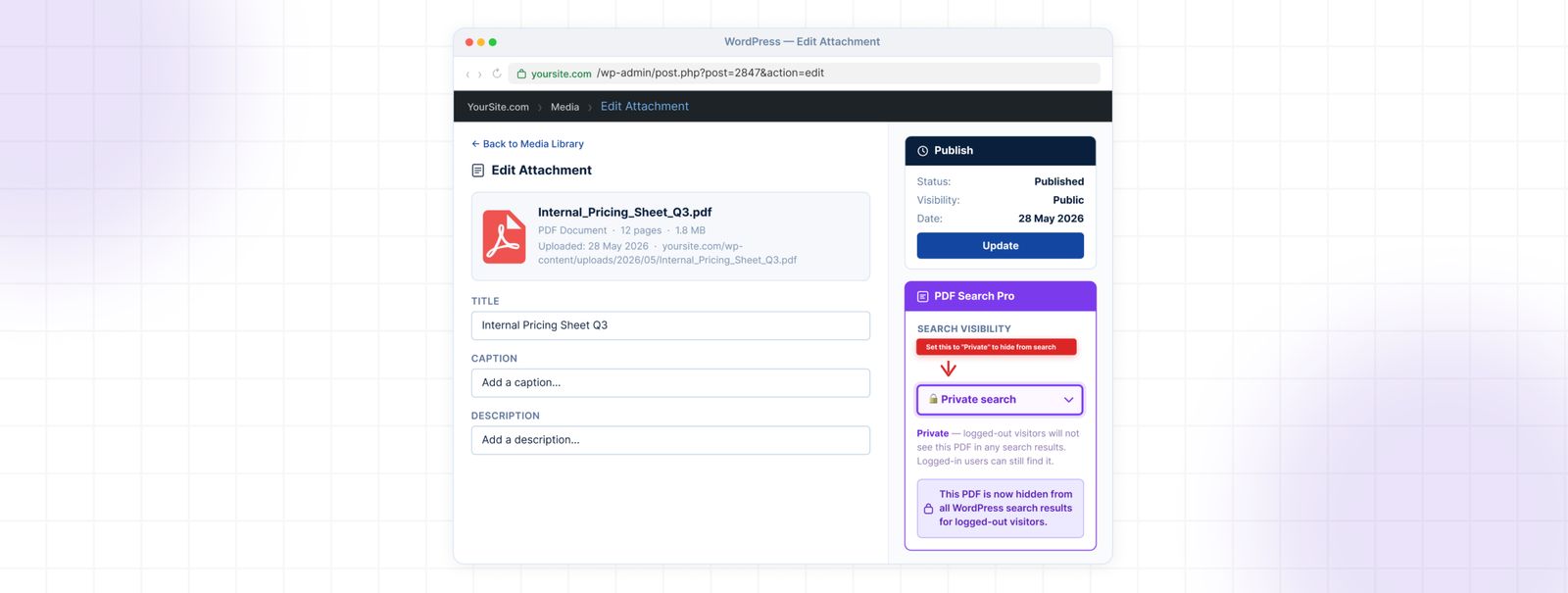
Private PDF Search keeps the PDF indexed but hides it from logged-out visitors. Logged-in users can still find it. Use this for member resources, staff documents, and restricted content that registered users need access to.

Exclude is available in the free plugin. Private PDF Search requires Pro or Agency.

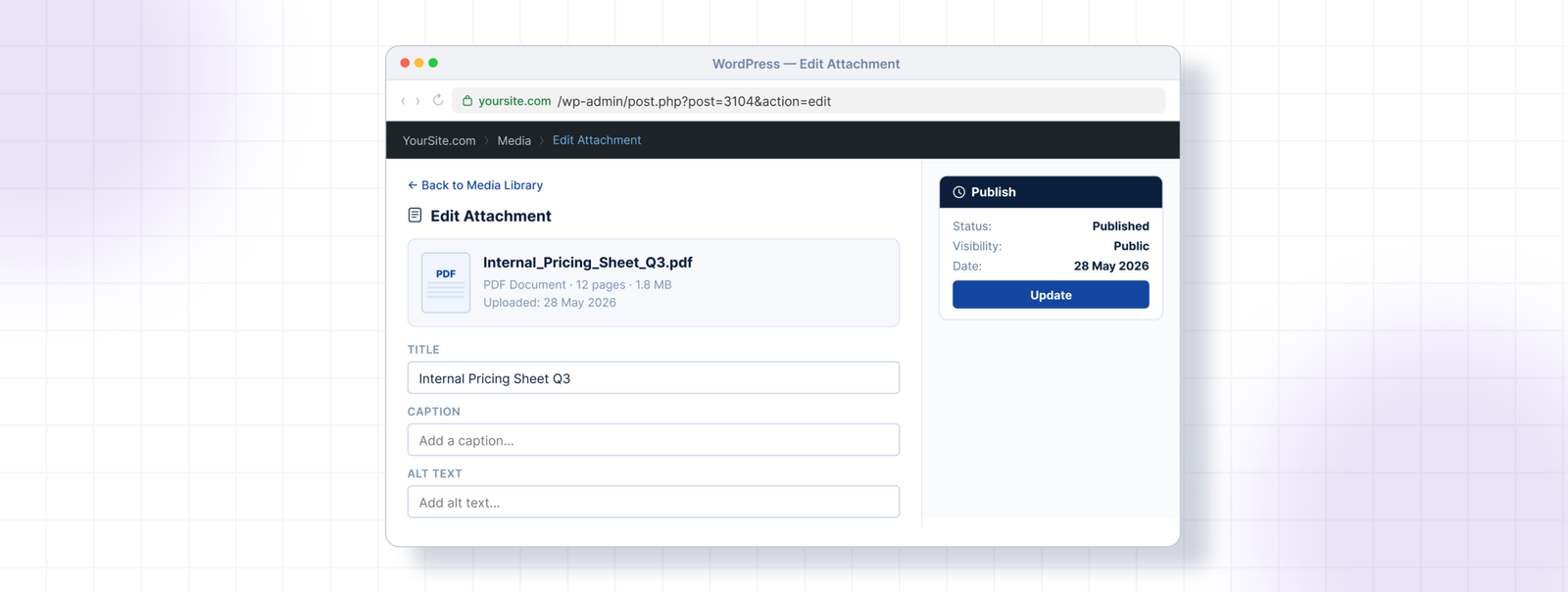
To exclude a PDF: open it in Media β†’ Library, find the WebEquipe PDF Search panel, click Exclude.

To set a PDF to private: open it in Media β†’ Library, set Search Visibility to Private, save.

Keeping PDFs Private or Out of Search

Full guide: How to Keep Specific PDFs Out of WordPress Search β†’

Managing Your PDF Library

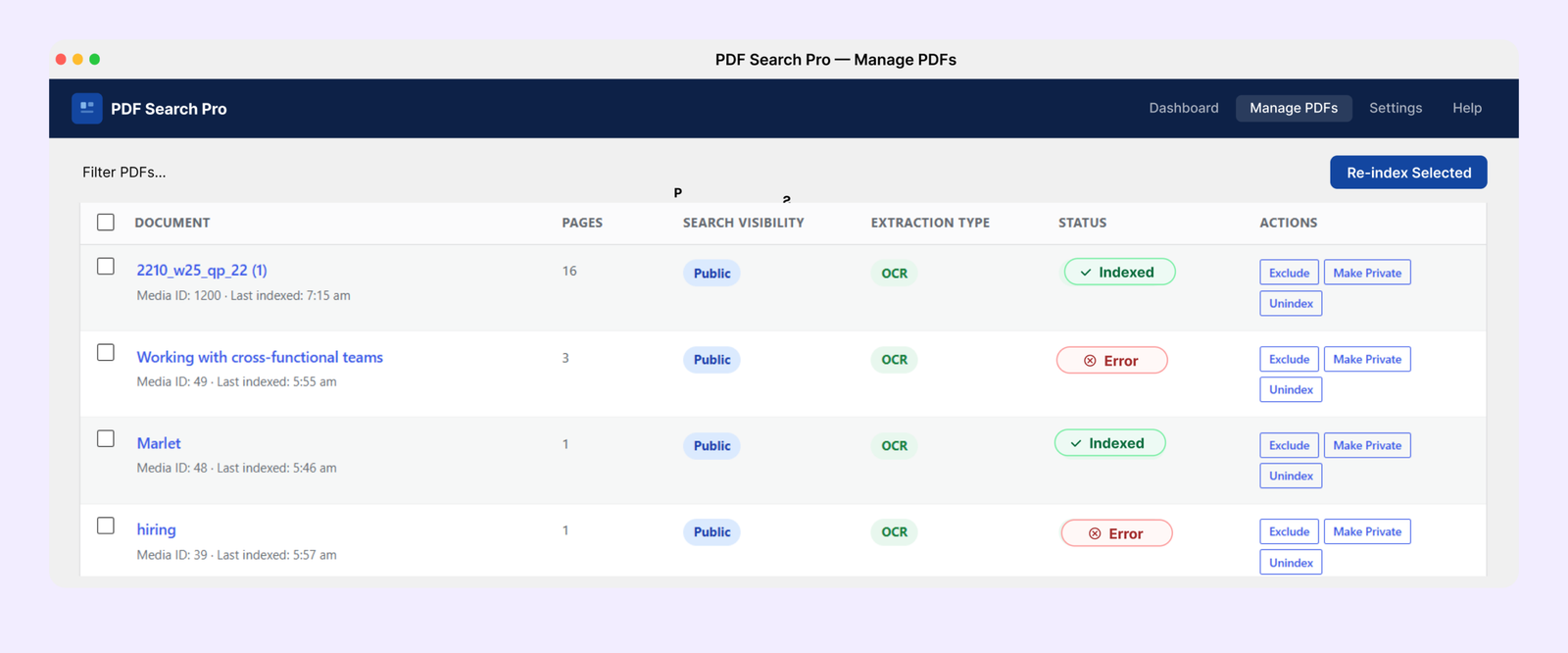
PDF Search β†’ Manage PDFs gives you a full picture of everything in your library with filtering, bulk actions, and per-file controls.

Every PDF has a status badge:

  • Indexed β€” in search, working correctly
  • Not Indexed β€” in your library but not yet processed
  • Processing β€” currently being indexed
  • Scheduled β€” queued for background processing
  • Error β€” indexing failed, usually scanned or corrupted
  • Excluded β€” deliberately removed from search

πŸŸ₯ Background processing

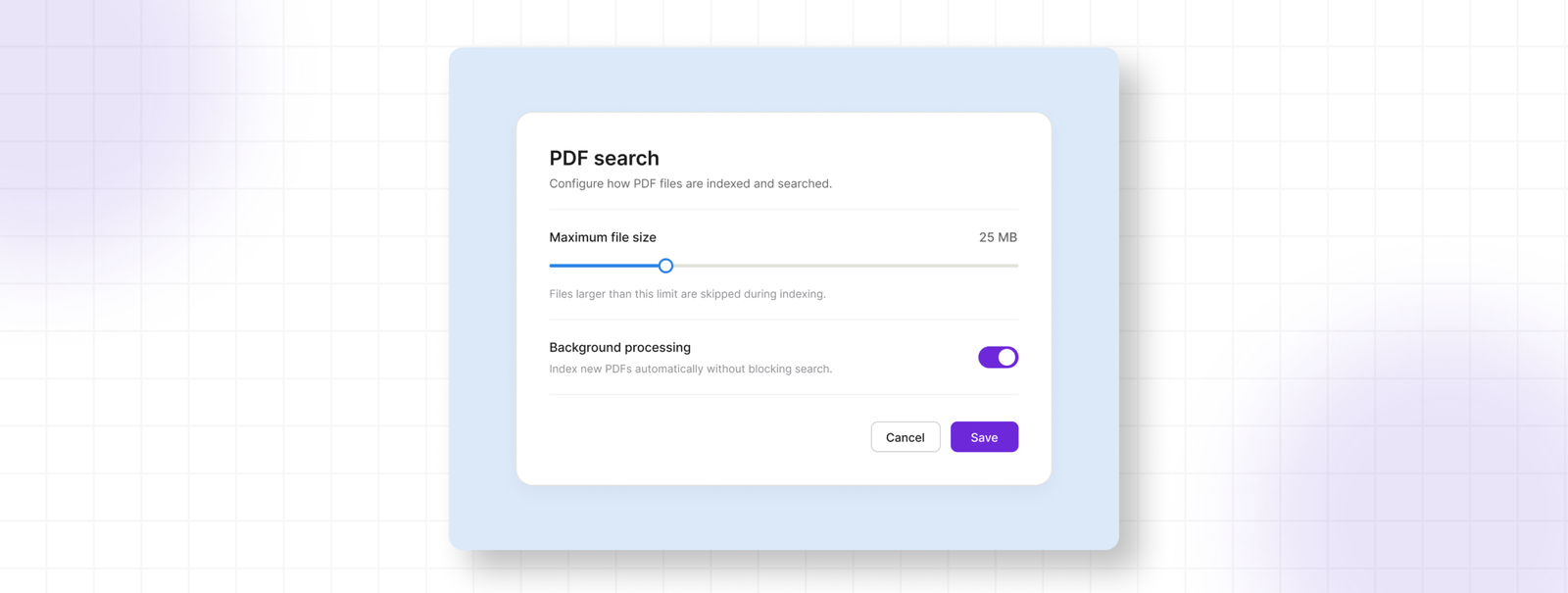
For large PDFs or libraries with many files, Background Processing moves indexing into a WP-Cron queue so it runs independently of the browser. Without it, a very large PDF can hit PHP execution limits mid-process and fail.

Enable it in PDF Search β†’ Settings β†’ Advanced β†’ Enable Background Processing. Once on, PDFs above the page index threshold are automatically queued as Scheduled and processed in batches. You can leave the admin and come back β€” the queue runs on its own.

The batch size and page threshold are configurable in the same settings screen if you need to tune performance for your hosting environment.

πŸŸ₯ Bulk actions

From Manage PDFs you can select multiple files and run: Index, Index OCR, Unindex, Exclude, Include, Make Public, Make Private. Useful for processing a filtered subset β€” for example, selecting all Error PDFs and bulk running Index OCR.

Index Activity

PDF Search β†’ Index Activity is the full processing log β€” every indexing run recorded with timestamp, file name, status, page count, processing method, and duration.

πŸŸ₯ Reading the log

Each row represents one indexing run for one file. The columns tell you:

  • File β€” which PDF was processed
  • Status β€” Completed, Processing, Failed, or Cancelled
  • Method β€” Native, OCR, or Partial (mixed PDF)
  • Pages β€” how many pages were indexed in that run
  • Time β€” when the run started and how long it took

If a run shows Failed, clicking the detail icon opens the full error message β€” exactly what went wrong and why. This is the fastest way to diagnose a stubborn file.

πŸŸ₯ Statuses explained

Completed β€” processed successfully, content is indexed and searchable.

Processing β€” currently running. If a file stays in Processing for an unusually long time, it may have stalled β€” the Dashboard status indicator will flag this.

Failed β€” indexing did not complete. The error detail explains why β€” scanned file, corrupted PDF, timeout, file too large, password protected.

Cancelled β€” a run was interrupted, either manually or because a newer run was triggered for the same file.

πŸŸ₯ Export log

The full activity log can be exported as a CSV from the top of the Index Activity page. Useful for auditing a large library, sharing with support, or keeping records of when specific documents were indexed.

Export Log

Search Results β€” What Visitors See

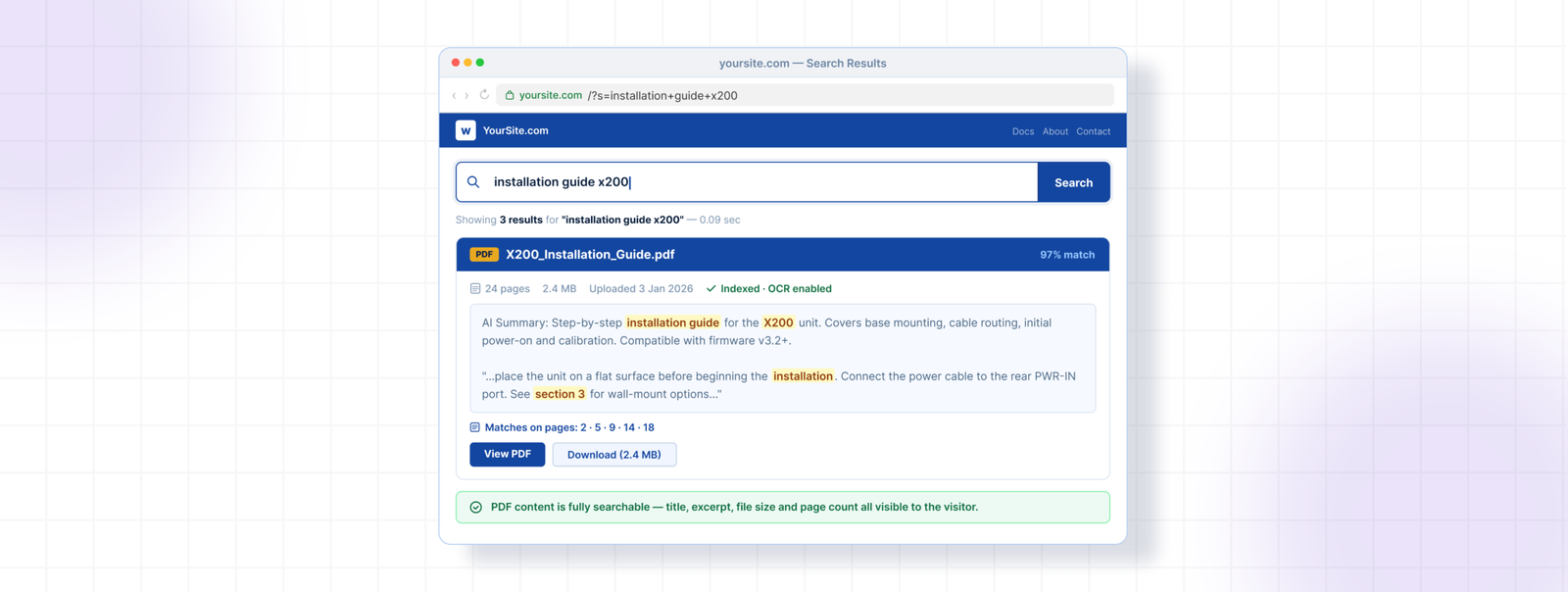
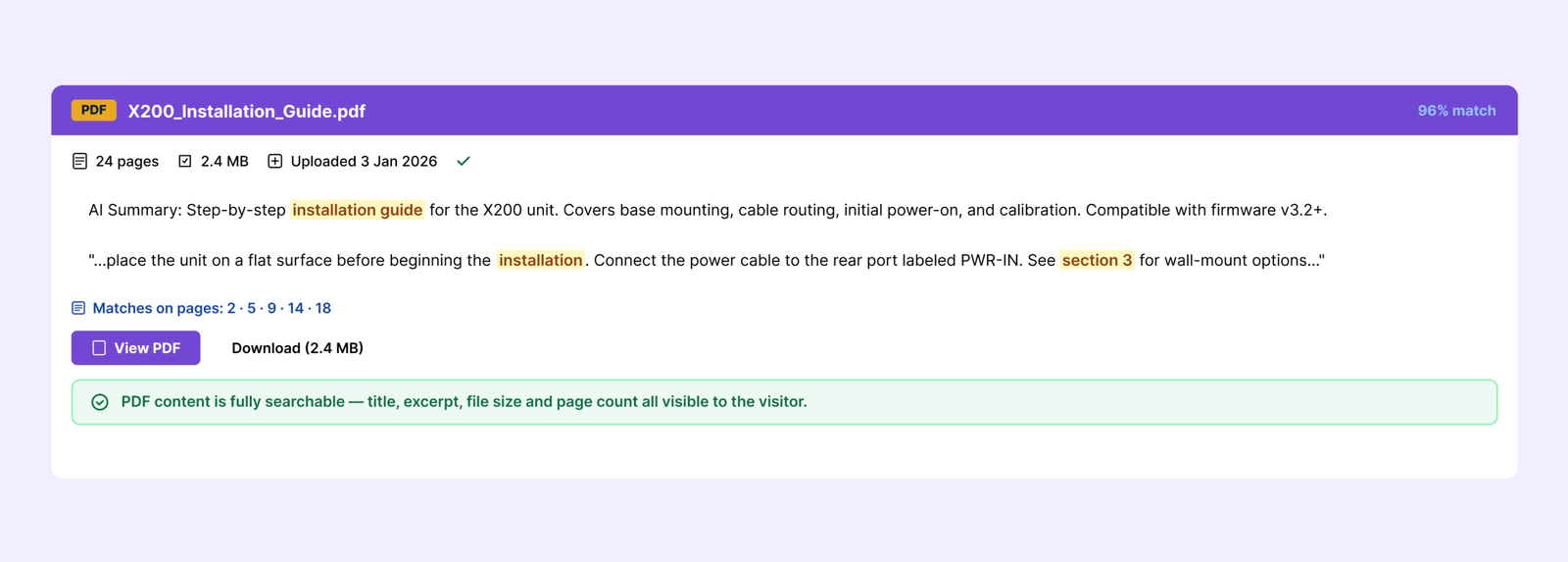
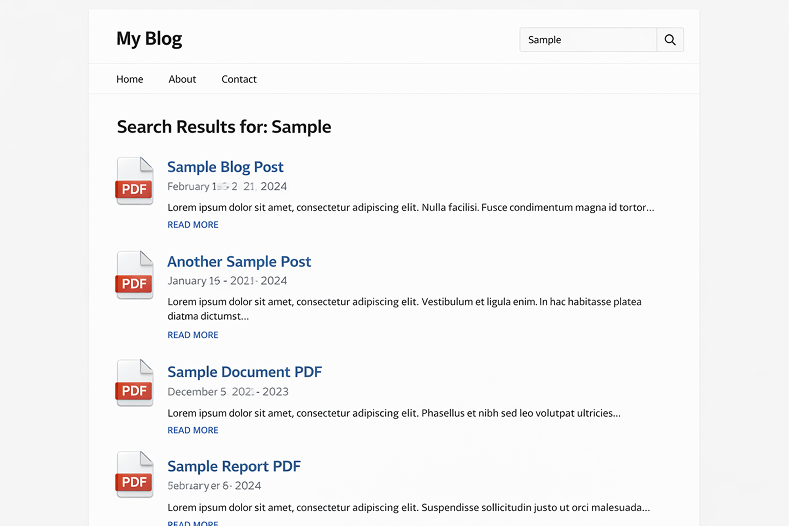
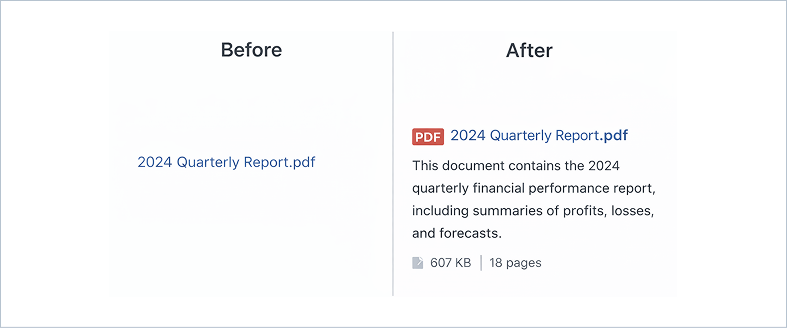
When a PDF appears in search results, visitors see the PDF title, a short excerpt from the best-matching page inside the document, file size, page count, and a direct link to open or download the file.

You can control which elements appear in PDF Search β†’ Settings β†’ Search Display Options. Icon, file size, page count, author, date, and excerpt can each be toggled independently.

Filenames become the displayed title in results. annual-report-2025.pdf is a lot more useful in search results than doc-v3-FINAL-revised.pdf β€” worth cleaning up filenames before indexing if yours are messy.

Common Problems and Fixes

PDFs not showing in search after indexing

Check that Enable Search Integration is on in PDF Search β†’ Settings. Confirm the specific PDF isn’t Excluded.

Indexing keeps timing out

Enable Background Processing in PDF Search β†’ Settings β†’ Advanced. Large files need more time than a standard browser request allows.

PDFs show as Error

Almost always means the file is scanned. Filter by Error in Manage PDFs, select the files, run Index OCR. Requires a paid plan.

PDF appears in results but shows no excerpt

Text extraction returned very little content. Open the file and try to select text β€” if you can’t, it’s scanned.

Status stuck on Processing

The indexing job may have stalled. Go to Dashboard and check the cron status indicator. If cron is showing as disabled or broken, that’s the root cause.

Private PDFs showing in public search after licence expires

Private visibility is enforced by an active licence. Renewing restores the restriction immediately.

Free vs Pro β€” When to Upgrade

The free plugin covers text-based PDFs, auto-indexing, WordPress search integration, the shortcode form, Media Library management, and the full Index Activity log. For a lot of sites that’s everything they need.

Upgrade when:

  • You have scanned PDFs showing as Error β€” OCR is the only fix, it’s not in the free plugin
  • You need PDFs restricted to logged-in users β€” Private PDF Search requires Pro or Agency
  • You’re managing multiple client sites β€” Agency plan covers unlimited sites with white-label mode
Soft CTA

The free plugin is on WordPress.org. Pro and Agency plans are at webequipe.com/pdf-search.

Frequently Asked Questions

Does WordPress search inside PDFs by default?

No. WordPress only searches post and page content. PDF files are stored as attachments β€” WordPress reads the filename but never the text inside. A dedicated plugin is required.

Will PDF search slow down my site?

No. Indexing runs in the background. Search queries run against the stored index, not the original files. No impact on page load times for visitors.

How many PDFs can it handle?

No hard limit. Sites with several hundred PDFs run fine. Large libraries index in batches so nothing times out.

What happens to my indexed content if I uninstall the plugin?

By default nothing is deleted β€” your WordPress database keeps the index tables. If you want a full clean removal, enable Delete Data on Uninstall in PDF Search β†’ Settings β†’ Advanced before deactivating. This removes all plugin tables, options, and post meta on uninstall.

Does it work on WordPress Multisite?

Yes. Each site in a network has its own separate index, settings, and Index Activity log.

What PDF types are supported?

Text-based and mixed PDFs work with the free plugin. Scanned PDFs require OCR (paid plans). Password-protected and corrupted PDFs can’t be indexed by any method.

Does it work with my theme?

Yes. It hooks into WordPress’s native search, so it works with any theme using standard search. The shortcode form is theme-independent.

Where to Go From Here

The free plugin setup above covers the basics. Most sites are running in under ten minutes.

For specific situations, these guides go deeper:

How to Make Scanned PDFs Searchable in WordPress β†’
How to Keep Specific PDFs Out of WordPress Search β†’

How to Keep Specific PDFs Out of WordPress Search Results

How to Keep Specific PDFs Out of WordPress Search Results

Not every PDF on your site should be searchable by everyone. Internal documents, draft files, member-only resources, staff handbooks β€” these need to stay out of public search results.

There are two ways to handle this in WebEquipe PDF Search, and they solve different problems. Using the wrong one causes its own issues, so it’s worth knowing the difference before you start.

Exclude vs Private β€” What’s the Difference

Exclude removes a PDF from search entirely. Nobody finds it β€” logged in or not. The file stays in your Media Library, but it’s never indexed and never appears in any search result. Even if you run Re-index All PDFs, excluded files get skipped.

Private PDF Search keeps the PDF indexed but hides it from logged-out visitors. Logged-in users can still find it through search. The file is fully searchable for your members, subscribers, or staff β€” just invisible to anyone who hasn’t signed in.

The right choice depends on what you’re trying to do:

πŸŸ₯ Draft document that isn’t ready yet β†’ Exclude

πŸŸ₯ Outdated version you’re keeping for records β†’ Exclude

πŸŸ₯ Internal file that should never be public β†’ Exclude

πŸŸ₯ Member handbook your subscribers need to find β†’ Private

πŸŸ₯ Staff policy document for logged-in employees β†’ Private

πŸŸ₯ Client resource restricted to registered users β†’ Private

How to Exclude a PDF

Exclude is available in the free plugin.

Go to Media β†’ Library and open the PDF you want to exclude. In the WebEquipe PDF Search panel on the right side of the attachment screen, click Exclude.

The PDF is removed from the index immediately. If it was already showing in search results, it disappears. Running Re-index All PDFs in future will skip it automatically.

To reverse it, go back to the same panel and click Include, then re-index the file.

How to Set a PDF to Private

Private PDF Search requires a Pro or Agency licence.

Go to Media β†’ Library and open the PDF. In the WebEquipe PDF Search panel, set Search Visibility to Private and save.

From that point, the PDF is invisible in search results for anyone not logged in. Logged-in users find it normally.

To confirm it’s working, open a private browsing window and search for the document title or a phrase from inside it. It shouldn’t appear. Log in and search again β€” it should show up.

Setting a Default Visibility for New PDFs

If most of your new uploads should be private by default, you can set that in PDF Search β†’ Settings. Under Default Search Visibility, switch from Public to Private.

This means every new PDF you upload starts as Private. You can still change individual files to Public whenever needed.

What Private PDF Search Does Not Do

Private PDF Search is binary β€” logged in or logged out. It doesn’t restrict by user role, membership level, or subscription tier. A logged-in subscriber sees the same private PDFs as a logged-in administrator.

If you need per-role restrictions β€” showing certain PDFs only to specific membership levels or user groups β€” that’s on the roadmap but isn’t in the current version. For now, the combination of Exclude and Private covers most use cases.

Private PDF Search is available on Pro and Agency plans. The free plugin includes Exclude only.

View Pricing Plans β†’


Frequently Asked Questions

Does excluding a PDF delete the file?

No. Exclude only affects search indexing. The file stays in your Media Library and is still accessible via its direct URL. If you want to remove the file entirely, you’d delete it from the Media Library separately.

Can someone access a private PDF directly if they have the URL?

Yes. Private PDF Search only controls whether the file appears in search results. It doesn’t protect the file URL itself. If someone has a direct link to the PDF they can still open it. For full access control on the file itself, you’d need a file protection plugin alongside this.

Can I bulk set multiple PDFs to Private at once?

Yes. Go to PDF Search β†’ Manage PDFs, select the files you want to restrict, and use the bulk action Make Private.

What happens to private PDFs if my Pro licence expires?

The PDFs stay in your library and stay indexed, but the Private visibility setting stops being enforced. They become visible in search results to everyone until the licence is renewed.

Can I make all new uploads Private by default?

Yes β€” set Default Search Visibility to Private in PDF Search β†’ Settings. Individual files can still be switched to Public as needed.

The Right Tool for the Job

If a PDF shouldn’t be searchable by anyone, use Exclude. If it should be searchable only by logged-in users, use Private. Both are available from the same attachment panel in your Media Library β€” Exclude in the free plugin, Private in Pro.

If you haven’t set up PDF search yet:

How to Make WordPress Search Inside PDF Files β†’

Why WordPress Search Cannot Find Text Inside PDFs (and How to Fix It)

Why WordPress Search Cannot Find Text Inside PDFs (and How to Fix It)

Why WordPress Cannot Find Text Inside PDFs

What’s Going Wrong β€” and How to Fix It

πŸŸ₯ No PDF search plugin installed

Without a dedicated plugin, WordPress has no way to index PDF content. There’s nothing built in to do it.
Install WebEquipe PDF Search from Plugins β†’ Add New. It’s free. Once active, go to PDF Search β†’ Dashboard and click Re-index All PDFs.

That one step indexes everything in your Media Library and makes the content searchable. Test it straight after search for a phrase you know is inside one of your PDFs.

πŸŸ₯ PDFs were uploaded before the plugin was installed

πŸŸ₯ Search integration is turned off

Some PDF search plugins index content but don’t automatically push results into WordPress search. There’s usually a separate toggle for this.
Go to PDF Search β†’ Settings and confirm Enable Search Integration is on. Without it, your PDFs are indexed but invisible in search results.

πŸŸ₯ A specific PDF has a status problem

If most PDFs are working but one or two aren’t, the issue is with those files specifically β€” not the plugin setup.
Go to PDF Search β†’ Manage PDFs and look at the status badge on each file.

 A specific PDF has a status problem
  • Not Indexed β€” hasn’t been processed yet. Click Index.
  • Excluded β€” deliberately removed from search. Click Include if it should be searchable.
  • Error β€” indexing failed. Usually means the file is scanned, corrupted, or password-protected.

πŸŸ₯ The file is too large and timed out

Very large PDFs can hit PHP execution time limits mid-process. Indexing stops partway through and the file ends up in an error state.
Go to PDF Search β†’ Settings β†’ Advanced and enable Background Processing. This moves indexing into a queue that runs independently β€” large files get the time they need without hitting server limits.

πŸŸ₯ The PDF is a scanned document

Scanned PDFs β€” documents that were printed and photographed, or run through a scanner β€” are images packaged as PDF files. There’s no text layer inside. No standard plugin can read them.
Open the PDF in your browser and try to highlight some text. If your cursor just draws a box over the image without selecting anything, it’s scanned.

Soft CTA

The free plugin can’t index scanned PDFs β€” that requires OCR. PDF Search Pro handles scanned documents automatically on upload, no extra setup needed.

Full guide: How to Make Scanned PDFs Searchable on WordPress β†’

Frequently Asked Questions

I installed a plugin but my old PDFs still don’t show up.

Some PDFs index fine but others show Error. What’s wrong with them?

My PDFs are indexed but still not appearing in search results.

Can WordPress search inside password-protected PDFs?

Still Not Working?

Run through the fixes above in order β€” most cases resolve at the first or second step. If you’re stuck on scanned PDFs showing as Error, that’s not something the free plugin can solve. It genuinely needs OCR, and PDF Search Pro handles that without any extra setup.

If you’re starting fresh and want the full setup walkthrough:

How to Make WordPress Search Inside PDF Files β†’

How to Make WordPress Search Inside PDF Files (2026 Guide)

How to Make WordPress Search Inside PDF Files (2026 Guide)

You upload a PDF to WordPress. A visitor comes to your site, searches for something they know is in that document β€” and gets nothing back.
No results. The file is sitting right there in your Media Library. The answer they need is on page three. WordPress just has no idea it exists.
We hear this constantly from site owners. People who’ve done everything right β€” uploaded their documents, organised their library, built a decent site β€” and still can’t figure out why search ignores their PDFs entirely.
The reason is straightforward once you know it. And so is the fix. Here’s both.

Why WordPress Search Ignores PDF Content

WordPress search works by looking at your posts and pages β€” the content you type directly into the editor. When you upload a PDF, WordPress stores the filename, a URL, and some basic file details. That’s all.

It never opens the file. It never reads what’s inside.

So when someone searches your site for “refund policy” or “installation guide” or “chapter three” β€” and those words only exist inside a PDF β€” WordPress comes back empty-handed. Not because the content isn’t there, but because it was never told to look inside PDF files.

This isn’t a bug. It’s just a gap that WordPress was never designed to fill.

What You Actually Need

To make WordPress search inside PDF files, you need a plugin that does two things.

First, it needs to extract the text from your PDFs. This means actually opening each file and reading the words inside β€” something WordPress doesn’t do on its own.

Second, it needs to store that text in a searchable index so that when someone types a query, it can match against that content.

A PDF search plugin fills that gap. There are a few options out there, but the simplest purpose-built one for WordPress is WebEquipe PDF Search. The free version handles standard PDFs and gets them into WordPress search in a few minutes. The Pro version adds OCR for scanned documents and private search for member-only content β€” more on those at the end.

Before You Start β€” Check Your PDFs

Not all PDFs are the same, and this matters before you install anything.

Text-based PDFs are documents created digitally β€” exported from Word, Google Docs, InDesign, or any document editor. These contain an actual text layer. A PDF search plugin can read them without any issues.

Scanned PDFs are photos of physical pages. Someone put a piece of paper on a scanner and saved the image as a PDF. There’s no text layer β€” just pixels. A standard PDF search plugin can’t read these.

How to tell the difference: open the PDF in your browser and try to highlight some text. If you can click and drag to select words, it’s text-based. If clicking just draws a box with nothing selected, it’s scanned.

The free plugin handles text-based PDFs well. If you have scanned documents, you’ll need OCR β€” covered at the end.

How to Make WordPress Search Inside PDF Files

Step 1 β€” Install WebEquipe PDF Search

Go to Plugins β†’ Add New in your WordPress dashboard. Search for WebEquipe PDF Search. Install it and activate it.

Once it’s active, you’ll see a PDF Search item in your WordPress admin sidebar.

Step 2 β€” Check Your Settings

Head to PDF Search β†’ Settings. You don’t need to change much here, but confirm two things:

  • Enable PDF Indexing is turned on β€” this makes sure new PDFs you upload get indexed automatically going forward.
  • Enable Search Integration is turned on β€” this is what makes PDFs show up alongside posts and pages in your site’s normal search results.

If you’d rather keep PDF results separate from your posts and pages, you can leave Search Integration off and use the shortcode instead (Step 5).

Step 3 β€” Index Your Existing PDFs

The plugin won’t automatically pick up PDFs you’ve already uploaded. You need to run indexing once for your existing library.

Go to PDF Search β†’ Dashboard and click Re-index All PDFs.

The plugin will work through every PDF in your Media Library and extract the text. For a large library this runs in batches in the background β€” you can leave it and come back. Check the progress in PDF Search β†’ Index Activity.

Step 4 β€” Test It

Once indexing is done, search for a word or phrase you know appears inside one of your PDFs.

It should now appear in results β€” with the PDF title, a short excerpt from the matching page, and basic file details like size and page count.

If a PDF isn’t showing up, go to PDF Search β†’ Manage PDFs and check its status. Anything showing as Error or Not Indexed needs attention β€” the status badge tells you exactly why.

Step 5 β€” Add a PDF-Only Search Form (Optional)

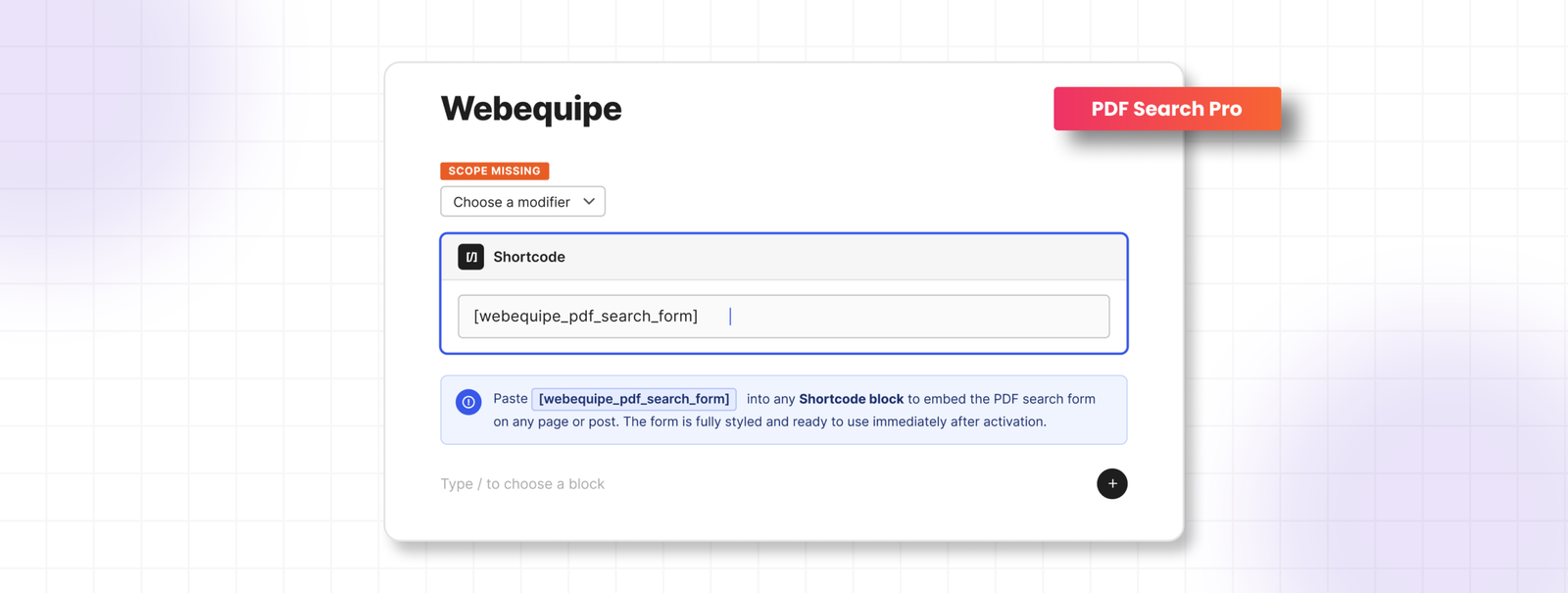
If you want a dedicated search box that only searches your PDFs β€” useful for help centres, resource libraries, or document portals β€” add this shortcode to any page:

Visitors get a search box that only looks at your PDFs β€” nothing else on the site, just the documents.

Soft CTA

The free plugin covers everything above at no cost. If you’re dealing with scanned documents or need to restrict certain PDFs to logged-in users only, that’s what PDF Search Pro is built for.

Best Practices

Filenames become titles. In search results, the PDF’s filename is what gets displayed as the title. annual-report-2025.pdf is a lot more useful than doc-final-v2-FINAL.pdf. It’s worth cleaning up filenames before you index.

The index doesn’t update automatically when you replace a file. If you swap out a PDF for a newer version, you need to manually re-index that file. Go to it in your Media Library and click Re-index.

Use Exclude for PDFs that shouldn’t be searchable. Draft documents, internal files, outdated versions β€” use the Exclude option on these. The file stays in your Media Library, it just won’t be indexed or show up in any search results.

Large files take longer. The default size limit is 50MB. You can raise this in settings up to 500MB. Very large PDFs are processed in background batches automatically so they don’t time out.

Common Problems and How to Fix Them

PDFs still aren’t showing up after indexing

Check that Enable Search Integration is on in PDF Search β†’ Settings. Also confirm the specific PDF isn’t set to Excluded.

Indexing keeps stopping or timing out

Go to PDF Search β†’ Settings β†’ Advanced and turn on Background Processing. This moves indexing out of the browser and into a background queue so it doesn’t need to finish in a single page load.

Some PDFs index fine but others show Error

This almost always means those PDFs are scanned β€” image-only files with no text layer. The free plugin can’t read them. You’ll need OCR for those.

PDFs show in results but with no excerpt

Usually means the text extraction returned very little content. Try opening the PDF and selecting some text. If you can’t highlight anything, it’s likely a scanned file.

When the Free Plugin Isn’t Enough

The free plugin handles text-based PDFs well. But two situations need the Pro version.

You have scanned PDFs

Archived reports, meeting minutes, old handbooks, government forms β€” these are all image-only files. The free plugin marks them as Error because there’s no text to extract.

WebEquipe PDF Search Pro includes OCR powered by Google Vision. Turn it on and scanned PDFs get processed automatically when you upload them β€” the text gets pulled from the images and indexed the same way a normal PDF would be. Nothing extra to set up on your end.

How to Make Scanned PDFs Searchable on WordPress β†’

You need some PDFs visible only to logged-in users

The free plugin’s Exclude feature removes a PDF from search entirely. But sometimes you want a document findable β€” just not by everyone. Member handbooks, staff policies, client resources.

Private PDF Search (available on Pro and Agency plans) lets you mark individual PDFs as Private. They stay indexed but disappear from results for anyone who isn’t logged in. Logged-in users find them normally.

Frequently Asked Questions

Does WordPress search inside PDFs by default?

No β€” and this surprises a lot of people. WordPress only searches content you’ve typed directly into posts and pages. PDF files are stored as attachments. WordPress knows the filename exists but has never looked inside it. That’s what the plugin fixes.

Will this slow down my site?

Not in any noticeable way. Indexing happens in the background, either when a PDF is uploaded or when you manually kick it off. When someone searches, the query runs against the stored index β€” not the original files. Your visitors won’t feel a thing.

What about PDFs I’ve already uploaded?

Those won’t be picked up automatically. You run Re-index All PDFs once from the Dashboard after installing the plugin and it processes everything in your library. New uploads after that are handled automatically.

Can it handle password-protected PDFs?

No. If a PDF is locked, the plugin can’t get to the text inside it. Those files need to be unlocked before they can be indexed.

How many PDFs can it handle?

No hard limit. We’ve seen it work fine on sites with several hundred PDFs. Large libraries just run in batches so nothing times out.

Does it work with my theme?

Yes. It plugs into WordPress’s native search, so any theme using standard WordPress search will show PDF results. The shortcode form works independently of your theme entirely.

Getting Your PDFs Into Search

If your site has text-based PDFs, you’re ten minutes away from having them fully searchable. Install the free plugin, run Re-index All PDFs once, and your documents will start showing up in results straight away.

If you’re dealing with scanned files or need to keep certain documents restricted to logged-in users, that’s exactly what PDF Search Pro is built for.

View WebEquipe PDF Search plans β†’

Why Your WordPress Search Can’t Find Your PDFs (And It’s Costing You Visitors)

Why Your WordPress Search Can't Find Your PDFs (And It's Costing You Visitors)

You know that feeling, right?
A visitor emails you: “Hey, I can’t find your pricing guide on your website.”
You pause. Because you know it’s there. You uploaded it yourself three weeks ago. It’s a beautiful 12-page PDF sitting right in your Media Library.
So you go to your own site and search for it.
Nothing.
You try different keywords. Still nothing. You end up manually digging through your Media Library, finding the file, and sending them the direct link.
Here’s the thing that’ll really annoy you: WordPress search completely ignores what’s inside your PDF files.


The Problem Nobody Talks About

WordPress has fantastic search functionality. It can find a single word buried in a blog post from 2019. It’ll surface that random product description you wrote at 2am. It’s actually pretty impressive.
But PDFs? Nope. WordPress looks at the filename and stops there.
So if you named your file something like final – version – 2 – UPDATED. pdf (we’ve all done it), good luck having anyone find it through search.


The Problem Nobody Talks About search

Think about what this actually means for your site:
If you run a documentation site, your users are searching for answers that are literally on your websiteβ€”they just can’t find them.
If you’re a school or university, students are looking for syllabi, assignment guides, or course materials that exist but are invisible to search.
If you manage an internal knowledge base, your team is wasting time asking questions that have already been answered in those HR handbooks, policy documents, or training guides you uploaded.
The content is there. The answers exist. But it’s like having a library where none of the books are in the catalog.


Why This Happens (The Boring Technical Bit)

Here’s what’s going on under the hood:
WordPress search works by indexing text content from your posts, pages, and custom post types. When you hit that search button, it’s looking through a database of actual words.
PDFs are files. Binary data. WordPress sees them the same way it sees image filesβ€”as attachments with metadata (filename, upload date, etc.) but not as searchable content.
To actually search inside a PDF, something needs to:

  1. Extract the text from the PDF file
  2. Store that text somewhere searchable
  3. Include it in search results
  4. Show relevant excerpts so people know what they’re clicking on

WordPress doesn’t do this out of the box. And honestly, why would it? Not everyone uploads PDFs. It’s not a universal need.
But if you do upload PDFsβ€”especially lots of themβ€”this is a massive blind spot.

Why This Happens (The Boring Technical Bit) in WordPress

What People Usually Try (And Why It Doesn’t Really Work)

When you first discover this problem, the solutions seem obvious:
“I’ll just rename my files with better keywords!”
Okay, but that only helps if someone searches for those exact words in the filename. And you can’t fit much information into a filename before it gets ridiculous: employee-handbook-2024-vacation-policy-sick-leave-benefits-insurance-401k.pdf
“I’ll add descriptions in the Media Library!”
Some themes and plugins let you add descriptions to media files. Great! Except… most WordPress search implementations don’t actually search media descriptions. You’re basically adding metadata that nothing reads.
“I’ll just create posts and link to the PDFs!”
This works! But now you’re maintaining duplicate content. Every time you update a PDF, you need to remember to update the corresponding post. Plus, you’re adding extra clicksβ€”people have to find the post, then click through to the PDF.

None of these are actual solutions. They’re workarounds.

What People Usually Try (And Why It Doesn't Really Work)

What Actually Works: Making PDFs Searchable

The real solution is extracting the text content from your PDFs and making it searchable, just like your blog posts.
Here’s what that looks like in practice:
When someone uploads a PDF, the system automatically:

  • Opens the PDF and extracts all the readable text
  • Stores that text in your database
  • Indexes it for search (just like post content)
  • Links it back to the original PDF file

Then when someone searches your site:

  • They get results from posts, pages, and PDFs
  • Search results show actual excerpts from inside the PDF
  • They can see if it’s relevant before downloading
  • Everything works through your normal WordPress search

No manual work. No duplicate content. No remembering to update things.

What Actually Works: Making PDFs Searchable - WordPress media

The Privacy Question Nobody Asks (But Should)

Here’s something most people don’t think about until it’s too late:
What about PDFs you don’t want people to find through search?
Maybe you have:

  • Internal financial documents that are uploaded but should stay private
  • Draft versions of public documents
  • Sensitive HR files
  • Client work that’s not meant to be discoverable

If you’re indexing everything, you need a way to exclude specific files.
This is where most “solutions” fall short. They’re all-or-nothing. Either everything’s searchable or nothing is.
What you actually need is control: “Index this, but not that. And if I re-index everything later, still skip the ones I marked as private.”

The Privacy Question Nobody Asks (But Should) searchable

What This Looks Like for Real Sites

Let me give you a real scenario:
A university department has 200+ PDFs on their site:

  • Course syllabi
  • Assignment guidelines
  • Reading lists
  • Research papers
  • Administrative forms

Before making PDFs searchable: Students email the department assistant 15-20 times per week asking where to find documents. The assistant spends hours responding with direct links.
After making PDFs searchable: Students find what they need through site search. Email requests drop to 2-3 per week (and those are usually for things that genuinely don’t exist on the site yet).
The content didn’t change. The documents were always there. The only difference is that now they’re findable.

What This Looks Like for Real Sites

The Setup (Easier Than You Think)

Here’s what you’d need to do to make this work:

  1. Install a PDF search solution – Something that handles the text extraction and indexing automatically
  2. Run initial indexing – Process your existing PDFs (one-time thing)
  3. Set exclusions – Mark any private PDFs that shouldn’t be searchable
  4. Done – New PDFs get indexed automatically on upload

That’s it. No ongoing maintenance. No manual updates.
The whole setup takes maybe 5 minutes. The initial indexing depends on how many PDFs you have, but it runs in the backgroundβ€”you can just let it do its thing.

The Setup (Easier Than You Think) My blog

Things to Look For in a Solution

If you’re evaluating options, here’s what matters:
Automatic indexing – You don’t want to manually trigger indexing every time you upload a file. It should just happen.
Exclusion controls – You need to be able to mark specific PDFs as “don’t index this” and have that setting stick even during bulk re-indexing.
Search integration – PDF results should appear in your normal WordPress search, not in some separate search interface.
Background processing – Large PDFs (50MB+) should be processed in the background so they don’t slow down your site or timeout.
File size support – Some solutions cap out at 10-20MB. If you have larger technical documents or image-heavy PDFs, you need something that handles bigger files.
Actual content extraction – This should go without saying, but the solution needs to extract the actual text, not just index metadata. Some plugins claim to make PDFs “searchable” but really just make the filenames searchable.


The Bottom Line

If you have PDFs on your WordPress site, they should be searchable. Period.
It’s not a nice-to-have feature. It’s basic functionality. Your visitors expect it. Your content deserves to be found.
The good news? This isn’t a hard problem to solve anymore. You don’t need to hire a developer or mess with complicated code.
You just need the right tool for the job.

The Bottom Line for pdf search

Make Your PDFs Searchable Today

WebEquipe PDF Search is a free WordPress plugin that automatically indexes your PDF content and integrates it with your site’s search. Install it, click one button to index your existing PDFs, and you’re done. Your visitors will finally be able to find the documents they’re looking for.

Download free from WordPress.org β†’