
๐ŸŽ‰ Save 10% Extra on the Webequipe PDF Search Plugin Annual Plan โ€” Use code YEARLY10 ยท Limited-time offer ยท Get discount โ†’

Document Library Pro vs. WebEquipe PDF Search: Which One Do You Actually Need?

Document-Library-Pro-vs-WebEquipe-PDF-Search

These two plugins get compared a lot, and honestly, they’re not really solving the same problem. That’s worth untangling before you spend money on either one.

Document Library Pro is built for sites that want to present documents well – folders, filters, download tracking, access control, and a proper portal experience. WebEquipe PDF Search is built around one narrower job, making the words inside your PDFs show up when someone searches your site.

If you just want visitors to find a PDF by what’s written inside it, you might not need everything Document Library Pro offers. If you want a full document management experience with browsing, filtering, and gated downloads, PDF search alone won’t get you there either. Here’s how to tell which situation you’re actually in.

What Document Library Pro Is Good At

Document Library Pro is a document management plugin first. It gives you a proper front-end library page where visitors can browse documents by folder or category, filter by file type, and see things like file size and last-updated dates laid out cleanly. You get download tracking, so you know which documents people are actually opening. You can gate downloads behind an email opt-in if you’re using documents for lead generation. Access control lets you restrict specific folders to logged-in users or particular membership levels.

For a site whose whole purpose is being a document portal, a resource center, an intranet, or a client deliverables page, this is genuinely useful structure. It’s not just storage; it’s presentation.

Where It Doesn’t Cover PDF Search Specifically

Here’s the catch: Document Library Pro organizes and presents documents. It doesn’t index what’s written inside them.

If a visitor searches your site for a term that only appears in the body text of a PDF, such as a bylaw clause, a course code, or a warranty term, Document Library Pro on its own won’t surface that result. Its own documentation points this out directly: for full-text search inside documents, you’re expected to pair it with a separate search plugin, most commonly SearchWP.

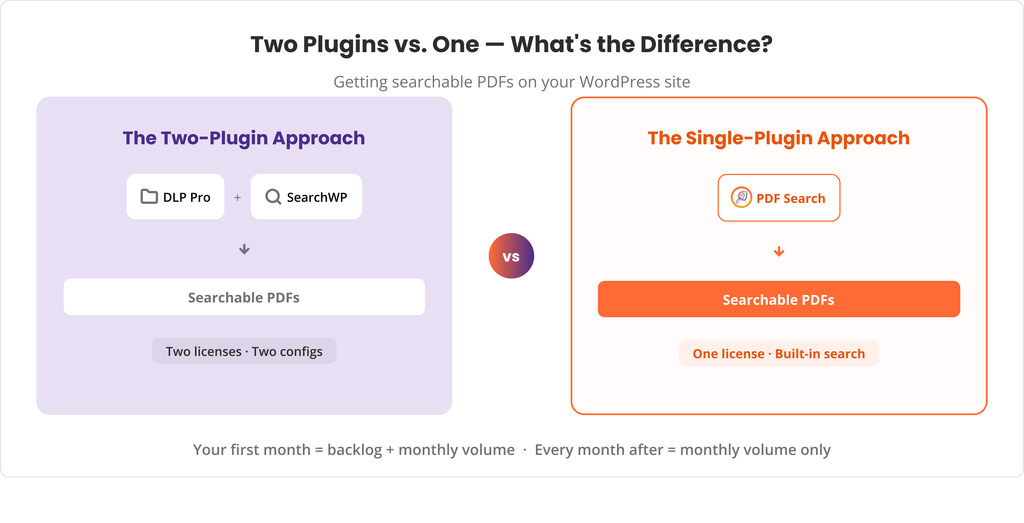
That means the actual PDF search capability isn’t really coming from Document Library Pro at all. You’re buying two plugins to get one outcome and paying for two licenses to make it work.

There’s no OCR either. Scanned PDFs, the kind with no real text layer, stay unsearchable regardless of how nicely they’re organized in your library.

two-plugins-vs-one-what's-the-difference

How WebEquipe PDF Search Compares

WebEquipe PDF Search does one thing and tries to do it well, index the actual text inside your PDFs so it shows up in normal WordPress search, or through a dedicated PDF-only search form.

The free version handles text-based PDFs out of the box. No second plugin is required to make search work. The Pro version adds OCR through Google Vision for scanned documents, so image-based files become searchable too, not just organized. It also adds Private PDF Search, so specific documents can stay hidden from logged-out visitors while remaining fully searchable for people who are logged in, and page-number linking, so a search result opens the PDF at the exact page where the match was found instead of page one.

What you won’t get with WebEquipe PDF Search is the browsing and portal experience Document Library Pro is built around. There’s no folder-based front-end library page, no download-gated lead capture, and no document versioning. This plugin isn’t trying to be a document management system. It’s trying to make sure nothing in your PDFs is invisible to search.

Feature Comparison

WebEquipe PDF SearchDocument Library Pro
Full-text PDF search built inโœ“ Freeโœ— Requires a separate search plugin (e.g. SearchWP)
Scanned PDF / OCRโœ“ Paidโœ—
Private / logged-in-only PDFsโœ“ Paidโœ“
Search result links to the exact PDF pageโœ“ Paidโœ—
Folder/category browsing front-end libraryโœ—โœ“
Download trackingโœ—โœ“
Email-gated downloads / lead captureโœ—โœ“
Document versioningโœ—โœ“
Free tier availableโœ“โœ— Paid plugin

Using Both Together

They’re not competing for the same shelf space, so running both isn’t unusual. A site might use Document Library Pro to give visitors a proper browsable resource center, then add WebEquipe PDF Search so anything typed into the search bar can actually find content buried inside those documents, including scanned PDFs once OCR is enabled.

If you already own Document Library Pro and it’s paired with a search plugin, it’s worth checking whether that combination already handles scanned PDFs and page-level linking before assuming you need to add anything.

Who Should Use Which

Use WebEquipe PDF Search if:

  • Your main problem is that PDF content isn’t turning up in search results
  • You have scanned documents that need OCR to become searchable
  • You want some PDFs restricted to logged-in users, but still findable by them
  • You’d rather start free and only pay once you need OCR or private search

Use Document Library Pro if:

  • You want a dedicated, browsable document portal on your site, not just search
  • Download tracking or gated lead capture matters to your workflow
  • You need document versioning or a folder-based library structure
  • Full-text PDF search isn’t the primary goal, presentation and organization are

Use both if:

  • You want a proper document library experience for browsing, plus real full-text search that also covers scanned files and keeps certain documents private

Frequently Asked Questions

Does Document Library Pro search inside PDF content on its own?

Not by itself. Its own documentation recommends pairing it with a separate search plugin like SearchWP for full-text search inside documents.

Does Document Library Pro support OCR for scanned PDFs?

No. Scanned, image-based PDFs stay unsearchable regardless of how they’re organized in the library.

Is WebEquipe PDF Search a document management plugin?

No. It doesn’t provide folder browsing, download tracking, or lead-gated downloads. It’s focused specifically on making PDF content searchable.

Can I use WebEquipe PDF Search alongside Document Library Pro?

Yes. One handles presentation and organization, while the other handles making the content actually searchable, including scanned documents.

Which one is cheaper if I only need PDF search?

WebEquipe PDF Search has a free tier that covers text-based PDF search on its own. Document Library Pro is a paid plugin, and full-text search still requires pairing it with another paid search plugin.

Which One Fits Your Site

If the actual complaint you’re hearing is, “I know it’s in a PDF, but search can’t find it,” that’s a search problem, not a library problem, and WebEquipe PDF Search solves it directly without needing a second plugin. If what you’re really after is a polished front-end document center with browsing, tracking, and gated downloads, that’s Document Library Pro’s job.

View PDF Search Pro plans โ†’

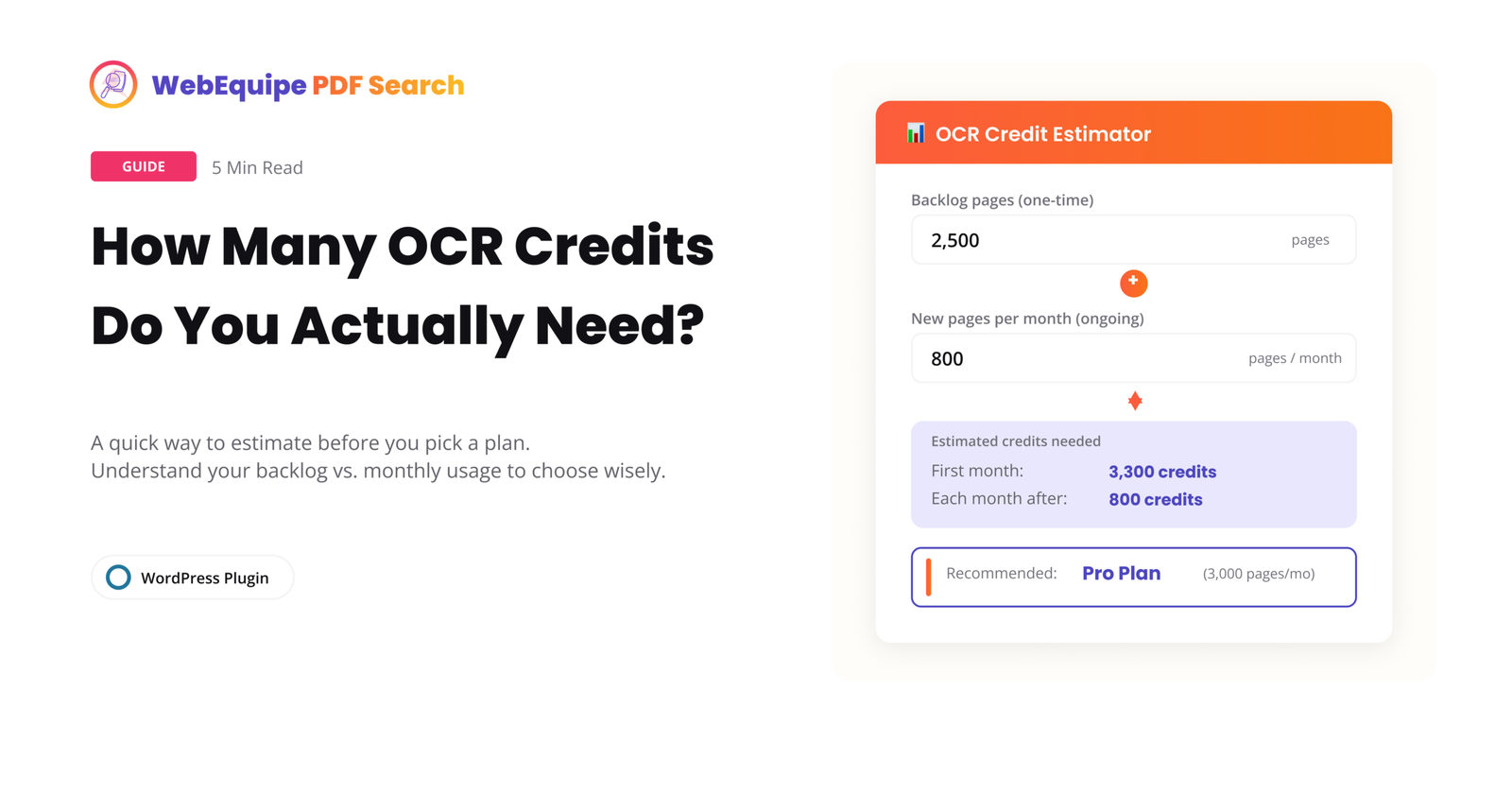
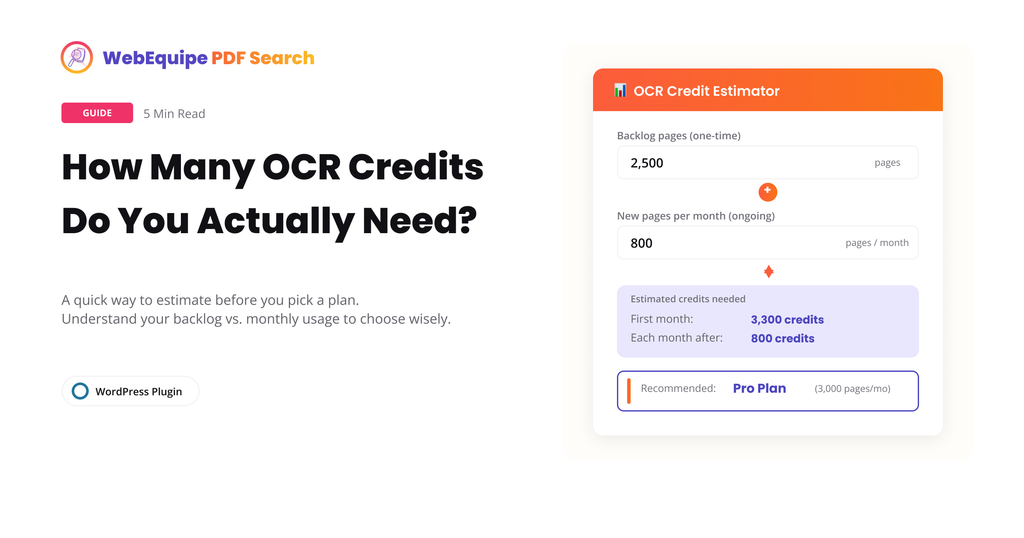
How Many OCR Credits Do You Actually Need?

How-Many-OCR-Credits-Do-You-Actually-Need

OCR is the feature that makes scanned PDFs searchable, but it’s also the one place where picking the wrong plan can actually cost you. Too few credits and your backlog sits half-indexed for months. Too many and you’re paying for headroom you’ll never touch.

Here’s how to actually work out what you need before you pick Starter, Pro, or Agency.

What Counts as an OCR Credit

One credit equals one scanned page processed. That’s it. Searching your site doesn’t use credits; only indexing does, and only for pages that need OCR in the first place.

If a PDF already has real, selectable text, it never touches OCR. Native extraction handles it locally at no cost to your quota. Credits only get used for the pages inside a PDF that are actually images, the kind you get from a physical document run through a scanner.

That distinction matters more than it sounds like it should. A lot of sites assume every PDF in their library will burn credits, when in practice most modern PDFs, the ones exported from Word or Google Docs, never need OCR at all.

The Two Kinds of Usage You’re Estimating

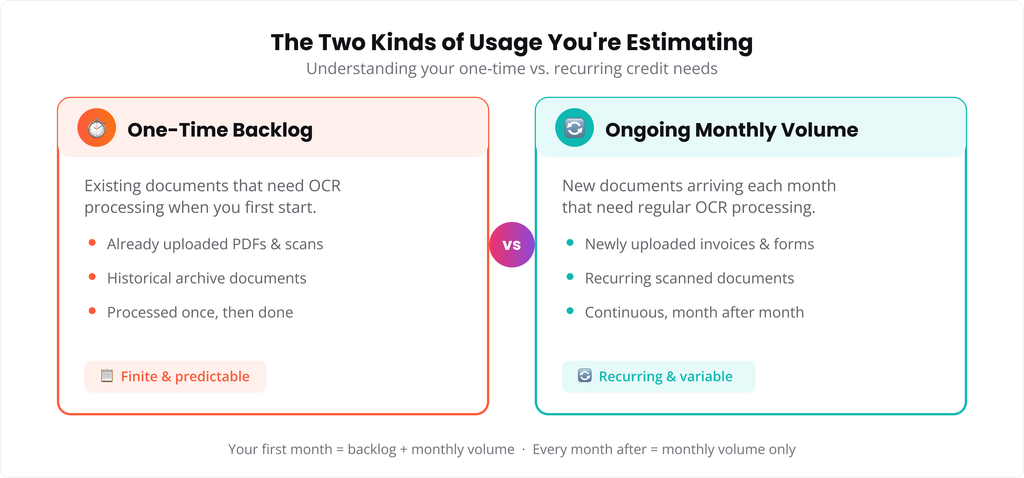
There are really two separate numbers here, and mixing them up is where people get their plan choice wrong.

One-time backlog: This is your existing library. If you’re migrating years of scanned board minutes, old handbooks, or archived forms, that’s a fixed number of pages you’ll process once, then mostly leave alone.

Ongoing monthly volume: This is what comes in going forward, new scans, new uploads, whatever your site naturally accumulates each month. For most sites this number is much smaller than the backlog.

A site with a huge backlog but almost no new scanned uploads going forward has a very different need than a site that scans and uploads a steady stream of new documents every month, even if their backlogs are the same size.

two-kinds-of-usage-you-are-estimating-one-time-vs-recurring-credit-needs

A Rough Way to Estimate It

You don’t need to count exact pages to get a workable estimate. A few quick checks get you close enough:

  • Open your Media Library and sort by file. Roughly how many of your PDFs would fail a “can I highlight the text” test, meaning they’re scanned rather than exported?
  • For those, estimate an average page count. Old scanned reports and handbooks tend to run 10 to 50 pages. Individual scanned forms are often just 1 to 3.
  • Multiply scanned-PDF count by average page count. That’s your rough backlog number.
  • Separately, think about how many new scanned documents you’d realistically add in a typical month. Multiply by their average page count for your monthly estimate.

If your backlog is bigger than a single month’s quota, that’s fine. It just means the backlog processes over more than one billing cycle rather than all at once, and new uploads continue getting indexed in the meantime.

What Each Plan Actually Gives You

what-each-plan-actually-gives-you-monthly-ocr-page-quotas-at-a-glance

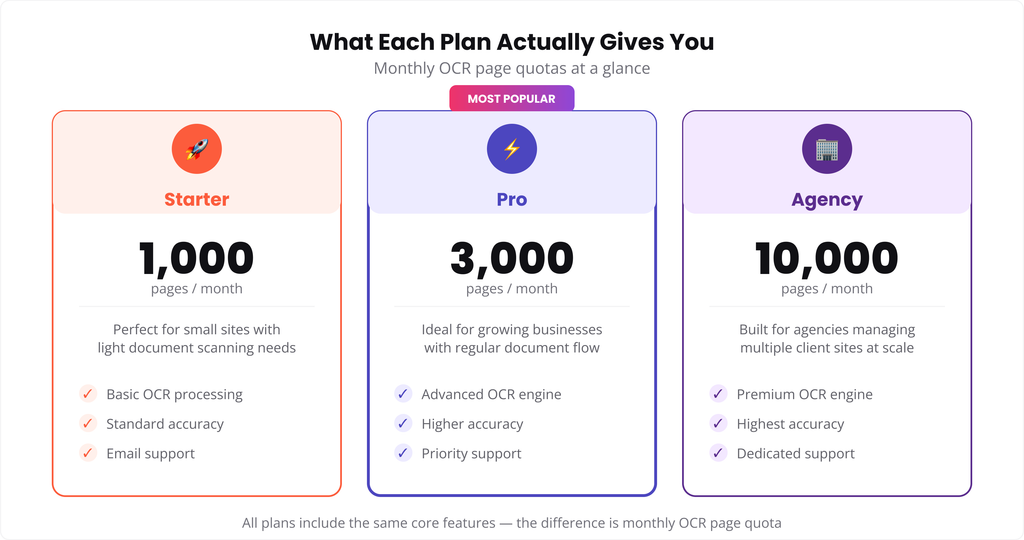
Starter comes with 1,000 OCR pages a month. That’s enough for a steady trickle of scanned documents, or working through a moderate backlog over a few months.

Pro comes with 3,000 pages a month. This is where most sites with an actual archive, old meeting minutes, historical records, a real backlog, land comfortably.

Agency comes with 10,000 pages a month, built for managing multiple client sites or a single site with a genuinely large scanned archive.

Whichever tier you’re on, unused credits don’t carry a special rollover; they reset with your billing cycle. New scanned PDFs that come in after you’ve hit your limit for the month simply queue and process once credits reset, they don’t get skipped or lost.

If Your Backlog Is Larger Than Any Plan’s Monthly Quota

Some sites, particularly universities, government archives, or long-running membership organizations, have backlogs in the tens of thousands of pages. If that’s you, working through it plan by plan over many months isn’t always the most practical route. It’s worth reaching out directly so we can talk through the best way to handle a large one-time archive rather than stretching it across a year of billing cycles.

A Simple Way to Decide

If you’re not sure which plan fits, this usually settles it:

  • Mostly text-based PDFs with an occasional scanned document: Starter is likely enough.
  • A real archive to work through plus ongoing scanned uploads: Pro is the comfortable middle.
  • Multiple client sites, or a single archive in the tens of thousands of pages: Agency, or a direct conversation about the backlog.

Frequently Asked Questions

Does searching use OCR credits?

No. Credits are only used during indexing, specifically for pages that need OCR. Searching your site never touches your quota.

What happens if I go over my monthly limit?

New scanned PDFs queue instead of processing. They pick back up automatically once your credits reset at the start of the next billing cycle.

Do text-based PDFs use any OCR credits?

No. Native + OCR Fallback tries standard text extraction first. Only pages with no extractable text get routed to OCR.

Can I check how many credits I’ve used so far?

Yes, current usage and your monthly quota are both visible in PDF Search โ†’ Dashboard.

Can I upgrade mid-cycle if I’m running low?

Yes, upgrading takes effect immediately and gives you the higher plan’s quota right away.

What if my archive is bigger than even the Agency quota?

Reach out directly. Very large one-time archives are usually better handled as a separate conversation than stretched across many billing cycles.

Try It

A rough backlog and monthly estimate is usually enough to pick the right plan. If you’re still not sure after working through the numbers, get in touch and we’ll help you figure it out.

View PDF Search Pro plans โ†’

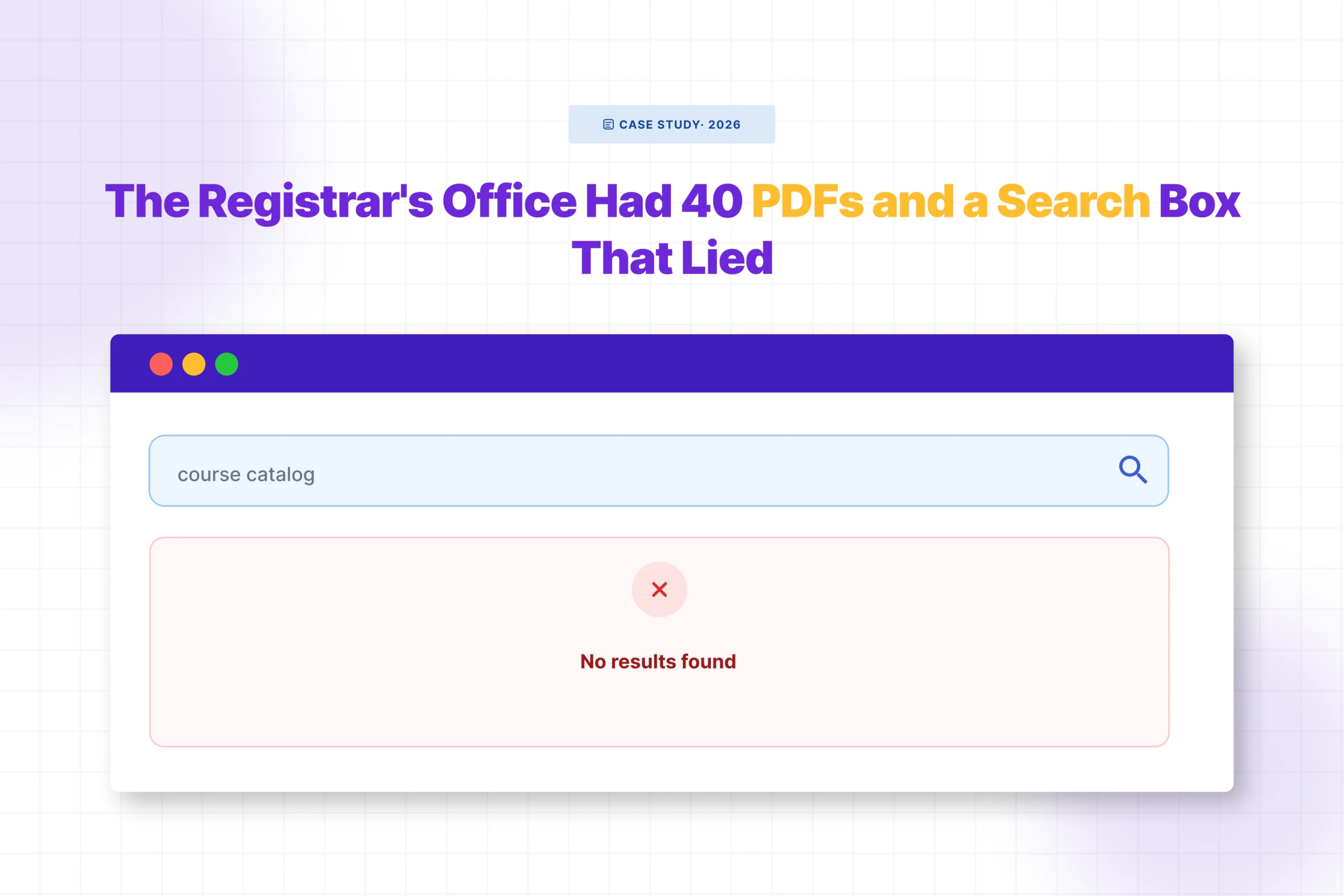
The Registrar’s Office Had 40 PDFs and a Search Box That Lied

The-Registrars-Office-Had-40-PDFs-and-a-Search-Box-That-Lied

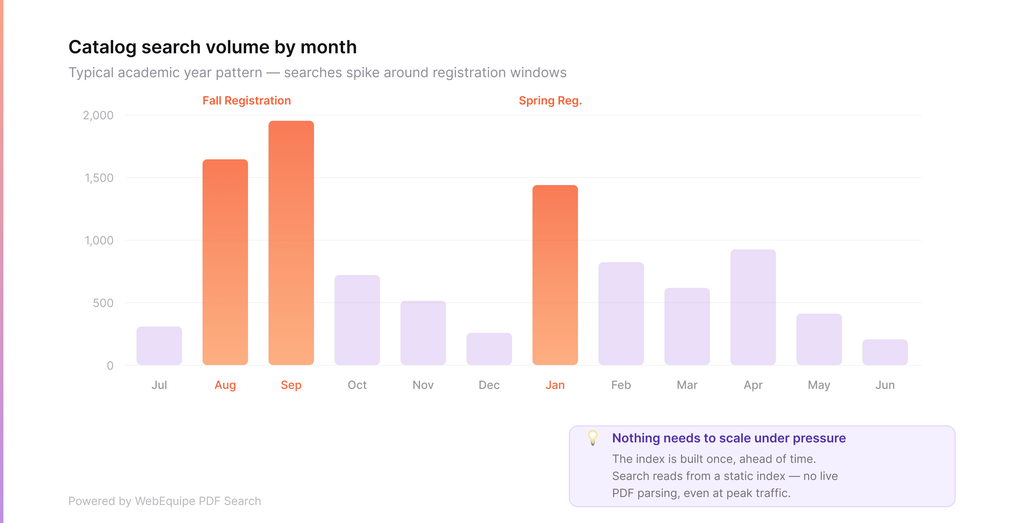
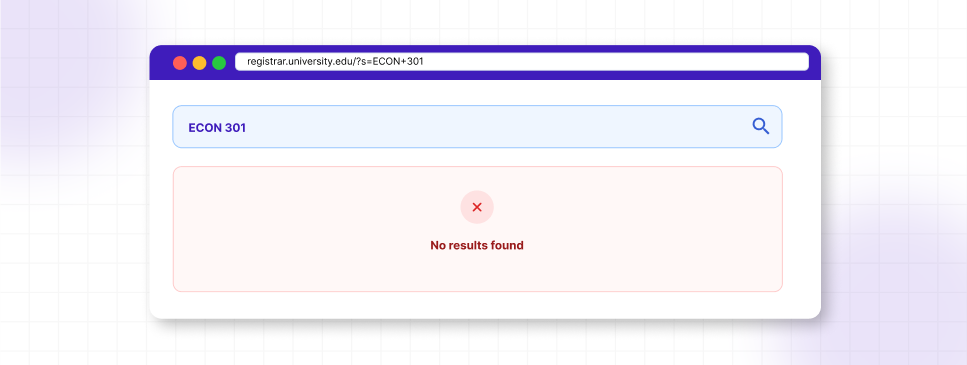
Every August, the same email showed up in the registrar’s inbox at a mid-sized college we’ll call Ashcombe: “I searched the site for ECON 301 and got nothing. Is it not offered this semester?”

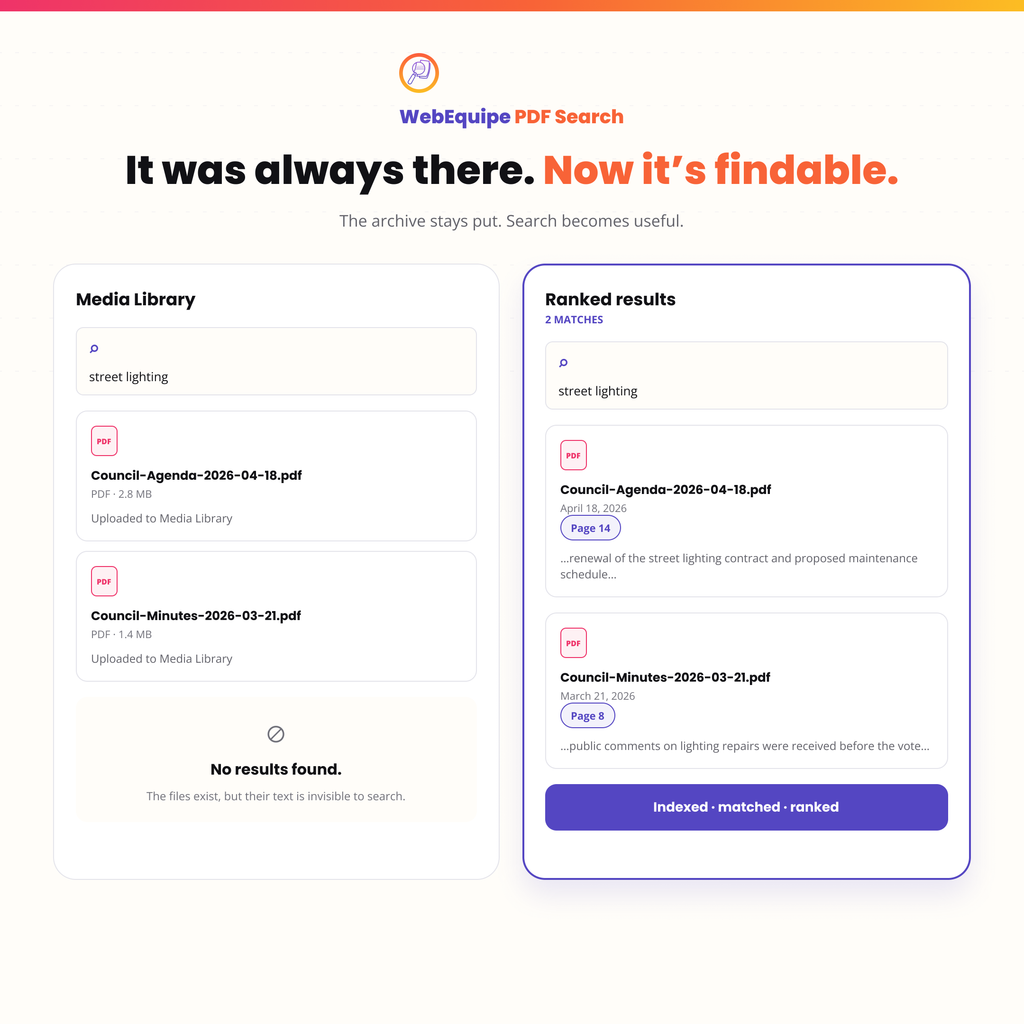
It was offered. It was one of forty PDFs sitting in the Media Library: course catalogs, prerequisite sheets, add/drop deadlines, academic calendars. All of it uploaded, all of it organized, all of it technically “on the website.”

None of it searchable.

The registrar’s assistant, whose job already involved answering the same five questions on repeat during registration week, had started doing something quietly absurd: manually checking which PDF contained which course code, then emailing students a direct link. It worked, but it didn’t scale. Registration week meant forty emails a day, all versions of the same problem.

The Part Nobody Had Diagnosed

Here’s what nobody on staff had realized: WordPress search was never broken. It was doing exactly what it was built to do, searching the words typed into posts and pages. The course catalog wasn’t a page. It was a PDF, dropped into the Media Library the way departments had always shared documents.

WordPress stored the filename. It stored a URL. It never opened the file, never read what was inside it. So when a student typed “ECON 301,” search had nothing to match against, because the words “ECON 301” existed only inside a PDF nobody had ever asked WordPress to look inside.

This is the part most site owners don’t find out until a student complains directly, or an email like the one above lands in an inbox during the busiest week of the semester.

What Changed

The fix took less time than diagnosing the problem had. The registrar’s office installed WebEquipe PDF Search, a free plugin built to do one specific thing: extract the text inside PDFs and feed it into WordPress’s normal search.

WordPress-PDF-search-showing-no-results-for-ECON-301-before-PDF-indexing

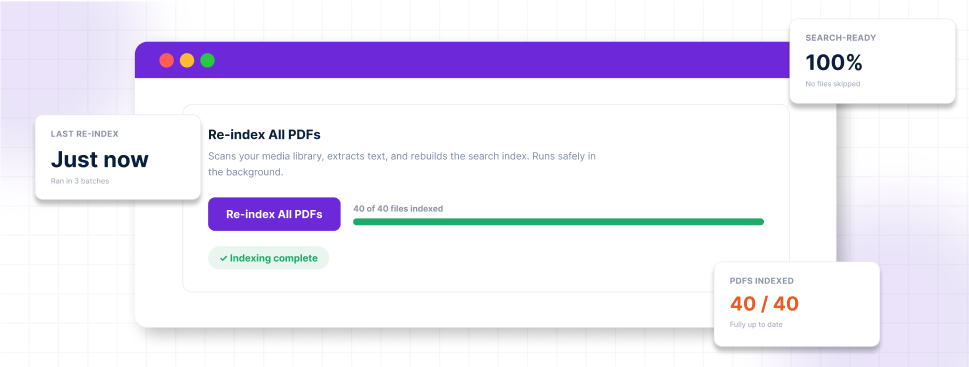
Running Re-index All PDFs once pulled every existing catalog, calendar, and prerequisite sheet into the index. New uploads after that were indexed automatically the moment a department uploaded them, no manual step required.

The Moment It Worked

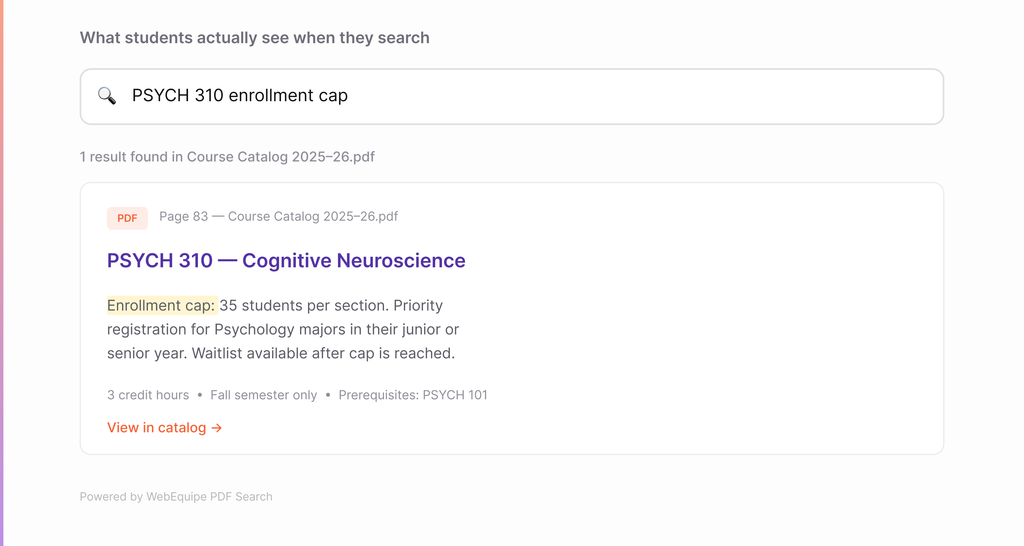
The following registration week, a student searched “ECON 301” on the site. This time, a result appeared: the course catalog PDF, with an excerpt pulled straight from the page listing the course, the credit hours, and the prerequisite.

PDF-search-plugin-re-indexing-40-PDFs-and-completing-the-search-index

No email to the registrar’s office. No manual lookup. The answer was already there, WordPress just finally knew how to find it.

Why This Matters Beyond One Semester

Schools accumulate PDFs the way most organizations do, gradually, without a plan. Syllabi, handbooks, policy updates, financial aid forms. Each one gets uploaded because it needs to live somewhere, and the Media Library is the obvious place. Nobody sits down and decides these documents should be invisible to search. It just happens by default, because that’s how WordPress ships.

The cost isn’t abstract. It’s a support inbox that fills up every registration period with questions that already have answers, just answers nobody could find.

What This Doesn’t Fix

Worth being direct about a limitation: this only works for text-based PDFs, documents exported from Word, Google Docs, or similar tools. Older scanned handbooks or photocopied policy documents don’t have a text layer to extract, and the free plugin can’t read them. That’s a real gap for schools with older paper archives, and it’s specifically what OCR in PDF Search Pro is built to close.

The Takeaway

If your school’s website has course catalogs, handbooks, or policy PDFs that visitors search for and never find, the problem isn’t your content. It’s that WordPress was never told to look inside the files you already have.

View WebEquipe PDF Search plans โ†’

Search Results That Jump Straight to the Page

Search-Results-That-Jump-Straight-to-the-Page
search-results-that-jump-straight-to-the-page

Finding the right PDF used to be the finish line. Now it’s just the starting point.

Say a visitor searches your site for a specific clause, a course code, or a product spec. Your search finds the right PDF, but it’s 80 pages long, and they still have to open the file and dig through it to find the actual answer. The search did its job. What happens after didn’t.

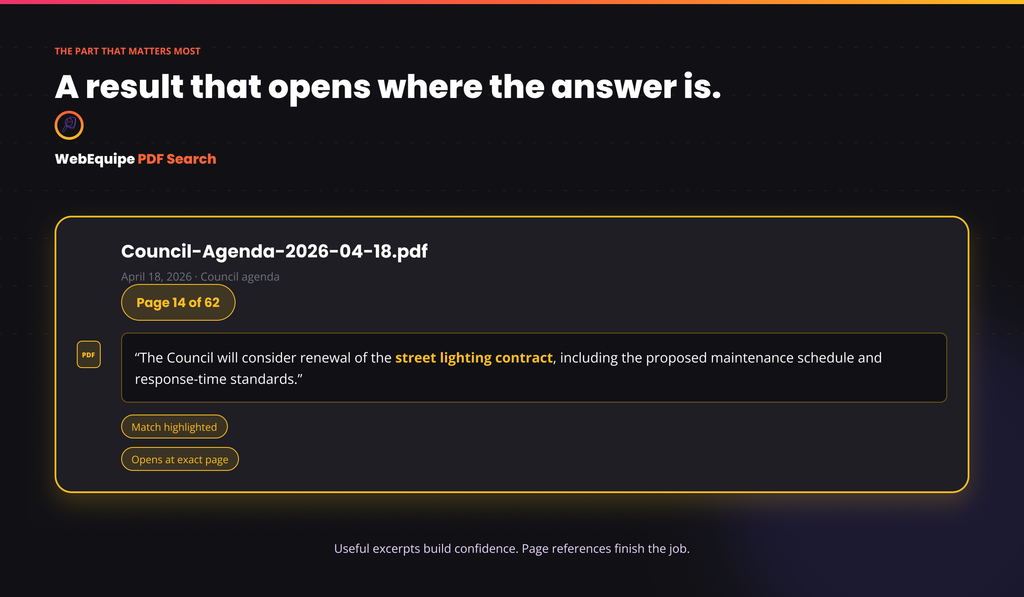
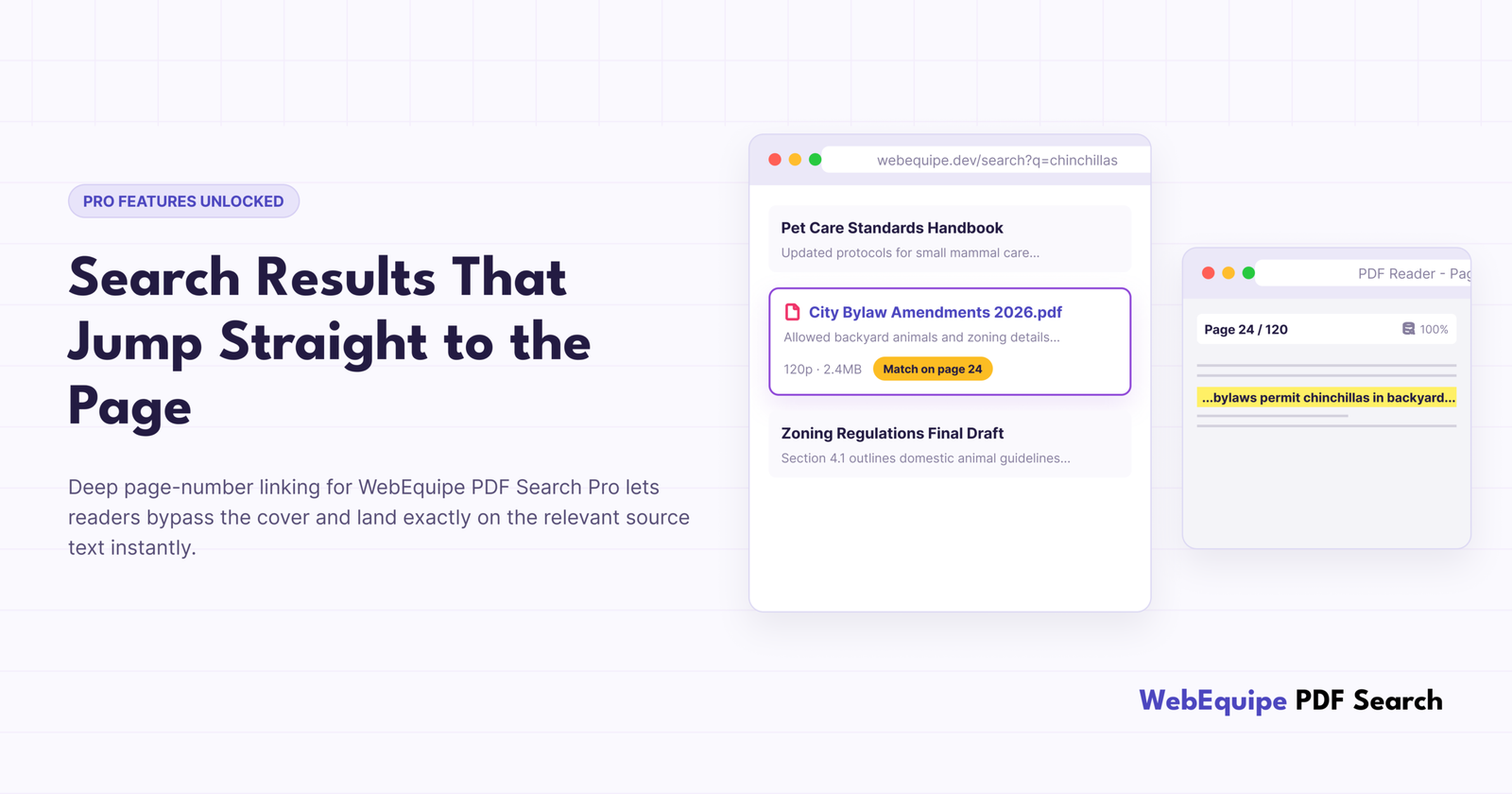
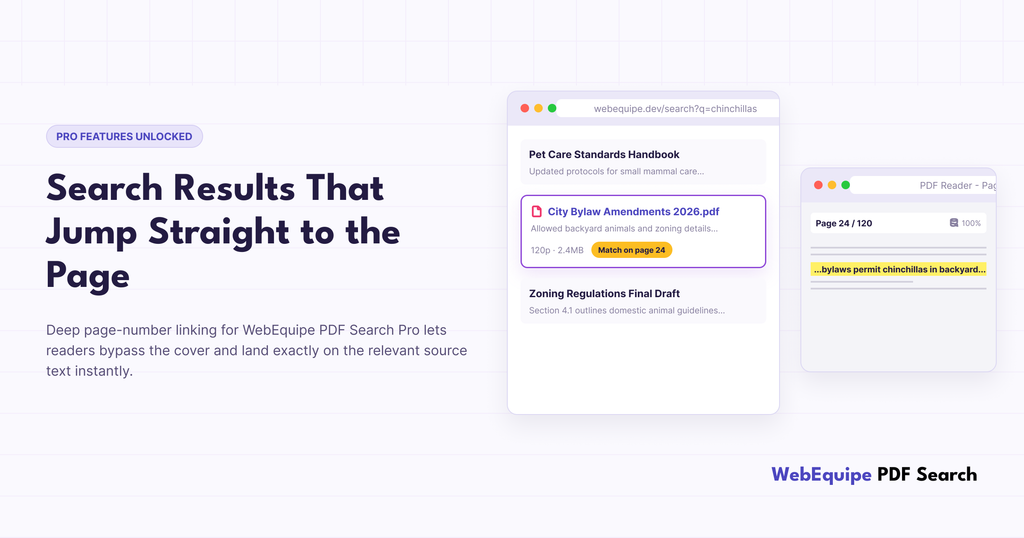
PDF Search Pro results now link straight to the page where the match was found, not just the file itself.

What Changed

Before this, every PDF result pointed to the document. Clicking it opened page one, no matter where the matched content actually sat. Fine for a two-page flyer. Not so fine for a handbook, a set of board minutes, or a 100-page catalog, where finding the right page meant scrolling, guessing, or running a second search inside whatever PDF viewer the browser happened to have.

Now, indexing tracks which page each bit of content lives on. Search results link to that page directly, so the PDF opens already scrolled to where the answer is.

PDF-search-result-showing-page-24-reference-for-a-120-page-document

A Real Example

Picture a 120-page municipal bylaw document, the kind of PDF a local council might have sitting in its Media Library, covering everything from noise ordinances to pet regulations.

Someone searches “chinchillas,” because their town has rules about exotic pets and they want to know if theirs counts.

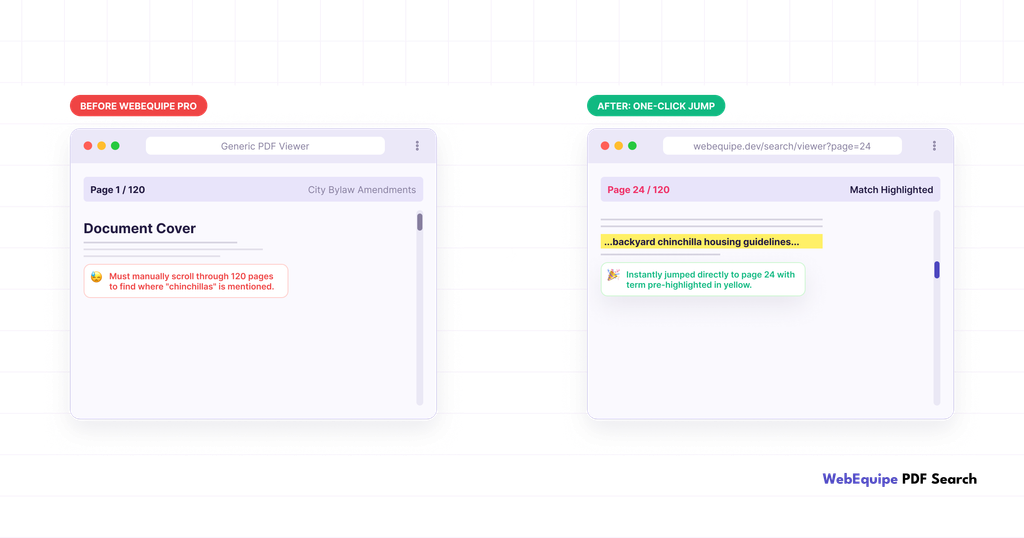
Before this update, the search finds the bylaw and links to it. They open a 120-page document that starts at page one. Most people give up before finding the section they need, or they close the tab and call the office instead.

Now the same search still finds the bylaw, but the result opens directly on the page where “chinchillas” shows up. One click, and they’re looking at the exact clause that answers their question.

before-and-after-comparison-of-PDF-search-opening-directly-to-page-24-with-the-matched-term-highlighted

Why It Matters

The bylaw example isn’t unusual. It’s the same shape of problem across most long PDFs a WordPress site ends up with:

  • Handbooks and policy documents, where visitors need one clause, not the whole thing
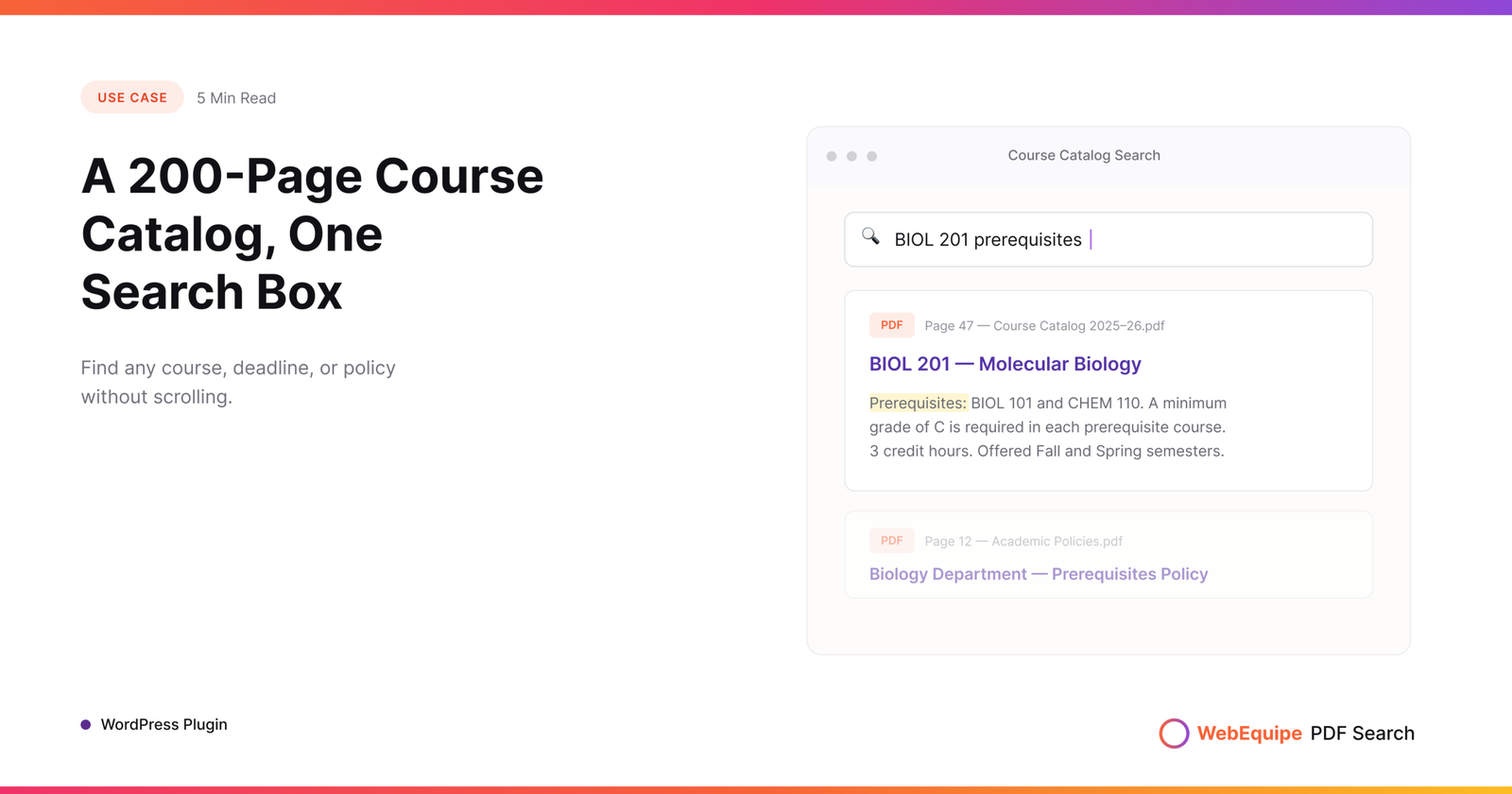
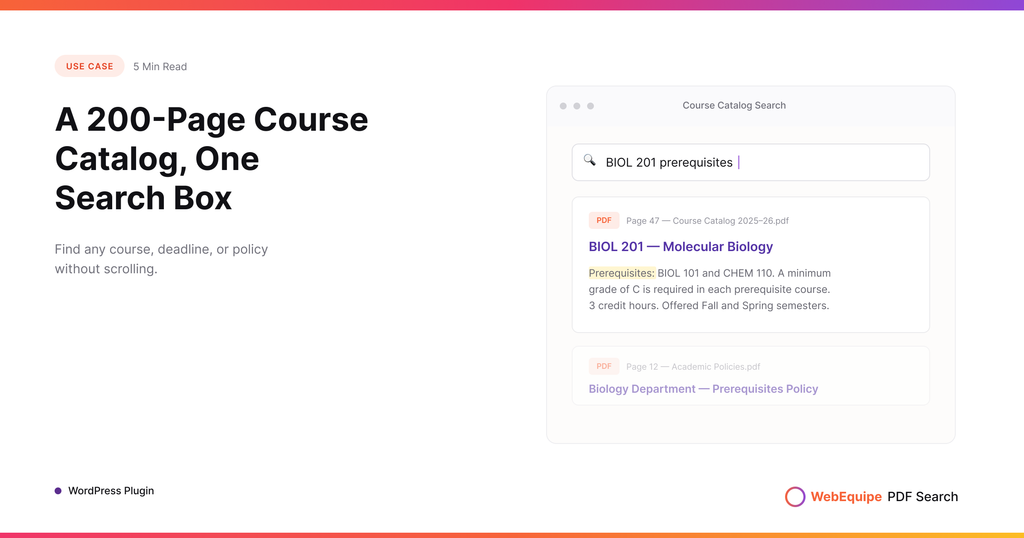
  • Course catalogs, where a student wants a specific listing, not the table of contents
  • Product manuals, where the troubleshooting section is buried on page 40
  • Meeting minutes, where someone’s looking for one agenda item out of forty

A document that technically contains the answer isn’t much help if getting to it takes five minutes of scrolling. Page linking closes that gap.

How It Works

There’s nothing to turn on. Page-level data gets captured automatically as part of indexing on Pro. If your library was already indexed before this update, you don’t need to do anything either. The data lives in the same per-page index structure that’s already there. New and re-indexed PDFs will just start using it.

What You’ll Actually See

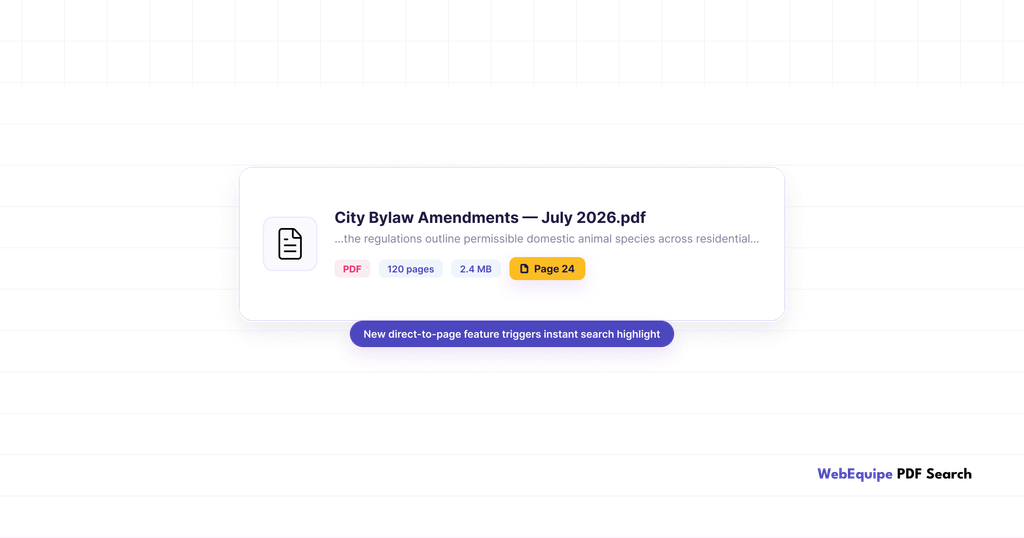
Search results show a page reference now, alongside the usual file size and page count. Click a result and the PDF opens on that page instead of the first one.

For sites with big document libraries, universities with course catalogs, councils with agendas and bylaws, associations with member handbooks, this is the difference between “we have a search bar” and “you can actually find things.”

Frequently Asked Questions

Do I need to set anything up?

No, it works automatically once you’re on Pro.

Is this on the free version too?

No. Page-level linking is a Pro feature. Free indexes PDFs at the file level.

Will my existing indexed PDFs get page links, or only new ones?

If they’re already on the current per-page indexing structure, they’ll have it. Anything indexed under the older legacy structure will need a re-index to pick it up.

Does it work with scanned PDFs processed through OCR?

Yes, page tracking applies whether the text came from native extraction or OCR.

What happens if a term shows up on more than one page?

The result links to the strongest match, not every page it appears on.

Does this change how results are ranked?

No, ranking works the same. This only changes what page you land on after you click.

Try It

If you’re already on Pro, your next indexed PDF will pick this up automatically. For anything already in your library, run a re-index and it’ll apply to your current documents too.

View PDF Search Pro plans โ†’