
๐ŸŽ‰ Save 10% Extra on the Webequipe PDF Search Plugin Annual Plan โ€” Use code YEARLY10 ยท Limited-time offer ยท Get discount โ†’

Document Library Pro vs. WebEquipe PDF Search: Which One Do You Actually Need?

Document-Library-Pro-vs-WebEquipe-PDF-Search

These two plugins get compared a lot, and honestly, they’re not really solving the same problem. That’s worth untangling before you spend money on either one.

Document Library Pro is built for sites that want to present documents well – folders, filters, download tracking, access control, and a proper portal experience. WebEquipe PDF Search is built around one narrower job, making the words inside your PDFs show up when someone searches your site.

If you just want visitors to find a PDF by what’s written inside it, you might not need everything Document Library Pro offers. If you want a full document management experience with browsing, filtering, and gated downloads, PDF search alone won’t get you there either. Here’s how to tell which situation you’re actually in.

What Document Library Pro Is Good At

Document Library Pro is a document management plugin first. It gives you a proper front-end library page where visitors can browse documents by folder or category, filter by file type, and see things like file size and last-updated dates laid out cleanly. You get download tracking, so you know which documents people are actually opening. You can gate downloads behind an email opt-in if you’re using documents for lead generation. Access control lets you restrict specific folders to logged-in users or particular membership levels.

For a site whose whole purpose is being a document portal, a resource center, an intranet, or a client deliverables page, this is genuinely useful structure. It’s not just storage; it’s presentation.

Where It Doesn’t Cover PDF Search Specifically

Here’s the catch: Document Library Pro organizes and presents documents. It doesn’t index what’s written inside them.

If a visitor searches your site for a term that only appears in the body text of a PDF, such as a bylaw clause, a course code, or a warranty term, Document Library Pro on its own won’t surface that result. Its own documentation points this out directly: for full-text search inside documents, you’re expected to pair it with a separate search plugin, most commonly SearchWP.

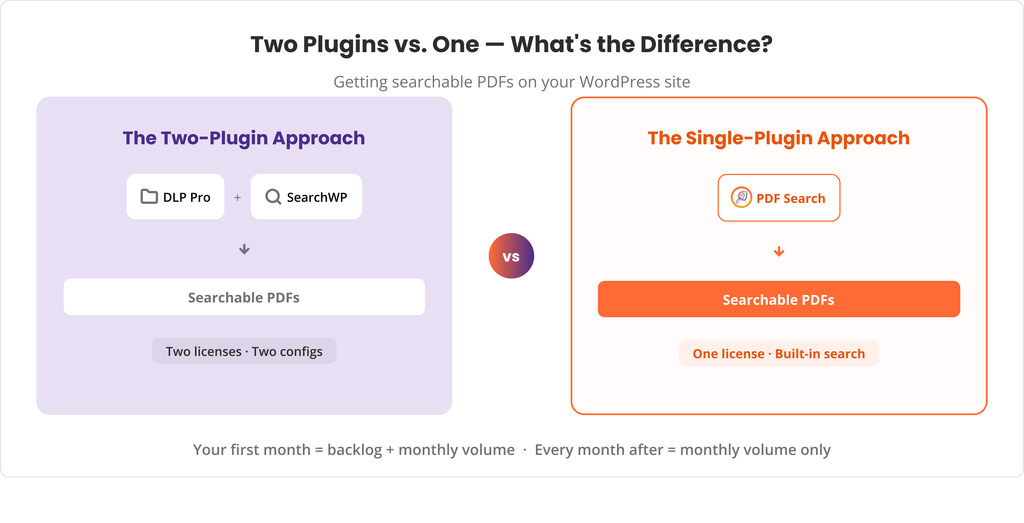
That means the actual PDF search capability isn’t really coming from Document Library Pro at all. You’re buying two plugins to get one outcome and paying for two licenses to make it work.

There’s no OCR either. Scanned PDFs, the kind with no real text layer, stay unsearchable regardless of how nicely they’re organized in your library.
two-plugins-vs-one-what's-the-difference

How WebEquipe PDF Search Compares

WebEquipe PDF Search does one thing and tries to do it well, index the actual text inside your PDFs so it shows up in normal WordPress search, or through a dedicated PDF-only search form.

The free version handles text-based PDFs out of the box. No second plugin is required to make search work. The Pro version adds OCR through Google Vision for scanned documents, so image-based files become searchable too, not just organized. It also adds Private PDF Search, so specific documents can stay hidden from logged-out visitors while remaining fully searchable for people who are logged in, and page-number linking, so a search result opens the PDF at the exact page where the match was found instead of page one.

What you won’t get with WebEquipe PDF Search is the browsing and portal experience Document Library Pro is built around. There’s no folder-based front-end library page, no download-gated lead capture, and no document versioning. This plugin isn’t trying to be a document management system. It’s trying to make sure nothing in your PDFs is invisible to search.

Feature Comparison

WebEquipe PDF SearchDocument Library Pro
Full-text PDF search built inโœ“ Freeโœ— Requires a separate search plugin (e.g. SearchWP)
Scanned PDF / OCRโœ“ Paidโœ—
Private / logged-in-only PDFsโœ“ Paidโœ“
Search result links to the exact PDF pageโœ“ Paidโœ—
Folder/category browsing front-end libraryโœ—โœ“
Download trackingโœ—โœ“
Email-gated downloads / lead captureโœ—โœ“
Document versioningโœ—โœ“
Free tier availableโœ“โœ— Paid plugin

Using Both Together

They’re not competing for the same shelf space, so running both isn’t unusual. A site might use Document Library Pro to give visitors a proper browsable resource center, then add WebEquipe PDF Search so anything typed into the search bar can actually find content buried inside those documents, including scanned PDFs once OCR is enabled.

If you already own Document Library Pro and it’s paired with a search plugin, it’s worth checking whether that combination already handles scanned PDFs and page-level linking before assuming you need to add anything.

Who Should Use Which

Use WebEquipe PDF Search if:

  • Your main problem is that PDF content isn’t turning up in search results
  • You have scanned documents that need OCR to become searchable
  • You want some PDFs restricted to logged-in users, but still findable by them
  • You’d rather start free and only pay once you need OCR or private search

Use Document Library Pro if:

  • You want a dedicated, browsable document portal on your site, not just search
  • Download tracking or gated lead capture matters to your workflow
  • You need document versioning or a folder-based library structure
  • Full-text PDF search isn’t the primary goal, presentation and organization are

Use both if:

  • You want a proper document library experience for browsing, plus real full-text search that also covers scanned files and keeps certain documents private

Frequently Asked Questions

Does Document Library Pro search inside PDF content on its own?

Not by itself. Its own documentation recommends pairing it with a separate search plugin like SearchWP for full-text search inside documents.

Does Document Library Pro support OCR for scanned PDFs?

No. Scanned, image-based PDFs stay unsearchable regardless of how they’re organized in the library.

Is WebEquipe PDF Search a document management plugin?

No. It doesn’t provide folder browsing, download tracking, or lead-gated downloads. It’s focused specifically on making PDF content searchable.

Can I use WebEquipe PDF Search alongside Document Library Pro?

Yes. One handles presentation and organization, while the other handles making the content actually searchable, including scanned documents.

Which one is cheaper if I only need PDF search?

WebEquipe PDF Search has a free tier that covers text-based PDF search on its own. Document Library Pro is a paid plugin, and full-text search still requires pairing it with another paid search plugin.

Which One Fits Your Site

If the actual complaint you’re hearing is, “I know it’s in a PDF, but search can’t find it,” that’s a search problem, not a library problem, and WebEquipe PDF Search solves it directly without needing a second plugin. If what you’re really after is a polished front-end document center with browsing, tracking, and gated downloads, that’s Document Library Pro’s job.
View PDF Search Pro plans โ†’

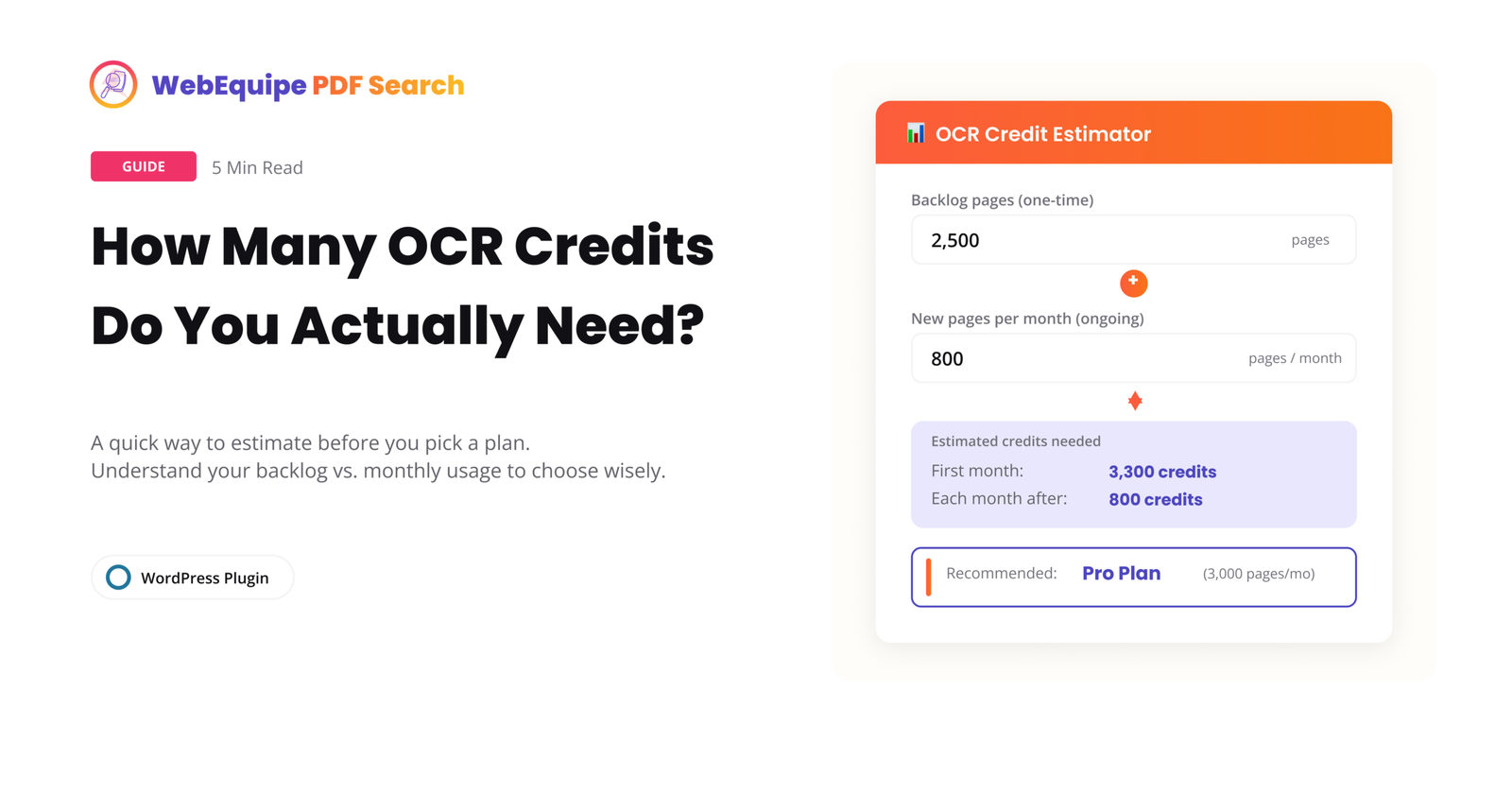
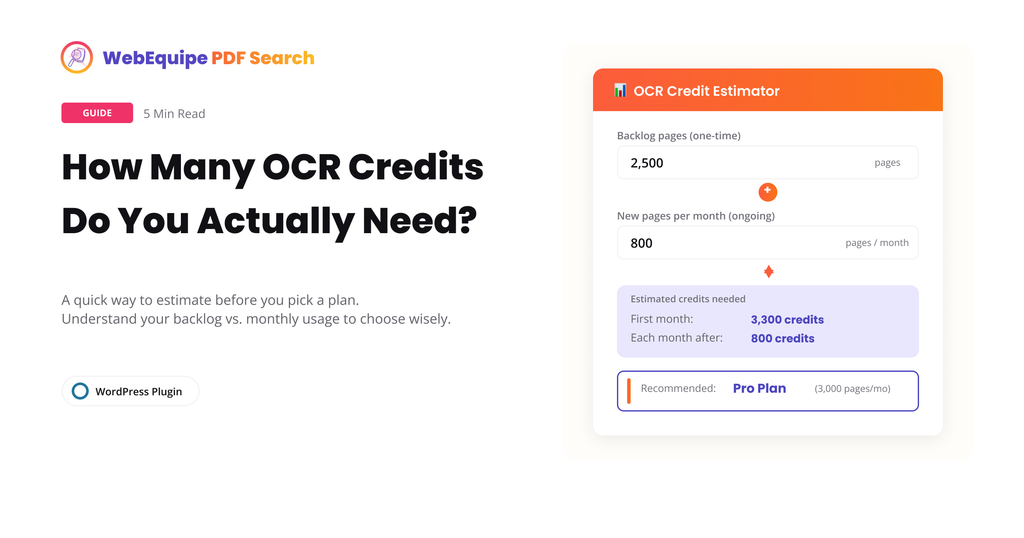
How Many OCR Credits Do You Actually Need?

How-Many-OCR-Credits-Do-You-Actually-Need

OCR is the feature that makes scanned PDFs searchable, but it’s also the one place where picking the wrong plan can actually cost you. Too few credits and your backlog sits half-indexed for months. Too many and you’re paying for headroom you’ll never touch.

Here’s how to actually work out what you need before you pick Starter, Pro, or Agency.

What Counts as an OCR Credit

One credit equals one scanned page processed. That’s it. Searching your site doesn’t use credits; only indexing does, and only for pages that need OCR in the first place.

If a PDF already has real, selectable text, it never touches OCR. Native extraction handles it locally at no cost to your quota. Credits only get used for the pages inside a PDF that are actually images, the kind you get from a physical document run through a scanner.

That distinction matters more than it sounds like it should. A lot of sites assume every PDF in their library will burn credits, when in practice most modern PDFs, the ones exported from Word or Google Docs, never need OCR at all.

The Two Kinds of Usage You’re Estimating

There are really two separate numbers here, and mixing them up is where people get their plan choice wrong.

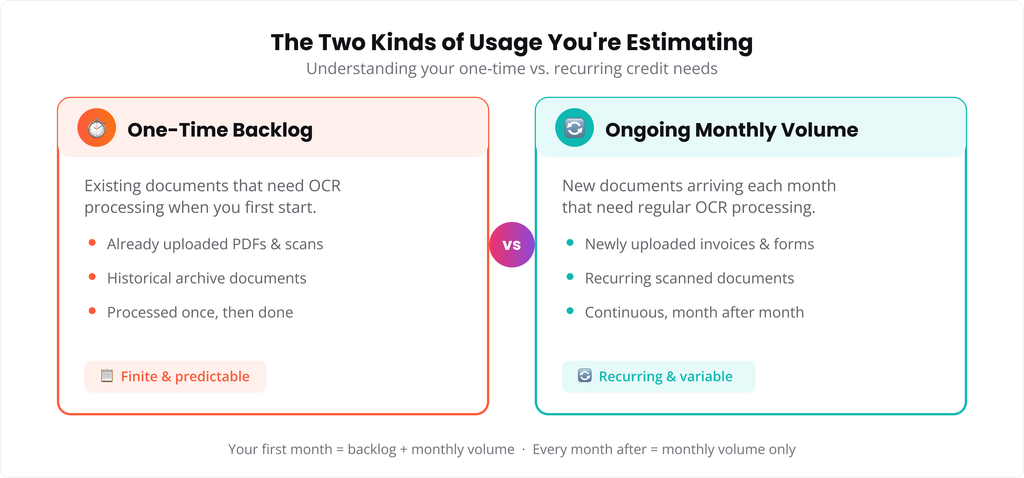
One-time backlog: This is your existing library. If you’re migrating years of scanned board minutes, old handbooks, or archived forms, that’s a fixed number of pages you’ll process once, then mostly leave alone.

Ongoing monthly volume: This is what comes in going forward, new scans, new uploads, whatever your site naturally accumulates each month. For most sites this number is much smaller than the backlog.

A site with a huge backlog but almost no new scanned uploads going forward has a very different need than a site that scans and uploads a steady stream of new documents every month, even if their backlogs are the same size.

two-kinds-of-usage-you-are-estimating-one-time-vs-recurring-credit-needs

A Rough Way to Estimate It

You don’t need to count exact pages to get a workable estimate. A few quick checks get you close enough:

  • Open your Media Library and sort by file. Roughly how many of your PDFs would fail a “can I highlight the text” test, meaning they’re scanned rather than exported?
  • For those, estimate an average page count. Old scanned reports and handbooks tend to run 10 to 50 pages. Individual scanned forms are often just 1 to 3.
  • Multiply scanned-PDF count by average page count. That’s your rough backlog number.
  • Separately, think about how many new scanned documents you’d realistically add in a typical month. Multiply by their average page count for your monthly estimate.

If your backlog is bigger than a single month’s quota, that’s fine. It just means the backlog processes over more than one billing cycle rather than all at once, and new uploads continue getting indexed in the meantime.

What Each Plan Actually Gives You

what-each-plan-actually-gives-you-monthly-ocr-page-quotas-at-a-glance

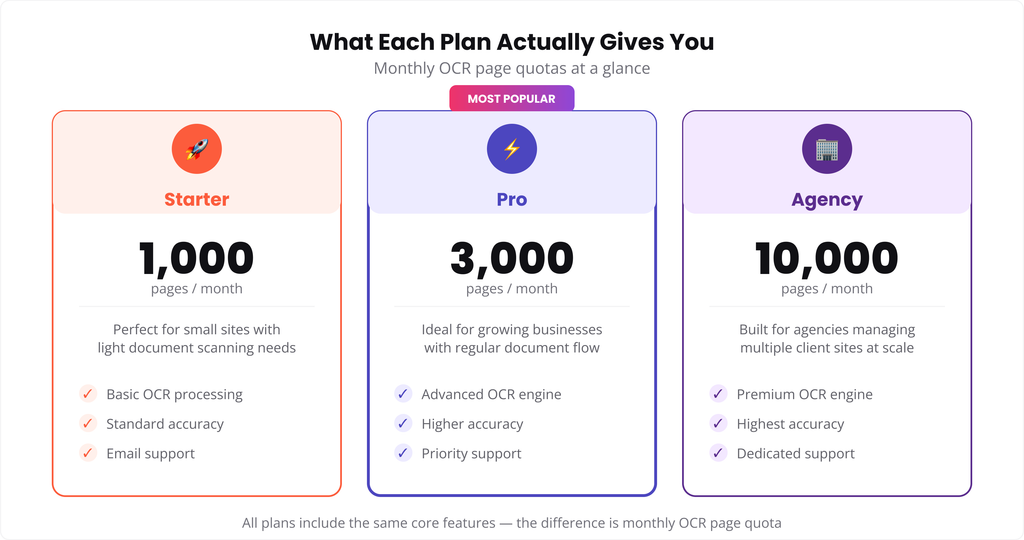
Starter comes with 1,000 OCR pages a month. That’s enough for a steady trickle of scanned documents, or working through a moderate backlog over a few months.

Pro comes with 3,000 pages a month. This is where most sites with an actual archive, old meeting minutes, historical records, a real backlog, land comfortably.

Agency comes with 10,000 pages a month, built for managing multiple client sites or a single site with a genuinely large scanned archive.

Whichever tier you’re on, unused credits don’t carry a special rollover; they reset with your billing cycle. New scanned PDFs that come in after you’ve hit your limit for the month simply queue and process once credits reset, they don’t get skipped or lost.

If Your Backlog Is Larger Than Any Plan’s Monthly Quota

Some sites, particularly universities, government archives, or long-running membership organizations, have backlogs in the tens of thousands of pages. If that’s you, working through it plan by plan over many months isn’t always the most practical route. It’s worth reaching out directly so we can talk through the best way to handle a large one-time archive rather than stretching it across a year of billing cycles.

A Simple Way to Decide

If you’re not sure which plan fits, this usually settles it:

  • Mostly text-based PDFs with an occasional scanned document: Starter is likely enough.
  • A real archive to work through plus ongoing scanned uploads: Pro is the comfortable middle.
  • Multiple client sites, or a single archive in the tens of thousands of pages: Agency, or a direct conversation about the backlog.

Frequently Asked Questions

Does searching use OCR credits?

No. Credits are only used during indexing, specifically for pages that need OCR. Searching your site never touches your quota.

What happens if I go over my monthly limit?

New scanned PDFs queue instead of processing. They pick back up automatically once your credits reset at the start of the next billing cycle.

Do text-based PDFs use any OCR credits?

No. Native + OCR Fallback tries standard text extraction first. Only pages with no extractable text get routed to OCR.

Can I check how many credits I’ve used so far?

Yes, current usage and your monthly quota are both visible in PDF Search โ†’ Dashboard.

Can I upgrade mid-cycle if I’m running low?

Yes, upgrading takes effect immediately and gives you the higher plan’s quota right away.

What if my archive is bigger than even the Agency quota?

Reach out directly. Very large one-time archives are usually better handled as a separate conversation than stretched across many billing cycles.

Try It

A rough backlog and monthly estimate is usually enough to pick the right plan. If you’re still not sure after working through the numbers, get in touch and we’ll help you figure it out.

View PDF Search Pro plans โ†’

The Registrar’s Office Had 40 PDFs and a Search Box That Lied

The-Registrars-Office-Had-40-PDFs-and-a-Search-Box-That-Lied

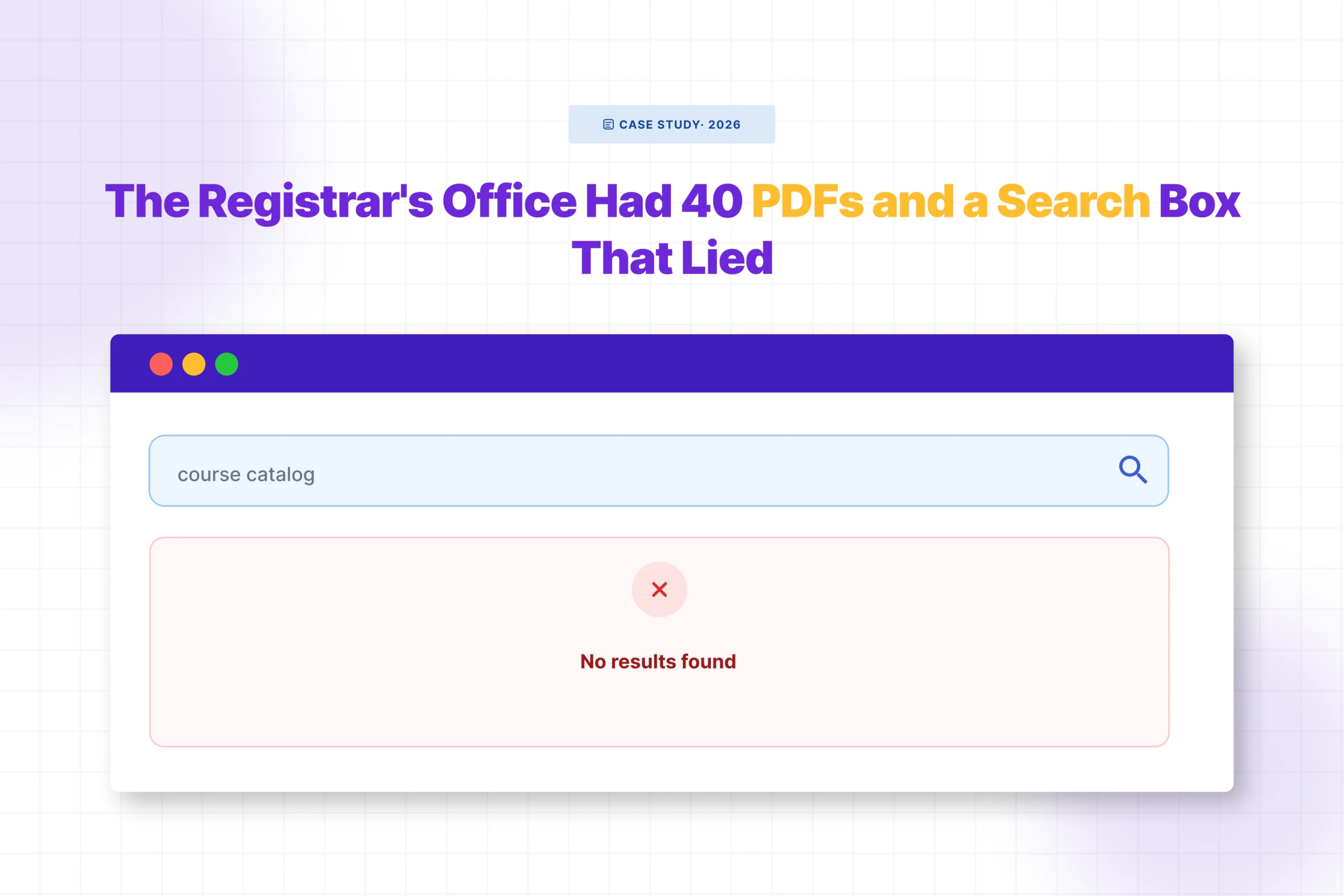
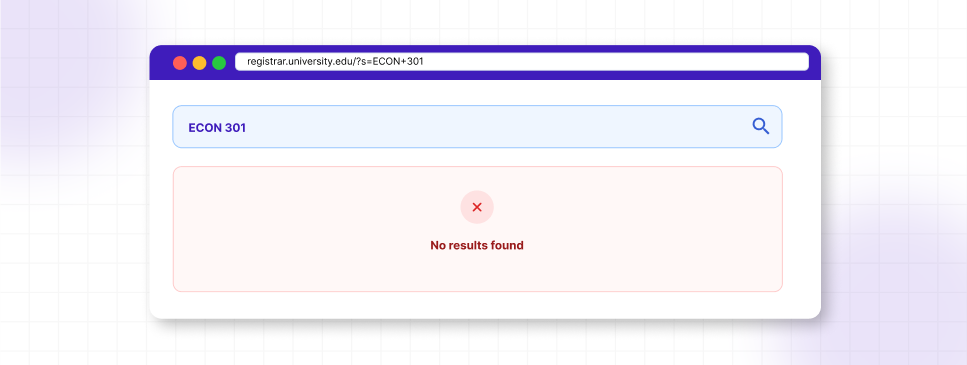
Every August, the same email showed up in the registrar’s inbox at a mid-sized college we’ll call Ashcombe: “I searched the site for ECON 301 and got nothing. Is it not offered this semester?”

It was offered. It was one of forty PDFs sitting in the Media Library: course catalogs, prerequisite sheets, add/drop deadlines, academic calendars. All of it uploaded, all of it organized, all of it technically “on the website.”

None of it searchable.

The registrar’s assistant, whose job already involved answering the same five questions on repeat during registration week, had started doing something quietly absurd: manually checking which PDF contained which course code, then emailing students a direct link. It worked, but it didn’t scale. Registration week meant forty emails a day, all versions of the same problem.

The Part Nobody Had Diagnosed

Here’s what nobody on staff had realized: WordPress search was never broken. It was doing exactly what it was built to do, searching the words typed into posts and pages. The course catalog wasn’t a page. It was a PDF, dropped into the Media Library the way departments had always shared documents.

WordPress stored the filename. It stored a URL. It never opened the file, never read what was inside it. So when a student typed “ECON 301,” search had nothing to match against, because the words “ECON 301” existed only inside a PDF nobody had ever asked WordPress to look inside.

This is the part most site owners don’t find out until a student complains directly, or an email like the one above lands in an inbox during the busiest week of the semester.

What Changed

The fix took less time than diagnosing the problem had. The registrar’s office installed WebEquipe PDF Search, a free plugin built to do one specific thing: extract the text inside PDFs and feed it into WordPress’s normal search.

WordPress-PDF-search-showing-no-results-for-ECON-301-before-PDF-indexing

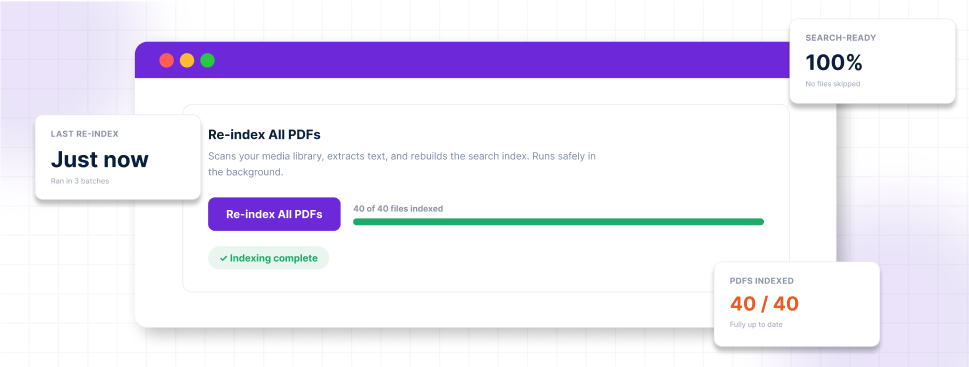
Running Re-index All PDFs once pulled every existing catalog, calendar, and prerequisite sheet into the index. New uploads after that were indexed automatically the moment a department uploaded them, no manual step required.

The Moment It Worked

The following registration week, a student searched “ECON 301” on the site. This time, a result appeared: the course catalog PDF, with an excerpt pulled straight from the page listing the course, the credit hours, and the prerequisite.

PDF-search-plugin-re-indexing-40-PDFs-and-completing-the-search-index

No email to the registrar’s office. No manual lookup. The answer was already there, WordPress just finally knew how to find it.

Why This Matters Beyond One Semester

Schools accumulate PDFs the way most organizations do, gradually, without a plan. Syllabi, handbooks, policy updates, financial aid forms. Each one gets uploaded because it needs to live somewhere, and the Media Library is the obvious place. Nobody sits down and decides these documents should be invisible to search. It just happens by default, because that’s how WordPress ships.

The cost isn’t abstract. It’s a support inbox that fills up every registration period with questions that already have answers, just answers nobody could find.

What This Doesn’t Fix

Worth being direct about a limitation: this only works for text-based PDFs, documents exported from Word, Google Docs, or similar tools. Older scanned handbooks or photocopied policy documents don’t have a text layer to extract, and the free plugin can’t read them. That’s a real gap for schools with older paper archives, and it’s specifically what OCR in PDF Search Pro is built to close.

The Takeaway

If your school’s website has course catalogs, handbooks, or policy PDFs that visitors search for and never find, the problem isn’t your content. It’s that WordPress was never told to look inside the files you already have.

View WebEquipe PDF Search plans โ†’

Search Results That Jump Straight to the Page

Search-Results-That-Jump-Straight-to-the-Page
search-results-that-jump-straight-to-the-page

Finding the right PDF used to be the finish line. Now it’s just the starting point.

Say a visitor searches your site for a specific clause, a course code, or a product spec. Your search finds the right PDF, but it’s 80 pages long, and they still have to open the file and dig through it to find the actual answer. The search did its job. What happens after didn’t.

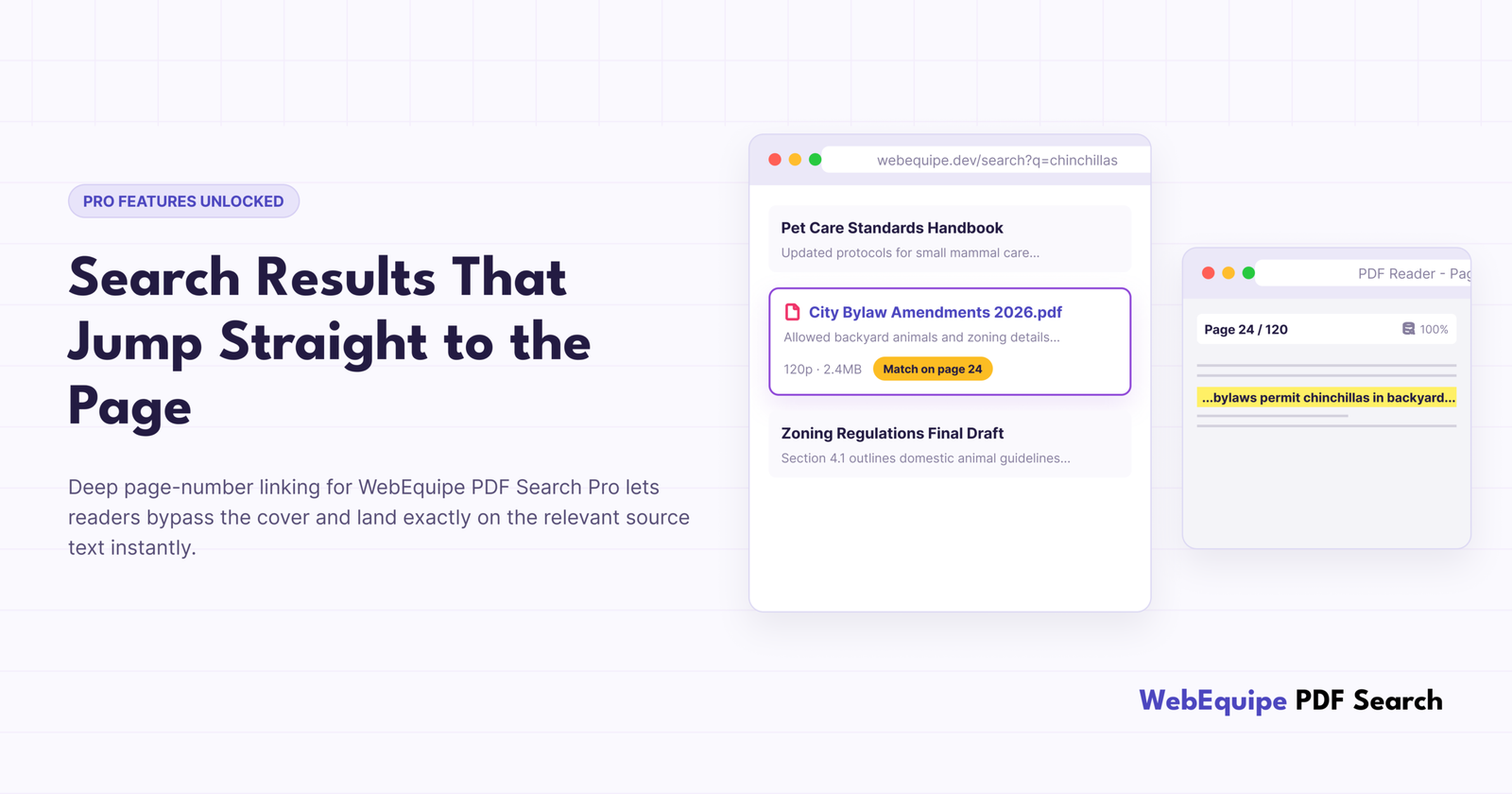
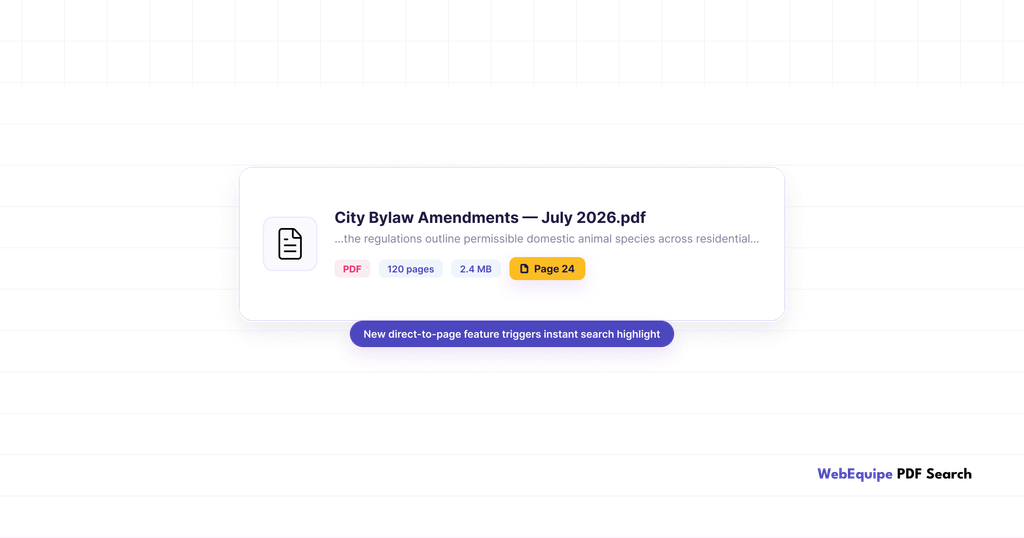
PDF Search Pro results now link straight to the page where the match was found, not just the file itself.

What Changed

Before this, every PDF result pointed to the document. Clicking it opened page one, no matter where the matched content actually sat. Fine for a two-page flyer. Not so fine for a handbook, a set of board minutes, or a 100-page catalog, where finding the right page meant scrolling, guessing, or running a second search inside whatever PDF viewer the browser happened to have.

Now, indexing tracks which page each bit of content lives on. Search results link to that page directly, so the PDF opens already scrolled to where the answer is.

PDF-search-result-showing-page-24-reference-for-a-120-page-document

A Real Example

Picture a 120-page municipal bylaw document, the kind of PDF a local council might have sitting in its Media Library, covering everything from noise ordinances to pet regulations.

Someone searches “chinchillas,” because their town has rules about exotic pets and they want to know if theirs counts.

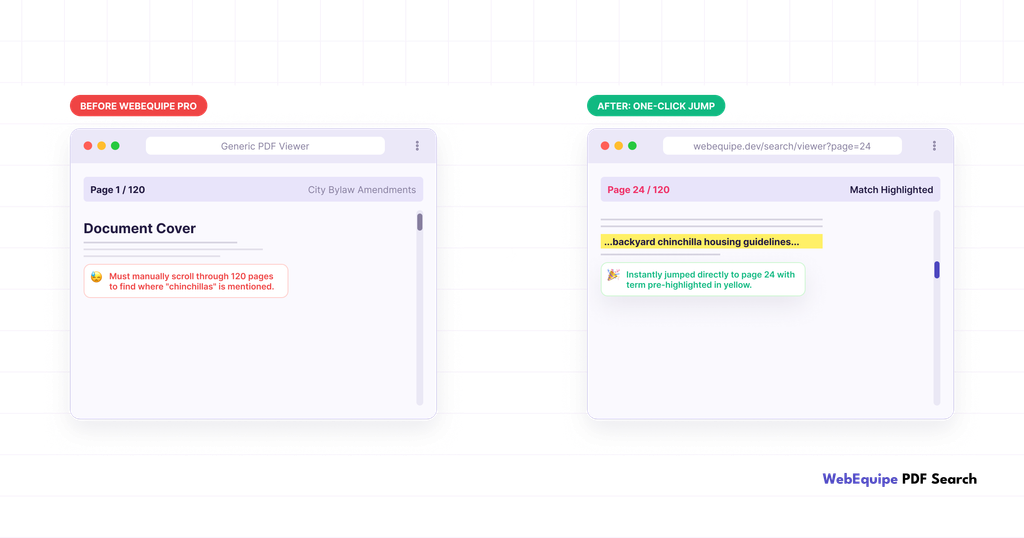
Before this update, the search finds the bylaw and links to it. They open a 120-page document that starts at page one. Most people give up before finding the section they need, or they close the tab and call the office instead.

Now the same search still finds the bylaw, but the result opens directly on the page where “chinchillas” shows up. One click, and they’re looking at the exact clause that answers their question.

before-and-after-comparison-of-PDF-search-opening-directly-to-page-24-with-the-matched-term-highlighted

Why It Matters

The bylaw example isn’t unusual. It’s the same shape of problem across most long PDFs a WordPress site ends up with:

  • Handbooks and policy documents, where visitors need one clause, not the whole thing
  • Course catalogs, where a student wants a specific listing, not the table of contents
  • Product manuals, where the troubleshooting section is buried on page 40
  • Meeting minutes, where someone’s looking for one agenda item out of forty

A document that technically contains the answer isn’t much help if getting to it takes five minutes of scrolling. Page linking closes that gap.

How It Works

There’s nothing to turn on. Page-level data gets captured automatically as part of indexing on Pro. If your library was already indexed before this update, you don’t need to do anything either. The data lives in the same per-page index structure that’s already there. New and re-indexed PDFs will just start using it.

What You’ll Actually See

Search results show a page reference now, alongside the usual file size and page count. Click a result and the PDF opens on that page instead of the first one.

For sites with big document libraries, universities with course catalogs, councils with agendas and bylaws, associations with member handbooks, this is the difference between “we have a search bar” and “you can actually find things.”

Frequently Asked Questions

Do I need to set anything up?

No, it works automatically once you’re on Pro.

Is this on the free version too?

No. Page-level linking is a Pro feature. Free indexes PDFs at the file level.

Will my existing indexed PDFs get page links, or only new ones?

If they’re already on the current per-page indexing structure, they’ll have it. Anything indexed under the older legacy structure will need a re-index to pick it up.

Does it work with scanned PDFs processed through OCR?

Yes, page tracking applies whether the text came from native extraction or OCR.

What happens if a term shows up on more than one page?

The result links to the strongest match, not every page it appears on.

Does this change how results are ranked?

No, ranking works the same. This only changes what page you land on after you click.

Try It

If you’re already on Pro, your next indexed PDF will pick this up automatically. For anything already in your library, run a re-index and it’ll apply to your current documents too.

View PDF Search Pro plans โ†’

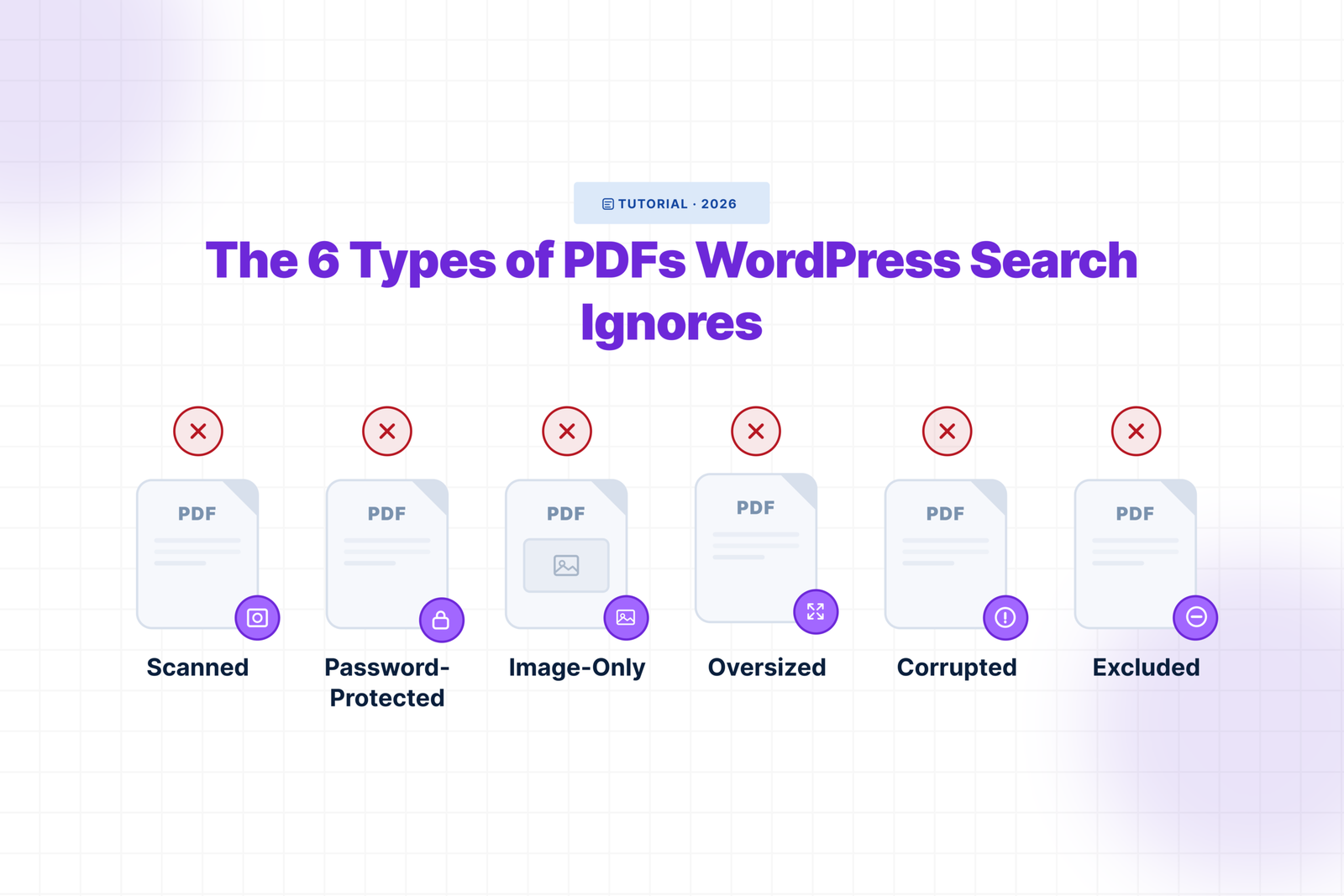
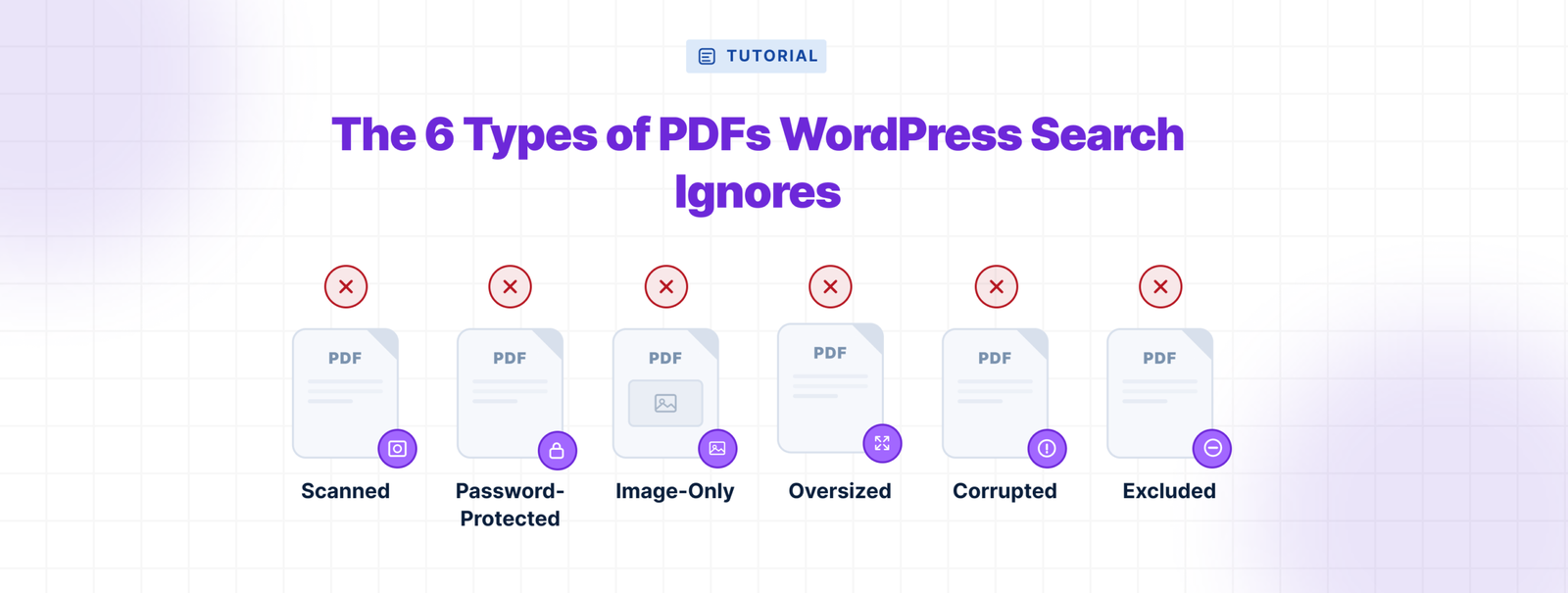
The 6 Types of PDFs That WordPress Search Completely Ignores โ€” and Why Most Site Owners Never Notice

The 6 Types of PDFs That WordPress Search Completely Ignores

A PDF can be uploaded, publicly linked, and downloaded hundreds of times while remaining completely invisible to your siteโ€™s search box.

That is what makes this problem difficult to notice. WordPress does not display an error when someone searches for a phrase inside a PDF. It simply returns no result. To the visitor, the document may as well not exist.

A PDF indexing plugin can solve that problem for normal text-based files. But certain documents can still remain unsearchable. Here are the six types most likely to be missedโ€”and how to identify each one.

1. Scanned PDFs That Are Really Images

A scanned PDF looks like a document, but technically it may be nothing more than a collection of photographs.

If someone places a printed handbook on a scanner and saves the result as a PDF, you can open, zoom, print, and read every page. But the words are pixels. There is no underlying text for WordPressโ€”or a standard PDF parserโ€”to extract.

This is common with historical records, signed forms, older policy manuals, photocopied handbooks, and paper archives.

The fastest test is to open the PDF and try to select one sentence. If you can only drag a box over the page instead of highlighting individual words, it is probably image-based. You can also copy a paragraph into a plain-text editor. If nothing useful appears, the file has no usable text layer.

These PDFs require optical character recognition, or OCR. Without it, the file may be perfectly readable to a person and completely unreadable to search.

2. Password-Protected PDFs

A password-protected PDF has text inside it, but an indexing system may not be allowed to read it.

The clearest example is a document that asks for a password before opening. A visitor who knows the password can enter it in a PDF viewer. An automated indexing process does not have that password, so it cannot unlock the document and extract the content.

Some PDFs also restrict copying or text extraction. The exact behavior depends on how the file was secured, but the result can be the same: the document opens for a human while the indexer receives no usable content.

This often happens with paid reports, financial statements, employee documents, and licensed publications.

Before removing protection, decide whether the document should be searchable. Indexed content may appear in excerpts and results. If the file is intended to be public, create a separate unprotected web version. If it is private, it should not be in public search.

3. Digital PDFs With Only Images, Charts, or Outlined Text

Not every image-based PDF came from a scanner.

A document can be created entirely on a computer and still contain almost no searchable text. Product catalogues, architecture portfolios, menus, brochures, and presentation decks are often exported as flattened pages. Text may be converted into vector outlines or embedded inside full-page artwork.

These files look sharp and digital, which is why they are easy to misdiagnose. A catalogue page may visibly show a model number, dimensions, and price. If the page was exported as one image, a search for that model number returns nothing.

Try selecting and copying words from several parts of the document. Some PDFs contain searchable headings but flatten the important specifications, captions, labels, or chart text. That makes the file only partially searchable.

4. PDFs That Exceed an Indexing Limit

Large PDFs create a different problem: the text may be valid, but processing the file can require more memory and time than the site allows.

There are usually two limits. The first is the serverโ€™s WordPress/PHP upload limit. A file larger than that may never reach the Media Library.

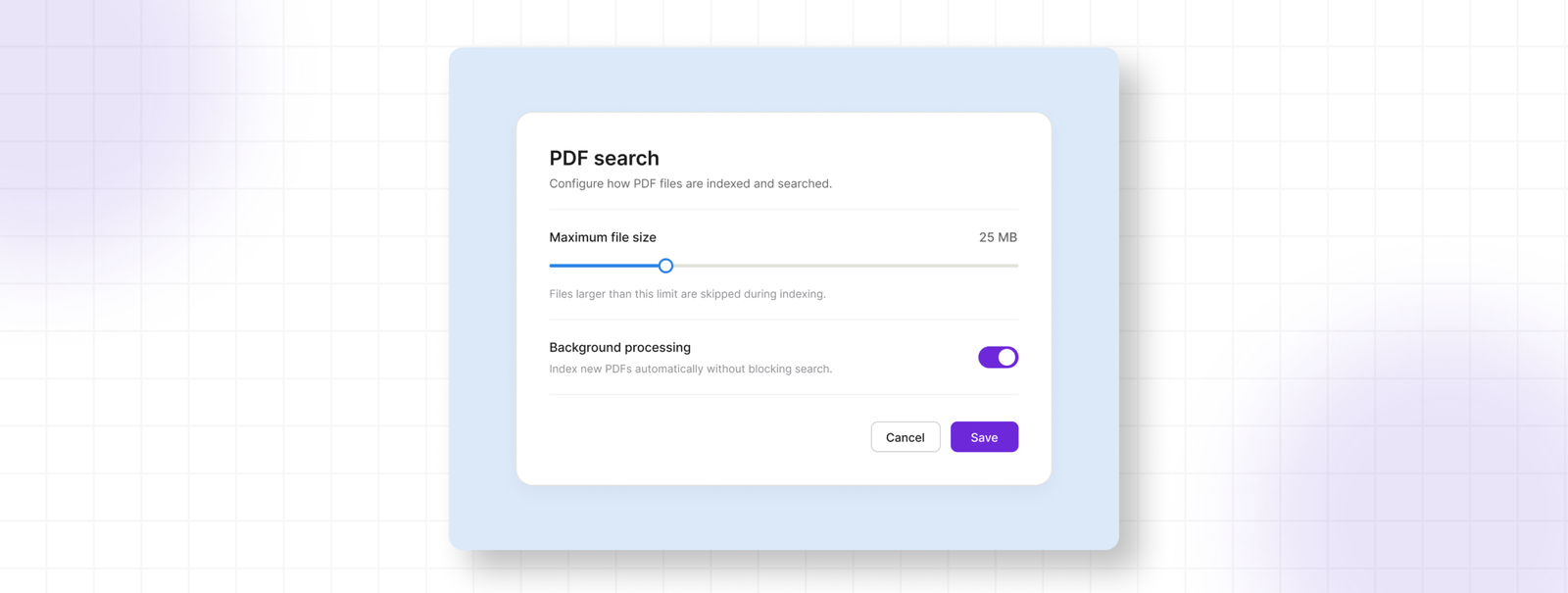
The second is the PDF search pluginโ€™s indexing limit. With WebEquipe PDF Search, the default maximum is 50MB per PDF and can be increased up to 500MB. Files over 10MB are processed in the background so the admin page does not have to remain open.

That means โ€œlargeโ€ does not automatically mean โ€œfailed.โ€ A 20MB report may simply be scheduled. But a file larger than the configured maximum can remain unindexed until the limit is raised or the PDF is reduced.

Annual reports, technical manuals, and image-heavy catalogues are common offenders. Before increasing the limit, consider compressing images or splitting a very large archive into useful sections. That can improve indexing and downloads at the same time.

PDF Search settings showing Maximum File Size and Background Processing options

5. Corrupted or Malformed PDFs

A PDF does not have to be completely broken to cause an indexing failure.

Browsers and desktop readers can sometimes repair small structural problems while opening a file, so it appears normal to the person checking it. A server-side parser may be less forgiving.

An incomplete upload, faulty export, broken internal references, invalid embedded objects, or a non-PDF file using the .pdf extension can all cause extraction to fail.

From the front end, the problem still looks silent: a visitor searches for text and gets nothing. In the WordPress admin area, the file should appear with an error rather than being treated as successfully indexed.

The simplest repair is usually to export a fresh PDF from the source document. If the source is unavailable, opening the file in a reliable editor and using Save As or Print to PDF may rebuild it. Replace the file, re-index it, and test a distinctive phrase from inside the document.

6. PDFs That Were Intentionally Excluded

The final type is not a technical failure.

WebEquipe PDF Search allows administrators to mark a PDF as Excluded. This is useful for drafts, outdated files, test documents, internal resources, and anything that should remain in the Media Library without appearing in search.

Exclusion is persistent. An excluded PDF is skipped during normal indexing, bulk indexing, and Re-index All PDFs. Otherwise, one bulk action could accidentally make private or unfinished files searchable again.

This creates an easy point of confusion. An administrator may re-index everything and assume every file was included. The excluded documents were not missed; they were deliberately skipped.

To make one searchable again, first change it from Excluded to Included, then index it. Inclusion makes the file eligible for indexing; it does not necessarily index the content in the same step.

Media Library showing an Excluded PDF and the Include action

How to See Which PDFs Are Actually Indexed

Do not diagnose PDF search by guessing from the front end. Check the index directly.

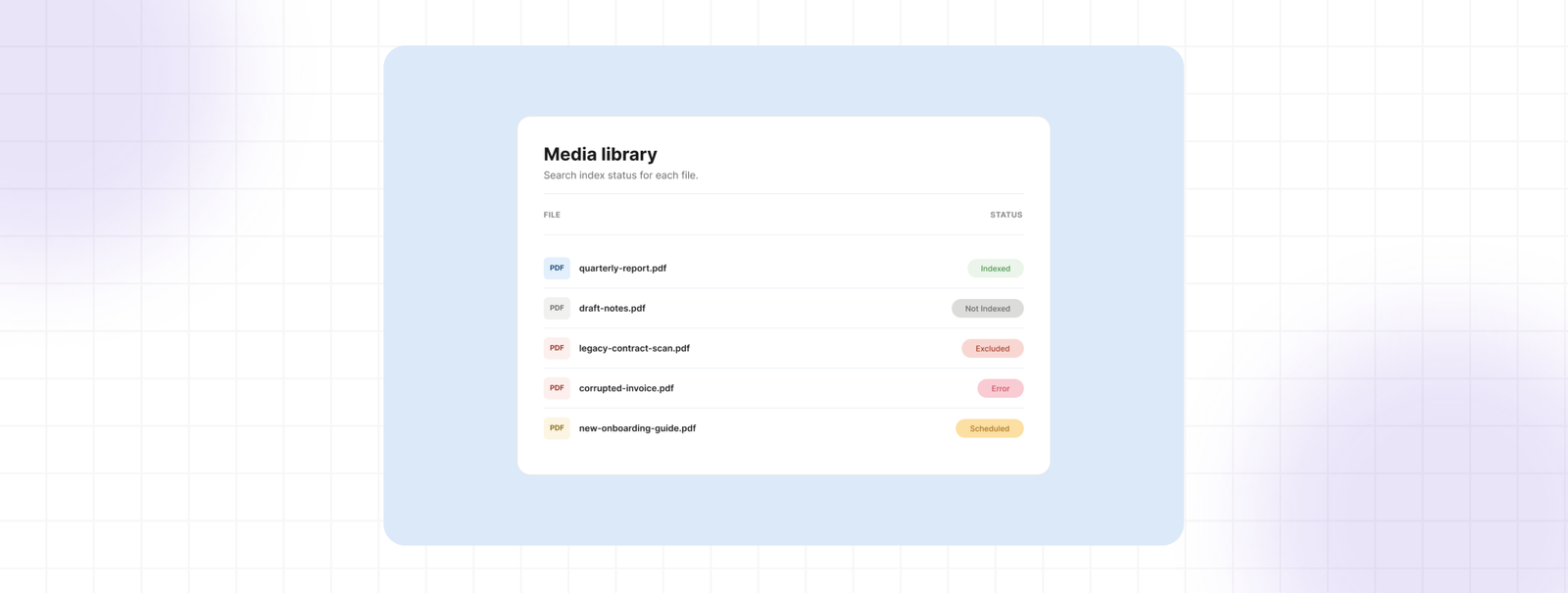
Open Media โ†’ Library in WordPress and switch to list view. WebEquipe PDF Search adds a Search Indexed column showing each PDFโ€™s state:

Indexed means text was extracted and the PDF is available to search.

Not Indexed means the file is in the Media Library but has not been added to the search index.

Excluded means it has been intentionally blocked. Re-index All PDFs will skip it.

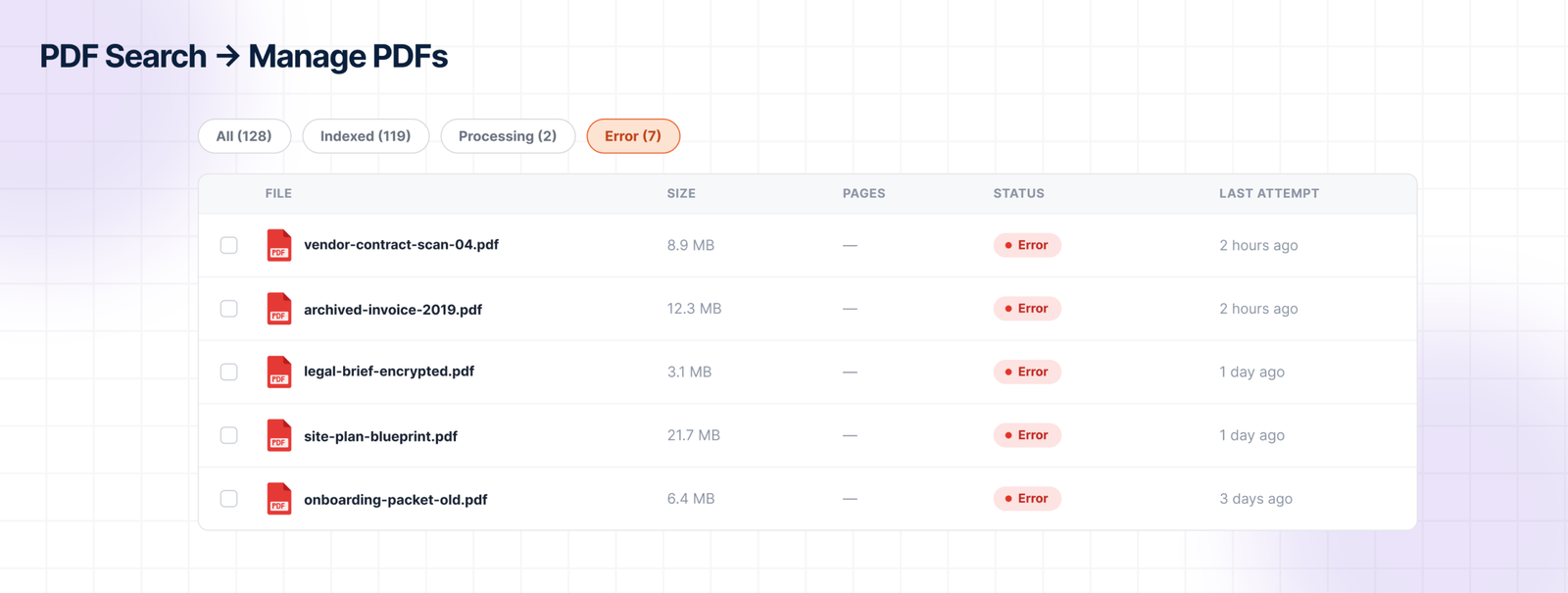
Error means indexing was attempted but failed. The error details can help identify an unreadable, protected, damaged, or unsupported file.

Scheduled can appear when a large PDF has been queued for background processing. It is not necessarily a failure; WordPress cron still needs to run the job.

Media Library list view showing Search Indexed statuses: Indexed, Not Indexed, Excluded, Error, and Scheduled

Then test the result by searching for a distinctive phrase that appears only inside the PDF. A filename or title is not a reliable test because WordPress may know that metadata without knowing anything about the pages inside the file.

The Search Box Is the Last Place You Notice the Problem

When WordPress PDF search is not working, the cause is not always the search form. The document may have no text layer, may be protected, may exceed a processing limit, may be malformed, or may have been intentionally excluded.

The common thread is that visitors receive no explanation. They search, see no result, and assume the information is not on the site.

Check the Search Indexed column in your own Media Library. It will tell you more than the search box ever will.

WebEquipe PDF Search can index standard text-based PDFs for free. Scanned and image-only documents need OCR, which is the PDF Search Pro capability designed for files ordinary text extraction cannot read.

How to Connect Your WordPress Site to Anything (No Code Needed)

If you run a WordPress site, you already know this feeling: someone fills out your contact form, WordPress saves it, maybe sends you an email โ€” and that’s it. The data just sits there. You end up opening your inbox, copying the details by hand, and pasting them into Slack or a spreadsheet so your team actually sees it.

It’s the same with a WooCommerce order, or someone finishing a course, or joining a membership. WordPress knows it happened. It just doesn’t tell anyone.

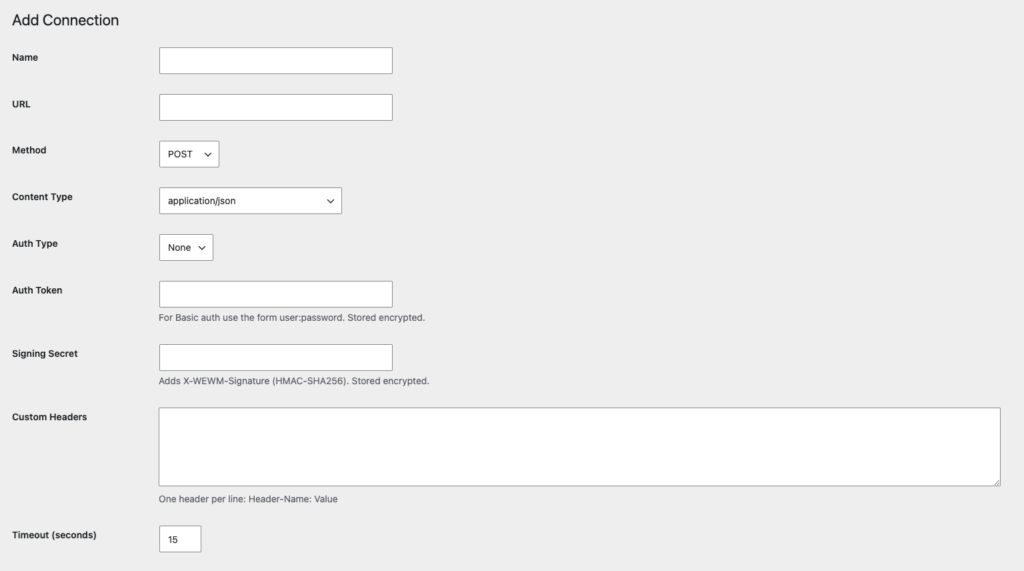
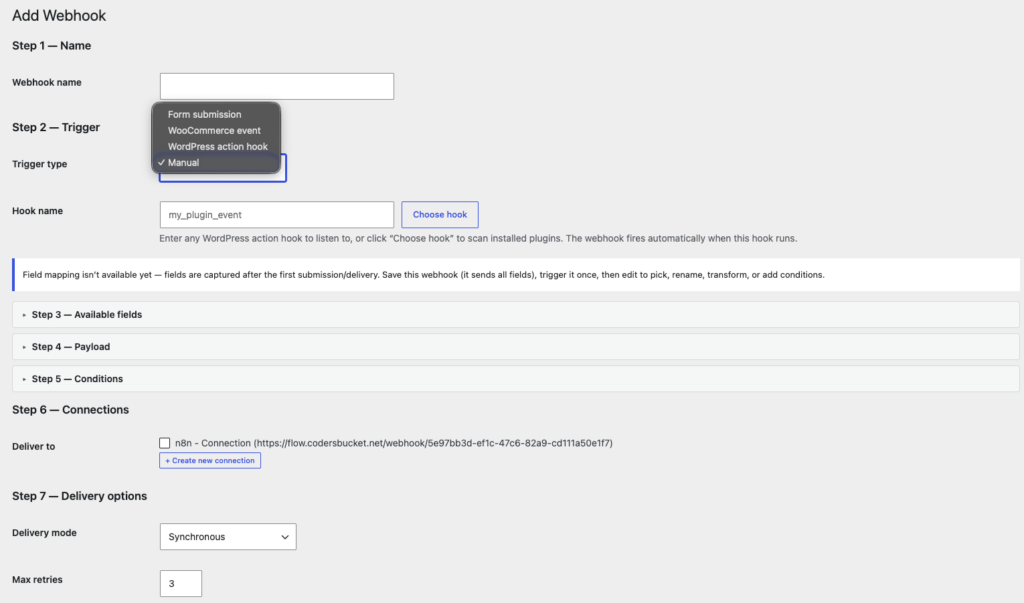
We ran into this constantly while building sites for clients, and eventually got tired of writing one-off code for every single integration. So we built Webhook Manager to fix it properly, once.

What it does

Webhook Manager watches for things happening on your site โ€” a form submitted, an order placed, whatever matters to you โ€” and sends that information wherever you want it to go. Automatically. No copy-pasting, no manual data entry, and you don’t need a developer to set it up.

It plugs into tools you’re probably already using, like n8n, Zapier, or Make, or really any URL that can receive data. If it happens on WordPress, this plugin can catch it.

What that actually looks like

Take a Contact Form 7 submission. Right now, it just sits in your inbox. With this plugin, it can show up in a Slack channel within seconds โ€” your team sees the lead the moment it comes in, not whenever someone happens to check email.

Or WooCommerce orders. Hook it up to n8n and every new order can drop into a Google Sheet automatically โ€” order total, customer email, whatever fields you care about โ€” no plugin, no export, no manual updating.

Or membership and course platforms. Someone finishes a course, or upgrades their membership, and that can kick off a welcome email sequence in Zapier or Make without you lifting a finger.

None of this is hypothetical โ€” these are the exact problems we kept solving manually for clients before we finally built something that just handles it.

Setting it up

There’s no code involved. It’s really three decisions:

First, pick the event you care about โ€” a form, an order, a signup, whatever it is.

Then tell it where that information should go โ€” Slack, a spreadsheet, an email tool, anything you already use.

And that’s basically it. From then on, it just runs in the background. You set it up once and forget about it.

Why we built it this way

A lot of tools like this assume you’re comfortable with APIs, or that you’ll just hire someone to “integrate” your site. We didn’t want that. If you can click a few dropdowns, you can set this up โ€” no code, no jargon, no developer required.

If you’ve ever thought “there has to be a way to automate this,” there is now.

Try it

Webhook Manager is free on the WordPress plugin directory. Install it, connect your first event, and watch your data start moving on its own.

Get Webhook Manager on WordPress.org โ†’

What I’d Check on Every WordPress Site Before Calling Its PDF Section Done

What I'd Check on Every WordPress Site Before Calling Its PDF Section Done

Before I call a PDF section done on any WordPress site, I do not only check if the files are uploaded.

I check if people can actually find them.

A PDF section may look fine from the outside. But behind the scenes, some files may not be searchable. Scanned PDFs may not work. Private files may show in public search. Large PDFs may fail before they finish processing.

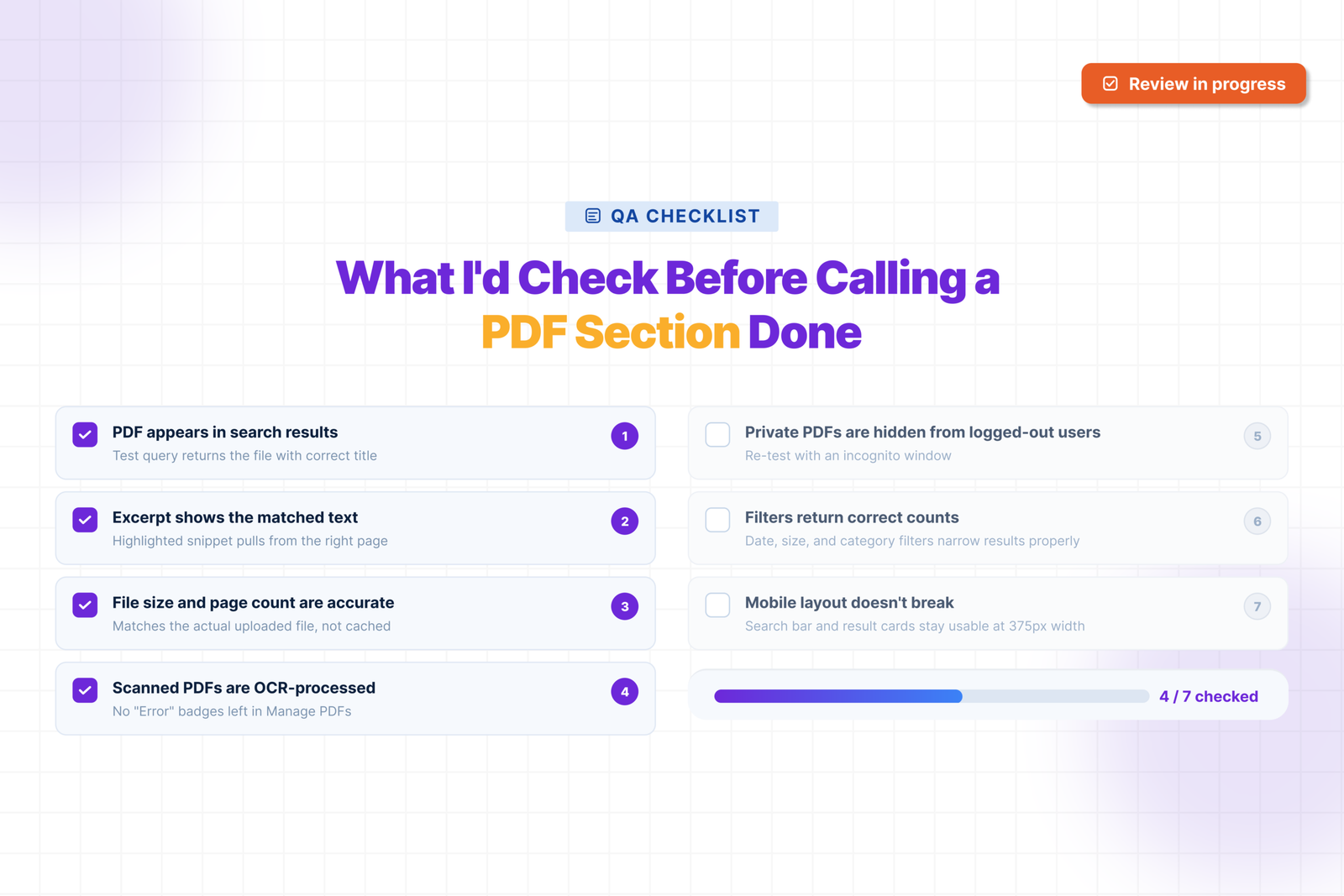
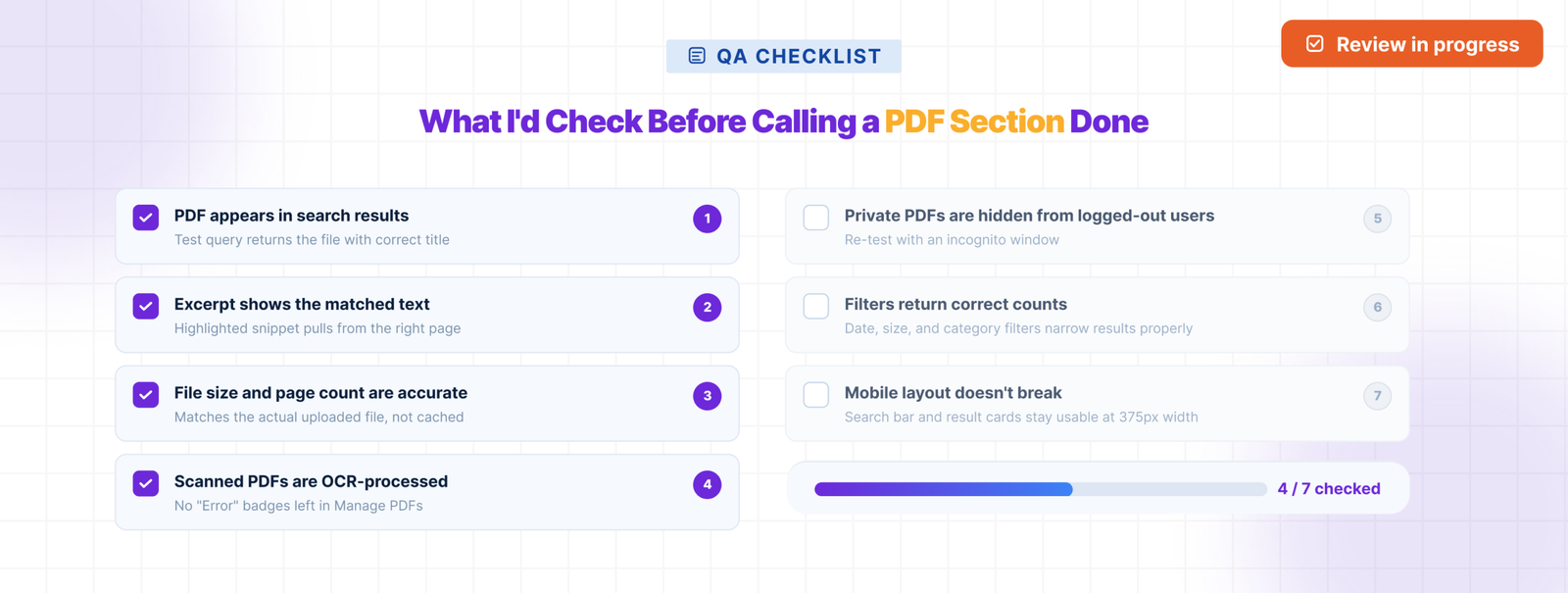
Here are the 7 checks I would run before saying a WordPress PDF section is ready.

Check 1 โ€” Is every PDF actually indexed?

The first thing I check is whether each PDF is indexed.

When you upload a PDF to WordPress, WordPress stores the file. But it does not read the text inside the PDF by default. So a visitor may search for a word that exists inside the PDF and still get no result.

In WebEquipe PDF Search, I would go to the Media Library and check the PDF status column. This shows which files are indexed and which files still need work.

After installing the plugin, I would run Re-index All PDFs. This helps the plugin check the PDFs that were already uploaded before the plugin was installed.

If a file still shows Not Indexed after that, I would not ignore it. It may be too large. It may be scanned. It may have failed while processing. Or it may simply need to be indexed again.

For a small site, I would check every PDF. For a large site, I would filter by status and start with the problem files.

Check 2 โ€” Are there scanned PDFs in the library?

This is a common reason PDF search does not work.

Some PDFs are text-based. These are usually made from Word, Google Docs, or another document tool. You can open the PDF, select a word, copy text, and search inside it.

Scanned PDFs are different. They are images of pages. Someone scanned a paper document and saved it as a PDF. It looks like a normal PDF, but there is no real text inside for the plugin to read.

The quick test is simple. Open the PDF in a browser and try to highlight a word.

If you can select the word, it is text-based. If your mouse only draws a box over the page, it is probably scanned.

Normal PDF indexing cannot read scanned text. The plugin tries to extract text, but there is nothing to extract. That is why scanned PDFs may show an error or stay missing from search.

If scanned PDFs need to be searchable, they need OCR. OCR reads the image and turns the words into searchable text.

Check 3 โ€” Are private documents showing up in public search?

The next thing I check is visibility.

A lot of teams assume that if a PDF is not linked clearly, it is private. That is not true. If a PDF is uploaded to WordPress and indexed, it may appear in search results unless visibility is controlled properly.

There are two different needs here.

If a PDF should not appear in search at all, use Exclude. This removes the file from search indexing. The PDF stays in the Media Library, but it does not show in search results.

If a PDF should be searchable only for logged-in users, use Private PDF Search. This is useful for member handbooks, staff documents, or client resources.

I always test this from both sides. First, I search while logged in. Then I open a private/incognito window and search again as a logged-out visitor. If a restricted document appears publicly, the PDF section is not ready.

PDF search is not only about helping users find documents. It is also about making sure the wrong users cannot find the wrong documents.

Check 4 โ€” Does the search form work standalone?

I also test the PDF search form separately from the main website search.

For many websites, this matters a lot. A resource center, document portal, help section, or membership area may need its own PDF-only search form. Visitors in that section usually do not want blog posts, pages, or products mixed into the results. They only want documents.

With WebEquipe PDF Search, the shortcode form can be added to a page using:

[ webequipe_pdf_search_form]

I would place this on a test page and search for a few known PDF terms. I check whether the right results appear, whether the title makes sense, whether the excerpt is useful, and whether the file link opens correctly.

This is also helpful when the main WordPress search is controlled by another plugin or theme. A standalone form keeps PDF search easier to test and manage.

Check 5 โ€” What do zero-result searches look like?

A search system should also be tested when it fails.

I always try a few searches that should return no results. Visitors may use the wrong word, a short term, a spelling mistake, or a phrase that is not inside any PDF.

If the page only says โ€œNo results foundโ€ with no next step, users may think the site is broken. They may not know whether the document is missing, not indexed, private, or named differently.

A better zero-result message should help them continue. It can suggest trying another keyword, checking spelling, browsing the document category, or contacting the site owner.

This is a small detail, but it matters in real use. A good empty result page can stop visitors from giving up too quickly.

Check 6 โ€” Is the excerpt length right?

PDF search results need context.

If the result only shows the file name, users may not know whether that PDF is useful. A good excerpt shows the matching text and helps the visitor decide whether to open the file.

The default excerpt length is around 200 characters. That may be fine for short documents, but technical PDFs, manuals, reports, and policies often need more context.

I would search for a term inside a PDF and check the front-end result. Does the excerpt show enough surrounding text? Does it explain why the PDF matched? Or is it too short to be helpful?

If needed, I would adjust the excerpt length from the PDF search display/settings area. This is not only a design decision. It affects whether users trust the result.

Check 7 โ€” Are large PDFs processing correctly?

Large PDFs need extra attention.

A small PDF may index quickly. A large PDF with many pages can take longer. If the server has a low timeout limit, indexing may stop before it finishes.

That is why I check whether Background Processing is enabled for large libraries or large files.

Background Processing lets the plugin handle indexing in a queue instead of trying to complete everything in one browser request. This is safer for websites with many PDFs or heavy documents.

If it is turned off, large PDFs may stay stuck in Processing, fail during indexing, or never become searchable. The admin may think everything is done, but some important files are still missing.

I would also check the index activity or processing log. If I see repeated failures, timeout errors, or files stuck for too long, I would fix that before approval.

Conclusion

Before calling a WordPress PDF section done, I would check more than the upload page.

I would confirm that PDFs are indexed, scanned files are handled, private files are protected, the standalone search form works, zero-result searches are helpful, excerpts give enough context, and large PDFs process correctly.

For text-based PDFs, the free WebEquipe PDF Search plugin is enough to get started. If the site has scanned documents or member-only PDFs, those need extra handling. But the first step is always the same: check the library properly before calling the work complete.

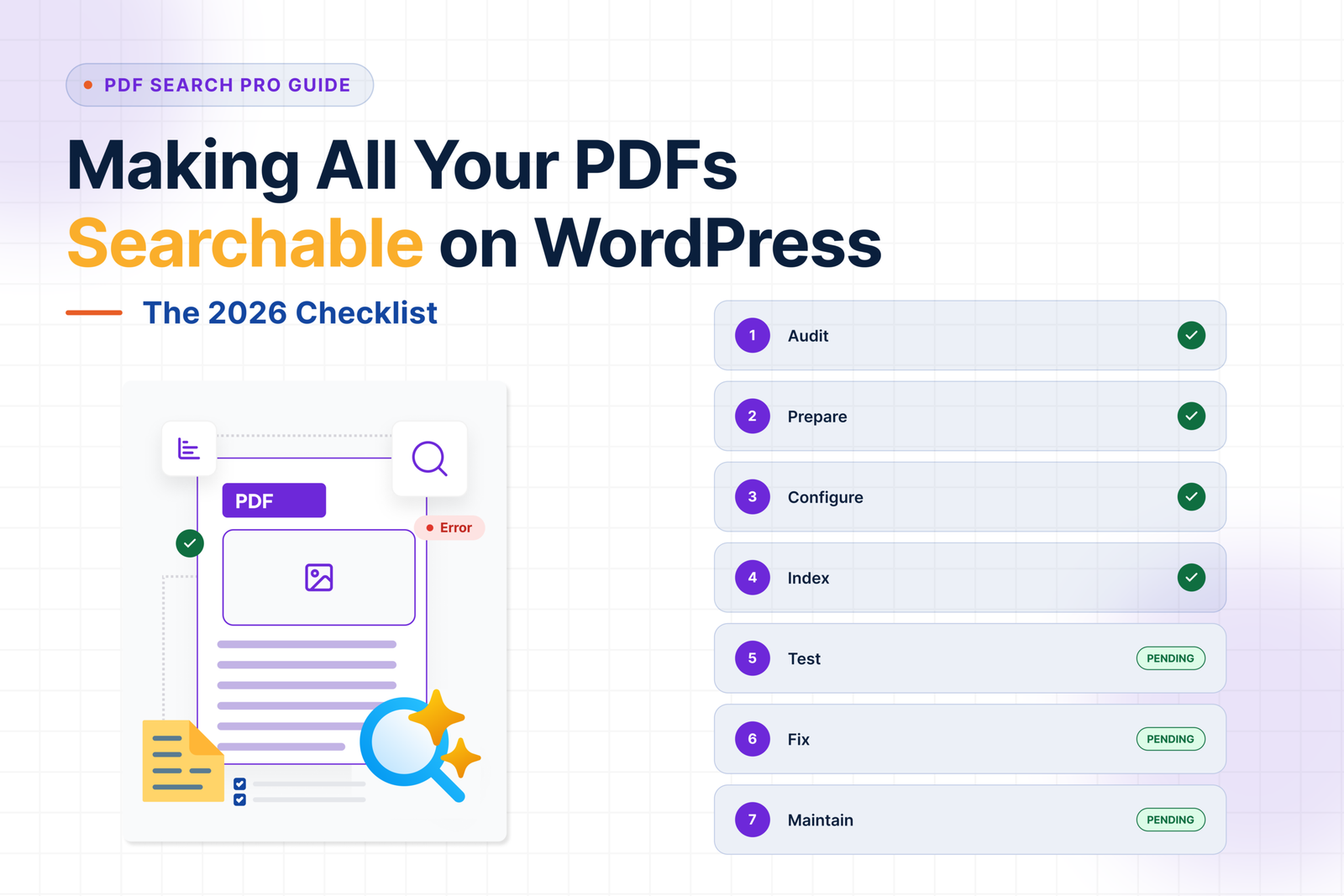
Checklist: Making All Your PDFs Searchable on WordPress in 2026

Checklist: Making All Your PDFs Searchable on WordPress in 2026

Getting PDF search working on WordPress isn’t complicated โ€” but it’s easy to miss a step and end up with half your library invisible to search, a handful of Error files nobody’s looked at, or private documents showing up where they shouldn’t.

This checklist covers the full process from start to finish. Use it when setting up PDF search for the first time, after a major plugin update, or as a periodic audit on a large document library.

Table of Contents

  1. Audit Your PDF Library
  2. Prepare Your PDFs
  3. Install and Configure the Plugin
  4. Index Your Library
  5. Test Search
  6. Handle Problem Files
  7. Ongoing Maintenance

Step 1 โ€” Audit Your PDF Library

Before touching any plugin settings, know what you’re working with.

๐ŸŸฅ Identify how many PDFs you have.

Go to Media โ†’ Library, filter by PDF file type, and get a rough count. Large libraries โ€” hundreds of files โ€” will take longer to index and may need Background Processing enabled from the start.

๐ŸŸฅ Separate text-based PDFs from scanned ones.

Open a sample of your PDFs in a browser and try to highlight text. If you can select words, it’s text-based. If you can’t, it’s scanned. Scanned PDFs need OCR โ€” a paid feature โ€” so knowing how many you have tells you whether you need a Pro plan from day one or whether the free plugin covers your whole library.

๐ŸŸฅ Flag PDFs that shouldn’t be searchable.

Drafts, outdated versions, internal working documents, anything that shouldn’t appear in public search results โ€” note these now. You’ll exclude them during setup.

๐ŸŸฅ Flag PDFs that should be restricted to logged-in users.

Member handbooks, staff policies, client resources โ€” anything that should be searchable but only by people who are signed in. These get set to Private. Also a paid feature.

Step 2 โ€” Prepare Your PDFs

A few things to sort out before indexing saves problems later.

๐ŸŸฅ Clean up filenames.

The filename becomes the title in search results. 2025-annual-report.pdf is useful. doc-FINAL-v3-revised.pdf is not. Rename files with messy names before indexing โ€” renaming after means re-indexing.

๐ŸŸฅ Remove password protection from files that need to be searchable.

Password-protected PDFs can’t be indexed by any method. If a file needs to be searchable, the password needs to come off first.

๐ŸŸฅ Check file sizes.

The default maximum indexable file size is 50MB. Files above that won’t be processed unless you raise the limit in settings. Check if any of your PDFs exceed this and decide whether to raise the limit or split those files.

๐ŸŸฅ Make sure PDFs are in your WordPress Media Library.

The plugin indexes PDFs attached to WordPress. Files hosted externally or embedded via iframe won’t be picked up.

Step 3 โ€” Install and Configure the Plugin

๐ŸŸฅ Install WebEquipe PDF Search.

Go to Plugins โ†’ Add New, search for WebEquipe PDF Search, install and activate. For scanned PDFs or private search, activate your Pro or Agency licence in PDF Search โ†’ Settings.

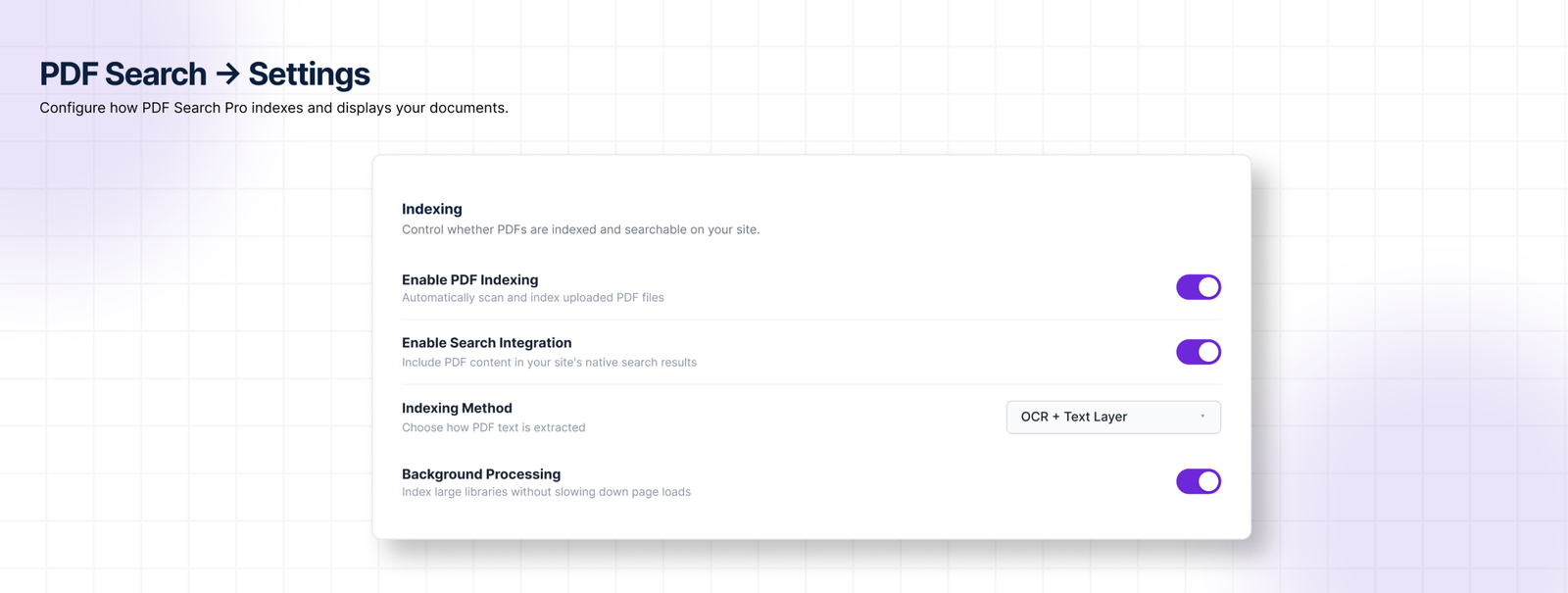
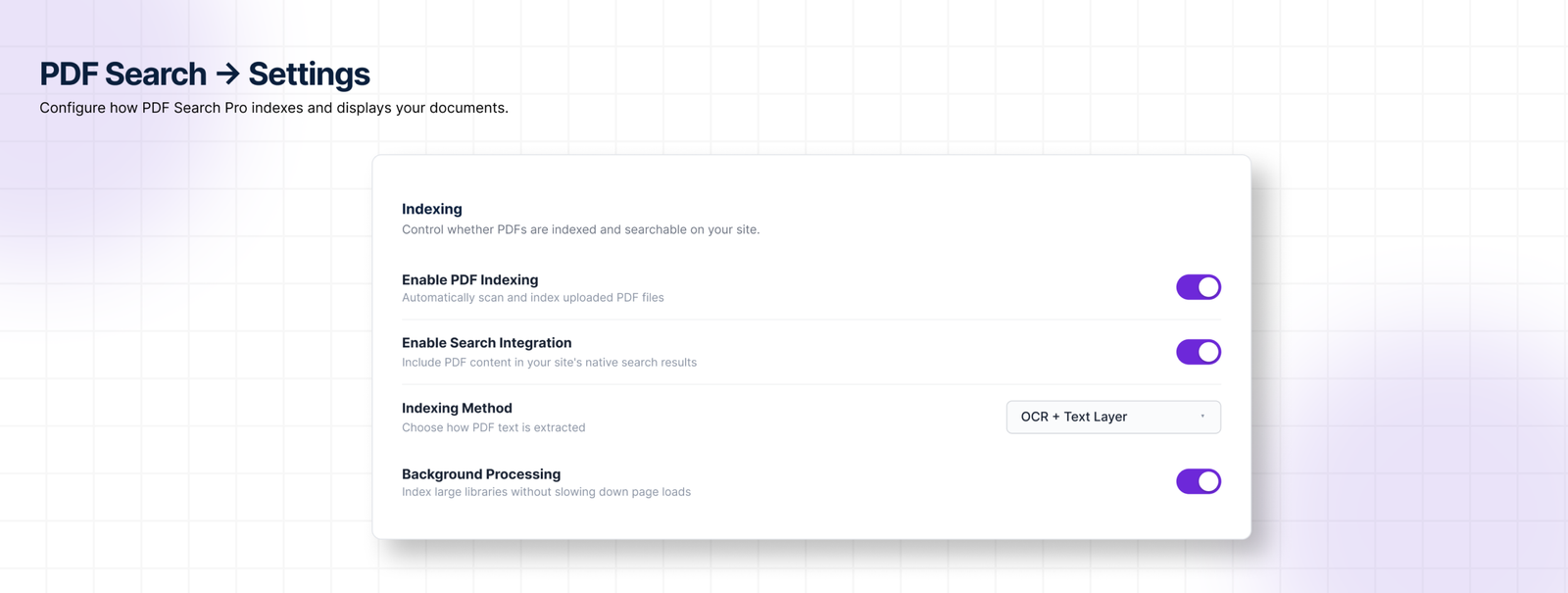
๐ŸŸฅ Turn on Enable PDF Indexing.

In PDF Search โ†’ Settings โ€” this ensures new uploads get indexed automatically going forward.

๐ŸŸฅ Turn on Enable Search Integration.

Also in PDF Search โ†’ Settings โ€” this makes PDF results appear in your site’s standard WordPress search. Leave it off if you only want PDFs in a dedicated shortcode form.

๐ŸŸฅ Set your Indexing Method.

  • Text-based PDFs only โ†’ Native
  • Scanned PDFs only โ†’ OCR Only
  • Mix of both โ†’ Native + OCR Fallback (recommended for most sites)

๐ŸŸฅ Enable Background Processing for large libraries.

In PDF Search โ†’ Settings โ†’ Advanced. Essential for sites with large PDFs or many files โ€” moves indexing into a background queue so it doesn’t hit PHP execution limits.

๐ŸŸฅ Set Default Search Visibility if needed.

If most new uploads should be Private by default, set this in PDF Search โ†’ Settings. Individual files can still be switched to Public as needed.

๐ŸŸฅ Set your file size limit.

If you have PDFs over 50MB that need indexing, raise the Maximum File Size in PDF Search โ†’ Settings.

Set your file size limit

Step 4 โ€” Index Your Library

๐ŸŸฅ Run Re-index All PDFs.

Go to PDF Search โ†’ Dashboard and click Re-index All PDFs. This processes every non-excluded PDF in your library. For large libraries this runs in batches โ€” leave it running and check back.

๐ŸŸฅ Exclude PDFs that shouldn’t be searchable.

While indexing is running or after it completes, go through PDF Search โ†’ Manage PDFs and Exclude any files you flagged in Step 1. Excluded files get skipped in all future re-index runs.

๐ŸŸฅ Set Private PDFs.

For files that should be searchable only by logged-in users, open each one in Media โ†’ Library, set Search Visibility to Private, and save. Or use the bulk action Make Private in Manage PDFs for multiple files at once.

๐ŸŸฅ Check index coverage.

Once Re-index All PDFs completes, go to PDF Search โ†’ Dashboard and check the coverage percentage. If it’s significantly below 100%, there are PDFs that need attention.

๐ŸŸฅ Test standard search.

Search for a specific phrase you know appears inside one of your PDFs. It should appear in results with a title, excerpt from the matching page, and file details.

๐ŸŸฅ Test a PDF-only shortcode form if you’re using one.

Add [ webequipe_pdf_search_form ] to a test page and search for the same phrase. Confirm results appear correctly.

๐ŸŸฅ Test private PDF visibility.

Open a private browsing window and search for a PDF you’ve set to Private. It should not appear. Log in and search again โ€” it should show up.

๐ŸŸฅ Test an excluded PDF.

Search for content from a PDF you’ve excluded. It should not appear in any results.

Test an excluded PDF.

Step 6 โ€” Handle Problem Files

๐ŸŸฅ Check for Error status PDFs.

Go to PDF Search โ†’ Manage PDFs and filter by Error. These are files that failed indexing.

  • If they’re scanned โ†’ run bulk action Index OCR (requires paid plan)
  • If they’re password-protected โ†’ remove the password, then re-index
  • If they’re corrupted โ†’ replace the file, then re-index

๐ŸŸฅ Check for PDFs stuck in Processing.

If any files have been in Processing status for an unusually long time, check the cron status indicator on the Dashboard. A broken cron is the most common cause of stalled indexing jobs.

๐ŸŸฅ Review the Index Activity log.

Go to PDF Search โ†’ Index Activity and scan for Failed runs. Click the detail icon on any failed entry to see exactly what went wrong. This is the fastest way to diagnose stubborn files.

Review the Index Activity log.

Step 7 โ€” Ongoing Maintenance

PDF search isn’t set and forget. A few habits keep it running cleanly.

๐ŸŸฅ Re-index after replacing a PDF.

If you swap out a file for a newer version, the index doesn’t update automatically. Go to that PDF in your Media Library and click Re-index.

๐ŸŸฅ Check index coverage periodically.

New PDFs uploaded without indexing enabled, files that failed silently, PDFs that got excluded by mistake โ€” these all show up as gaps in coverage. A monthly check of the Dashboard coverage metric catches them early.

๐ŸŸฅ Monitor OCR credit usage.

If you’re on a paid plan using OCR, keep an eye on your monthly page allowance in PDF Search โ†’ Dashboard. Running out mid-month means new scanned uploads queue but don’t process until credits reset.

๐ŸŸฅ Export Index Activity logs for large libraries.

For sites managing hundreds of PDFs, exporting the Index Activity CSV periodically gives you a record of what was indexed, when, and by which method. Useful for audits and for diagnosing patterns in failures.

๐ŸŸฅ Test search after WordPress or plugin updates.

Major WordPress updates and plugin updates can occasionally affect how search results are rendered. A quick search test after any significant update confirms everything is still working.

Quick Reference โ€” Status Badges in Manage PDFs

Status What it means Action
Indexed In search, working correctly None needed
Not Indexed In library, not yet processed Click Index
Processing Currently being indexed Wait
Scheduled Queued for background processing Wait
Error Indexing failed Check error detail, re-index or use OCR
Excluded Removed from search deliberately Click Include to restore

Frequently Asked Questions

How long does Re-index All PDFs take?

Depends on library size and file sizes. A library of 50 standard PDFs typically completes in a few minutes. Several hundred PDFs, or files with many pages, can take longer โ€” especially if Background Processing is handling them in batches. Check progress in PDF Search โ†’ Index Activity.

Do I need to re-index every time I upload a new PDF?

No. With Enable PDF Indexing turned on, new uploads are indexed automatically. You only need to run Re-index All PDFs manually for files that were uploaded before the plugin was installed, or to reprocess files after changing the indexing method.

What’s the difference between Exclude and Delete?

Exclude only affects search indexing โ€” the file stays in your Media Library and is still accessible via its direct URL. Delete removes the file entirely from WordPress. Use Exclude for files you want to keep but not make searchable.

Can I index PDFs that are stored outside WordPress?

No. The plugin indexes PDFs in your WordPress Media Library. Files hosted on external servers, embedded via iframe, or linked from third-party storage aren’t picked up.

What happens to my index if I deactivate the plugin?

The index tables stay in your database โ€” nothing is deleted on deactivation. If you want a full clean removal, enable Delete Data on Uninstall in PDF Search โ†’ Settings โ†’ Advanced before uninstalling.

Done

If you’ve worked through every step above, your PDF library is fully indexed, problem files are diagnosed, restricted documents are properly controlled, and you have a maintenance routine in place.

For the full setup guide if you’re starting from scratch:

How to Make WordPress Search Inside PDF Files โ†’

Ajax Search Pro vs WebEquipe PDF Search: File & PDF Search Compared

Ajax Search Pro vs WebEquipe PDF Search: File & PDF Search Compared

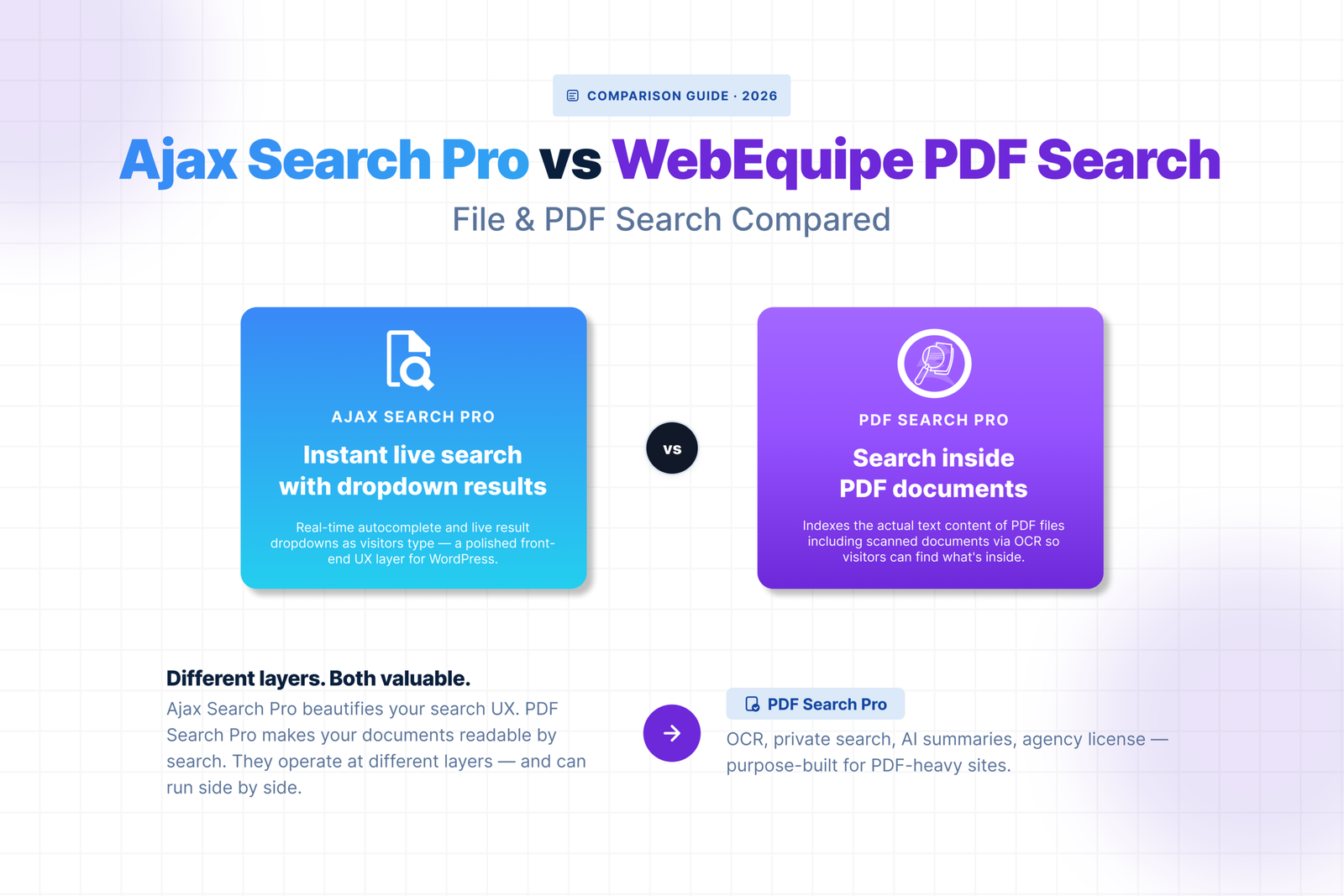
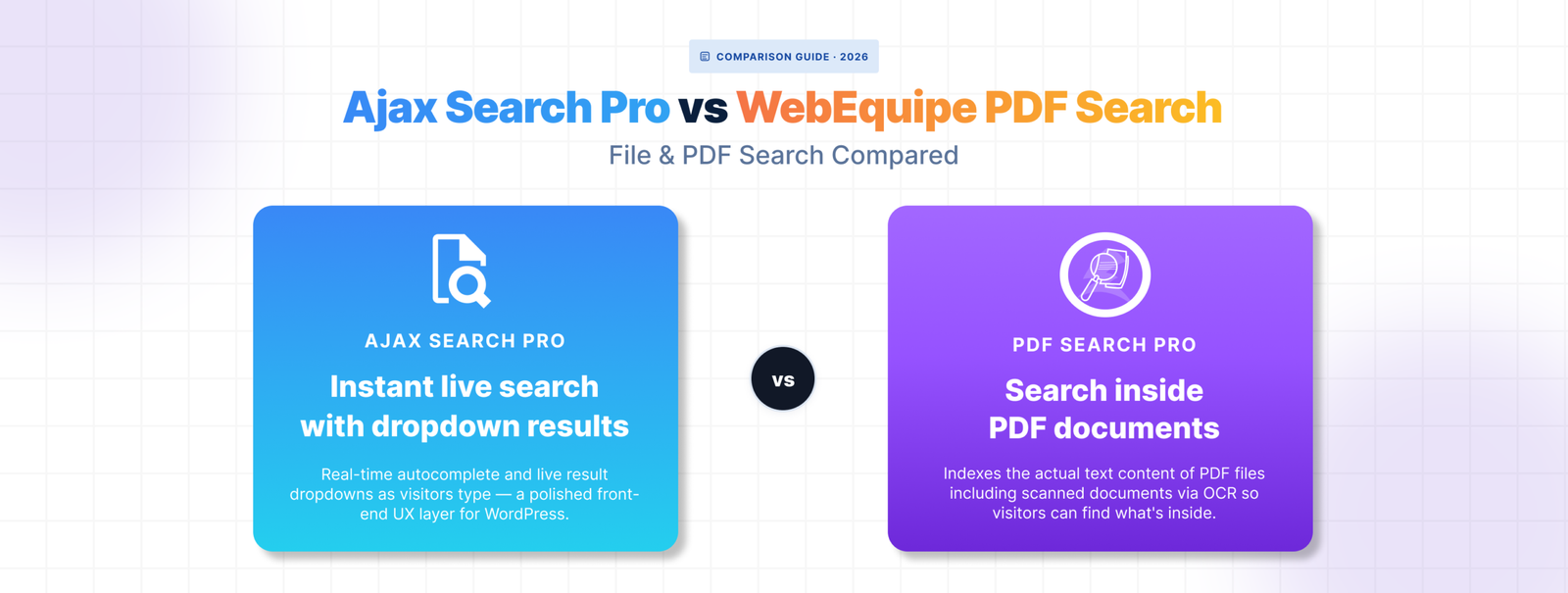
Ajax Search Pro is a popular choice for live search on WordPress โ€” the kind where results appear as you type, with images, custom post types, and styled dropdowns. For front-end search UX it’s capable and well-supported.

But if your visitors need to find content inside PDF files โ€” not just PDF titles, but the actual text on page four of a document โ€” Ajax Search Pro wasn’t built for that. File content search is a limited feature, not a core one.

Here’s where the difference shows up.

What Ajax Search Pro Does Well

Ajax Search Pro delivers real-time search with a polished front-end experience. Results appear as the user types, with support for featured images, custom post types, WooCommerce products, and custom fields. The visual customisation is extensive โ€” dropdown styles, result layouts, colour schemes, mobile behaviour.

For sites where the search experience itself is a priority โ€” e-commerce, directories, content-heavy blogs โ€” that live search UX is genuinely valuable.

How Ajax Search Pro Handles File Content and PDFs

Ajax Search Pro can index file attachments including PDFs, but what it indexes is limited. It reads the text layer of standard PDFs using server-side extraction, which works for straightforward text-based documents.

The file content search feature isn’t the plugin’s primary focus though. Configuration is more involved than a dedicated document search plugin, there’s no dedicated PDF management screen, and diagnosing why a specific PDF isn’t appearing in results means working through general plugin settings rather than a per-file workflow.

Scanned PDFs aren’t supported. There’s no OCR built in. And there’s no native way to mark individual PDFs as visible only to logged-in users.

Where It Falls Short for Document-Heavy Sites

๐ŸŸฅ No OCR for scanned documents

Scanned PDFs have no extractable text layer. Ajax Search Pro can’t index them. For sites with archives of older documents, historical records, or any content that was scanned rather than digitally created, those files are simply invisible to search.

๐ŸŸฅ No private PDF search

Ajax Search Pro doesn’t have a built-in mechanism for restricting individual PDFs to logged-in users. If you need member resources or restricted documents to be searchable only by signed-in visitors, you’d need to handle that through a separate plugin.

๐ŸŸฅ No dedicated PDF management workflow

There’s no screen in Ajax Search Pro that shows you which PDFs are indexed, which have failed, and why. If a document isn’t showing up in search, there’s no per-file status to check. Troubleshooting means working backwards through configuration rather than looking at a clear status log.

๐ŸŸฅ Live search focus can add unnecessary complexity

If you’re running a document library or resource centre, you probably don’t need live as-you-type search with styled dropdowns and image previews. Ajax Search Pro’s strength is also its overhead โ€” you’re configuring a lot of front-end behaviour to get to the document indexing feature underneath.

How WebEquipe PDF Search Compares

WebEquipe PDF Search does one thing โ€” makes PDF content searchable in WordPress. No live search dropdowns, no e-commerce integration, no directory features. Just a clean pipeline from PDF upload to indexed, searchable content.

The free version handles text-based PDFs with auto-indexing on upload, WordPress search integration, a shortcode form, and per-file status management. The Pro version adds OCR for scanned documents and Private PDF Search for logged-in-only visibility.

For a document library, resource centre, or any site where PDFs are the primary content, it’s a simpler and more focused setup.

Feature Comparison

Feature WebEquipe PDF Search Ajax Search Pro
Text-based PDF indexing โœ“ Paid โœ“ Paid ($99/yr)
Scanned PDF / OCR โœ“ Paid (from $89/yr) ร—
Private / restricted PDFs โœ“ Paid ร—
Per-file status management โœ“ ร—
Index Activity log โœ“ ร—
Free tier with PDF search โœ“ ร—
Live as-you-type search ร— โœ“
Styled search dropdown ร— โœ“
WooCommerce search ร— โœ“
Starting price (paid) $89/yr ~$36 one-time

Can You Use Both Together

Yes โ€” and for some sites this makes sense.

Ajax Search Pro handles the live search experience across posts, pages, and products. WebEquipe PDF Search handles the document indexing workflow โ€” OCR, private search, per-file status management โ€” through its own dedicated shortcode form.

To avoid both plugins trying to modify the same WordPress search results, leave Enable Search Integration off in WebEquipe PDF Search settings. Use the [webequipe_pdf_search_form] shortcode on your documents or resources page for PDF-specific search, and let Ajax Search Pro handle live search everywhere else.

Who Should Use Which

๐ŸŸฅ Use WebEquipe PDF Search if:

  • PDF content search is your primary need
  • You have scanned documents that need OCR
  • You need to restrict certain PDFs to logged-in users only
  • You want a dedicated document management workflow with per-file status

๐ŸŸฅ Use Ajax Search Pro if:

  • You need live as-you-type search with a polished front-end experience
  • Your site is e-commerce, a directory, or content-heavy with lots of post types
  • PDF search is a minor secondary need alongside broader search features

๐ŸŸฅ Use both if:

  • You want Ajax Search Pro’s live search UX for your site and WebEquipe’s PDF-specific workflow for your document library

Frequently Asked Questions

Does Ajax Search Pro search inside PDF files?

It can extract and index text from standard text-based PDFs. Scanned PDFs aren’t supported โ€” there’s no OCR built in. For straightforward text-based documents on a site that’s already using Ajax Search Pro, it works for basic cases. For document-heavy sites with scanned files or private search requirements, it falls short.

Is WebEquipe PDF Search cheaper than Ajax Search Pro?

For text-based PDF search, WebEquipe is free. Ajax Search Pro is a one-time purchase of around $36 but doesn’t have a free tier with PDF content search. For scanned PDFs, WebEquipe Pro starts at $89/yr.

Can I use Ajax Search Pro for live search and WebEquipe for PDF content search?

Yes โ€” this is a clean setup. Disable Enable Search Integration in WebEquipe settings and use the shortcode form for PDF search. Ajax Search Pro handles live search everywhere else.

Does Ajax Search Pro support private PDF search for logged-in users?

Not natively. Restricting PDF visibility to logged-in users requires a separate plugin. WebEquipe PDF Search Pro has Private PDF Search built in.

For the full WebEquipe PDF Search setup:

How to Make WordPress Search Inside PDF Files โ†’

Relevanssi vs WebEquipe PDF Search: Which Is Better for PDFs?

Relevanssi vs WebEquipe PDF Search: Which Is Better for PDFs?

Relevanssi is one of the most popular WordPress search plugins for a good reason. It fixes the relevance problems that make default WordPress search frustrating โ€” better ranking, fuzzy matching, AND-OR logic, highlighted excerpts. For sites where search quality matters, it’s a significant upgrade.

But if your problem is specifically that visitors can’t find content inside your PDF files, Relevanssi is solving a different problem. PDF support exists in the Premium version, but it’s not what the plugin was built around.

Here’s how the two compare for sites where PDFs are a primary concern.

What Relevanssi Does Well

Relevanssi replaces WordPress’s default search algorithm with a more sophisticated relevance engine. It weights matches differently depending on where the term appears โ€” title, content, tags, comments โ€” and lets you tune those weights. Search results feel more accurate because they are.

The free version already covers most of that. Fuzzy matching, AND search by default, search term highlighting in excerpts โ€” all free. For a site where visitors struggle to find posts and pages because default search is too literal, Relevanssi free fixes most of it.

Premium adds PDF indexing, searching of user profiles and taxonomy descriptions, multi-site search, and a few other advanced features. It’s $99/yr and well maintained.

Where Relevanssi Falls Short for PDF-Heavy Sites

๐ŸŸฅ PDF support is Premium-only with no free tier

The free version doesn’t touch PDFs at all. If you want PDF content in search results you need Premium at $99/yr. For sites where PDF search is the only thing they’re after, that’s paying for a full search relevance engine to get document indexing.

๐ŸŸฅ No built-in OCR for scanned PDFs

Relevanssi Premium extracts text from PDF files directly. Scanned PDFs โ€” image-based files with no text layer โ€” can’t be indexed. There’s no OCR built in and no native path to index scanned documents without pre-processing them externally first.

For sites with historical archives, old meeting minutes, scanned handbooks, or government forms, this is a hard stop.

๐ŸŸฅ No private PDF search

Relevanssi doesn’t have a built-in mechanism for marking individual PDFs as visible only to logged-in users. Restricting document visibility requires a separate access control or membership plugin, and the integration isn’t always clean.

๐ŸŸฅ No per-file PDF management

Relevanssi doesn’t give you a dedicated screen for managing PDF index status. There’s no way to see which PDFs are indexed, which have failed, and why โ€” at a per-file level. Diagnosing a PDF that isn’t showing up in search means working through general plugin settings rather than a document-specific workflow.

How WebEquipe PDF Search Compares

WebEquipe PDF Search is purpose-built for the PDF search problem. The free version indexes text-based PDFs, integrates with WordPress search, and gives you a full Media Library management screen with per-file status. No relevance tuning, no post/page search improvements โ€” just PDF search done properly.

The Pro version adds OCR via Google Vision for scanned documents, Private PDF Search for logged-in-only visibility, and an Index Activity log that records every processing run with full error detail.

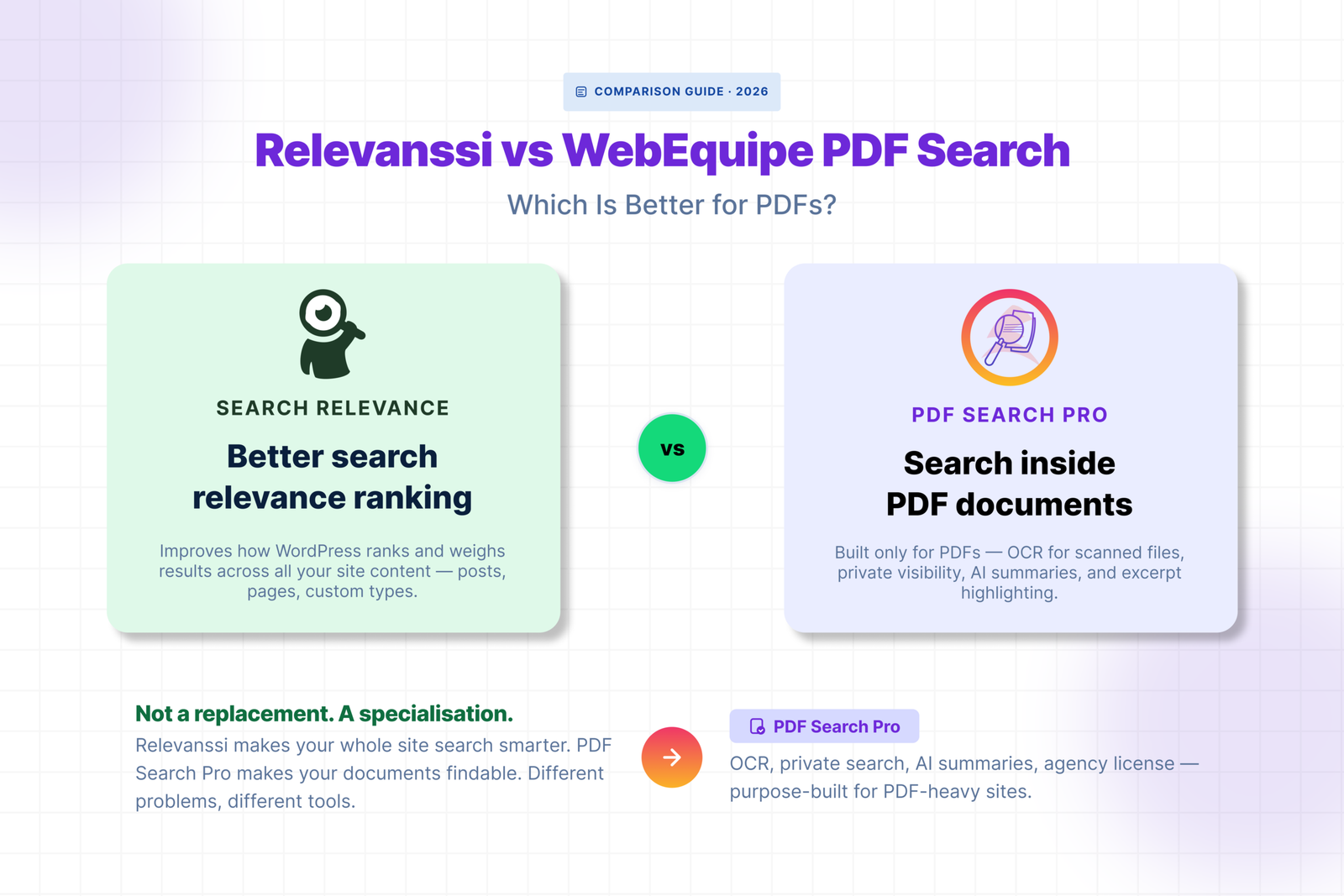
The two plugins are solving different problems. Relevanssi makes your whole site’s search better. WebEquipe makes your PDFs searchable โ€” including the scanned ones.

Feature Comparison

Feature WebEquipe PDF Search Relevanssi Premium
Text-based PDF indexing โœ“ Paid โœ“ Paid ($99/yr)
Scanned PDF / OCR โœ“ Paid (from $89/yr) ร—
Private / restricted PDFs โœ“ Paid ร—
Per-file status management ร— ร—
Index Activity log โœ“ ร—
Free tier with PDF search โœ“ ร—
Search relevance tuning ร— โœ“
Fuzzy matching ร— โœ“
Post / page search improvement ร— โœ“
Starting price (paid) Free / $89/yr $99/yr
Soft CTA

WebEquipe PDF Search free version is on WordPress.org. Pro plans start at $89/yr at webequipe.com/pdf-search.

Using Both Together

These two plugins don’t conflict the way site-wide search replacements do. Relevanssi improves how WordPress searches posts and pages. WebEquipe adds PDF content to that search.

Running both is a clean setup for sites that need better relevance across all content AND proper PDF search. Relevanssi handles the ranking and relevance layer. WebEquipe feeds PDF content into the same search results.

The one thing to watch: both plugins hook into WordPress search results. Test the combined output after activating both to make sure PDF results are appearing and ranked sensibly alongside post results.

Who Should Use Which

๐ŸŸฅ Use WebEquipe PDF Search if:

  • Your main problem is that PDF content isn’t searchable at all
  • You have scanned documents that need OCR
  • You need to restrict certain PDFs to logged-in users
  • You want to start free and only pay for what you need

๐ŸŸฅ Use Relevanssi if:

  • Your search results feel irrelevant or miss obvious matches across posts and pages
  • You need fuzzy matching, AND/OR logic, or weighted relevance tuning
  • PDFs are a secondary concern and standard text-based documents are all you have

๐ŸŸฅ Use both if:

  • You want better search relevance across your whole site AND proper PDF indexing with OCR and private search support

Frequently Asked Questions

Does Relevanssi support scanned PDFs?

No. Relevanssi Premium extracts text from PDFs directly. Scanned PDFs have no text layer so they can’t be indexed without pre-processing the files externally. WebEquipe PDF Search Pro handles scanned documents automatically with built-in OCR.

Is Relevanssi free version enough for PDF search?

No. PDF indexing is a Premium-only feature in Relevanssi. The free version doesn’t index PDF content at all. WebEquipe PDF Search indexes text-based PDFs at no cost.

Can Relevanssi and WebEquipe run on the same site?

Yes. They complement each other well โ€” Relevanssi improves relevance for posts and pages, WebEquipe handles the PDF-specific workflow. Test the combined search output after activating both to confirm PDF results appear correctly.

Which is better for a membership site with restricted PDFs?

WebEquipe PDF Search Pro. Private PDF Search lets you mark individual files as visible only to logged-in users without needing a separate access control plugin. Relevanssi doesn’t have an equivalent feature.

For the full WebEquipe PDF Search setup:

How to Make WordPress Search Inside PDF Files โ†’